Mac Networking guides
Wi-Fi, Ethernet, and the addresses that identify your devices.
 Networking
How to Set Up a VPN on Mac (Built-In and App-Based)
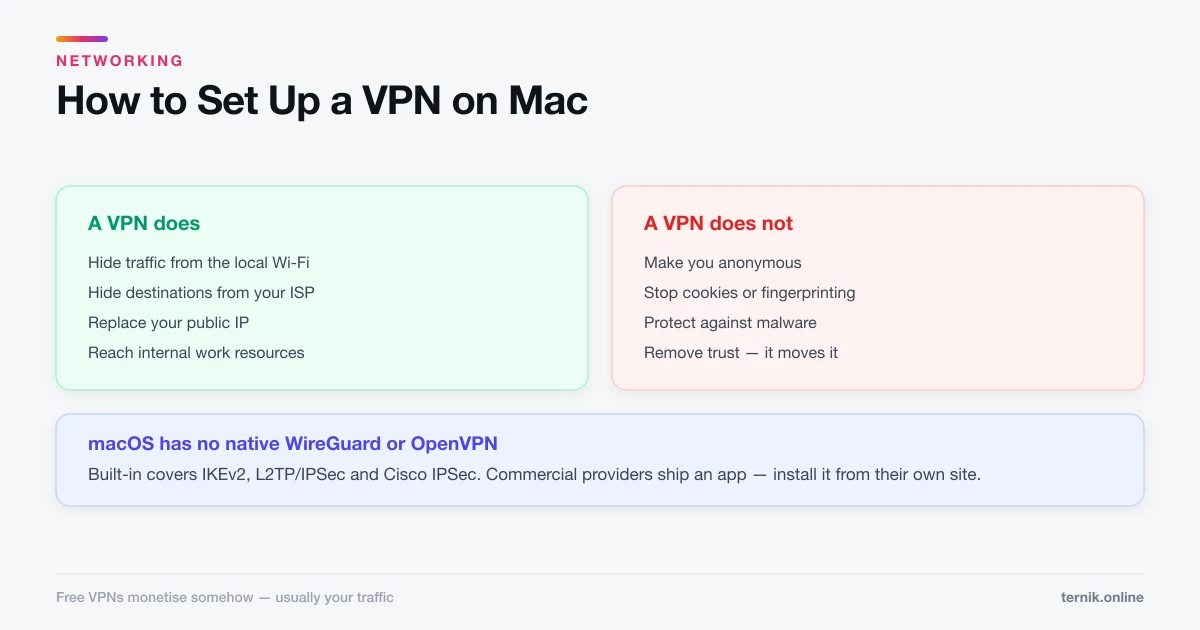
macOS has native VPN support under Network settings, but most commercial providers ship an app instead. Here is both routes, and an honest account of what a VPN protects.
 Networking
How to Find Your IP Address on Mac (Local and Public)
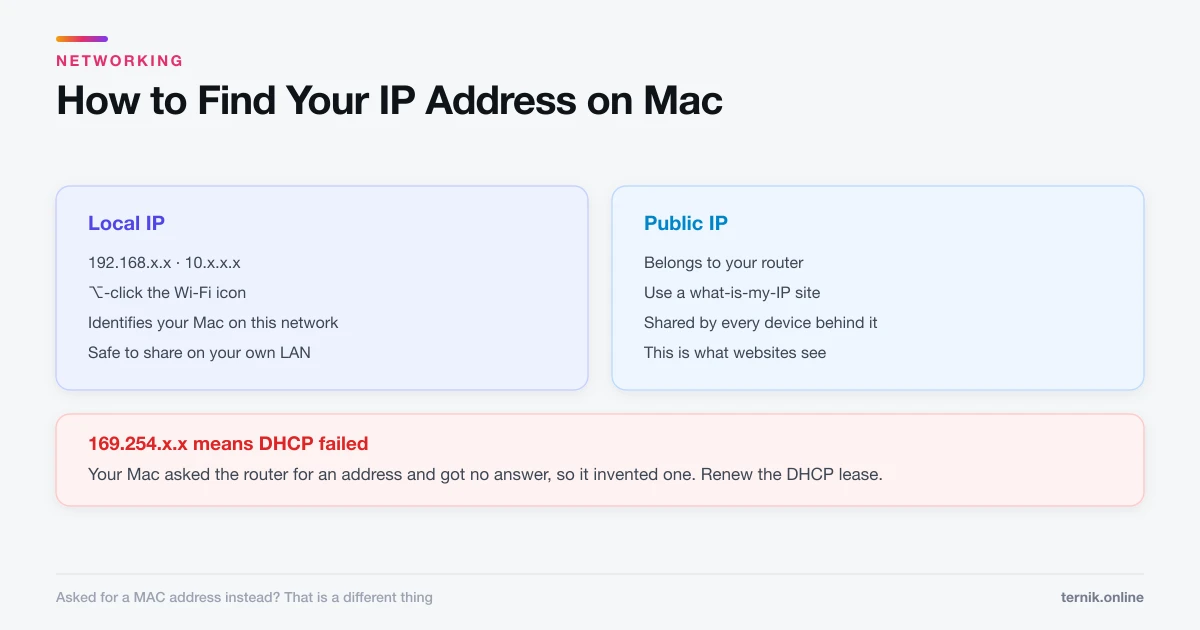
Your Mac has two IP addresses and they answer different questions. Here is how to find each, and which one someone is actually asking for.
 Networking
How to Find the MAC Address of a Laptop (Mac, Windows, Linux)
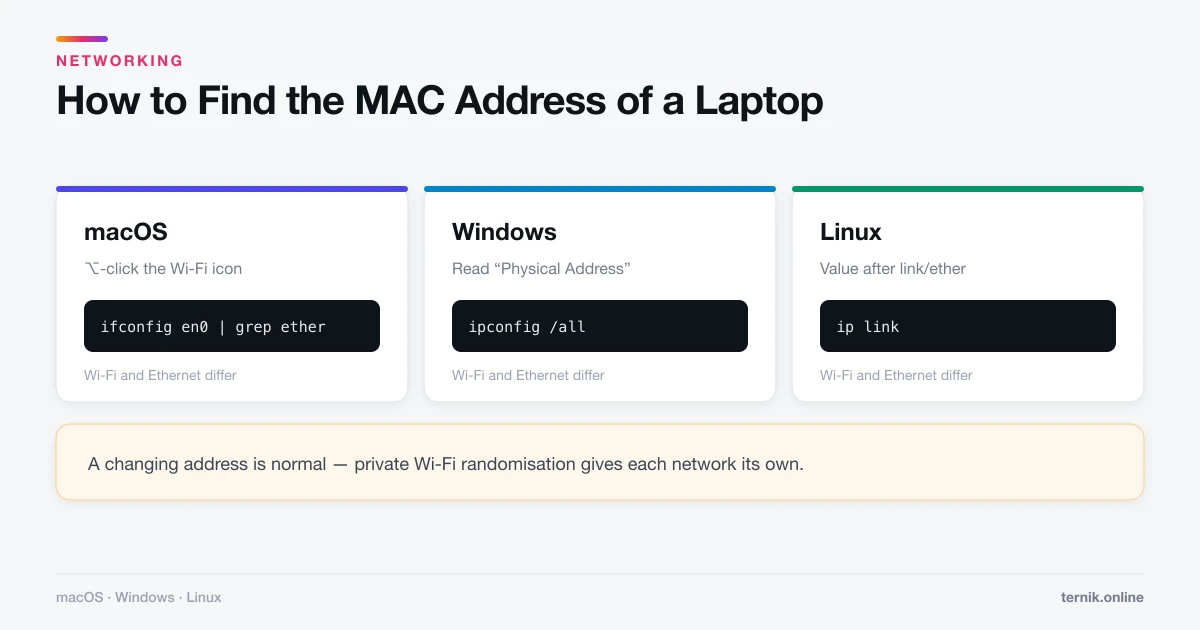
Your laptop has a separate MAC address for Wi-Fi and Ethernet. Here is how to find the right one on macOS, Windows, and Linux — with and without the command line.
 Networking
What Is a MAC Address? (And How It Differs From an IP)
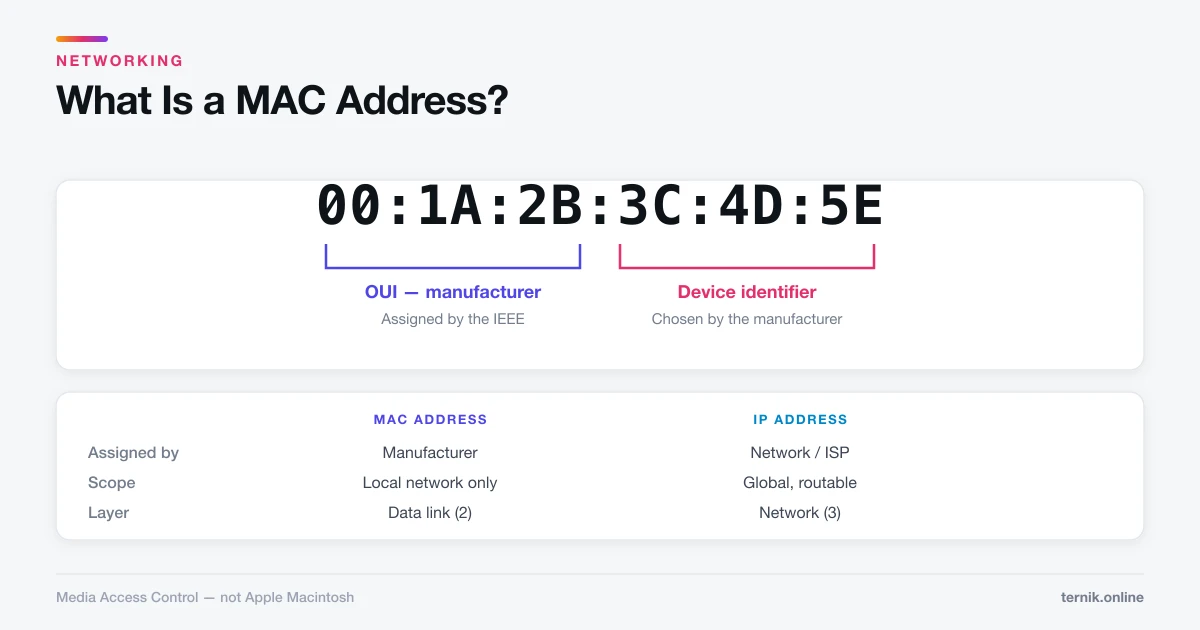
A MAC address is the hardware ID burned into every network adapter. Here is what the 12 characters mean, why it is not an IP address, and what it reveals about you.
About Networking on ternik.online
Networking questions usually come down to identity: which address names your device, who can see it, and what changes when you move between networks. These explainers cover the addresses your Mac actually uses, where to find them, and what they do and do not reveal about you.
What a MAC address is starts with the confusion in the name — MAC stands for Media Access Control and has nothing to do with Apple Macintosh. It breaks down the twelve hexadecimal characters into the manufacturer prefix assigned by the IEEE and the device identifier chosen by that manufacturer, then sets the whole thing against IP addressing, which is the comparison most people are really asking for. The short version: a MAC address delivers data on the final local hop, an IP address routes it across the internet, and websites never see the former because it does not cross routers.
Finding the MAC address of a laptop is the practical companion, covering macOS, Windows, and Linux with and without the command line. It also explains why the number you read today may differ from last week's: every modern operating system now presents a randomised private address to each Wi-Fi network by default, specifically to stop devices being tracked across locations by a stable identifier.
Finding your IP address deals with the other kind of address, and with the ambiguity in the question. Your Mac has a local IP that identifies it on your own network and a public IP that belongs to your router and is shared by everything behind it. Handing over the wrong one is the usual reason a support conversation stalls. The guide also covers reading a self-assigned 169.254 address, which is not an address so much as a fault report: your Mac asked the router for one and received no answer.
Setting up a VPN covers both the built-in client, which handles the IKEv2 and L2TP configurations a workplace or university hands you, and the provider apps that most commercial services ship instead. macOS has no native support for WireGuard or OpenVPN, which is the single most common surprise here. The guide is deliberately unsentimental about what a VPN achieves: it hides your traffic from the local network and your internet provider and changes your apparent location, but it does not make you anonymous, does not stop cookies or browser fingerprinting, and is not security software.
A recurring theme across this section is that network identifiers reveal less than people fear and less than marketing implies. A public IP discloses an approximate region and an internet provider, not a street address. A MAC address is meaningful only on the local network. What actually identifies you online is the account you signed into — which is a different problem, addressed in the security guides.
If you are here because somebody asked you for an address and you are not sure which one they meant, start with finding your IP address — it opens with a table matching the request to the answer. A printer or file-sharing setup wants the local IP; a firewall allow-list wants the public one; a network registration portal almost always wants the hardware address, which is a different thing entirely and explained in what a MAC address is. Handing over the wrong one is the single most common reason these conversations stall.