How to Find the MAC Address of a Laptop (Mac, Windows, Linux)
Your laptop has a separate MAC address for Wi-Fi and Ethernet. Here is how to find the right one on macOS, Windows, and Linux — with and without the command line.
Short answer
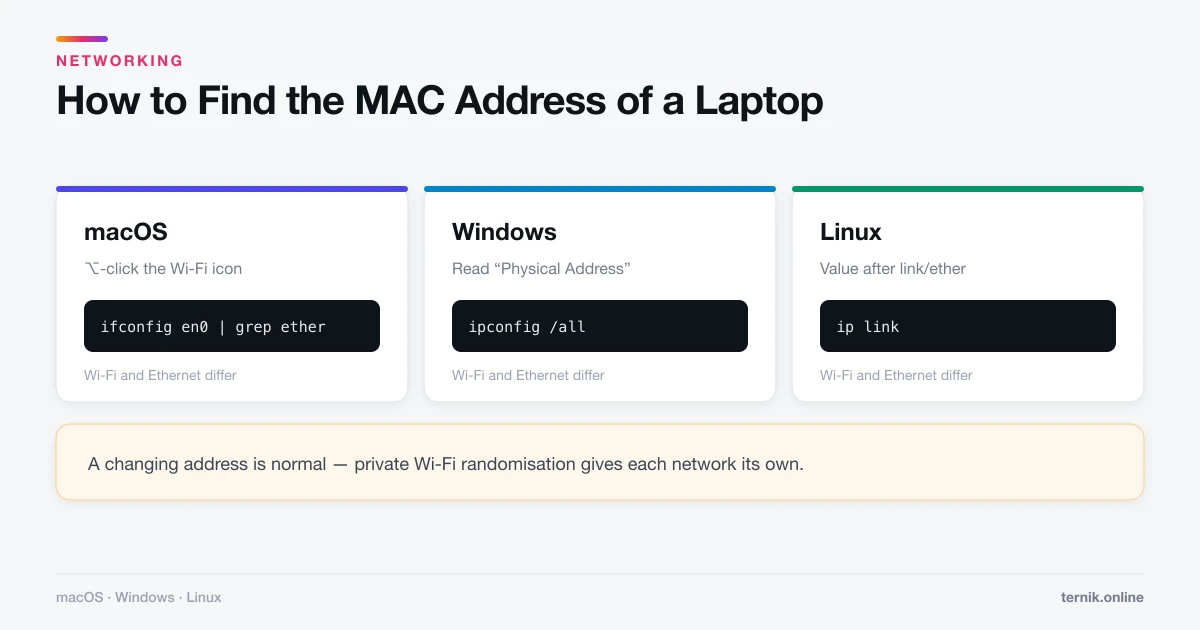
On macOS, hold Option and click the Wi-Fi menu to see the address instantly. On Windows, run 'ipconfig /all' and read the Physical Address for your adapter. On Linux, run 'ip link'. Wi-Fi and Ethernet have different addresses, so make sure you read the one for the interface you are actually using.
Key takeaways
- macOS: hold Option and click the Wi-Fi icon — the address appears instantly.
- Windows: run
ipconfig /alland read Physical Address. - Linux: run
ip linkand read the value afterlink/ether. - Wi-Fi and Ethernet have different addresses — check which interface you need.
- Modern laptops show a randomised address per network, which is normal and usually desirable.
The fastest method on each system
If you just need the number, start here.
| System | Fastest route |
|---|---|
| macOS | Option-click the Wi-Fi menu bar icon |
| Windows | ipconfig /all in Command Prompt |
| Linux | ip link in a terminal |
Everything below is the longer path, plus the traps that make people read the wrong number.
How to find a MAC address on macOS
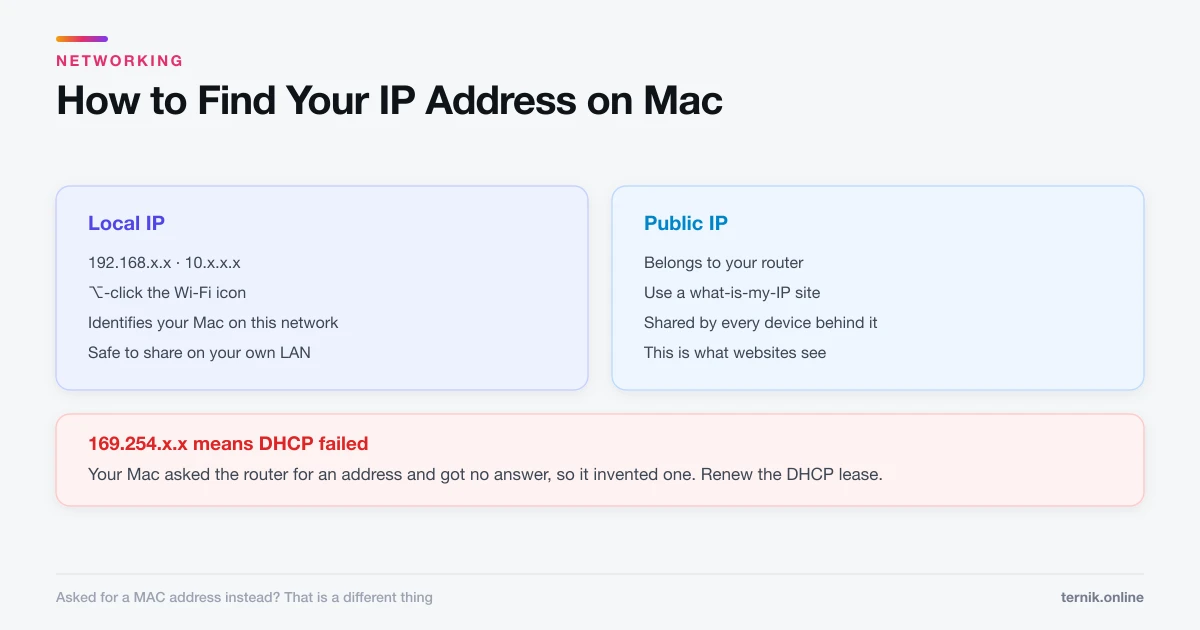
The quick way. Hold Option and click the Wi-Fi icon in the menu bar. An expanded panel appears showing your current network's details, including the Address field — that is your Wi-Fi MAC address. No settings, no terminal.
Through System Settings.
- Apple menu → System Settings → Network.
- Select Wi-Fi, then click Details.
- Open the Hardware tab.
- Read the MAC Address field.
For Ethernet, select the Ethernet or adapter entry in the same Network list instead. USB-C and Thunderbolt adapters each carry their own address.
In Terminal. For all interfaces at once:
ifconfig | grep ether
Or for the Wi-Fi interface specifically, which is en0 on most Macs:
ifconfig en0 | grep ether
One thing to check. If Private Wi-Fi Address is on — and it is by default — the address shown for the current network is a randomised one, not the hardware address. That is the address the network actually sees, so it is the correct one to give a network administrator. The Hardware tab under Details shows the underlying hardware address.
How to find a MAC address on Windows
Command Prompt. Press Windows-R, type cmd, press Enter, then:
ipconfig /all
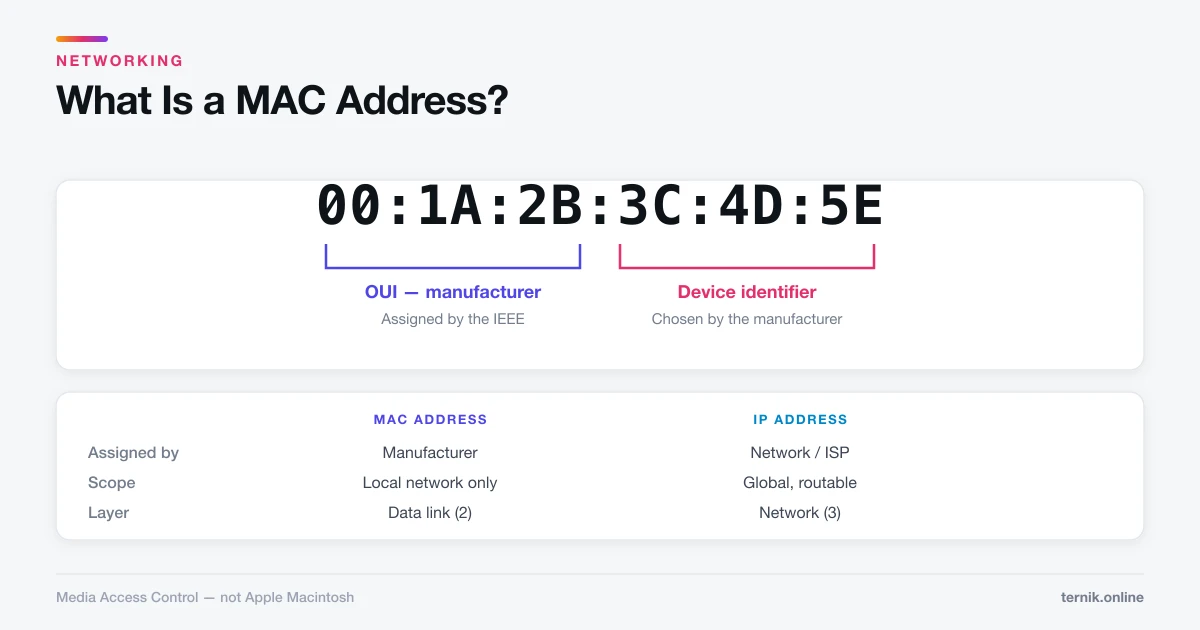
Scroll to the adapter you are using — "Wireless LAN adapter Wi-Fi" or "Ethernet adapter Ethernet" — and read Physical Address. Windows writes it with hyphens: 00-1A-2B-3C-4D-5E.
For a shorter list, getmac /v prints every adapter with its address and nothing else.
Through Settings.
- Settings → Network & Internet.
- Click Wi-Fi, then Hardware properties.
- Read Physical address (MAC).
The usual mistake. ipconfig /all lists every adapter, including Bluetooth, VPN clients, and virtual adapters from VirtualBox or Hyper-V. Match the adapter name to what you are actually connected with, or you will hand over the address of a virtual interface and wonder why the network still rejects you.
How to find a MAC address on Linux
ip link
Each interface is listed with its address after link/ether. Wireless interfaces are typically wlan0 or wlp2s0; wired are eth0 or enp3s0. To read one directly:
cat /sys/class/net/wlan0/address
The older ifconfig still works where net-tools is installed, but ip is the current standard.
Which address do you actually need?
This is where most of the confusion lives.
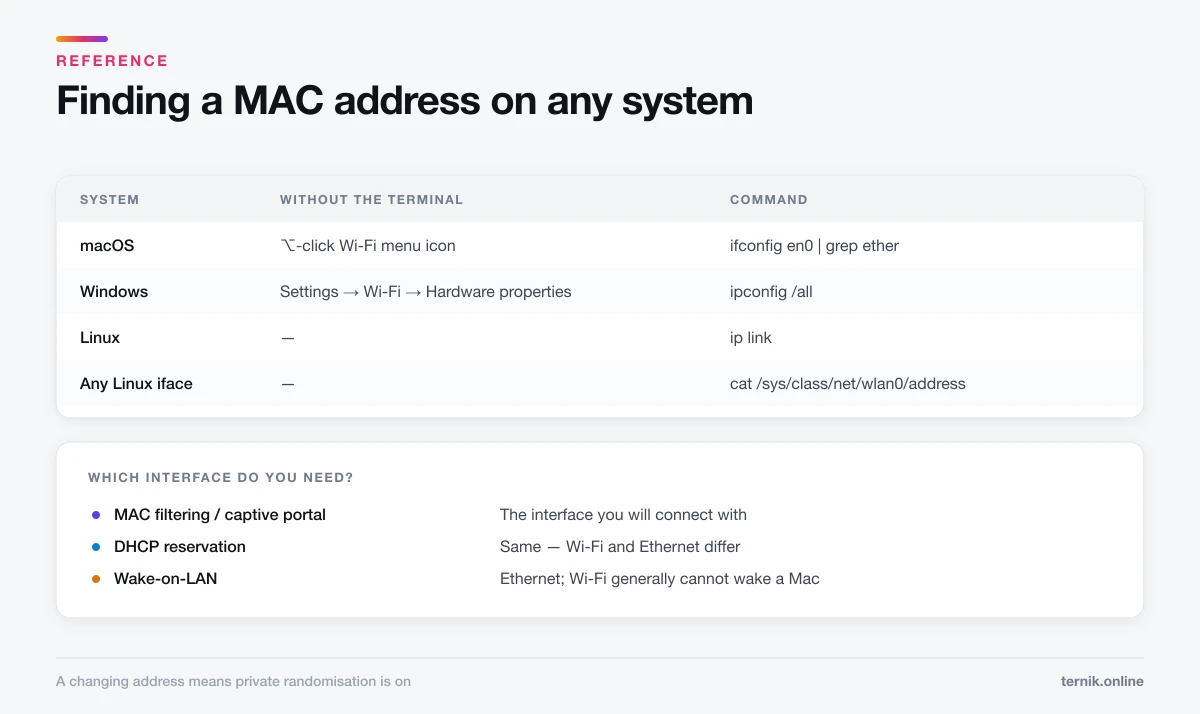
- Joining a network with MAC filtering — the address of the interface you will connect with. Wi-Fi and Ethernet are different; giving the wrong one means the allow-list will not match.
- Setting a DHCP reservation — same rule. Reserve against the interface that will be used.
- A university or workplace registration portal — usually Wi-Fi, but read their instructions. If they say randomisation must be off, turn off Private Wi-Fi Address for that network specifically, not globally.
- Wake-on-LAN — the wired Ethernet address. Wi-Fi generally cannot wake a sleeping machine, and it interacts with how soon your display and Mac sleep.
If none of that is familiar, what a MAC address is and what it does explains why there is more than one.
Randomised addresses and why your number keeps changing
If the address you read today differs from last week's, nothing is broken. macOS, iOS, Android, and Windows all default to presenting a randomised MAC address per network, which stops your device being tracked across locations by a stable identifier.
The address stays consistent for a given network, so saved networks keep working. It changes between networks, and occasionally when you forget and rejoin one.
To disable it for a specific network on macOS: System Settings → Network → Wi-Fi → Details for that network, then set Private Wi-Fi Address to Off. On iPhone: Settings → Wi-Fi → (i) → Private Wi-Fi Address. On Windows: Settings → Network & Internet → Wi-Fi → Random hardware addresses.
Turn it off only where a network genuinely requires a fixed address, and only for that network.
Sharing your MAC address safely
A MAC address is low-risk to share with a network administrator — it is exactly what they need for a reservation or allow-list, and it does not travel beyond the local network.
Two sensible limits. Do not post it publicly alongside details of where you are, since it is a stable local identifier. And treat MAC filtering as an inventory tool rather than security: addresses can be spoofed trivially, so a filtered network is not a protected one.
If you are auditing a machine because something feels wrong rather than for a network registration, the address itself will not tell you much — check for adware and unwanted background items instead.
Frequently asked questions
Hold Option and click the Wi-Fi icon in the menu bar. The Address field in the expanded panel is your Wi-Fi MAC address.
Sources
Keep reading
More guides to grow your account.