Mac How-To guides
Step-by-step macOS walkthroughs for everyday tasks.
 How-To
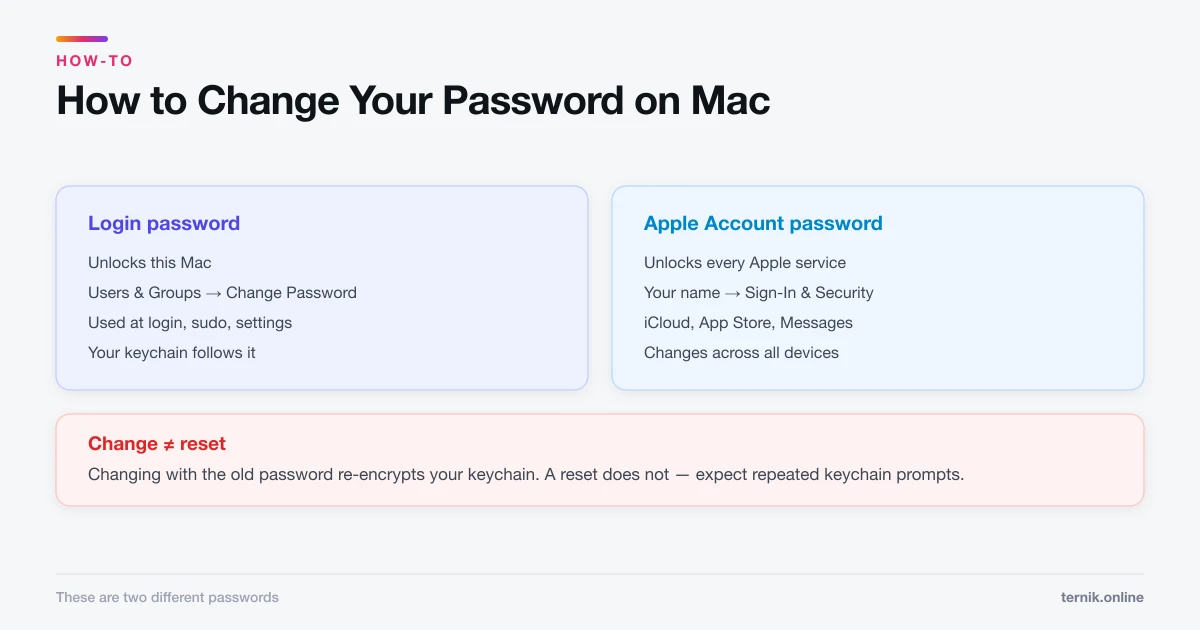
How to Change Your Password on Mac (Login and Apple Account)
Your Mac login password and your Apple Account password are different things. Here is how to change each, and what happens to FileVault and your keychain.
 How-To
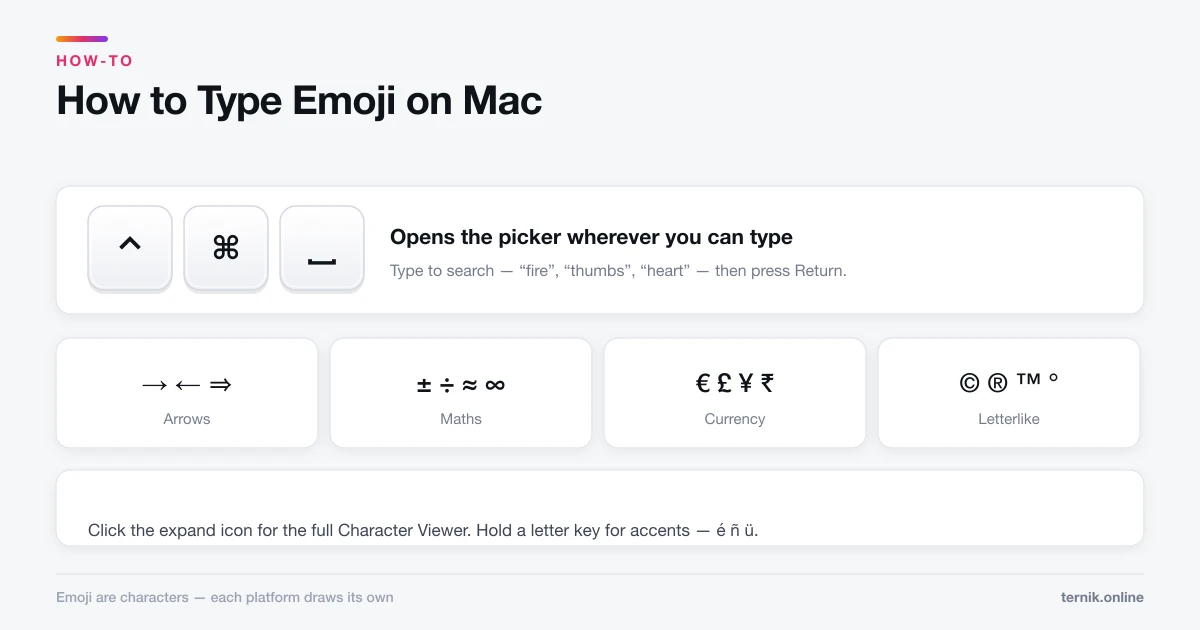
How to Type Emoji on Mac (And Find Any Symbol)
Control-Command-Space opens the emoji picker anywhere you can type. The same panel holds arrows, maths symbols, and accented characters most people never find.
 How-To
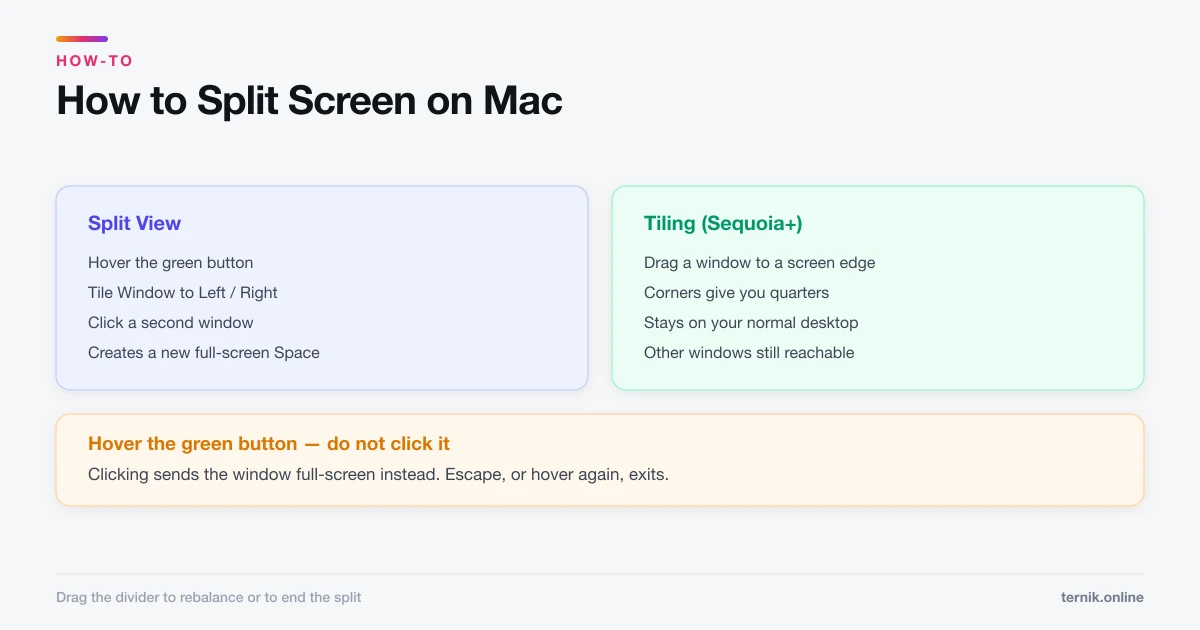
How to Split Screen on Mac (Split View and Tiling)
Hover the green button to put two apps side by side, or drag a window to a screen edge to tile it. Here is both, plus how to escape when you get stuck.
 How-To
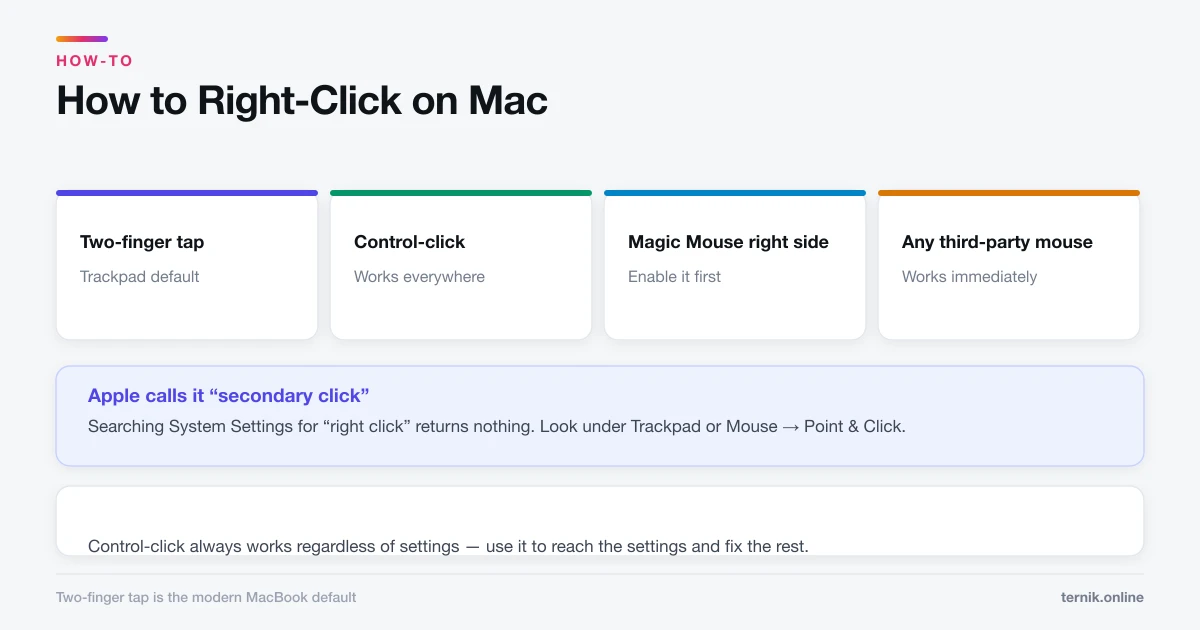
How to Right-Click on Mac (Every Method)
Macs have right-click — it is just off by default on some trackpads. Here are all four methods and how to turn on two-finger clicking.
 How-To
How to Connect AirPods to Mac (And Fix Them Not Connecting)
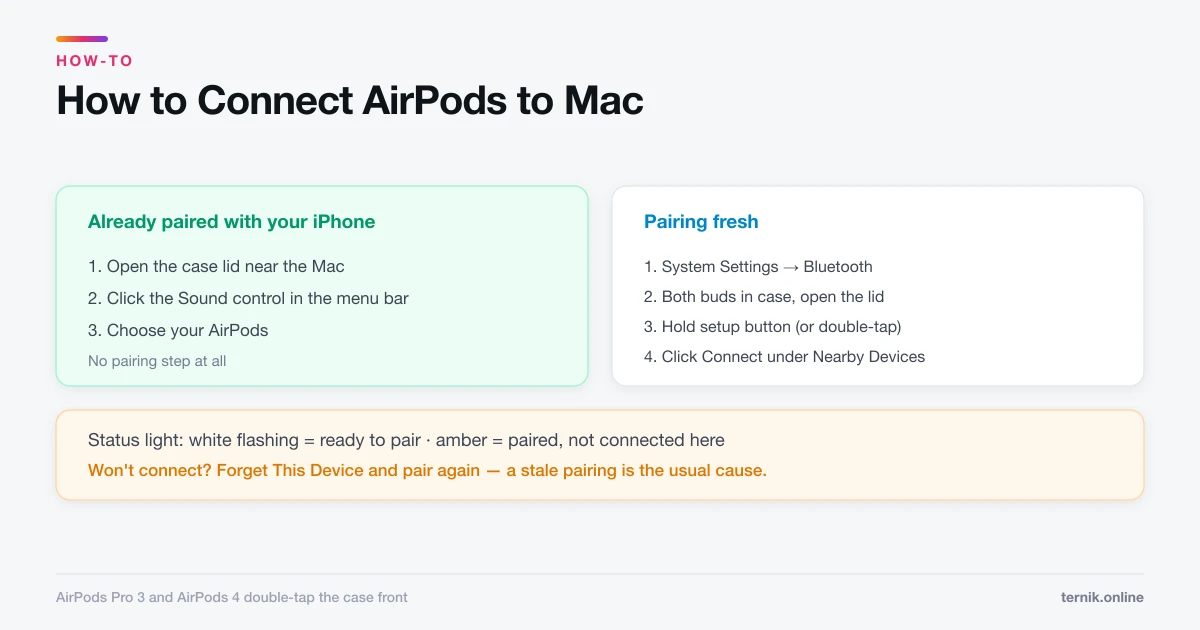
AirPods already paired with your iPhone appear in the Mac's Sound menu automatically. Pairing fresh takes the setup button. Here is both, plus the usual failures.
 How-To
How to Crop a Picture on Mac (Preview, Photos, and Screenshots)
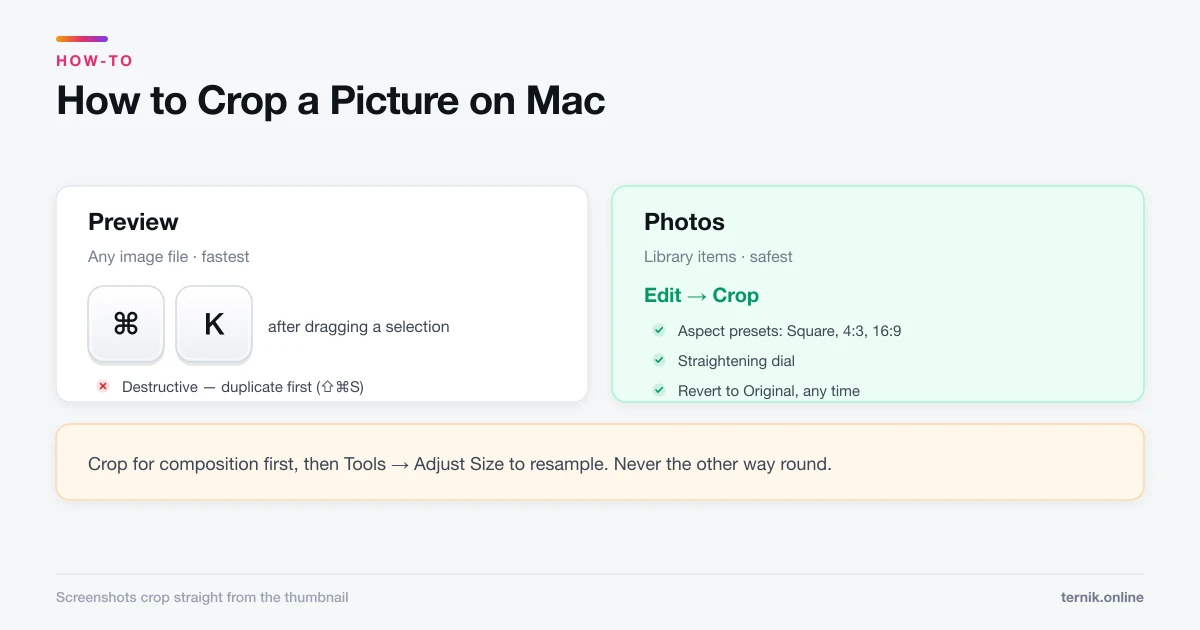
Preview crops any image file in three clicks and Photos crops non-destructively. Here is which to use, plus how to crop to an exact aspect ratio.
 How-To
How to Unzip Files on Mac (And Extract Other Archive Types)
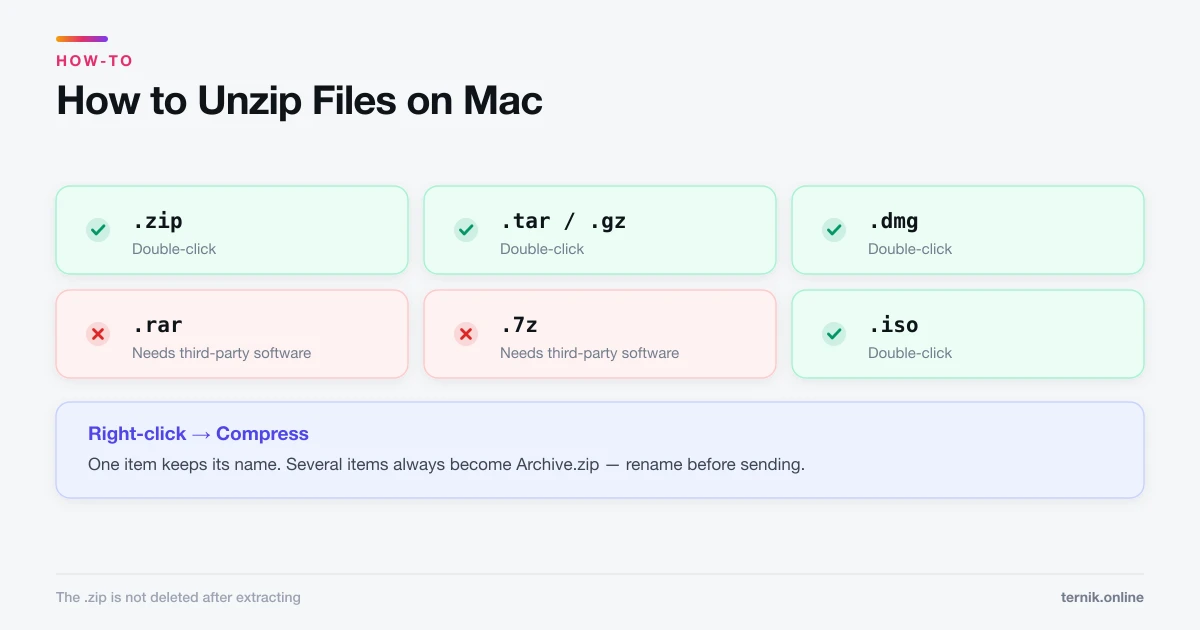
Double-clicking a .zip file extracts it — macOS needs no software for that. RAR and 7z are a different story. Here is what works natively and what does not.
 How-To
How to Open Task Manager on Mac (It's Called Activity Monitor)
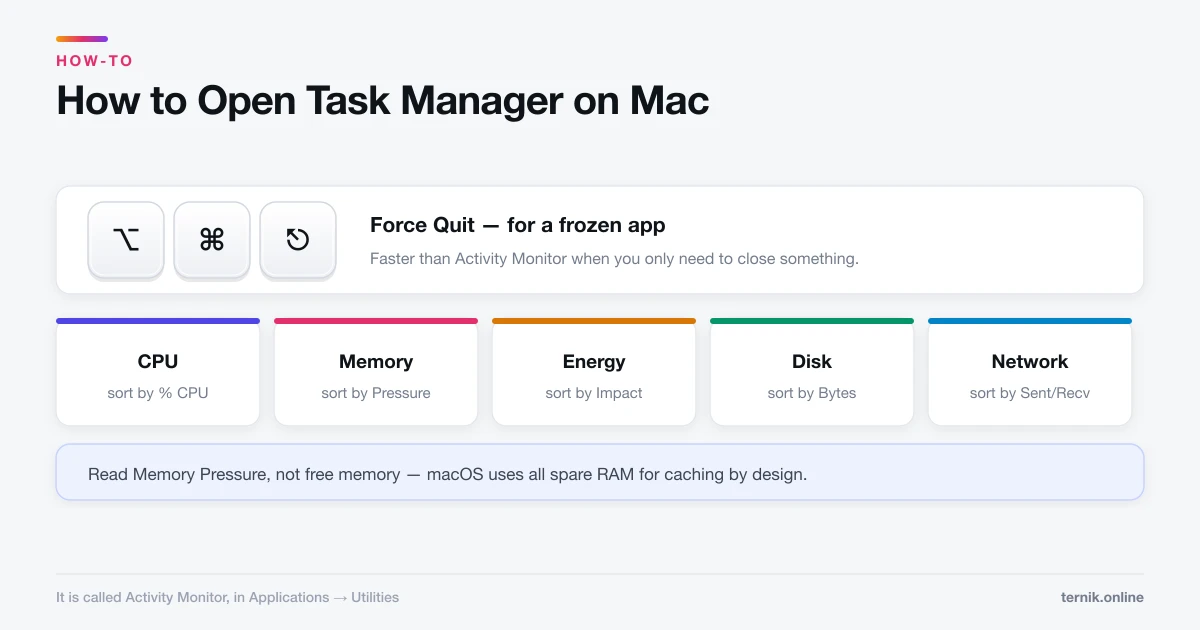
macOS has no Task Manager — it has Activity Monitor, plus a separate Force Quit window. Here is how to open both and read what they tell you.
 How-To
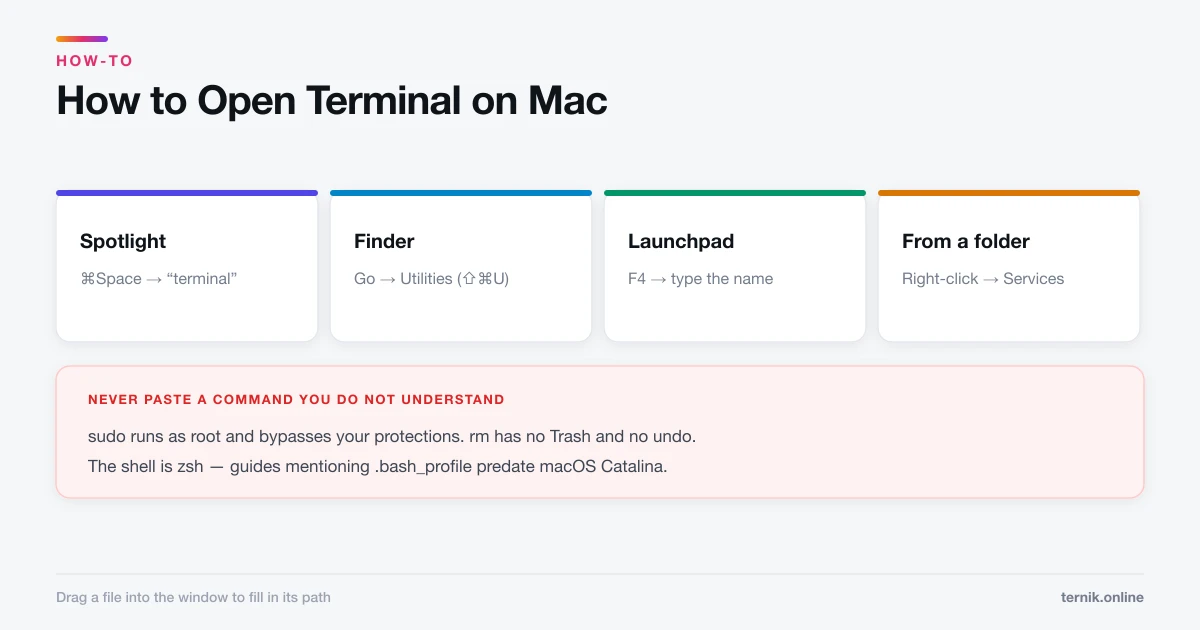
How to Open Terminal on Mac (Four Ways)
Spotlight is the fastest route to Terminal, but Finder, Launchpad, and a Finder right-click each have their uses. Here is every method plus the safety rules.
 How-To
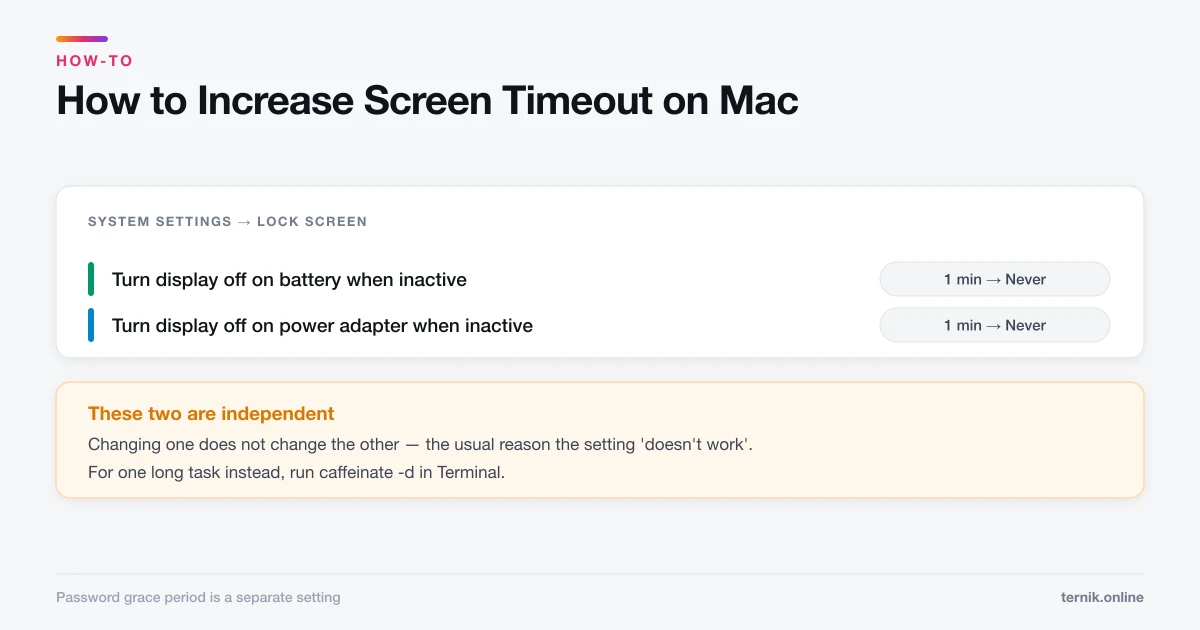
How to Increase Screen Timeout on Mac (Stop the Display Sleeping)
macOS splits display sleep across two settings that behave differently on battery and power. Here is where each one lives and how to stop your screen dimming mid-task.
 How-To
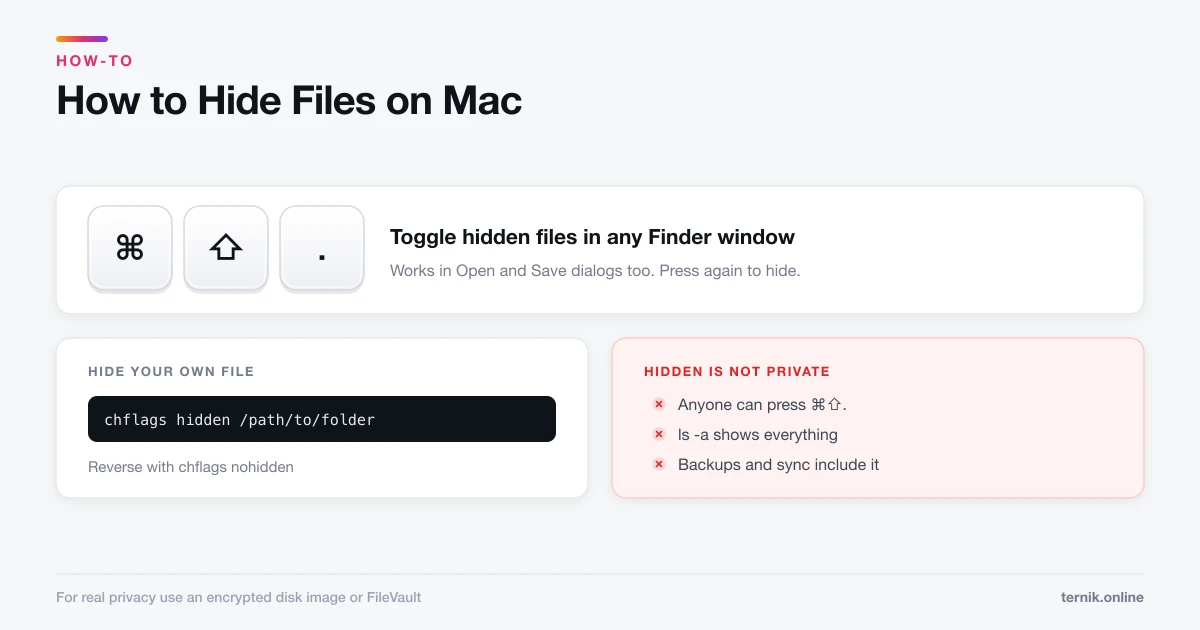
How to Hide Files on Mac (And When Hiding Is Not Enough)
Press Command-Shift-Period to reveal hidden files, or use chflags to hide your own. But hidden is not private — here is when you need encryption instead.
 How-To
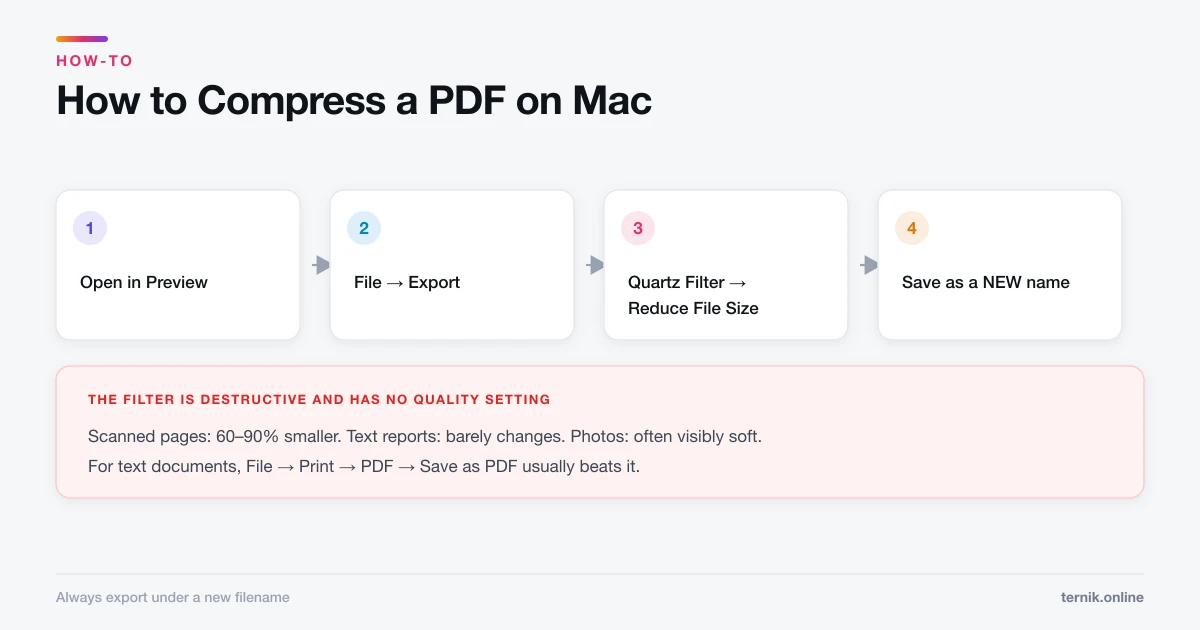
How to Compress a PDF on Mac (Without Losing Readability)
Preview can shrink a PDF in two clicks using a Quartz filter, but the built-in setting is aggressive. Here is how to compress properly and keep text sharp.
 How-To
How to Copy and Paste on Mac (Including Between Devices)
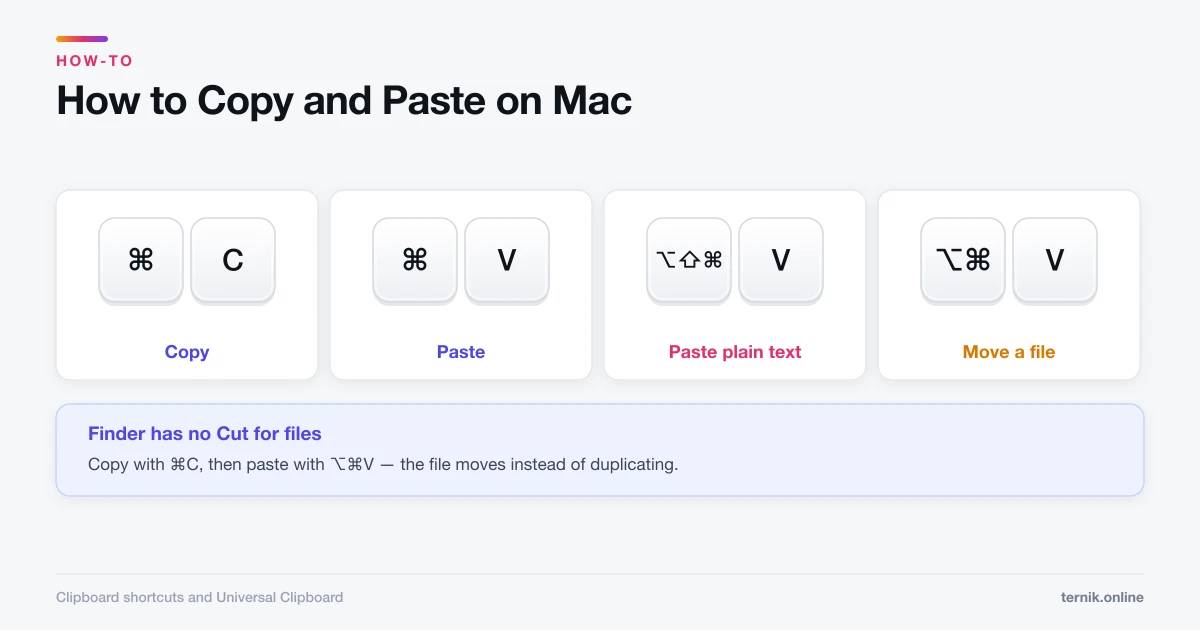
Command-C copies and Command-V pastes — but Mac has no Ctrl, pastes formatting you rarely want, and can move text between your iPhone and Mac automatically.
 How-To
How to Screen Record on Mac (With Audio)
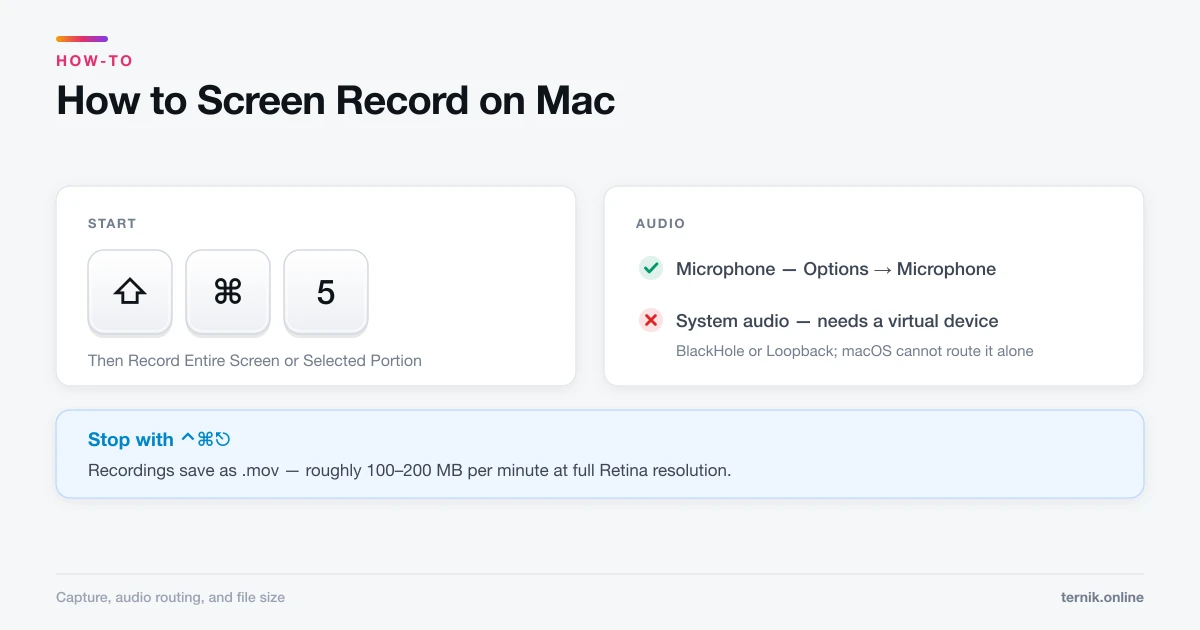
Shift-Command-5 records your screen in seconds, but it will not capture system audio without help. Here is the full workflow, including microphone setup and file sizes.
 How-To
How to Uninstall Apps on Mac (and Remove Leftover Files)
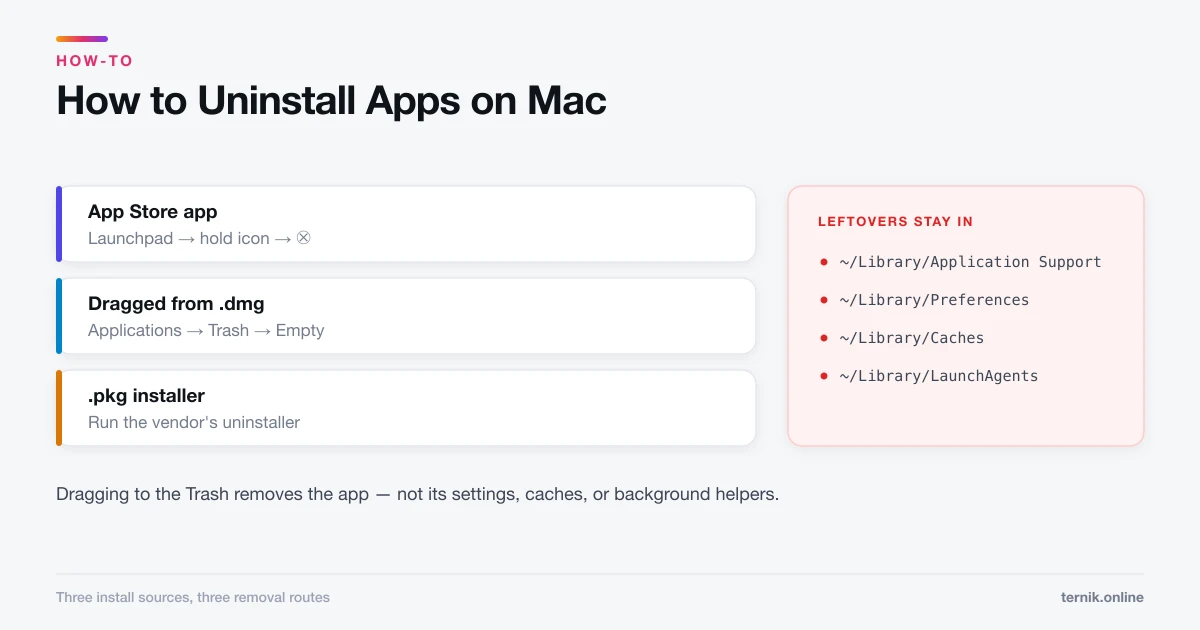
Dragging an app to the Trash removes the app but leaves preference and support files behind. Here is how to uninstall properly for App Store, downloaded, and installer-based apps.
 How-To
How to Take a Screenshot on a Mac (Every Method)
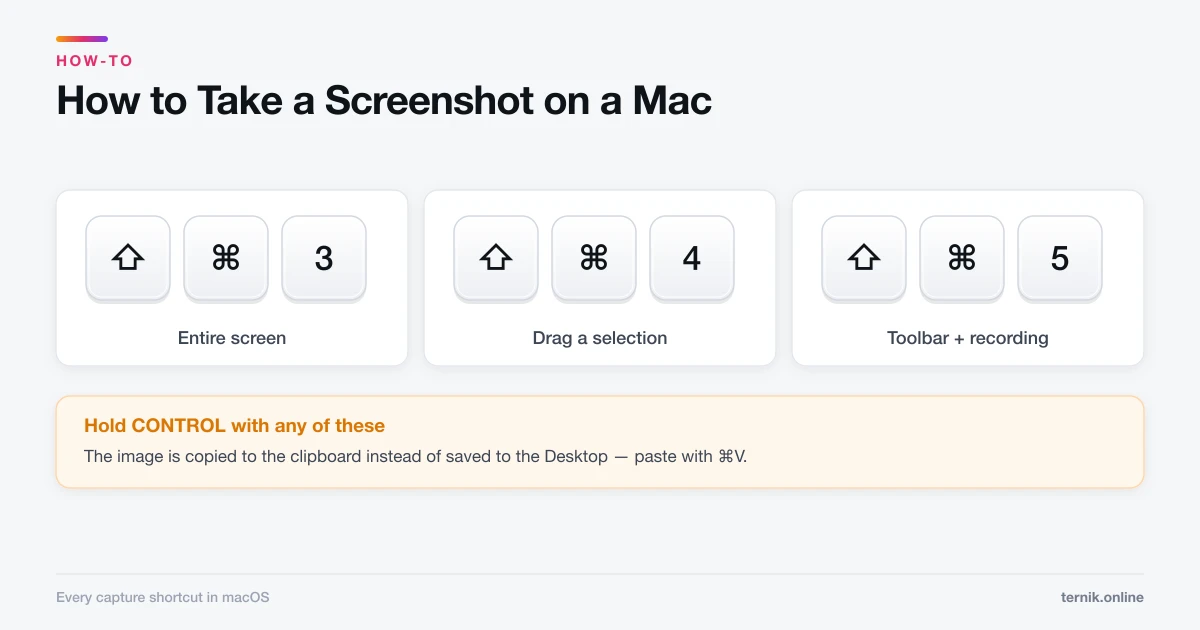
Shift-Command-3 grabs the whole screen and Shift-Command-4 grabs a selection. Here is every macOS screenshot shortcut, plus how to change where files save.
About How-To on ternik.online
Most macOS tasks have a fast route and a slow one, and Apple rarely puts both in the same place. These guides give you the shortcut first, then the longer menu path for when the shortcut is disabled, remapped, or unavailable in a locked-down app.
Start with the shortcuts you will use daily. Taking a screenshot covers all five capture modes and the modifier keys that refine a selection while you drag; screen recording covers the same toolbar's video side, including the reason macOS cannot capture system audio without help. Copying and pasting sounds trivial until you need plain text or want to move a file rather than duplicate it, and right-clicking trips up nearly everyone arriving from Windows, because Apple calls it secondary click and hides it accordingly.
For everyday file work, unzipping and creating archives explains what macOS opens natively and what it refuses to touch, cropping a picture compares Preview's destructive edits with the non-destructive route through Photos, and compressing a PDF is honest about when the built-in filter helps and when it wrecks your images. Hiding files is included with a warning attached: hiding is cosmetic, and anything that genuinely matters needs encryption instead.
Several guides here exist because the setting is not where people look for it. Increasing the screen timeout lives under Lock Screen rather than Displays, and splits across two independent values for battery and mains power. Opening Task Manager means finding Activity Monitor, which is not called Task Manager anywhere in macOS. Changing your password is complicated by there being two passwords, and by what a reset does to your keychain.
The rest cover the tools you reach for occasionally and then forget. Opening Terminal includes the safety rules that matter more than the commands. Splitting the screen distinguishes Split View from the newer window tiling, which behave very differently despite looking alike. Typing emoji opens a picker that also holds arrows, currency, and mathematical symbols. Connecting AirPods covers both the no-setup path and what to do when a stale pairing blocks it.
Every guide here is written against a current macOS install and says so when a step changed between releases. Where a task has a supported route and a Terminal route, we lead with the supported one — Terminal is genuinely better for a handful of jobs and genuinely riskier for the rest. If your Mac is misbehaving rather than merely unfamiliar, the maintenance guides are the better starting point.
A note on how these are written. Each guide opens with the answer, because most people arriving here want one specific keystroke and not an essay. The detail underneath is for the cases where the simple answer fails — a shortcut claimed by another app, a permission that was never granted, a setting an employer has locked down. Where a step depends on your Mac's processor or macOS version, that is stated inline rather than assumed. And where a task is genuinely riskier than it looks, the guide says so plainly instead of burying the caveat: Terminal will do exactly what you tell it including destroying your system, and hidden files are not private in any meaningful sense.