Mac Security guides
Spot malware, audit what is running, and stay protected.
 Security
How to Turn On FileVault on Mac (Full-Disk Encryption)
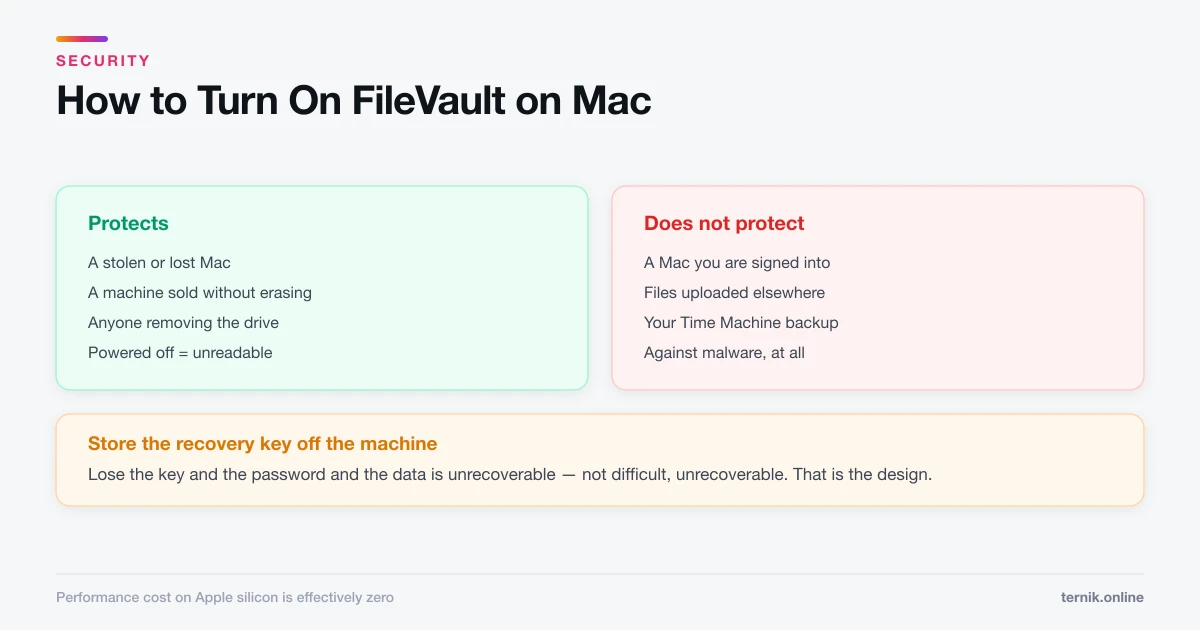
FileVault makes a powered-off Mac unreadable to anyone without your password. Turning it on takes two minutes — the recovery key is the part to get right.
 Security
How to Check for Malware on Mac (Without Paying for Anything)
Real Mac malware is rare; adware and browser hijackers are not. Here is how to check for an actual infection using tools already built into macOS.
About Security on ternik.online
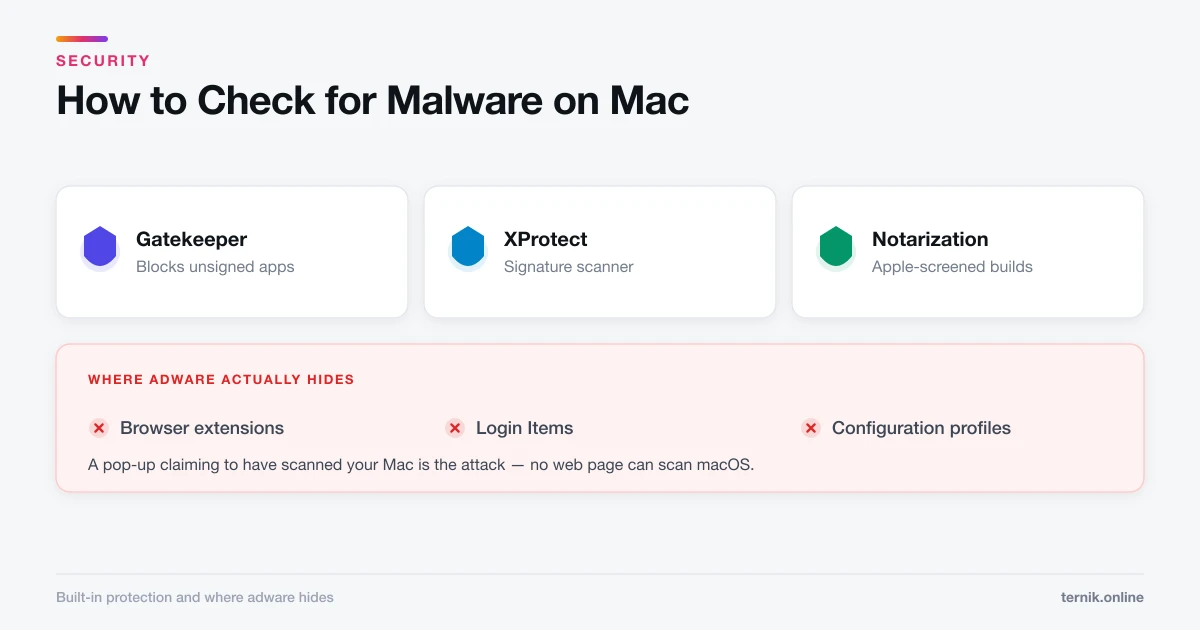
macOS ships with real, layered malware protection that most people never need to think about. Gatekeeper blocks unsigned applications, Notarization screens developer software through Apple's automated scanning, and XProtect matches known malware signatures and updates independently of full macOS releases. Together they make the classic self-replicating virus close to a non-issue on the Mac.
What does get through is what the user was persuaded to install: a fake browser update, a cracked application, a "codec" a streaming site claimed to require. The result is nearly always adware or a browser hijacker rather than a system-level compromise, which is why the symptoms are pop-ups, a changed homepage, and constant fans rather than anything dramatic.
Checking for malware on a Mac is the practical guide to that problem. It walks through the five places worth auditing — Activity Monitor, Login Items, browser extensions, configuration profiles, and Applications sorted by date added — using only tools already installed. Configuration profiles are the step most often missed, and the one adware relies on to keep reverting your browser settings after you change them back.
The guide is also blunt about the scareware economy. A web page cannot scan your Mac, so any page claiming to have found infections is itself the attack. Cleaner utilities that report hundreds of urgent problems on a healthy machine are running a sales tactic, and a meaningful share of that category is adware in its own right.
Turning on FileVault addresses an entirely different threat. Full-disk encryption makes a powered-off or logged-out Mac unreadable to anyone who steals it, sells it on, or removes the drive. It does nothing about malware running in your logged-in session, and it does not extend to your backups — an encrypted Mac beside an unencrypted Time Machine drive is a locked door next to an open window, which is why the Time Machine guide treats backup encryption as a separate decision.
Security on a Mac is layered rather than singular. Alongside these two, a strong login password matters because FileVault is only as good as the credential guarding it — see changing your password for the distinction between your Mac password and your Apple Account password, and for what a password reset does to your keychain. Hiding files explains why hiding is not privacy and when an encrypted disk image is the right tool. On untrusted networks, setting up a VPN protects traffic in transit, though it is not security software and will not stop malware.
We do not recommend paid antivirus for most people, and we say so plainly. XProtect plus ordinary caution covers the realistic threats. A reputable on-demand scanner is useful as a second opinion when you already suspect something — installed from the developer's own site, never from a pop-up.
One last framing point. Security advice is easy to sell and hard to calibrate, and most people are pushed toward tools far heavier than their actual risk. The realistic threats to a personal Mac are a browser hijack you clicked through, a laptop left on a train, and a password reused somewhere that was later breached. Those three are addressed by the guides above plus a password manager, and none of them require a subscription. If you want one habit rather than a checklist: install software from the App Store or the developer's own site, and treat anything that arrives through a pop-up as hostile.