Mac Maintenance guides
Keep a Mac healthy: diagnostics, storage, and performance.
 Maintenance
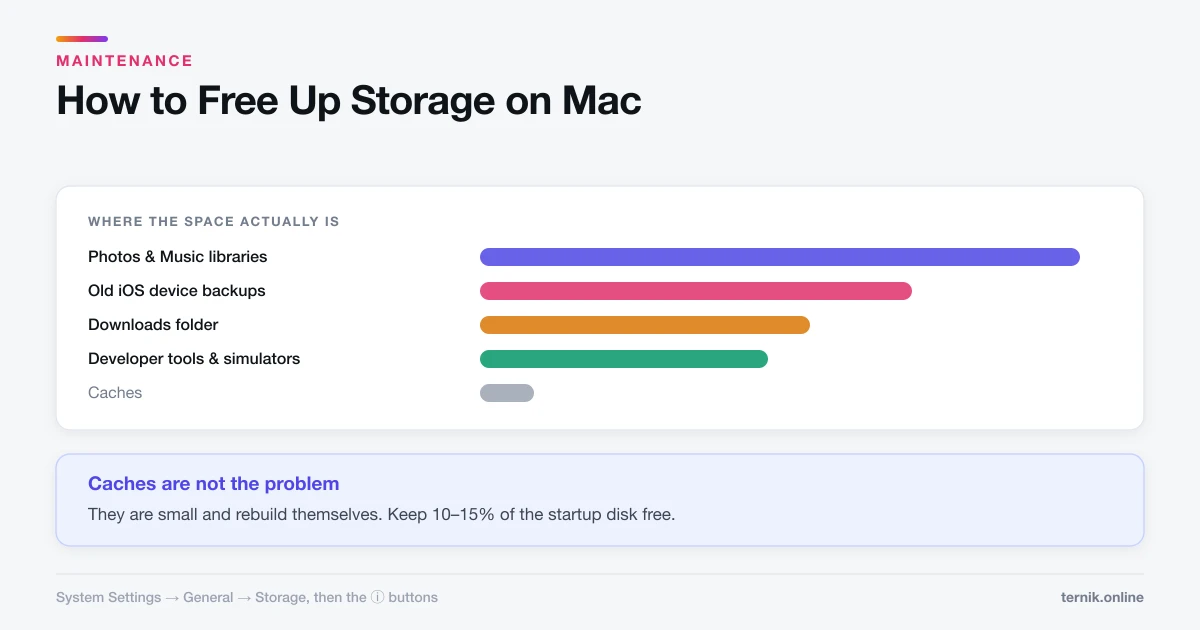
How to Free Up Storage on Mac (Where the Space Actually Is)
System Settings shows a storage breakdown that most people never open. Here is how to find the real space consumers instead of deleting caches and hoping.
 Maintenance
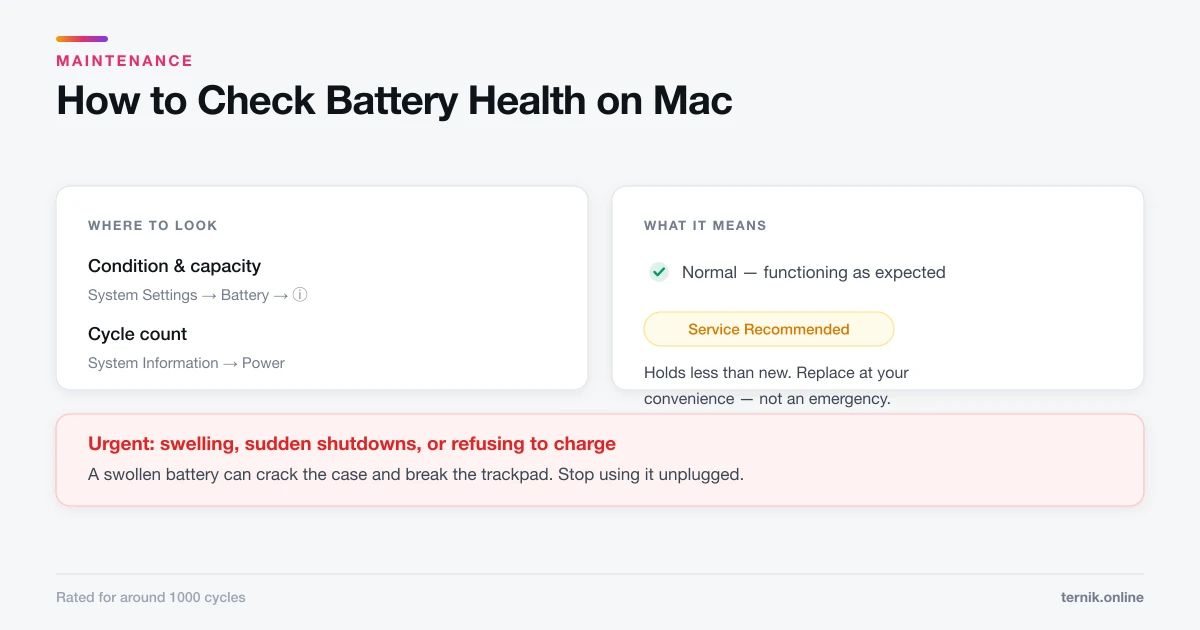
How to Check Battery Health on Mac (And What It Means)
Battery condition sits under System Settings, Battery. Here is where to find cycle count, what Service Recommended actually means, and what genuinely extends battery life.
 Maintenance
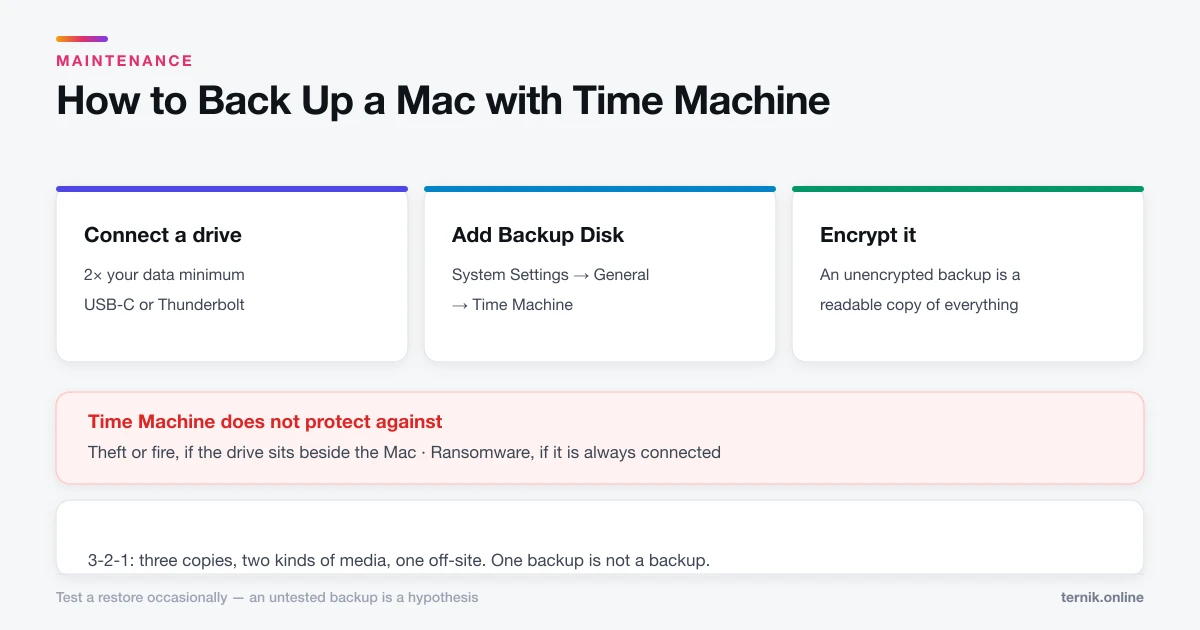
How to Back Up a Mac with Time Machine
Time Machine is built in and needs one external drive. Here is the setup, what it does and does not protect against, and why one backup is not enough.
 Maintenance
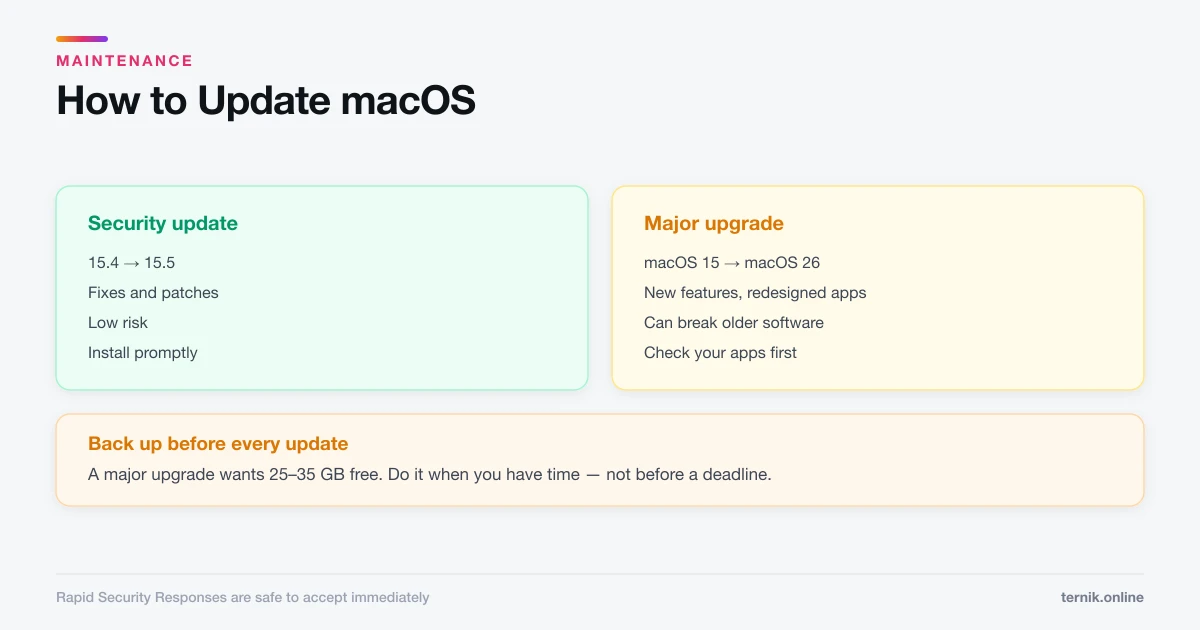
How to Update macOS (And When to Wait)
Software Update lives under System Settings, General. Here is how to update safely, the difference between a security patch and a major upgrade, and when to hold off.
 Maintenance
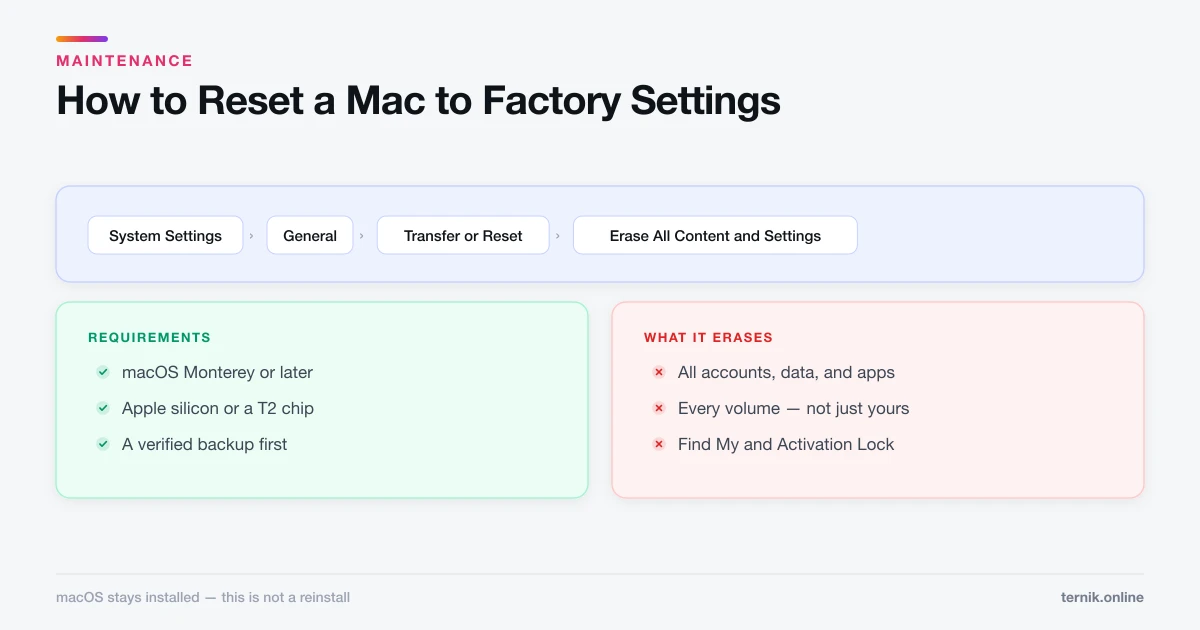
How to Reset a Mac to Factory Settings (Safely)
Erase All Content and Settings wipes a Mac in minutes while keeping macOS installed. Here is the full sequence, what to do first, and the Intel exception.
 Maintenance
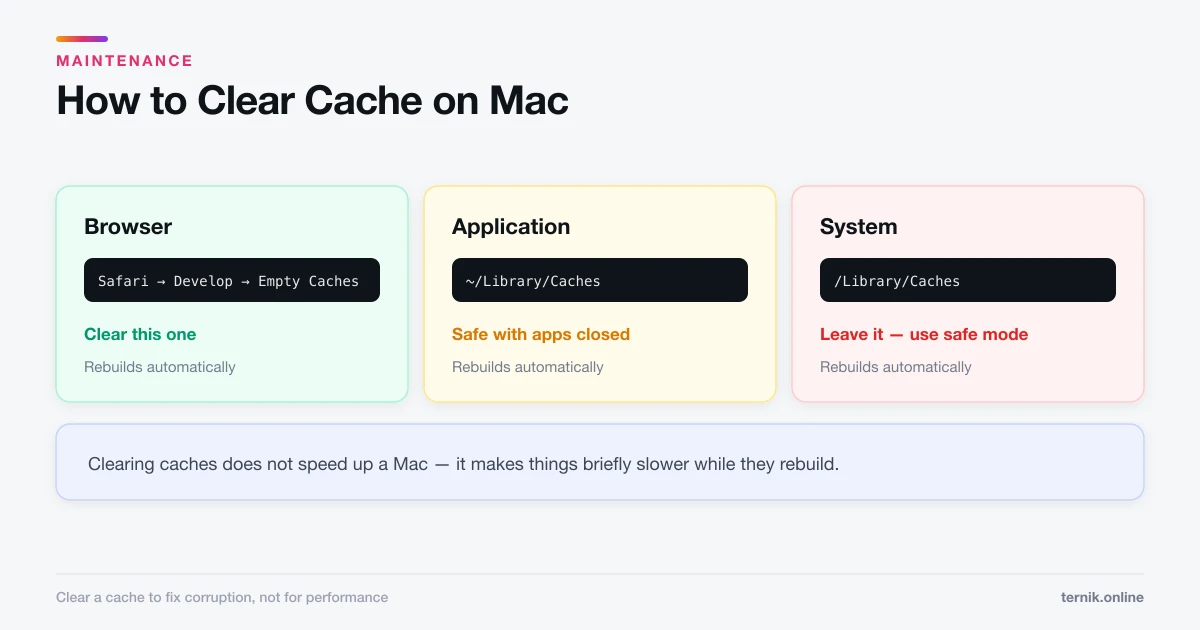
How to Clear Cache on Mac (Browser, App, and System)
There are three separate caches on a Mac and only one is usually worth clearing. Here is which is which, how to clear each safely, and what you lose.
 Maintenance
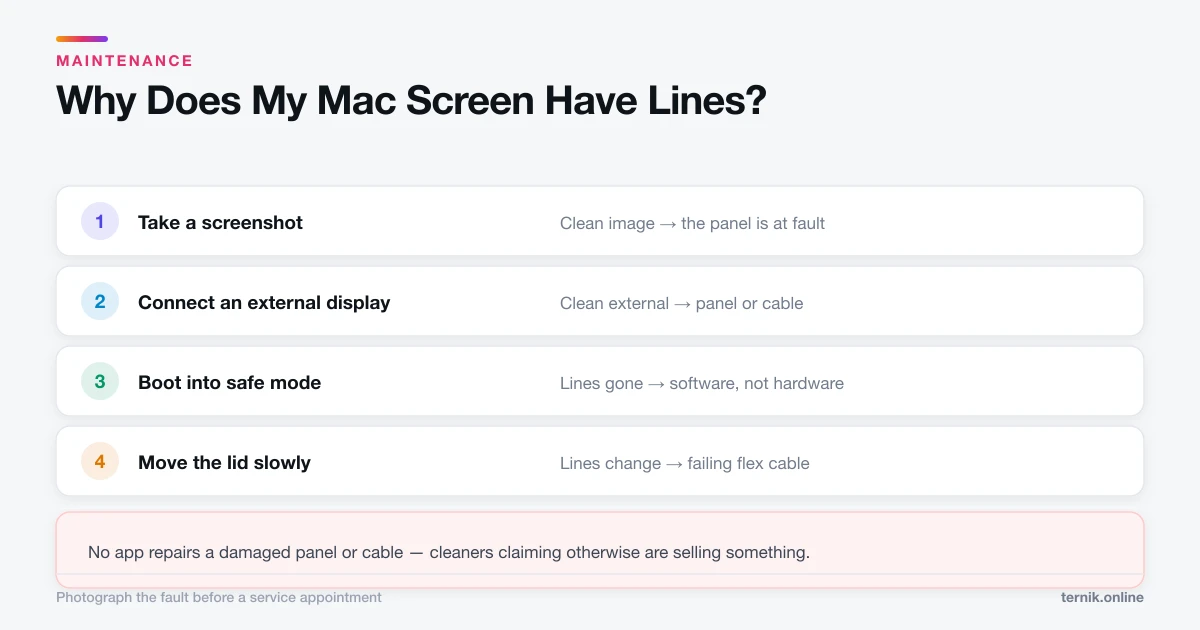
Why Does My Mac Screen Have Lines? (Software vs Hardware)
Vertical or horizontal lines on a Mac display are usually a failing cable, panel, or GPU — but not always. Here is how to tell hardware from software in ten minutes.
 Maintenance
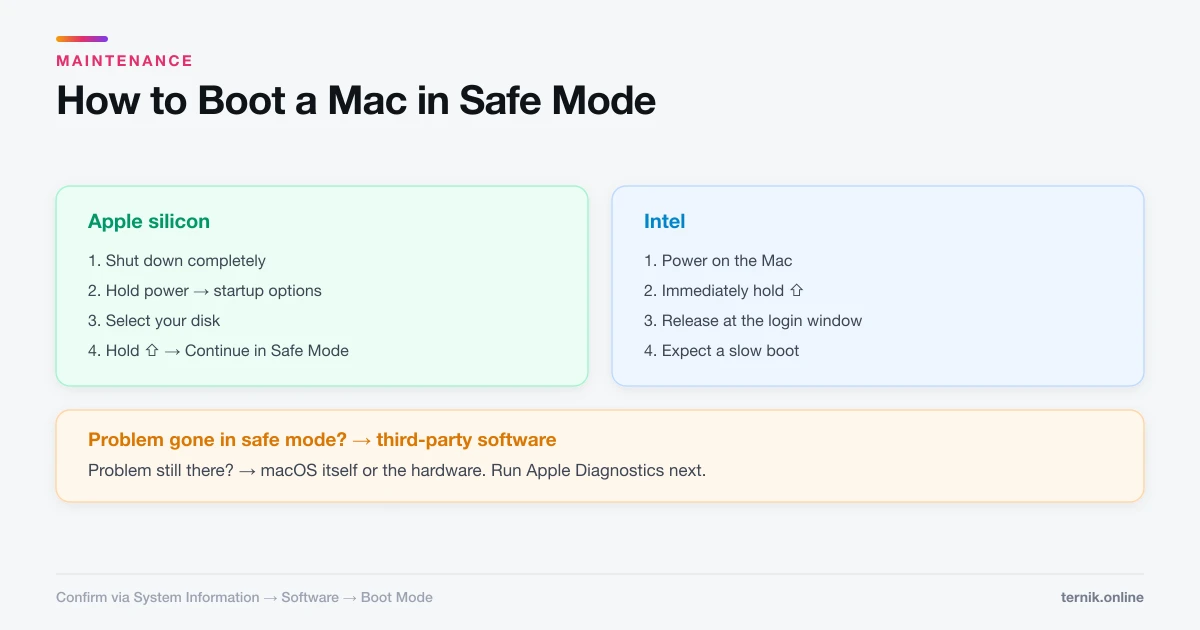
How to Boot a Mac in Safe Mode (Apple Silicon and Intel)
Safe mode loads a minimal macOS and clears system caches, which makes it the fastest way to tell a software fault from a hardware one. Here is how to enter and exit it.
 Maintenance
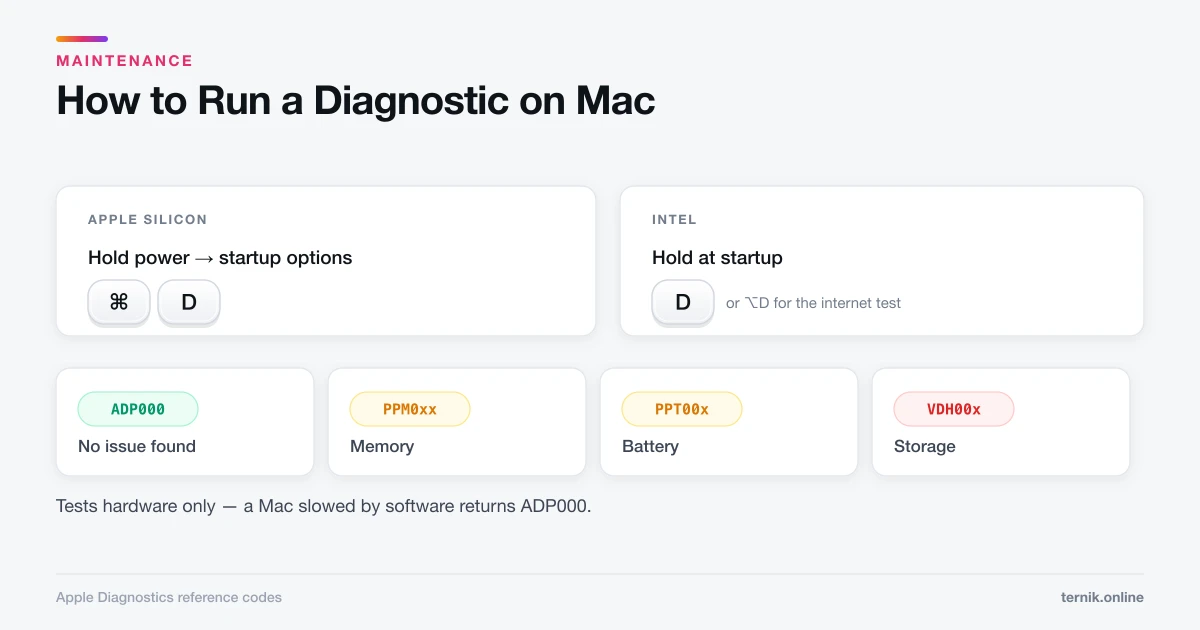
How to Run a Diagnostic on Mac (Apple Diagnostics Guide)
Apple Diagnostics tests your Mac's hardware in a few minutes and returns a reference code. Here is how to start it on Apple silicon and Intel Macs, and what each code means.
About Maintenance on ternik.online
Maintenance guides focus on what you can verify rather than what you can guess. A slow or misbehaving Mac has a cause, and the tools to identify it already ship with macOS — no third-party utility required.
The two diagnostics worth knowing come first. Apple Diagnostics tests memory, power, sensors, and the logic board in a few minutes and returns a reference code you can hand to a technician. Safe mode loads a minimal system and clears system caches, which splits any problem cleanly into software or hardware. Between them they answer most of what people want a diagnosis for, and they cost nothing but time.
When the fault is visible rather than behavioural, lines on the screen has a ten-minute test sequence that identifies whether the panel, its cable, or the graphics chip is responsible — starting with a screenshot, which is the single most informative check and the one most people skip.
For the ordinary business of keeping a machine healthy, updating macOS distinguishes a security patch from a major upgrade, because those are different decisions with different risks. Backing up with Time Machine covers setup and, more usefully, what Time Machine does not protect against — a drive sitting beside your Mac survives neither theft nor fire. Freeing up storage sends you to where the space actually is, which is almost never the caches everyone deletes first.
Two guides exist mainly to correct widespread bad advice. Clearing caches explains which of the three caches to touch and why doing so makes a Mac briefly slower rather than faster. Checking battery health separates the habits that measurably extend battery life from the calibration folklore that does not, and flags the symptoms that need service rather than patience.
Resetting a Mac is here as a last resort, deliberately. Erase All Content and Settings is quick and thorough on modern hardware, but a reset that follows an undiagnosed hardware fault costs you an afternoon and your data while fixing nothing. The guide sets out the cheaper steps to exhaust first, and the pre-reset checklist that people discover too late.
Throughout this section we favour Apple's built-in tools over third-party cleaners. That is not brand loyalty: cleaner utilities routinely overstate problems to justify a subscription, some are adware, and none of them can repair failing hardware regardless of what the marketing implies. If a pop-up told you your Mac needs cleaning, start with the security guides instead — you are looking at the problem, not the solution.
One principle runs through this section: measure before you act. A Mac that feels slow might have a runaway process, a startup disk under ten percent free, a full cache, adware, or a failing drive — and the remedies for those five are entirely different. Deleting files at random, resetting settings, or reinstalling macOS in the hope that something sticks is how an afternoon disappears without the problem changing. Every guide here starts by narrowing the cause, and several of them will tell you the answer is that nothing is wrong with your hardware at all. That is a useful result, and it is often the one you get.