Fix it on your Mac with steps that actually work.
Screenshots, screen recording, storage, diagnostics, malware checks, and networking — every walkthrough verified against a current macOS install, with the version noted when a step changed.
Latest how-tos
Recently published macOS walkthroughs.
 Security
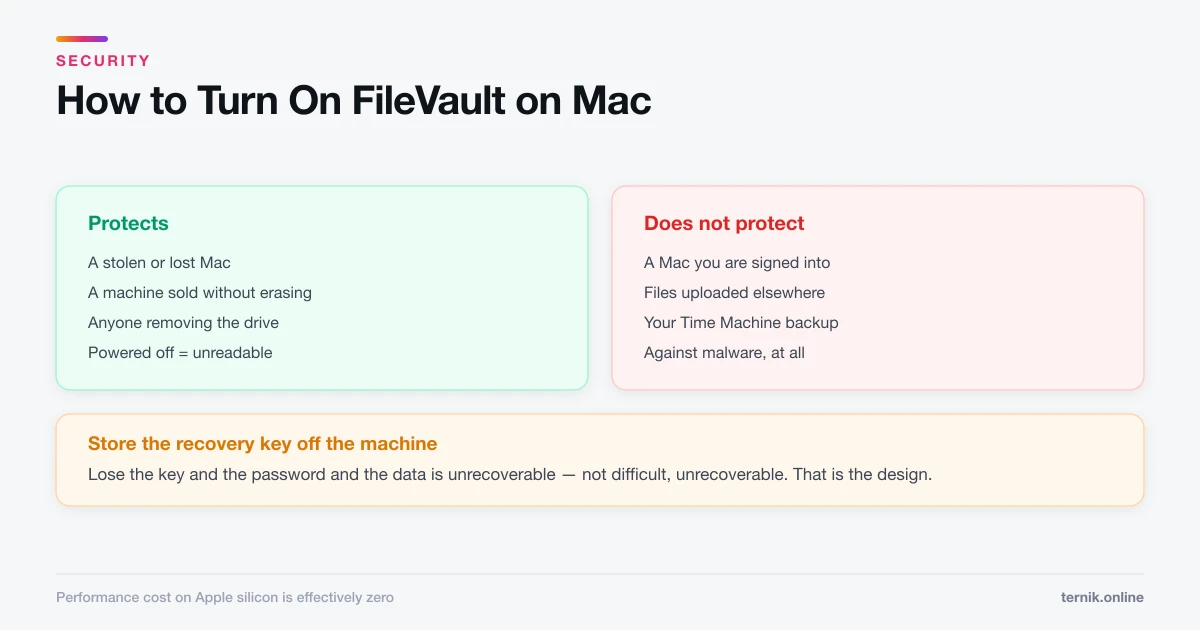
How to Turn On FileVault on Mac (Full-Disk Encryption)
FileVault makes a powered-off Mac unreadable to anyone without your password. Turning it on takes two minutes — the recovery key is the part to get right.
 Networking
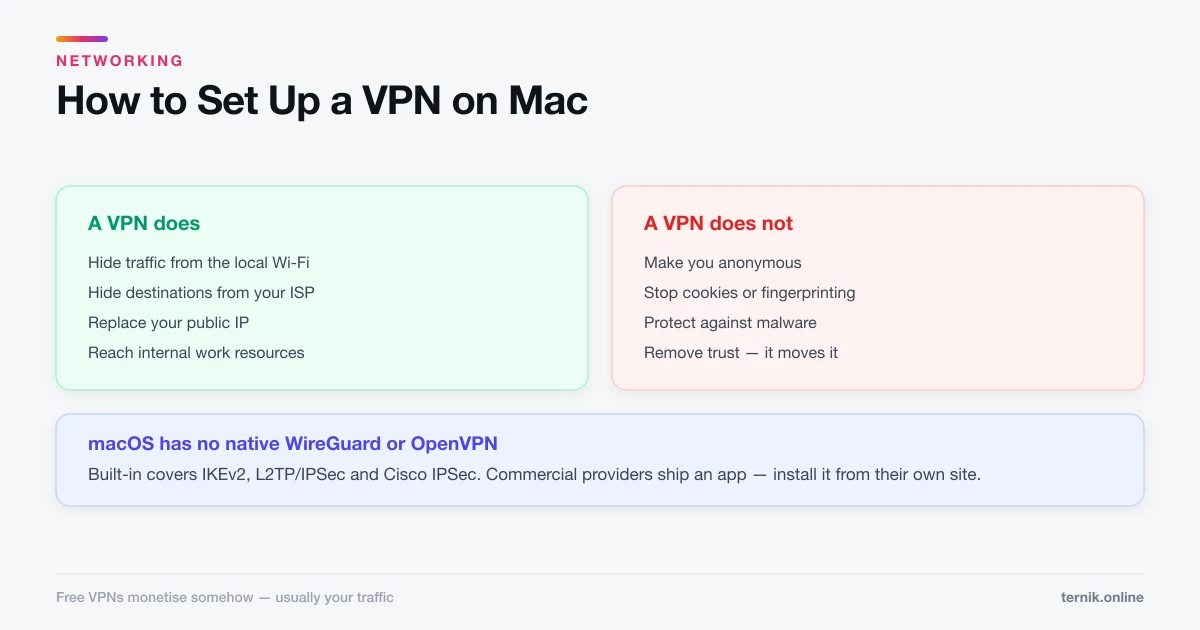
How to Set Up a VPN on Mac (Built-In and App-Based)
macOS has native VPN support under Network settings, but most commercial providers ship an app instead. Here is both routes, and an honest account of what a VPN protects.
 Networking
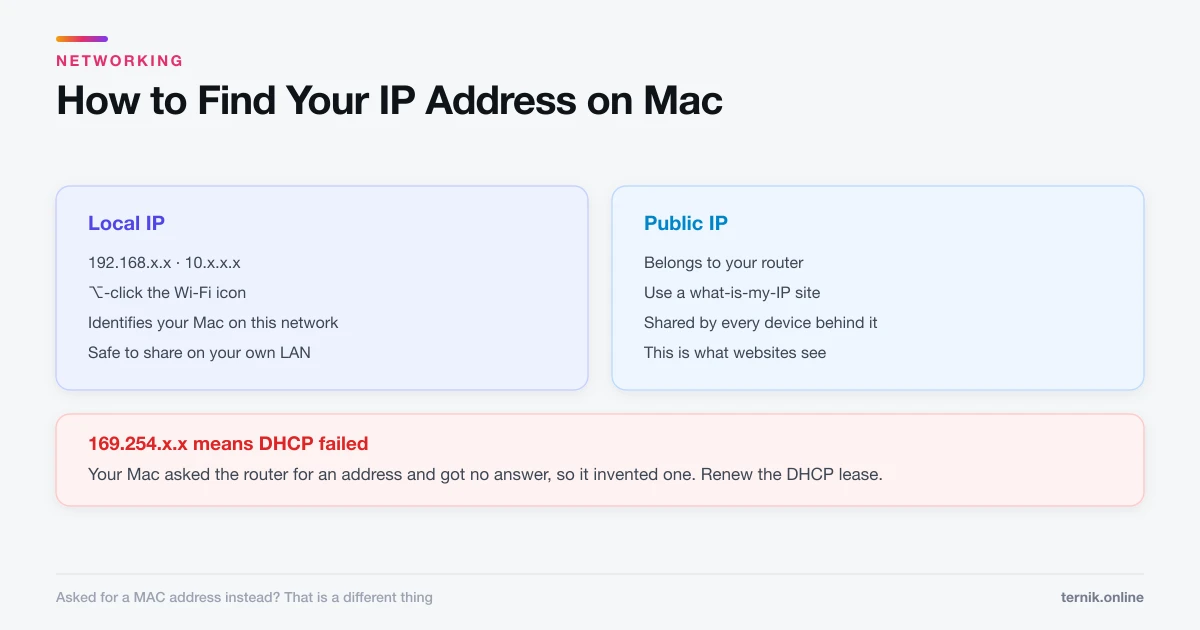
How to Find Your IP Address on Mac (Local and Public)
Your Mac has two IP addresses and they answer different questions. Here is how to find each, and which one someone is actually asking for.
 Maintenance
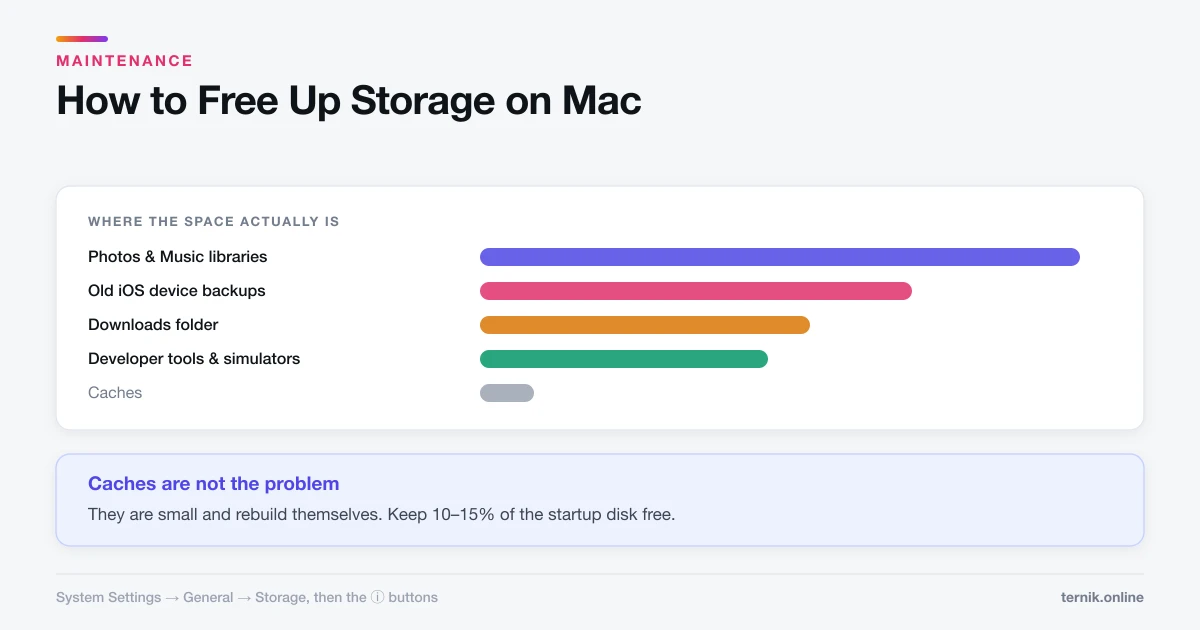
How to Free Up Storage on Mac (Where the Space Actually Is)
System Settings shows a storage breakdown that most people never open. Here is how to find the real space consumers instead of deleting caches and hoping.
 Maintenance
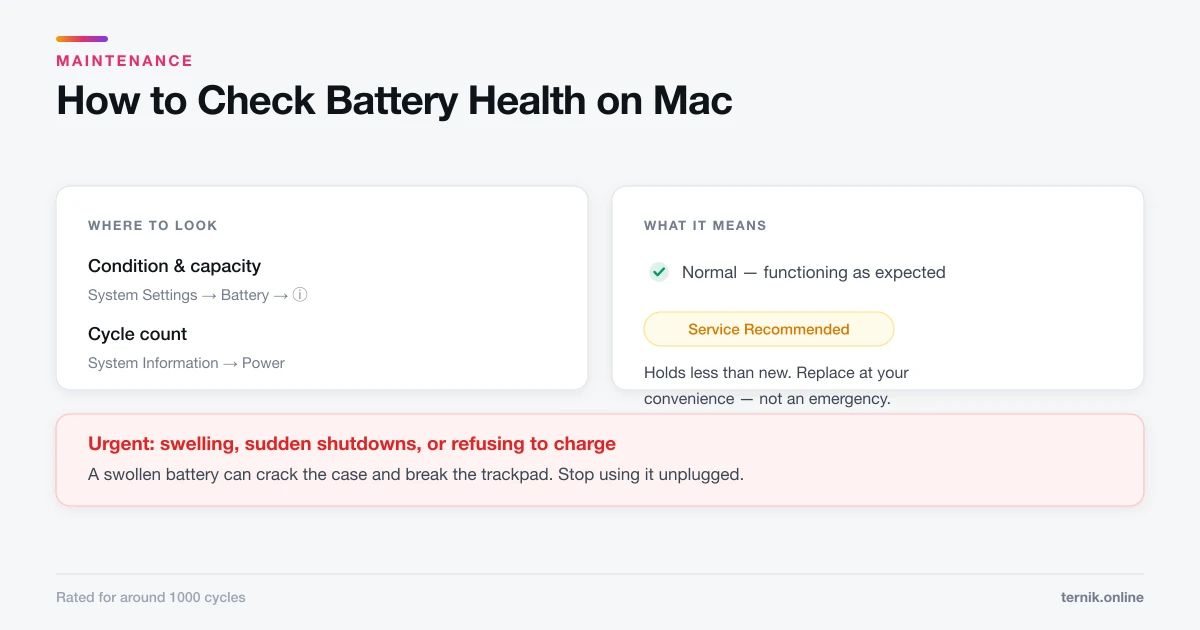
How to Check Battery Health on Mac (And What It Means)
Battery condition sits under System Settings, Battery. Here is where to find cycle count, what Service Recommended actually means, and what genuinely extends battery life.
 Maintenance
How to Back Up a Mac with Time Machine
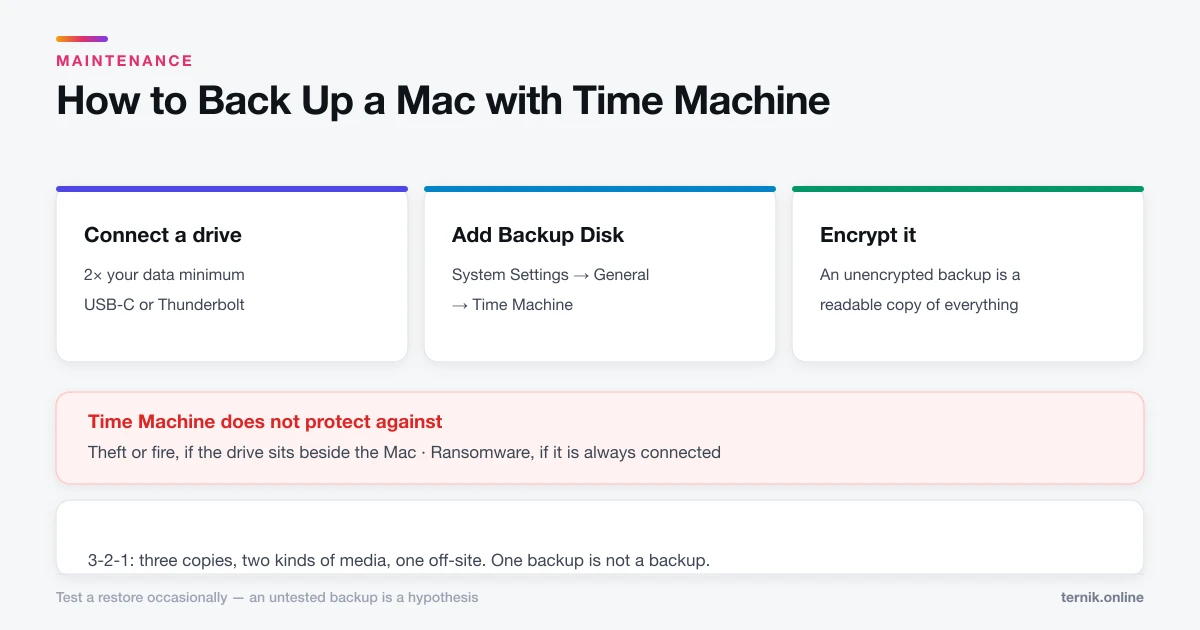
Time Machine is built in and needs one external drive. Here is the setup, what it does and does not protect against, and why one backup is not enough.
What is ternik.online?
ternik.online is an independent publication of practical macOS guides. Every article answers one question, opens with the answer rather than an introduction, and is checked against a current Mac before it goes out. We prefer the tools already installed on your machine over third-party utilities, and we say when a task is riskier than it looks instead of burying the caveat.
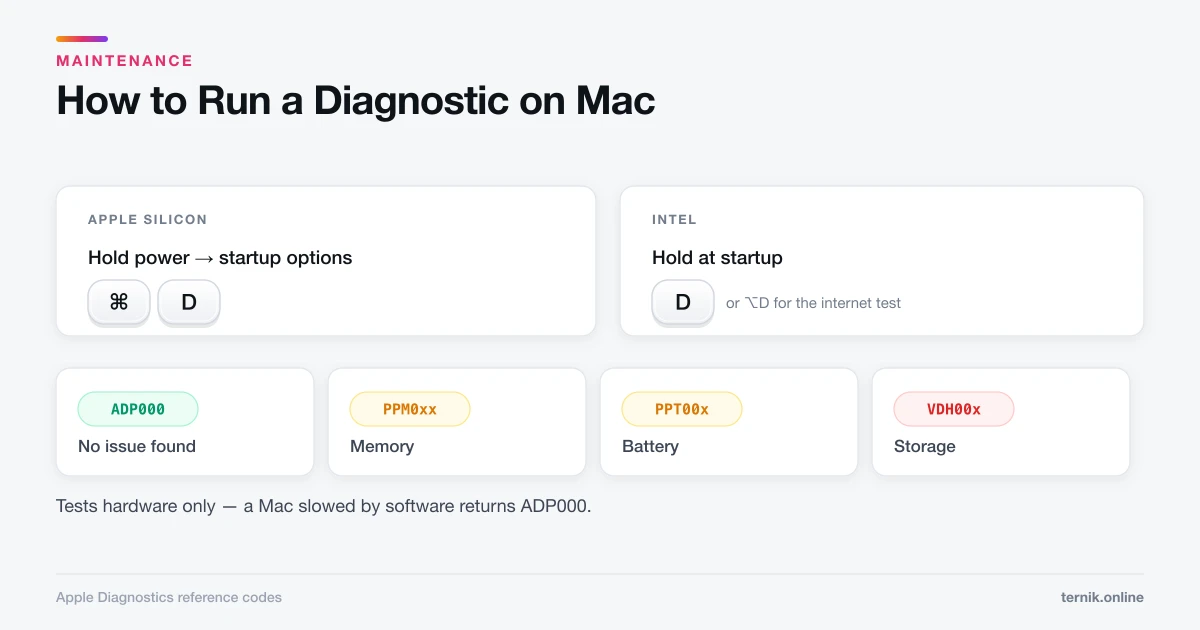
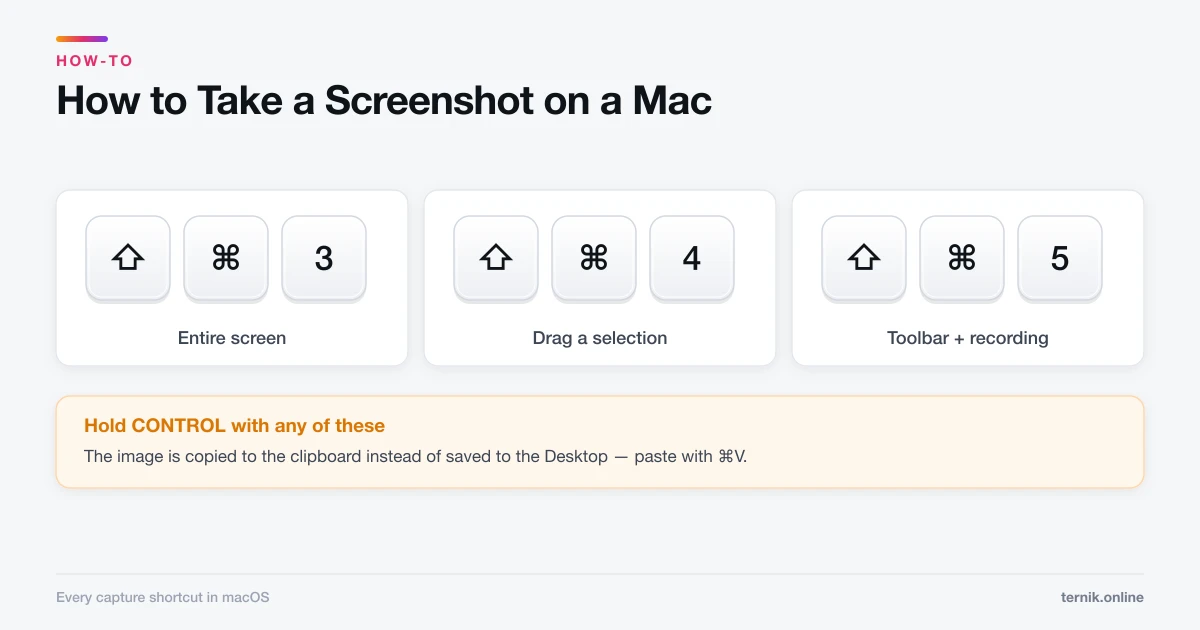
The library is organised into five sections. The How-To guides cover everyday tasks — taking a screenshot, recording the screen, unzipping an archive, or right-clicking, which is called secondary click in macOS and hidden accordingly. Maintenance is where the troubleshooting lives: Apple Diagnostics and safe mode between them separate a software problem from a hardware one in about ten minutes, which is the question most people actually need answered.
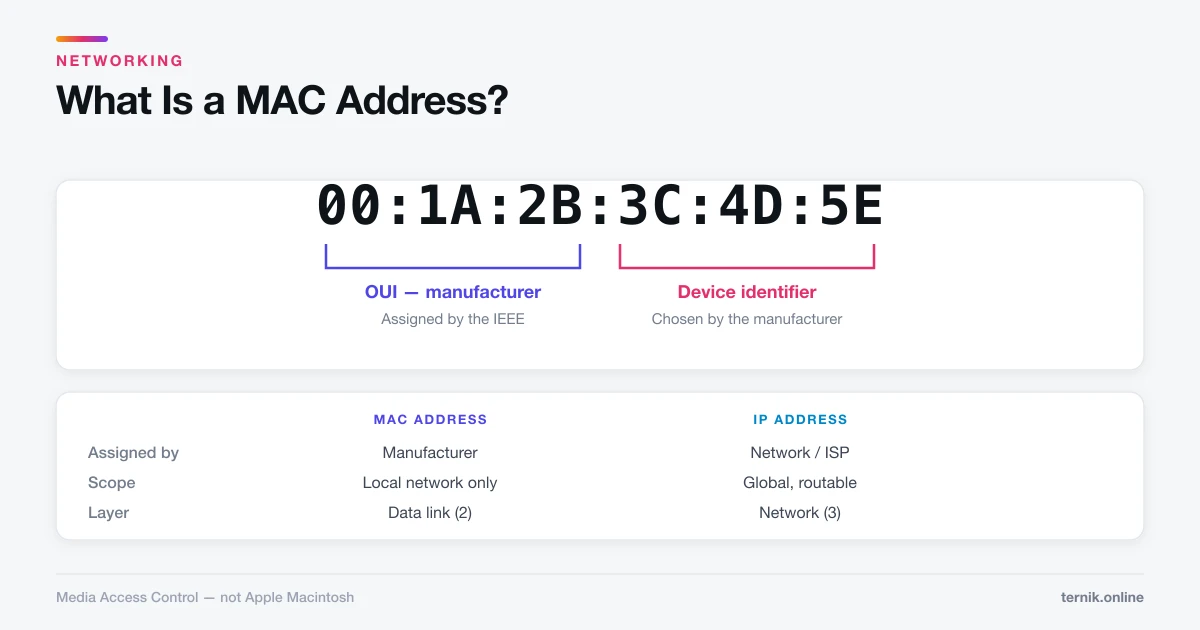
Security takes a deliberately unexcited view. macOS already runs Gatekeeper, XProtect, and Notarization, so the realistic threat is adware rather than viruses — and a web page claiming to have scanned your Mac is the attack, not a warning. Our guide to checking for malware uses only tools you already have, and FileVault covers the separate problem of a Mac that gets stolen. Networking explains the addresses that identify your devices, including what a MAC address actually is — Media Access Control, nothing to do with Apple.
There is also a small Literature section, which exists because one recurring question — why Dryden wrote Mac Flecknoe — has nothing to do with computers and deserved a proper answer rather than a search result about Apple hardware.
What you will not find here is padding. Many macOS answers are genuinely one keystroke, and an article that buries that keystroke under six paragraphs of preamble is wasting your time. Where a guide runs long, it is because the simple answer fails in predictable ways — a shortcut claimed by another application, a privacy permission that was never granted, a setting an employer has locked behind a configuration profile — and those cases are worth documenting properly. Where a step differs between Apple silicon and Intel, or changed between macOS releases, that is stated inline rather than quietly assumed.
We are also willing to tell you that nothing is wrong. A great deal of Mac advice online exists to sell a cleanup utility, and it works by implying that every slow machine is infected or clogged. Usually it is a single runaway process, a startup disk under ten percent free, or hardware that is simply getting old. Our guide to clearing caches says plainly that doing so makes a Mac briefly slower rather than faster, and Activity Monitor will usually name the real culprit in under a minute.
The guides are free to read and funded by advertising. We do not sell editorial coverage, and advertisers have no say in what we publish. Where consent is required, it is collected before advertising and analytics cookies are set, and you can change that choice at any time. The full disclosures are in our privacy policy and disclaimer. If a guide is wrong or out of date, tell us — a mistaken step in a macOS guide can cost somebody their data, so corrections take priority. More about how we work →