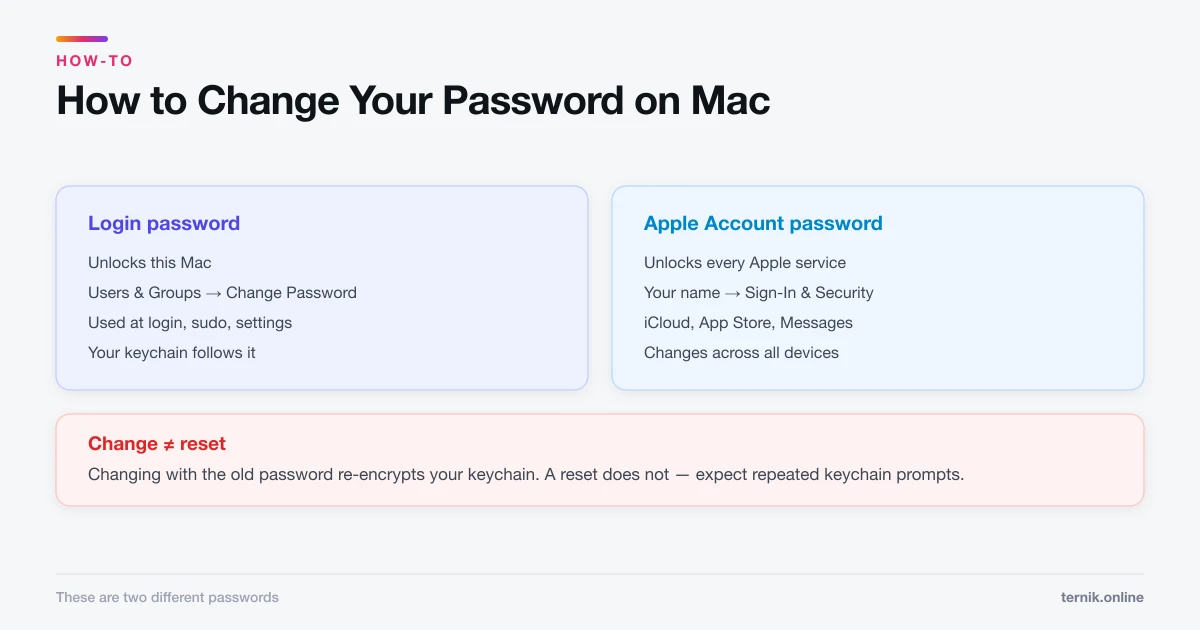
How to Find Your IP Address on Mac (Local and Public)
Your Mac has two IP addresses and they answer different questions. Here is how to find each, and which one someone is actually asking for.
Short answer
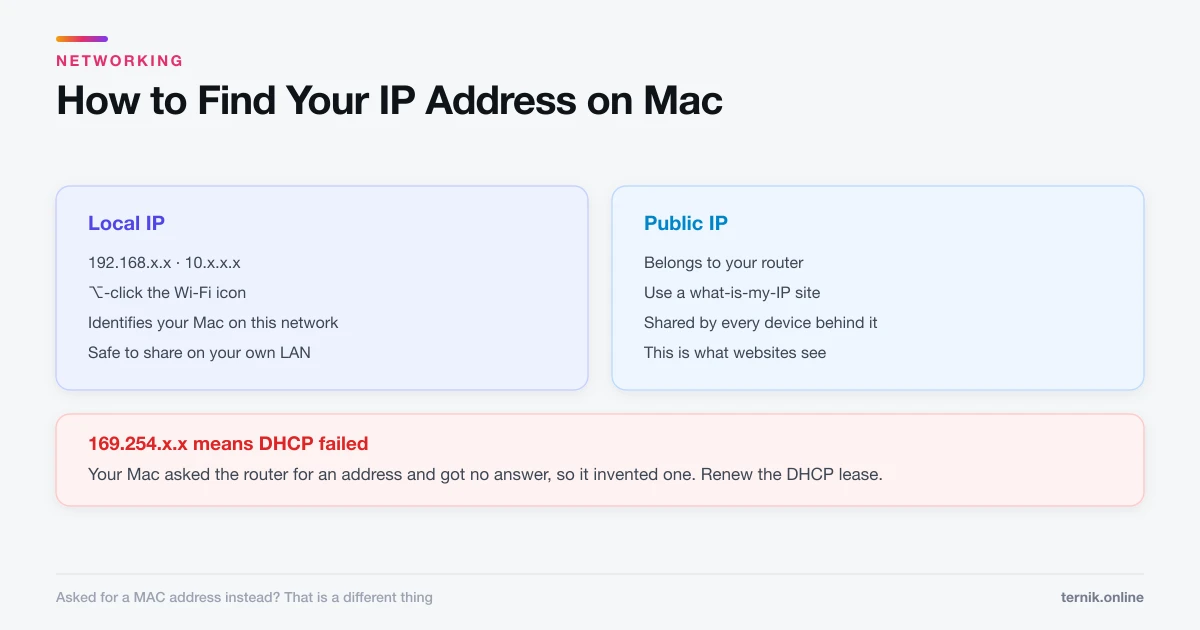
For your local IP, open System Settings, Network, select your active connection and click Details. For your public IP, visit a what-is-my-IP site — your Mac cannot know it, because the address belongs to your router. The two are different and serve different purposes.
Key takeaways
- Local IP: System Settings → Network → your connection → Details.
- Public IP: visit a "what is my IP" site — your Mac genuinely cannot know it.
- Local addresses start 192.168., 10., or 172.16–31. and are private.
- Option-click the Wi-Fi icon shows your local IP instantly.
- Local IPs change unless you set a DHCP reservation on the router.
Finding your local IP address
The fast way. Hold Option and click the Wi-Fi icon in the menu bar. The expanded panel shows your IP address along with the router and signal details.
Through System Settings.
- System Settings → Network.
- Select your active connection — Wi-Fi or Ethernet.
- Click Details.
- The TCP/IP tab shows the IPv4 address.
In Terminal. For the Wi-Fi interface:
ipconfig getifaddr en0
Use en1 for Ethernet on many Macs, or run ifconfig | grep "inet " to see every interface at once. If Terminal is unfamiliar, how to open Terminal on a Mac covers it.
Finding your public IP address
There is no setting for this, because your Mac does not have this address — your router does. Everything on your network shares it.
To see it, visit any "what is my IP address" page in a browser, or run:
curl ifconfig.me
If you are on a VPN, this returns the VPN server's address rather than your own — which is the entire point, and a quick way to confirm a VPN is actually routing your traffic.
Which one is being asked for?
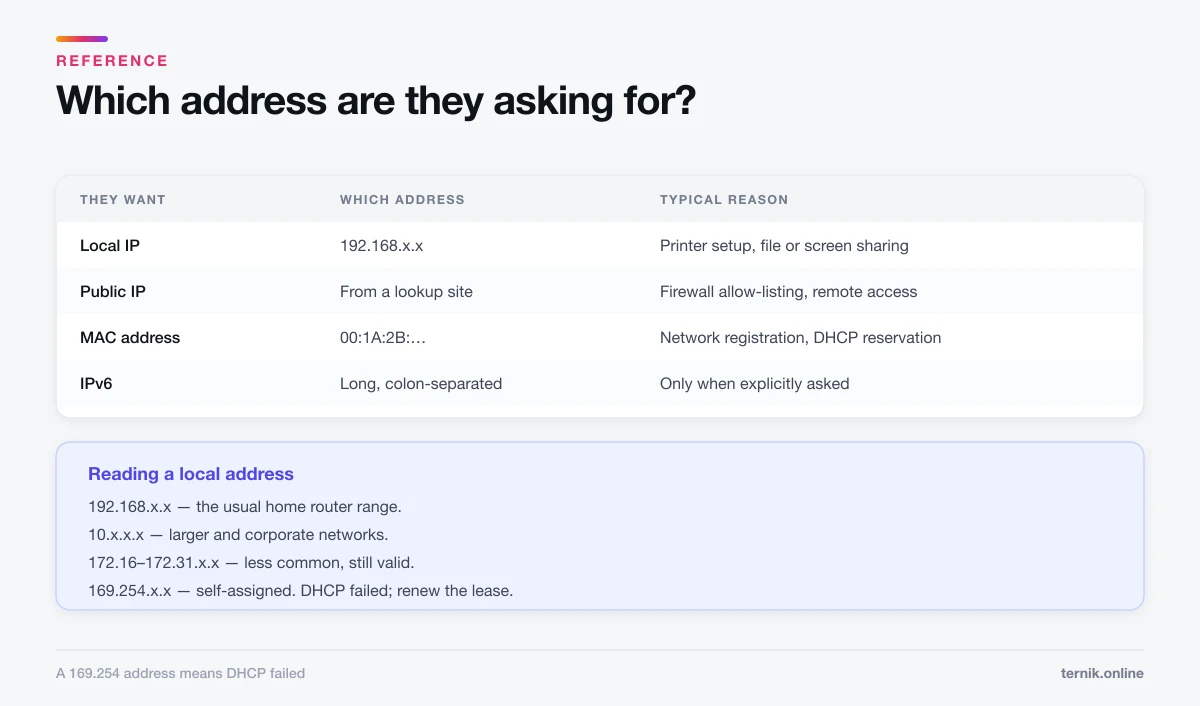
The question "what's your IP?" is ambiguous, and giving the wrong one wastes everybody's time.
| They want | Which address | Typical reason |
|---|---|---|
| Local IP | 192.168.x.x | Printer setup, file sharing, screen sharing on the LAN |
| Public IP | From a lookup site | Firewall allow-listing, remote access, geo checks |
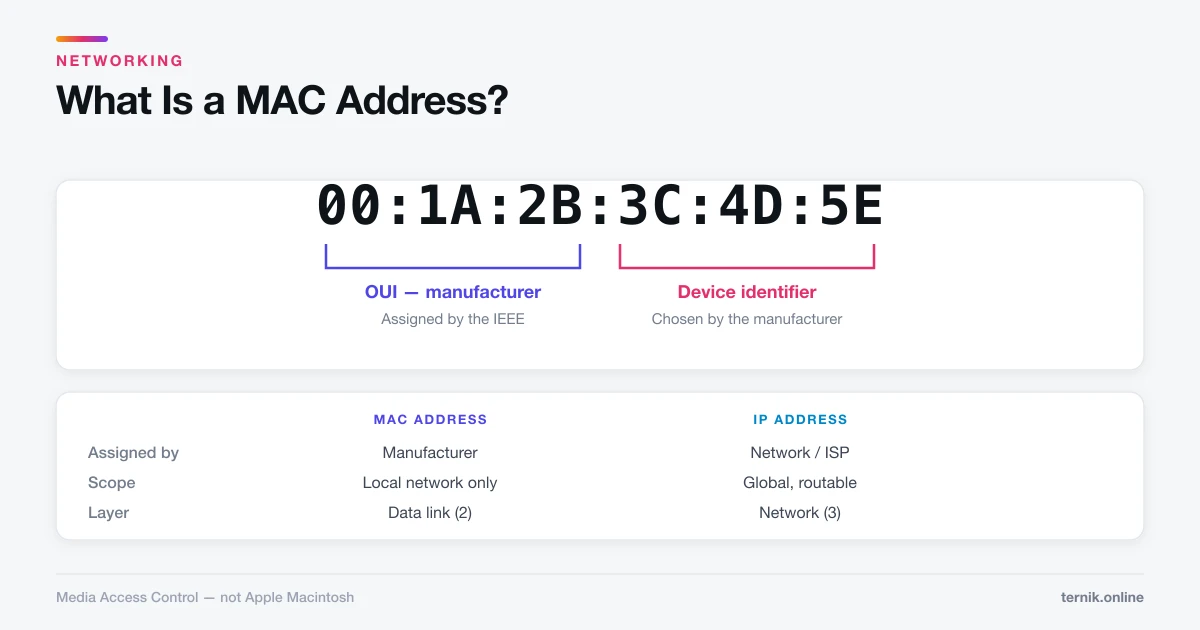
| MAC address | 00:1A:2B:… | Network registration, DHCP reservation |
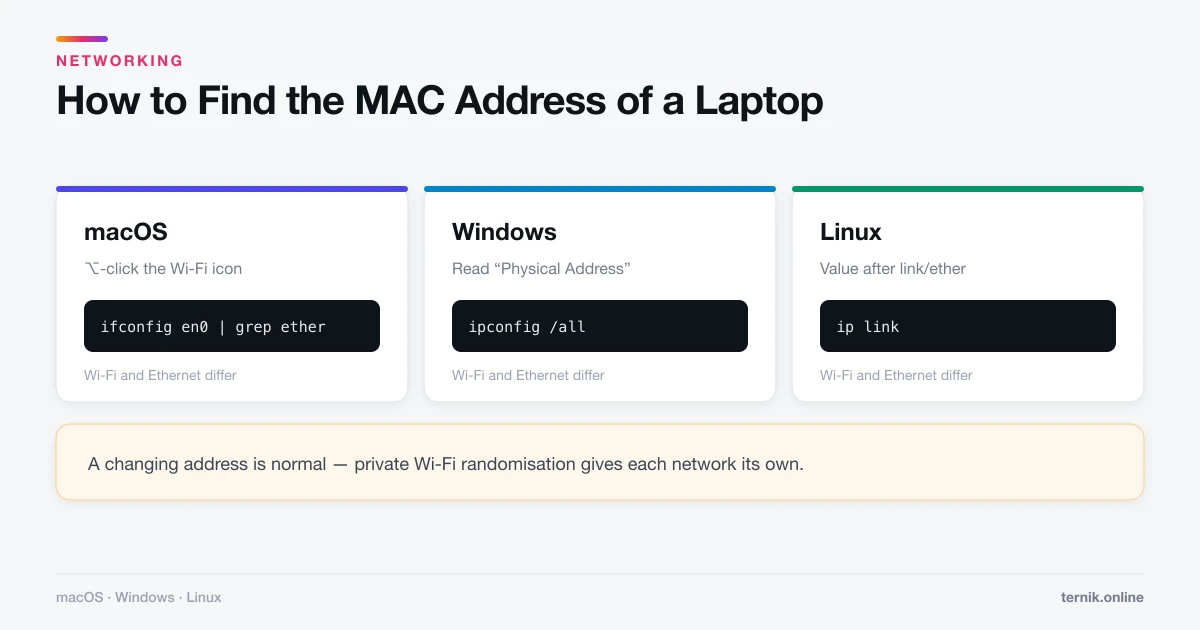
That third row catches people out constantly. A network administrator asking for a hardware address wants something else entirely — see how to find the MAC address of a laptop and what a MAC address is.
Reading a local IP address
Local addresses come from reserved private ranges that are not routable on the internet:
- 192.168.x.x — the usual home router range.
- 10.x.x.x — larger networks and many corporate environments.
- 172.16.x.x – 172.31.x.x — less common, but valid.
- 169.254.x.x — a self-assigned address, meaning DHCP failed. This is a fault signal.
That last one is worth recognising. A 169.254 address means your Mac asked the router for an address and got no answer, so it invented one. Nothing will work. Restart the router, then renew the lease under Network → Details → TCP/IP → Renew DHCP Lease.
Why your local IP keeps changing
Routers hand out addresses from a pool with a time-limited lease. Reconnect after the lease expires and you may get a different one.
For a device that needs a stable address — a printer, a home server, something you connect to by IP — set a DHCP reservation on the router, which pins an address to a specific device. Routers identify devices by hardware address for this, which is why setting one starts with finding your MAC address.
You can also set a static IP manually under Network → Details → TCP/IP → Configure IPv4: Manually, but a router-side reservation is more robust because the router then knows not to hand that address to anything else.
IPv6
Most Macs also hold an IPv6 address — a longer, colon-separated string in the same TCP/IP tab. Home networks increasingly run both.
Unless someone explicitly asks for IPv6, give the IPv4 address. Most consumer software and support instructions still assume it.
What your IP reveals
Your public IP discloses your approximate region and your internet provider. It is visible to every site you visit, which is ordinary and unavoidable. It does not reveal a street address, despite what geolocation sites imply — their accuracy at city level is mediocre and at street level essentially fictional.
Your local IP reveals nothing outside your own network and is safe to share with anyone helping you set up a device on it.
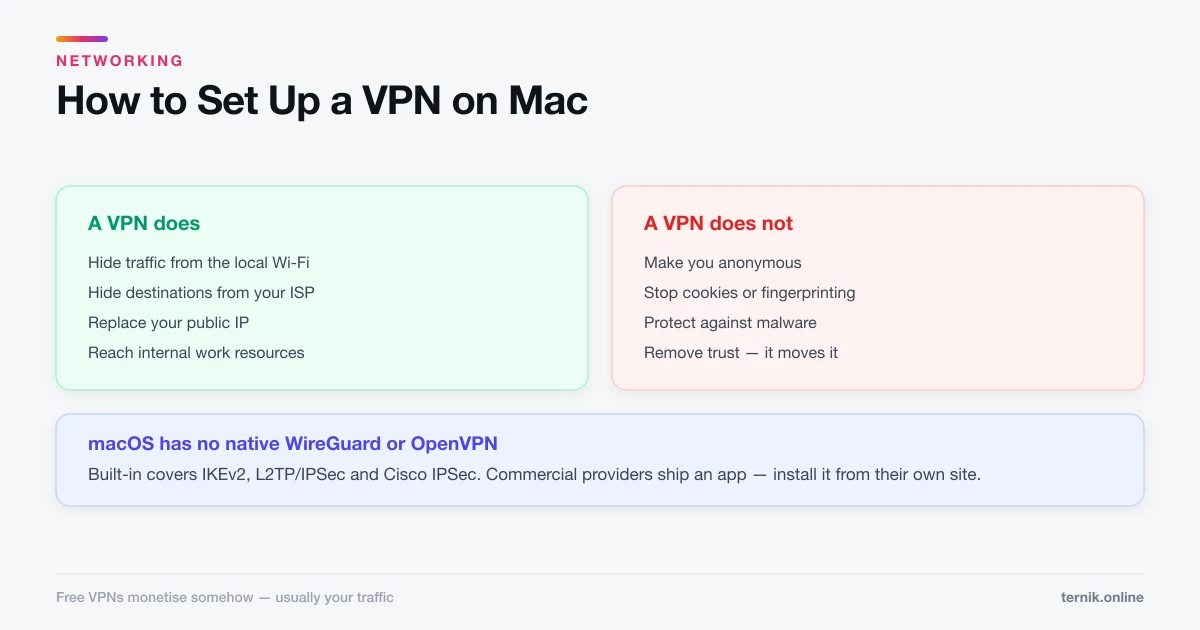
If hiding your public IP is the goal, that is what a VPN does — how to set up a VPN on a Mac covers the setup and the limits.
Frequently asked questions
For the local IP, hold Option and click the Wi-Fi menu bar icon, or go to System Settings → Network → your connection → Details. For the public IP, use a what-is-my-IP site.
Sources
Keep reading
More guides to grow your account.