How to Change Your Password on Mac (Login and Apple Account)
Your Mac login password and your Apple Account password are different things. Here is how to change each, and what happens to FileVault and your keychain.
Short answer
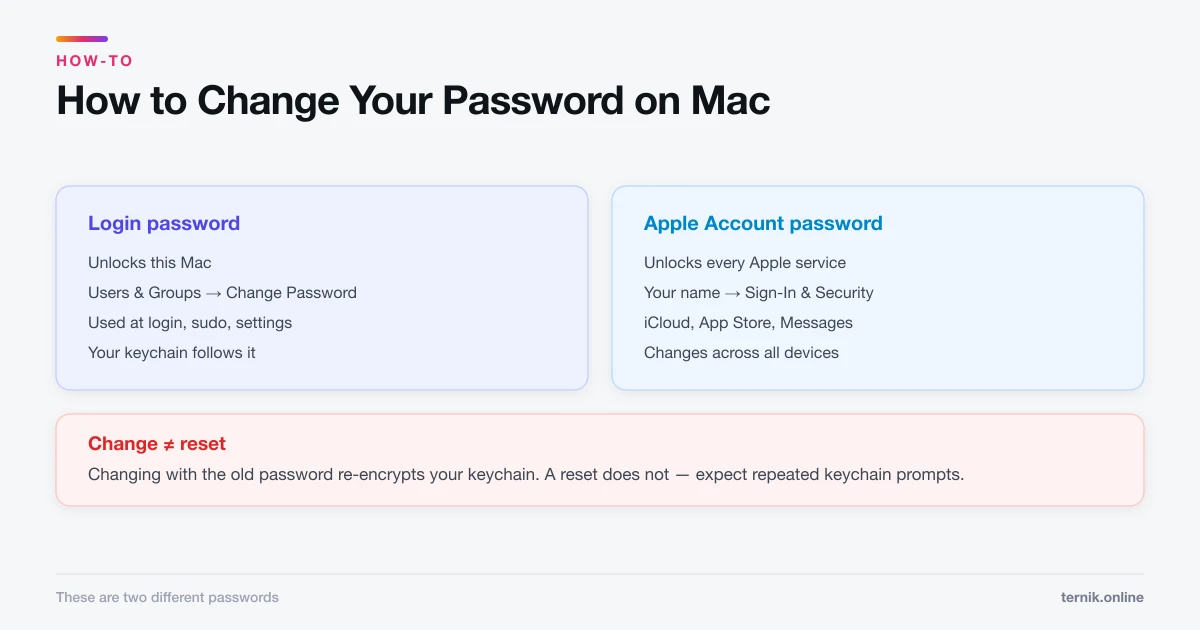
Go to System Settings, Users and Groups, and click Change Password to change your Mac login password. Your Apple Account password is separate and changes under System Settings, your name, Sign-In and Security. Changing the login password does not change the other, and your keychain follows the login password automatically.
Key takeaways
- Login password: System Settings → Users & Groups → Change Password.
- Apple Account password: System Settings → your name → Sign-In & Security.
- These are two different passwords and changing one does not change the other.
- Your keychain follows the login password automatically when changed the normal way.
- A password reset (rather than a change) can leave the keychain locked behind the old one.
Changing your Mac login password
This is the password you type at the login window:
- Apple menu → System Settings.
- Click Users & Groups in the sidebar.
- Click the ⓘ beside your account, then Change Password.
- Enter your current password, then the new one twice.
- Add a hint if you want one — it is visible to anyone at the login screen, so keep it oblique.
- Click Change Password.
Doing it this way — supplying the old password — lets macOS re-encrypt your login keychain to match. Nothing else needs attention.
Changing your Apple Account password
Separate credential, separate place:
- System Settings → your name at the top of the sidebar.
- Click Sign-In & Security.
- Click Password, authenticate, and set the new one.
This changes the password for iCloud, the App Store, Messages, FaceTime, and every Apple service across all your devices. Expect to sign in again on your iPhone, iPad, and Apple TV.
Change this one immediately if you suspect any compromise — it protects far more than the Mac in front of you.
Which password is which
People conflate these constantly, and the consequences differ.
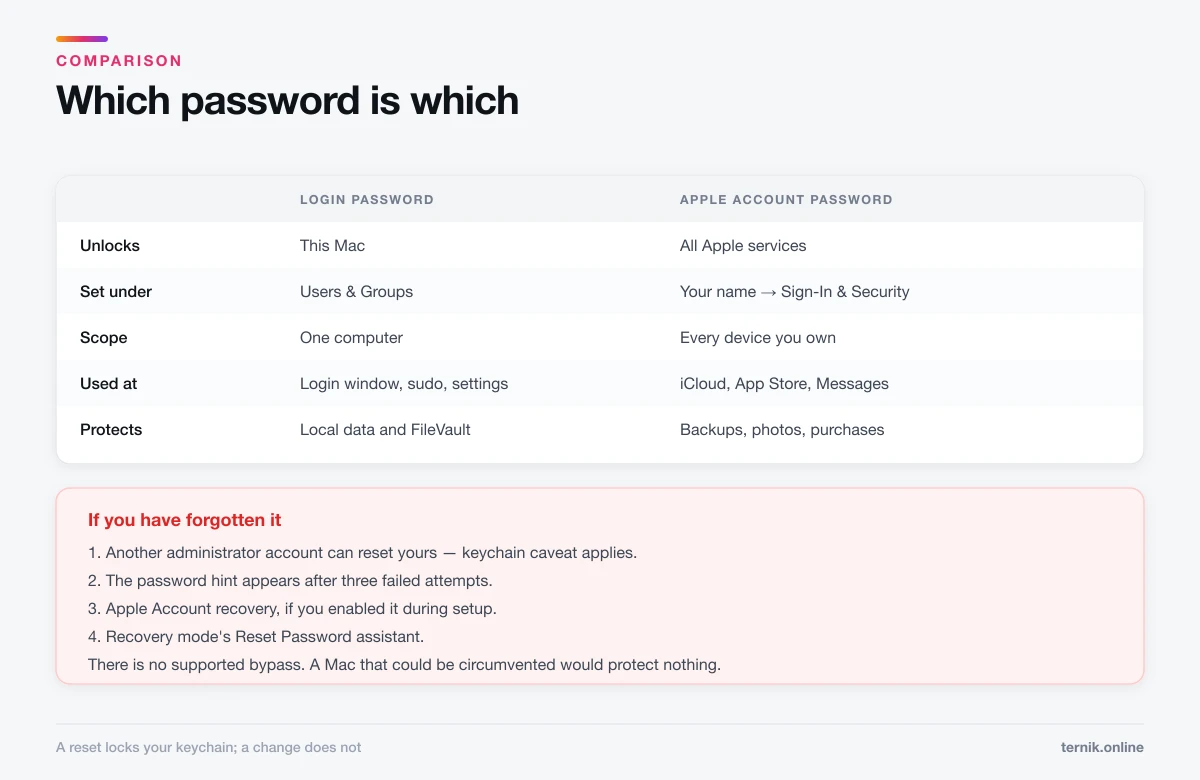
| Login password | Apple Account password | |
|---|---|---|
| Unlocks | This Mac | All Apple services |
| Used at | Login window, sudo, settings | iCloud, App Store, Messages |
| Scope | One computer | Every device you own |
| Reset by | Another admin, or recovery | Apple, via account recovery |
| Protects | Local data and FileVault | Backups, photos, purchases |
A third exists on shared machines: individual accounts each have their own login password, and an administrator can reset another user's — but that reset locks the other user's keychain, as below.
What happens to your keychain
The login keychain — saved Wi-Fi passwords, website logins, certificates — is encrypted with your login password.
Changing the password normally, with the old one supplied, re-encrypts the keychain transparently. You will not notice.
Resetting it — via another administrator account, a recovery key, or Apple Account recovery — does not. macOS cannot decrypt the old keychain without the old password, so you get repeated "enter your keychain password" prompts. If you remember the old password, enter it once in Keychain Access to unlock and re-sync. If you do not, you must create a new keychain and lose the saved credentials it held.
This is the single best argument for a password manager independent of the keychain.
FileVault and password changes
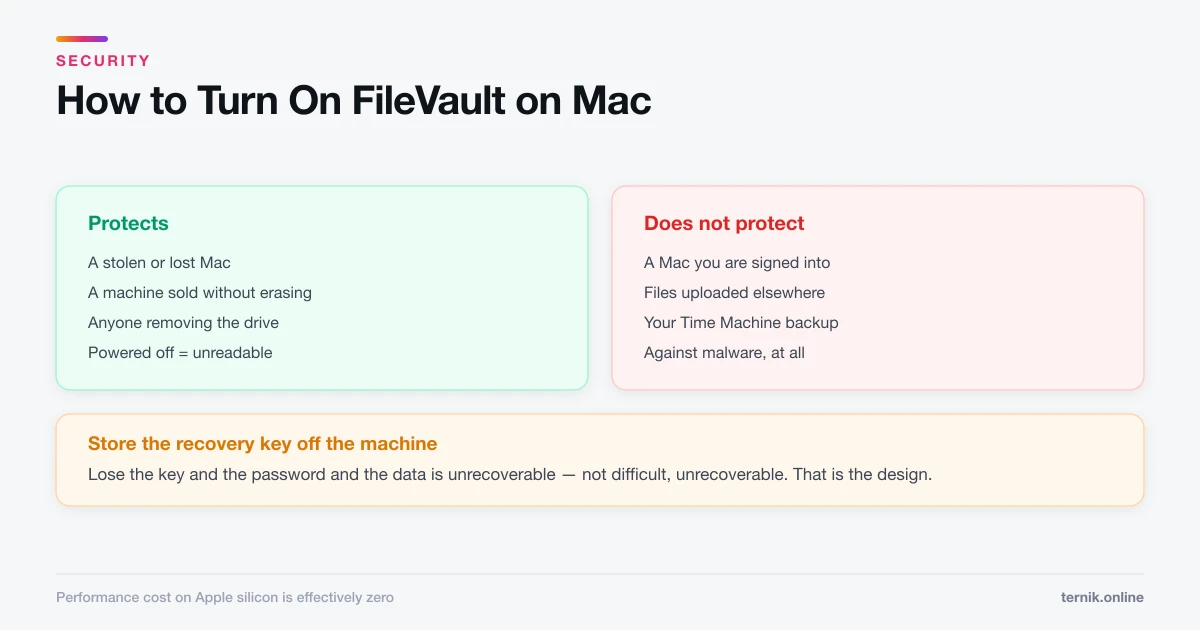
With FileVault enabled, your login password unlocks the disk at startup. Changing it through Users & Groups updates that automatically.
Two things to be careful about:
- Your recovery key does not change. It remains valid, so keep it stored securely and off the machine.
- The pre-boot screen may lag briefly after a change on some systems. If the old password unlocks the disk but not the account, restart once and it resolves.
If you have forgotten the password
Options, in order of preference:
- Another administrator account can reset yours under Users & Groups. Keychain caveat applies.
- The password hint appears after three failed attempts at the login window.
- Apple Account recovery, if you enabled "Allow your Apple Account to reset your password" when setting up.
- Recovery mode — restart into Recovery and use the Reset Password assistant. This needs FileVault credentials or a recovery key if FileVault is on.
- Erase and restore from backup — the last resort, covered in how to reset a Mac.
There is no supported bypass. That is the design: a Mac whose password could be circumvented would not protect anything.
Choosing a password worth having
- Length beats complexity. A four-word passphrase outlasts a short string of symbols.
- Do not reuse it. Especially not between your Mac and your Apple Account.
- Use a password manager for everything else, so only these two need memorising.
- Turn on two-factor authentication for your Apple Account — a stolen password alone then achieves nothing.
- Keep the hint useless to strangers. It is displayed at the login screen.
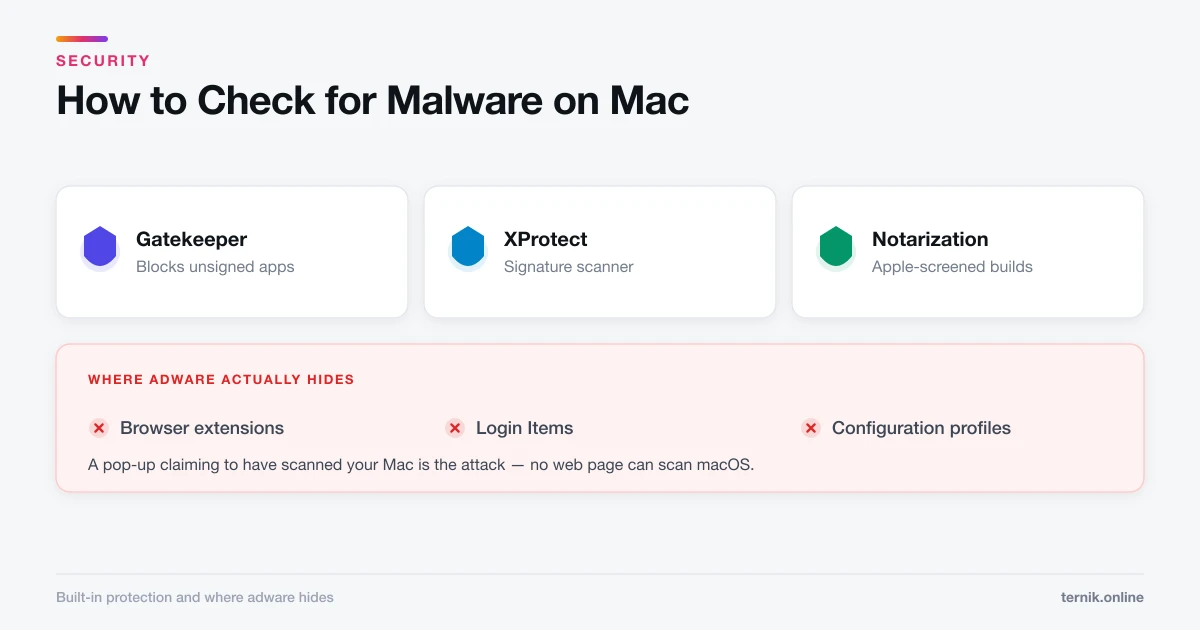
If you are changing a password because something felt wrong rather than as routine hygiene, change the Apple Account password first, then check the Mac for adware and unwanted background items — a compromised machine will simply capture the new password too.
Frequently asked questions
System Settings → Users & Groups → the ⓘ beside your account → Change Password. Enter your current password, then the new one twice.
Sources
Keep reading
More guides to grow your account.