How to Check for Malware on Mac (Without Paying for Anything)
Real Mac malware is rare; adware and browser hijackers are not. Here is how to check for an actual infection using tools already built into macOS.
Short answer
Check Activity Monitor for unfamiliar processes, review Login Items and background extensions in System Settings, and audit your browser extensions and homepage. Most Mac infections are adware rather than viruses. Pop-ups claiming your Mac is infected are themselves the scam — never install what they offer.
Key takeaways
- Nearly all "Mac viruses" are adware or browser hijackers, not system-level infections.
- A pop-up warning that your Mac is infected is the attack. Close the tab; install nothing.
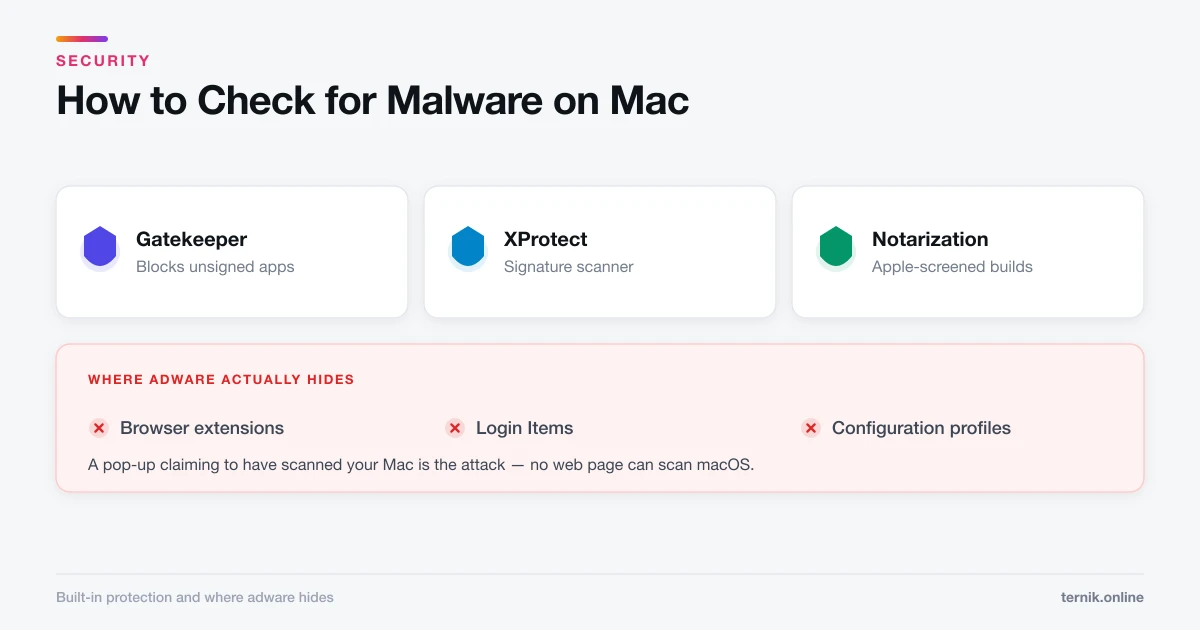
- macOS already runs three layers of protection: Gatekeeper, XProtect, and Notarization.
- The three places to check are Activity Monitor, Login Items, and browser extensions.
- You do not need a paid antivirus subscription to find or remove ordinary adware.
How do I know if my Mac has malware?
Look for behaviour, not for a virus name. The reliable signals are:
- Your browser homepage or search engine changed and will not stay changed.
- Ads appear on sites that never had them, or on every site.
- New browser extensions or a new toolbar you did not install.
- The fans run constantly while the Mac is idle.
- Apps you never installed appear in Applications or the menu bar.
- Pop-ups warning about infections, expired licences, or required "updates".
That last one deserves emphasis. A web page claiming to have scanned your Mac is lying — no website can do that. Those pages exist to sell you the infection.
What macOS already does for you
Before installing anything, understand what is protecting you:
- Gatekeeper checks that apps come from identified developers and blocks unsigned code by default.
- Notarization requires developers to submit apps to Apple for an automated malware scan.
- XProtect is Apple's built-in signature-based scanner. It runs silently, updates independently of macOS releases, and can remove known malware families.
This is why classic self-replicating viruses are essentially a non-issue on the Mac. What gets through is what the user was persuaded to install — a fake Flash updater, a cracked app, a "video codec" required by a streaming site.
Step 1: Check Activity Monitor
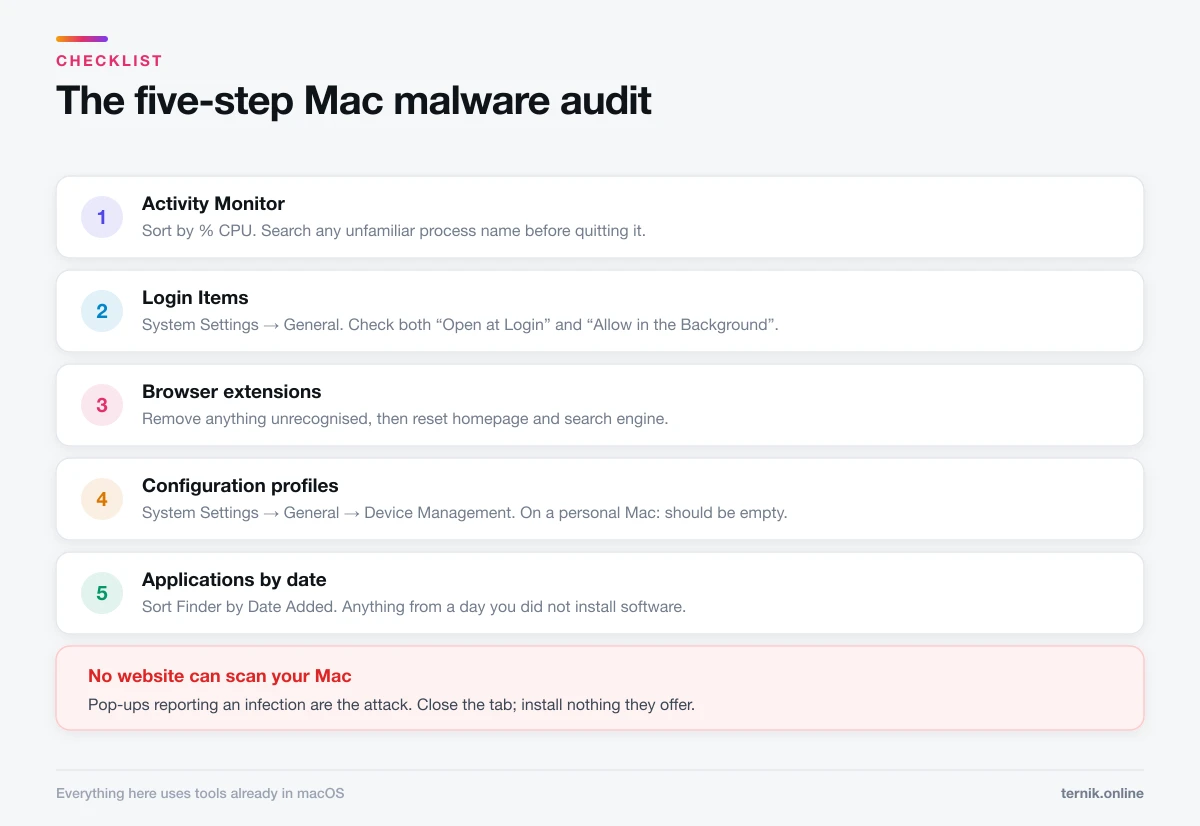
Open Applications → Utilities → Activity Monitor and sort by % CPU.
Look for processes that are consuming resources with no matching app open, or that carry generic names — MacDefender, AdvancedMacCleaner, SearchProtect, or a random alphanumeric string. Legitimate macOS processes tend to be recognisable: WindowServer, kernel_task, mds_stores, Safari.
Found something suspicious? Search the exact process name before acting. Many legitimate background processes look alarming — kernel_task and mds_stores are both normal, and quitting the wrong item causes problems. Once confirmed, select it, click the ⊗ in the toolbar, and choose Force Quit. If it reappears after a restart, it is being launched by a login item.
Step 2: Audit login items and background extensions
Go to System Settings → General → Login Items. There are two lists:
- Open at Login — apps that launch when you sign in.
- Allow in the Background — extensions and daemons, including ones belonging to apps you have deleted.
Adware persists here. Anything you do not recognise, or that belongs to an app you removed months ago, can be switched off. Nothing in this list is required for macOS to boot, so disabling an item is safe and reversible.
Step 3: Clean up your browser
Adware overwhelmingly lives in the browser rather than the system.
Safari: Settings → Extensions. Uncheck and uninstall anything unfamiliar. Then check Settings → General for your homepage, and Settings → Search for your search engine.
Chrome: open chrome://extensions, remove what you do not recognise, then check Settings → On startup and Settings → Search engine. Use Reset settings to undo hijacked defaults in one step.
Firefox: Add-ons and Themes → Extensions, then use the Refresh Firefox button.
Pay attention to extensions with broad permissions — "read and change all your data on all websites" is what an adware extension needs to inject ads. A password manager legitimately needs wide access; a "coupon finder" does not.
Step 4: Check for configuration profiles
This one is missed constantly. Configuration profiles are an enterprise management feature that adware abuses to lock browser settings so they cannot be changed back.
Look under System Settings → General → Device Management. On a personal Mac not issued by an employer or school, there should be nothing here. If a profile exists and you did not install it, remove it — then redo Step 3, because it was probably reverting your changes.
Step 5: Review your Applications folder
Sort Applications by Date Added in Finder's list view. Anything that appeared on a date you were not installing software is worth investigating. Remove it properly, including its background helpers — see how to uninstall apps on a Mac.
Do you need antivirus software on a Mac?
For most people, no. XProtect plus normal caution covers the realistic threats.
A reputable on-demand scanner is genuinely useful as a second opinion when you suspect something and want confirmation. Choose one with a real company behind it, download it from the developer's own site — never from a pop-up — and be sceptical of anything that reports hundreds of urgent problems on a healthy machine, since that is a sales tactic rather than a finding.
Avoid entirely: anything advertised through a pop-up, anything claiming to have already scanned your Mac from a web page, and anything demanding payment before it will name what it found.
If the Mac is slow but clean
Slowness is far more often mundane than malicious. A full startup disk, a runaway process, or ageing hardware all look like "infection" from the outside. If the checks above come up empty, run Apple Diagnostics to rule out a hardware fault before assuming anything sinister. Booting into safe mode is the other cheap test: a problem that vanishes there is third-party software, and clearing that app's cache often finishes the job.
Staying clean
- Install from the App Store or the developer's own site.
- Never install a "codec", "player update", or "Flash update" prompted by a web page.
- Keep macOS updated — XProtect definitions arrive this way.
- Treat cracked software as hostile; it is the single most common infection route on macOS.
- Close infection pop-ups with Command-W. If the tab will not close, force quit the browser and reopen without restoring windows.
Frequently asked questions
Yes, though true self-replicating viruses are rare. The realistic threat is adware, browser hijackers, and trojans disguised as updates or cracked software.
Sources
Keep reading
More guides to grow your account.