How to Back Up a Mac with Time Machine
Time Machine is built in and needs one external drive. Here is the setup, what it does and does not protect against, and why one backup is not enough.
Short answer
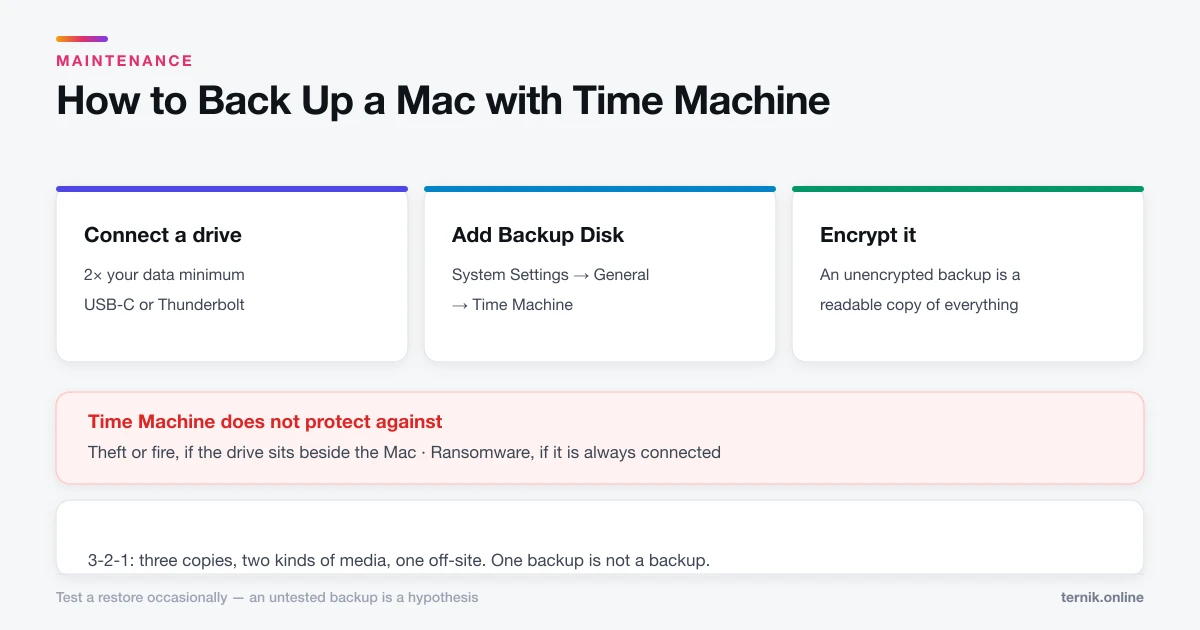
Connect an external drive, open System Settings, General, Time Machine, click Add Backup Disk, and select it. Time Machine then backs up automatically every hour. It protects against drive failure and accidental deletion, but a drive kept beside the Mac does not protect against theft, fire, or ransomware.
Key takeaways
- System Settings → General → Time Machine → Add Backup Disk.
- Use a drive at least twice the size of the data you are backing up.
- Backups run hourly, thinning to daily and weekly as the disk fills.
- Time Machine protects against drive failure and deletion — not theft or fire.
- One backup is not a backup. Keep a second copy somewhere else.
Setting up Time Machine
- Connect an external drive by USB or Thunderbolt.
- Open System Settings → General → Time Machine.
- Click Add Backup Disk.
- Select the drive.
- Choose whether to encrypt the backup — say yes.
- Click Set Up Disk.
macOS offers to erase the drive if its format is unsuitable. That wipes it, so move anything you need off first.
The initial backup copies everything and can take hours. Leave it plugged in and let it finish. Subsequent backups are incremental and take minutes.
Encrypt it
The encryption prompt is easy to click past, and you should not.
An unencrypted Time Machine drive is a complete, readable copy of everything on your Mac — documents, mail, browser data, saved passwords — that anyone can plug in and browse. If your Mac's disk is protected with FileVault but the backup is not, you have protected the harder target and left the easier one open.
Store the encryption password in a password manager. A lost password means an unrecoverable backup.
Choosing a drive
- Capacity: at least 2× your data, ideally 3×. More room means deeper history.
- Connection: USB-C or Thunderbolt. USB-A works but is slower for the first pass.
- Type: an SSD is faster and more robust; a spinning drive is cheaper per terabyte and fine for backups.
- Dedicated: give Time Machine its own drive rather than sharing with working files.
Time Machine keeps hourly backups for 24 hours, daily for a month, and weekly until the disk fills — then deletes the oldest. A bigger drive buys you a longer history, which is what saves you when you notice a file went missing three weeks ago.
What Time Machine does not protect against
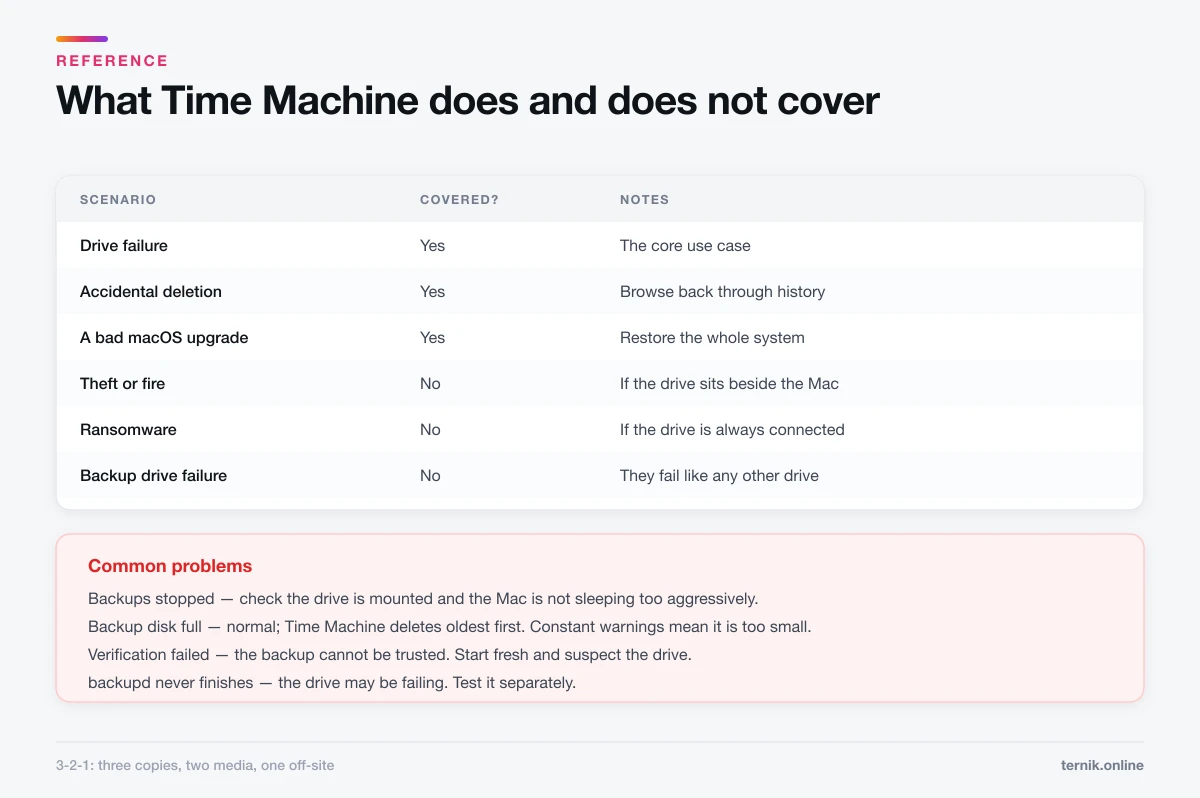
This is where most backup plans quietly fail. Time Machine is excellent at drive failure, accidental deletion, and bad upgrades. It does nothing about:
- Theft or fire, if the drive lives beside the Mac.
- Ransomware, if the drive is permanently connected and writable.
- Silent corruption propagated into backups before you notice.
- A failed backup drive — they fail at the same rate as any other drive.
The standard answer is 3-2-1: three copies, on two kinds of media, one off-site. In practice that means Time Machine plus either a cloud backup service or a second drive you keep elsewhere and rotate.
Restoring
A single file. Open the folder it lived in, then launch Time Machine from the menu bar or Applications. Browse back through time, select, click Restore.
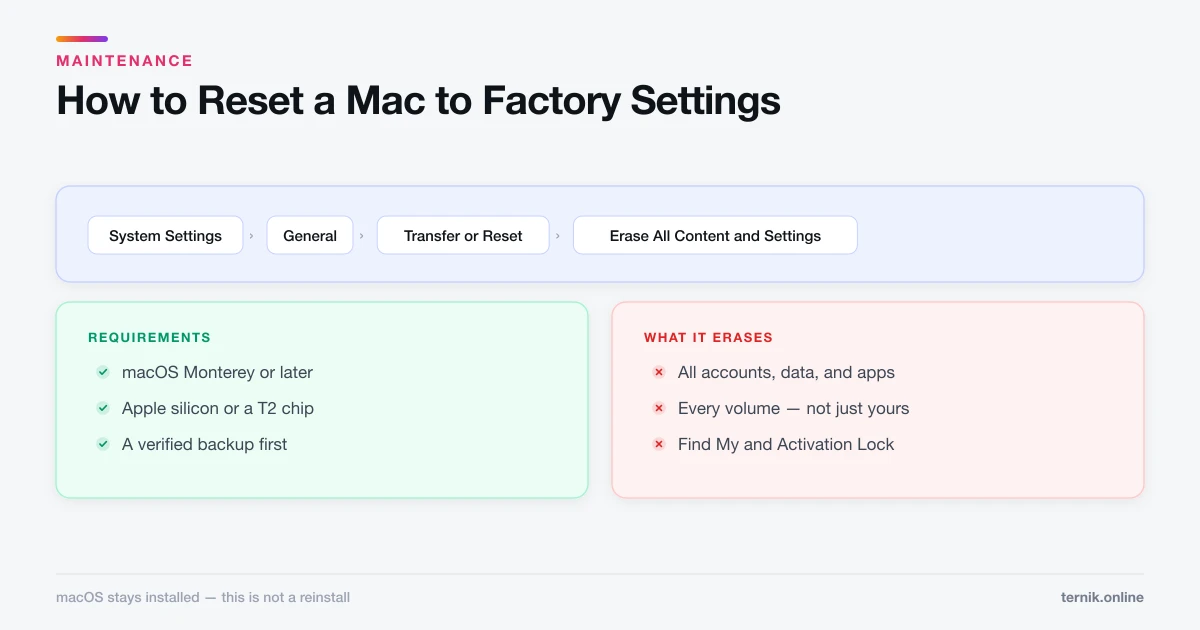
A whole Mac. During Setup Assistant on a new or erased Mac, choose to transfer from a Time Machine backup. This is also the route back after resetting a Mac.
Selective restore later. Migration Assistant, in Applications → Utilities, pulls specific accounts or folders from a backup at any time.
One caution: restoring everything also restores whatever was wrong. If you erased the Mac to escape a software problem or adware, set up as new and copy documents by hand instead — the reasoning is in how to check for malware.
Common problems
Backups take far too long. The first one is genuinely slow. If later ones drag, exclude large volatile folders — virtual machine images, developer caches — under Options.
"Backup disk is full." Normal; Time Machine deletes oldest first. Constant full warnings mean the drive is too small.
Backups stopped without warning. Check the drive is mounted and awake. Sleeping external drives are a frequent cause, as is a Mac that sleeps too aggressively — display and system sleep settings interact with this.
Backup verification failed. Time Machine is telling you the backup cannot be trusted. Start a fresh one, and treat the drive with suspicion.
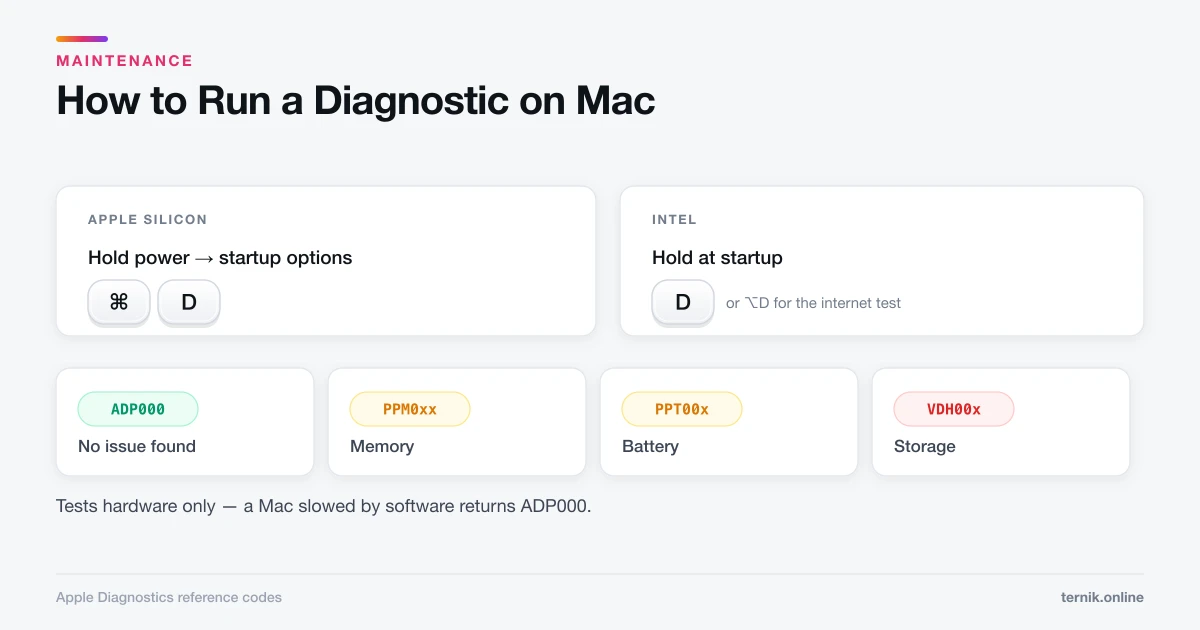
Constant heavy disk use. Check Activity Monitor for backupd. If it never finishes, the drive may be failing — run Apple Diagnostics on the Mac and test the drive separately.
The habit that matters
Plug the drive in regularly if it is not permanently attached. A backup from four months ago is four months of work you would have to reconstruct.
Test a restore occasionally. Restore one file you can verify. A backup nobody has ever restored from is a hypothesis, not a safety net.
Frequently asked questions
Connect an external drive, then go to System Settings → General → Time Machine → Add Backup Disk and select it. Choose to encrypt when prompted.
Sources
Keep reading
More guides to grow your account.