How to Turn On FileVault on Mac (Full-Disk Encryption)
FileVault makes a powered-off Mac unreadable to anyone without your password. Turning it on takes two minutes — the recovery key is the part to get right.
Short answer
Go to System Settings, Privacy and Security, FileVault and click Turn On. Choose whether to allow your Apple Account to unlock the disk or to use a recovery key, and store that key somewhere off the Mac. Encryption runs in the background and the performance cost on modern hardware is negligible.
Key takeaways
- System Settings → Privacy & Security → FileVault → Turn On.
- Protects a Mac that is powered off or at the login screen — not one you are signed into.
- Store the recovery key off the machine. Losing it and your password means losing the data.
- Performance cost on Apple silicon and T2 Macs is effectively zero.
- Turn it on before you have anything worth protecting, not after.
Turning FileVault on
- Apple menu → System Settings.
- Click Privacy & Security in the sidebar.
- Scroll to FileVault and click Turn On.
- Choose how to unlock the disk if you forget your password:
- Allow your Apple Account to unlock your disk, or
- Create a recovery key and store it yourself.
- Authenticate.
Encryption then runs in the background. You can keep working; the Mac needs to stay powered on and ideally plugged in. On modern hardware it completes quickly because the data is already encrypted at rest — FileVault is largely tying that encryption to your credentials.
Which unlock option to choose
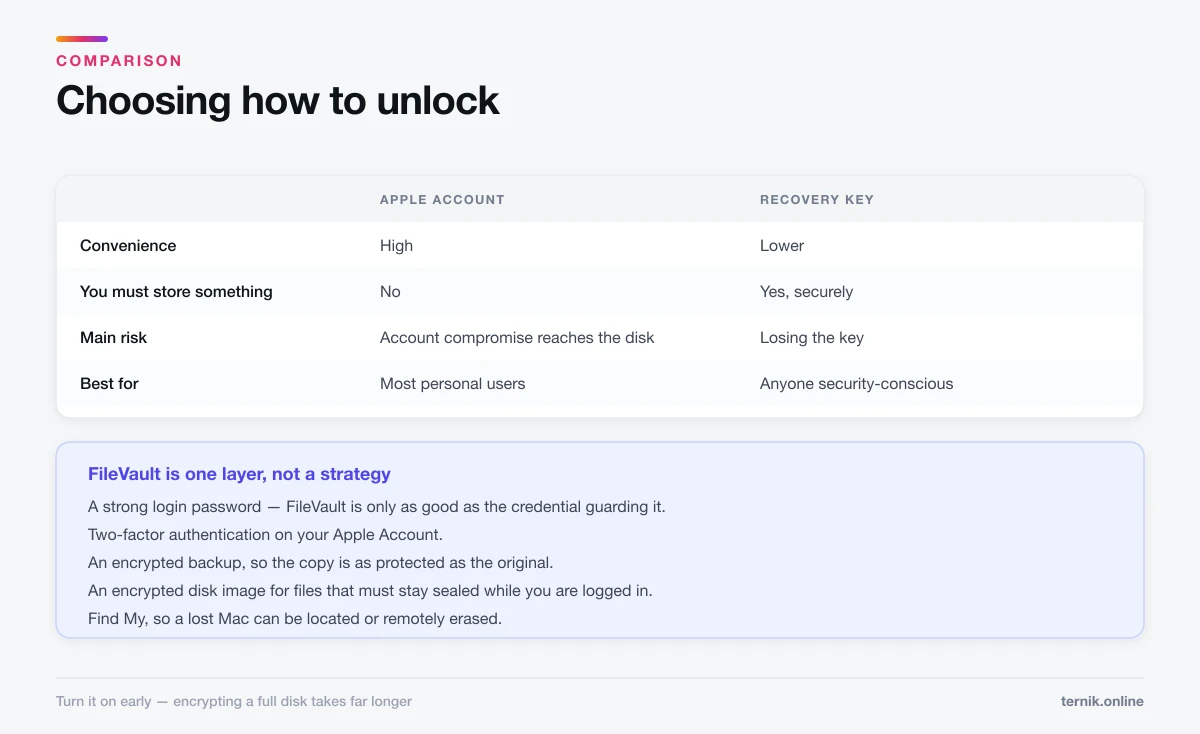
| Apple Account | Recovery key | |
|---|---|---|
| Convenience | High | Lower |
| You must store something | No | Yes, securely |
| Risk | Apple Account compromise reaches the disk | Losing the key |
| Best for | Most personal users | Anyone security-conscious |
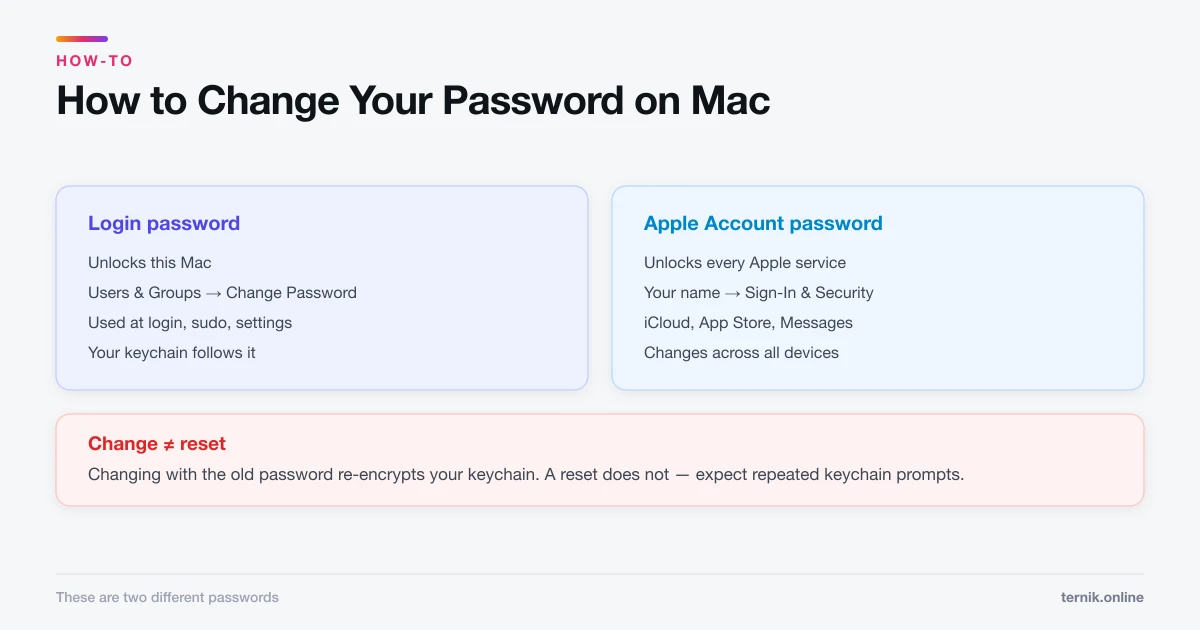
Apple Account is the pragmatic choice for most people, provided that account has strong two-factor authentication. If someone compromises it, they gain a route to your disk — which is an argument for taking that password seriously, as covered in how to change your password on a Mac.
Recovery key keeps unlocking entirely in your hands. macOS shows a 24-character string exactly once. Store it in a password manager, or write it down and keep it somewhere physically secure — not in a file on the Mac it unlocks, which defeats the purpose.
What FileVault protects against
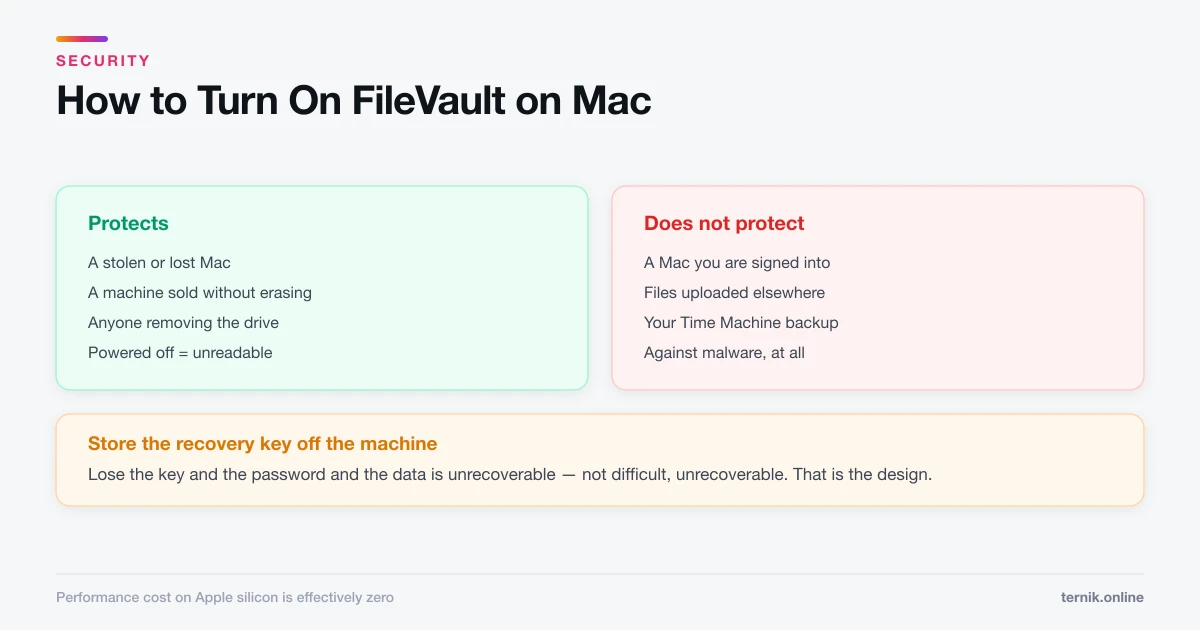
It does protect: a stolen or lost Mac, a machine sold or recycled without erasing properly, and anyone who removes the drive and mounts it elsewhere. Powered off, the disk is unreadable ciphertext.
It does not protect: a Mac you are already signed into. Once you log in, the disk is unlocked and everything is readable to anything running on the machine — including malware. FileVault and the checks in how to check for malware address entirely different threats.
Nor does it protect files you upload elsewhere, or your Time Machine backup — that needs its own encryption, which is why the Time Machine setup offers it separately. An encrypted Mac with an unencrypted backup drive beside it is a locked door next to an open window.
The performance question
On any Mac with Apple silicon or a T2 chip, encryption is handled by dedicated hardware and the cost is not measurable in normal use. On much older Intel Macs without T2 there is a small overhead, noticeable mainly during sustained large file operations.
For essentially every current Mac, performance is not a reason to leave it off.
Turn it on early
Encrypting a nearly full disk takes considerably longer than encrypting an empty one. The best time is during initial setup, when macOS offers it.
The second-best time is now. If you are setting up after resetting a Mac, enable it before restoring your data.
If you forget your password
With FileVault on, the login password becomes the key to the disk, which raises the stakes:
- Apple Account option — sign in with that account at the login screen to reset.
- Recovery key — enter it at the login screen after failed attempts.
- Neither available — the data is unrecoverable. Not difficult; unrecoverable. That is the design.
This is exactly why the recovery key needs to live somewhere you will still have access to when the Mac is inaccessible.
Turning it off
Same panel, Turn Off. Decryption runs in the background.
Reasons to do so are rare. The commonest is a machine that must boot unattended — a home server or a build machine — since FileVault requires a password at startup before macOS loads, which also means safe mode and Recovery ask for credentials first.
For a laptop that leaves the house, leave it on.
What FileVault does not replace
It is one layer, not a strategy. Alongside it:
- A strong login password — FileVault is only as good as the credential guarding it.
- Two-factor authentication on your Apple Account.
- An encrypted backup, so the copy is as protected as the original.
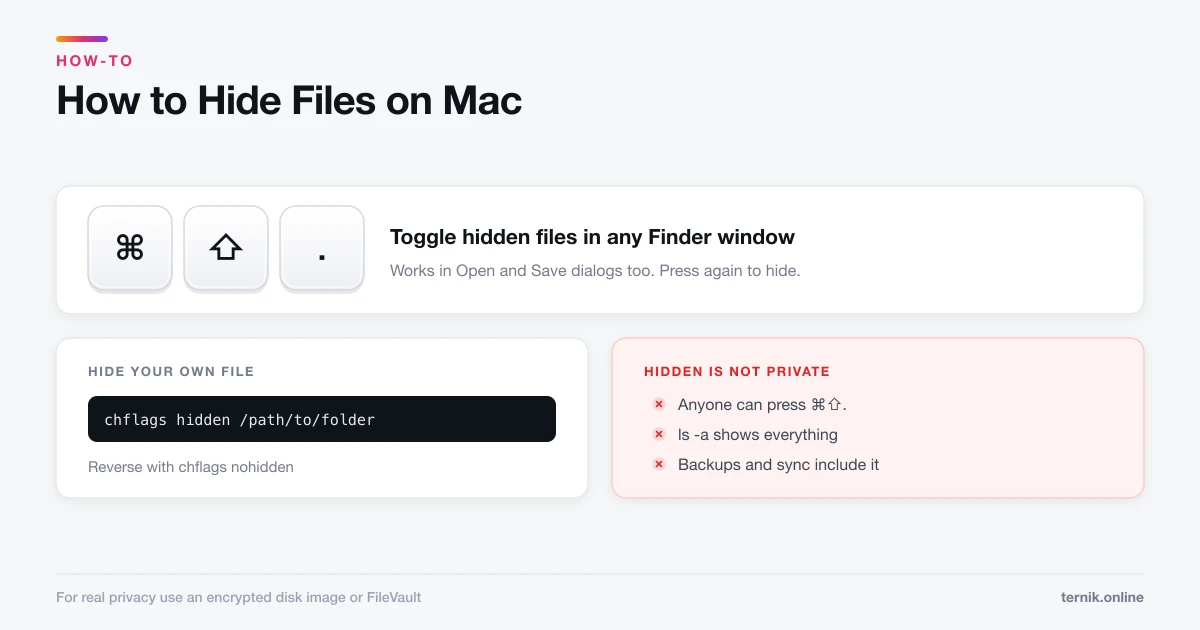
- An encrypted disk image for specific files that should stay sealed even while you are logged in — covered in how to hide files on a Mac.
- Find My, so a lost Mac can be located or remotely erased.
Frequently asked questions
System Settings → Privacy & Security → FileVault → Turn On. Choose either Apple Account unlocking or a recovery key, then let encryption run in the background.
Sources
Keep reading
More guides to grow your account.