How to Clear Cache on Mac (Browser, App, and System)
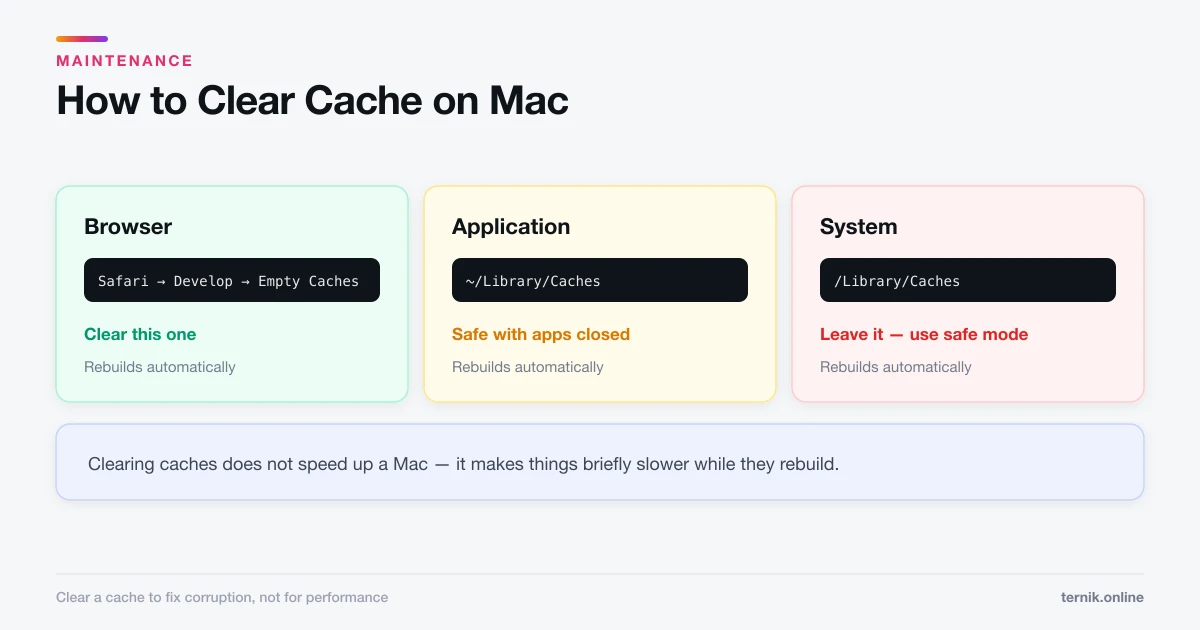
There are three separate caches on a Mac and only one is usually worth clearing. Here is which is which, how to clear each safely, and what you lose.
Short answer
Clear the Safari cache with Develop > Empty Caches, or History > Clear History for a fuller reset. Application caches live in ~/Library/Caches and can be moved to the Trash safely while apps are closed. System caches in /Library/Caches should be left alone — safe mode clears them automatically.
Key takeaways
- Three caches exist: browser, application (
~/Library/Caches), and system (/Library/Caches). - The browser cache is the one to clear for loading and login problems.
~/Library/Cachesis safe to clear with apps closed; macOS rebuilds it.- Do not delete
/Library/Cachesby hand — safe mode clears system caches properly. - Clearing caches frees space temporarily and briefly makes things slower, not faster.
Which cache do you actually need to clear?
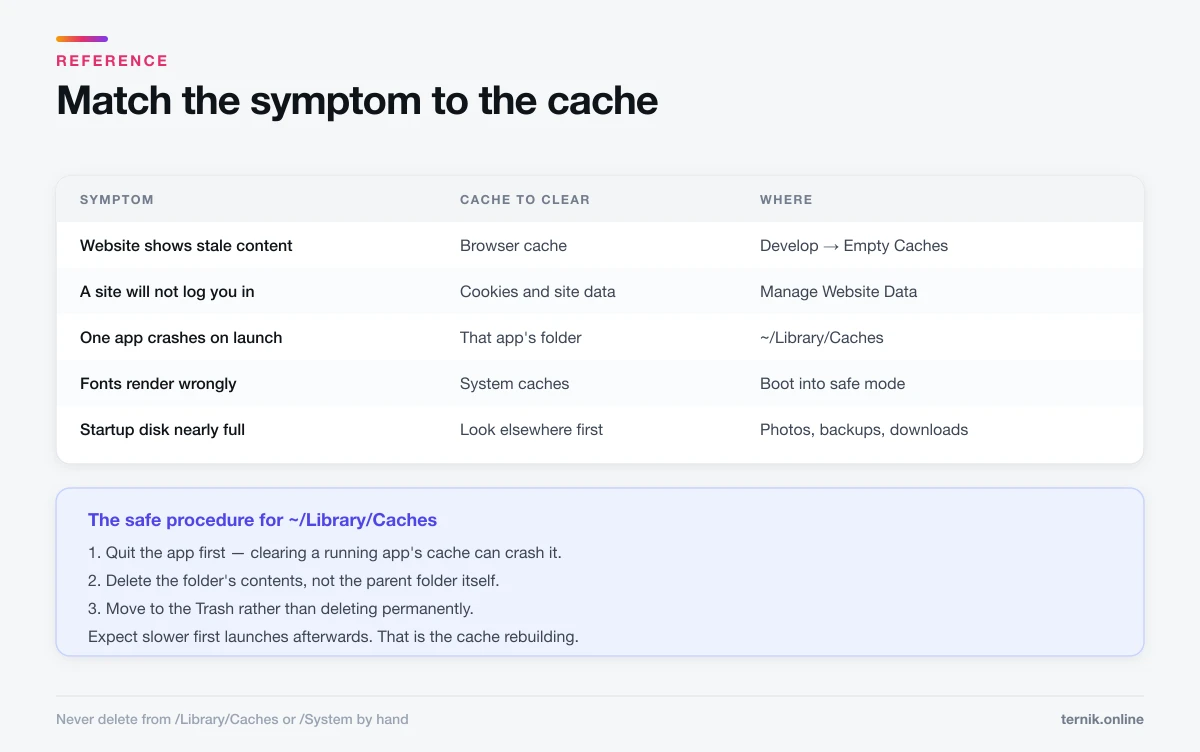
Match the symptom to the cache. Clearing the wrong one wastes time and occasionally causes problems.
| Symptom | Cache to clear |
|---|---|
| A website shows stale content | Browser |
| A site will not log you in | Browser cookies and data |
| One app misbehaves or crashes on launch | That app's folder in ~/Library/Caches |
| Startup disk nearly full | Application caches, then look elsewhere |
| Fonts render wrongly, odd system glitches | System — via safe mode |
Clearing the browser cache
Safari. The precise tool is under the Develop menu, which is hidden by default. Enable it under Safari → Settings → Advanced → Show features for web developers, then choose Develop → Empty Caches. This clears cached files without touching your history or logins.
For a fuller reset, History → Clear History removes cookies and site data too — which signs you out of most websites, so expect that. To clear data for one site only, go to Settings → Privacy → Manage Website Data, search for the domain, and remove just that entry. That is the surgical option when a single site is misbehaving.
Chrome. Press Shift-Command-Delete, choose a time range, tick "Cached images and files", and clear. Leave "Passwords" unticked unless you mean it.
Firefox. Settings → Privacy & Security → Cookies and Site Data → Clear Data.
Clearing application caches
Application caches live in your user Library, hidden by default. Open Finder, press Shift-Command-G, and enter:
~/Library/Caches
You will see folders named after apps and developers — com.apple.Safari, com.spotify.client, and so on.
The safe procedure:
- Quit the apps whose caches you intend to clear. Clearing a running app's cache can crash it.
- Open the folder for that specific app.
- Move its contents to the Trash — not the folder itself.
- Empty the Trash and reopen the app.
Two rules keep this uneventful. Delete contents, not the parent folders, because some apps expect their folder to exist. And move to the Trash rather than deleting permanently, so you can restore if an app starts behaving strangely.
Expect first launches to be slower afterwards. That is the cache doing its job — rebuilding.
Leave the system cache alone
/Library/Caches — no tilde — belongs to macOS. Deleting from it by hand can break font rendering, Spotlight indexing, and app launching, and there is nothing to gain that safe mode does not do properly.
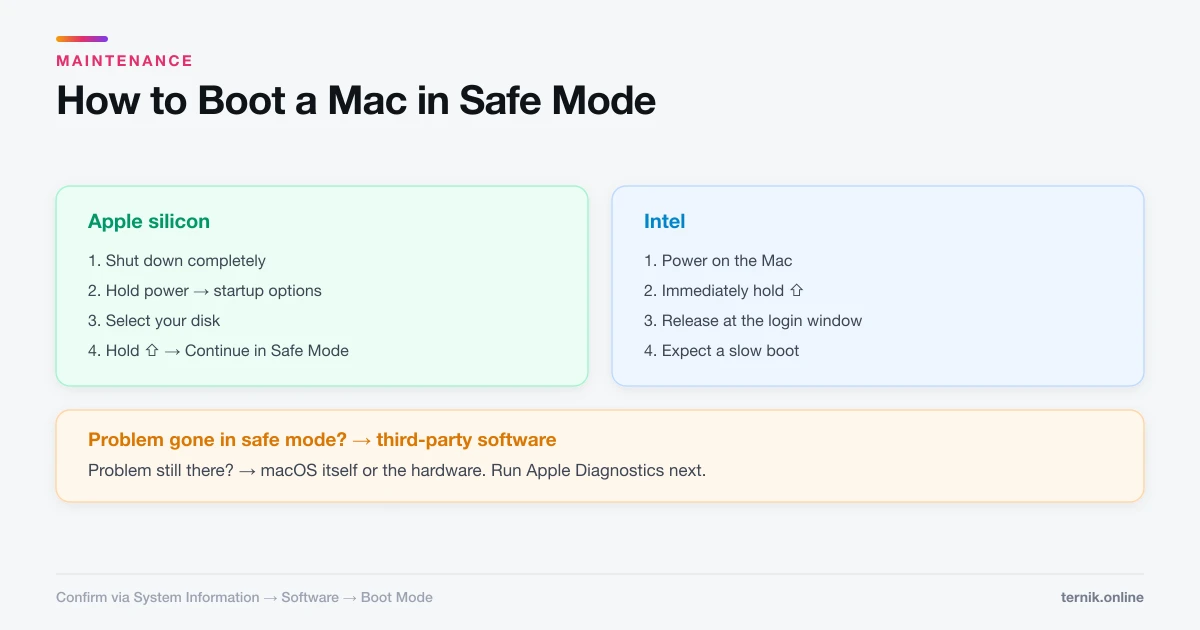
The supported way to clear system caches is to boot into safe mode and restart normally. Safe mode clears font and system caches on boot as part of its normal behaviour.
Anything inside /System is protected by System Integrity Protection and should never be touched.
How much space will this free?
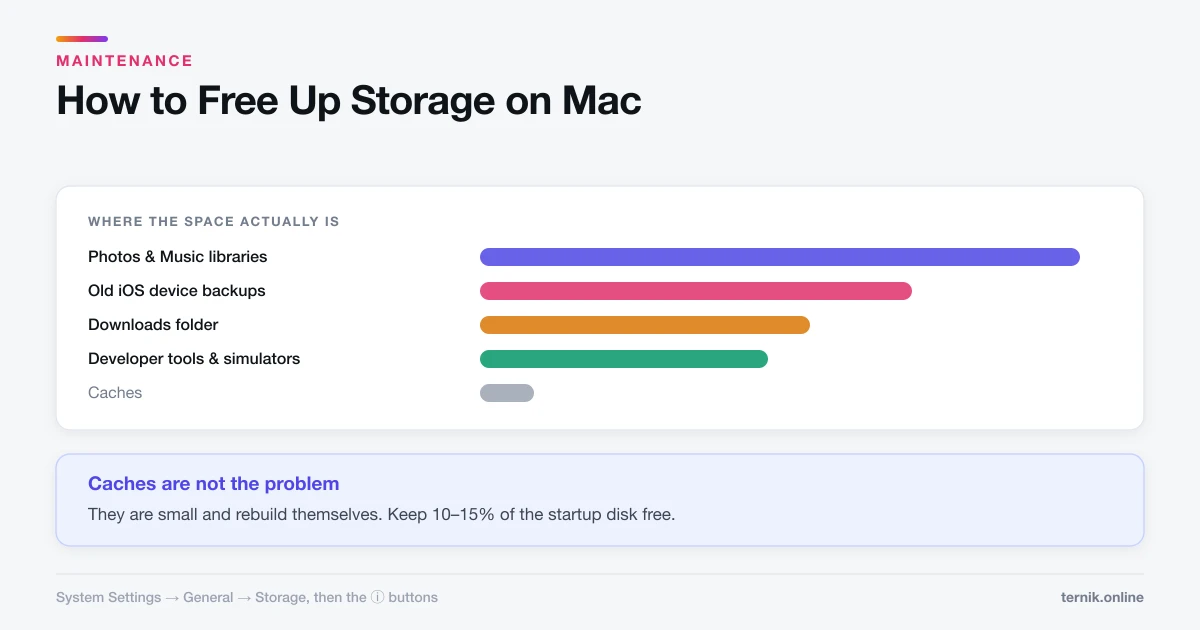
Usually less than people hope. A typical user Library cache is a few hundred megabytes to a few gigabytes, and it grows straight back as you use your apps.
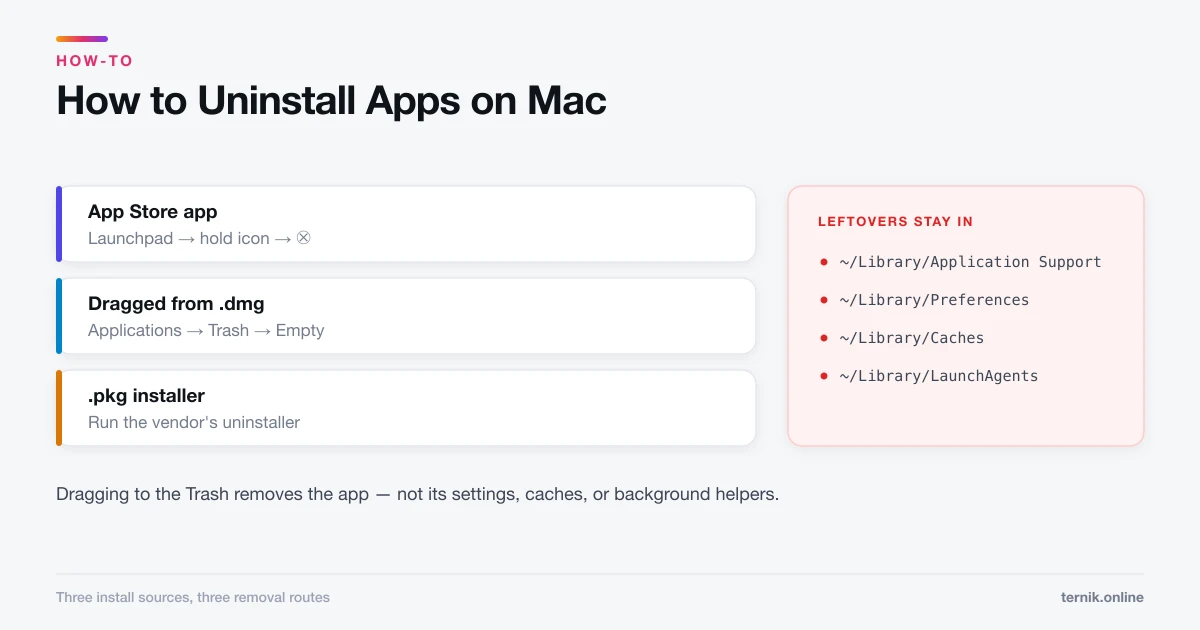
If the goal is disk space, go where the space actually is. Open System Settings → General → Storage and look at the categories in size order. In practice the big items are photo and music libraries, old iOS device backups, downloads full of forgotten installers, and developer tools. Removing apps you no longer use along with their support files will reclaim more than caches ever will.
Clearing caches will not speed up your Mac
Worth saying plainly, because a large industry depends on the opposite claim. Caches exist to make things faster. Deleting them means the work gets done again from scratch, so the immediate effect is slightly slower, followed by a return to normal.
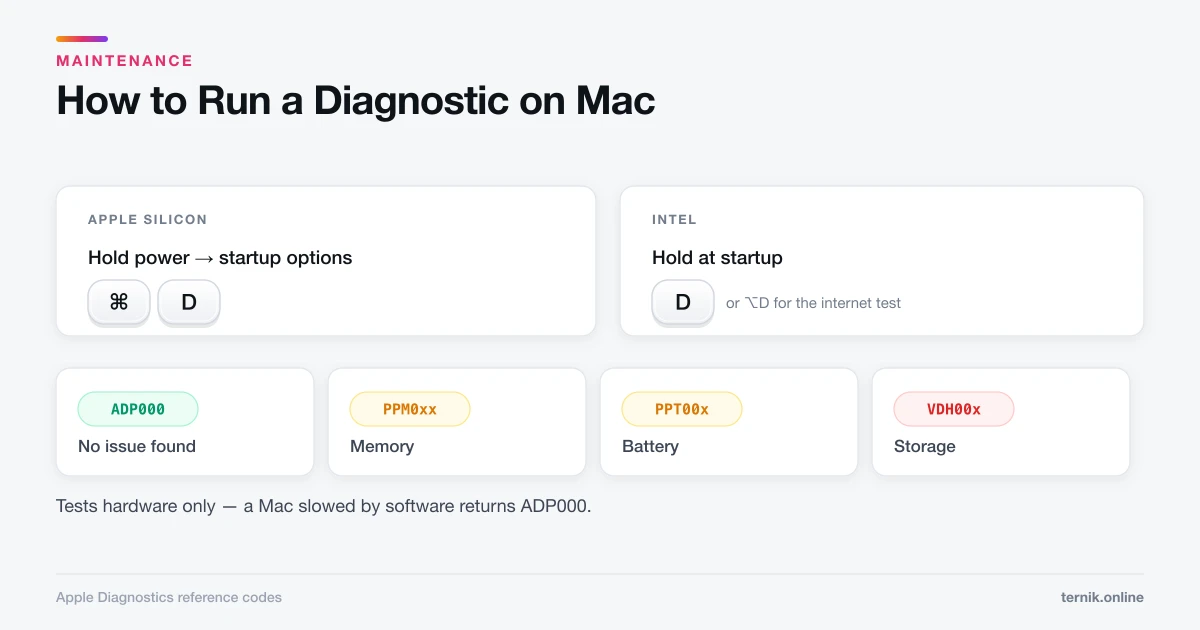
Clearing a cache is a fix for corruption, not a performance tune-up. If your Mac is genuinely slow, the causes worth investigating are a runaway process in Activity Monitor — see how to open Task Manager on a Mac — a startup disk with under 10% free, too many login items, or ageing hardware. Apple Diagnostics rules out the last of those.
Be wary of any "cleaner" app promising dramatic speed gains from cache deletion. That category overlaps heavily with adware, and the checks in how to check for malware apply directly.
A sensible routine
Do not clear caches on a schedule. Clear them when there is a symptom:
- A site is broken → clear that site's data.
- One app crashes on launch → clear that app's cache folder.
- System-level weirdness after an update → boot into safe mode once.
Otherwise, leave them alone and let macOS manage them.
Frequently asked questions
Contents of ~/Library/Caches are safe to remove with the apps closed — macOS rebuilds them. Do not delete /Library/Caches or anything in /System by hand.
Sources
Keep reading
More guides to grow your account.