How to Free Up Storage on Mac (Where the Space Actually Is)
System Settings shows a storage breakdown that most people never open. Here is how to find the real space consumers instead of deleting caches and hoping.
Short answer
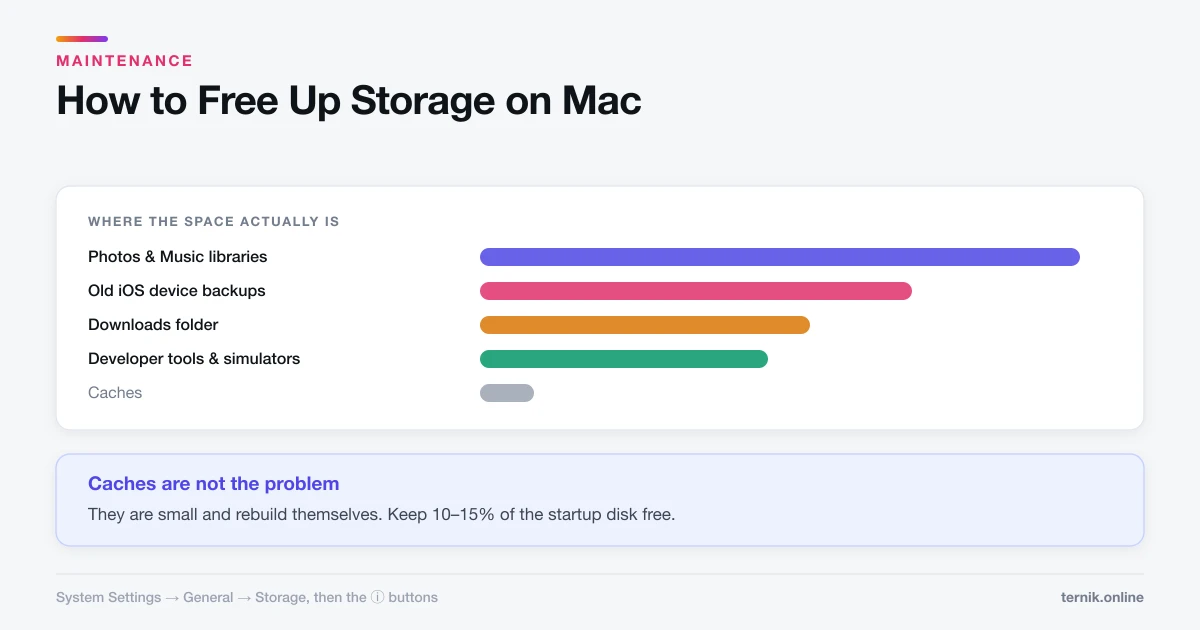
Open System Settings, General, Storage for a category breakdown and use the info buttons to see the largest items. The biggest consumers are usually media libraries, old iOS backups, downloads, and developer tools — not caches. Aim to keep at least ten to fifteen percent of the startup disk free.
Key takeaways
- System Settings → General → Storage — the breakdown, with ⓘ buttons per category.
- Keep at least 10–15% free; below that macOS stalls and updates fail.
- The space is nearly always media, old backups, downloads, or developer tools.
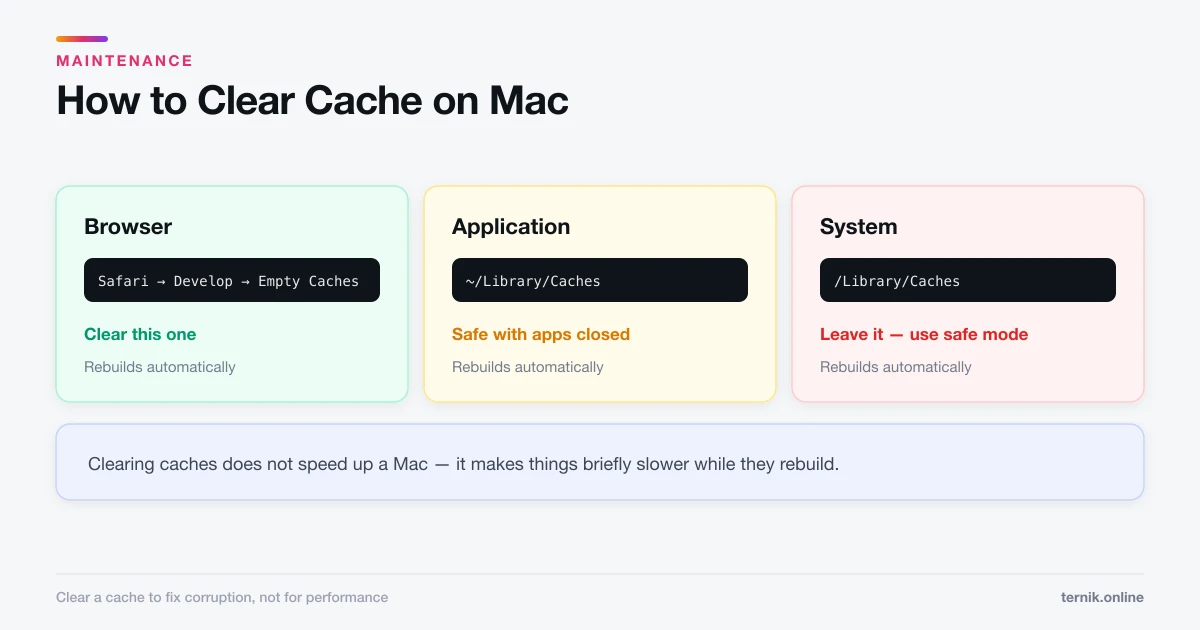
- Caches are not the problem — they are small and rebuild themselves.
- Empty the Trash and check Recently Deleted in Photos before hunting further.
Where has the space gone?
Open System Settings → General → Storage. The bar chart at the top breaks usage into categories, and each row has an ⓘ button that lists individual items by size. That list is the useful part — you can delete directly from it.
Work top-down by size. Most people go straight to caches and browser data, which are among the smallest categories, and end up freeing a few hundred megabytes on a disk that needs tens of gigabytes.
Where the space usually actually is
In rough order of how often they turn out to be the answer:
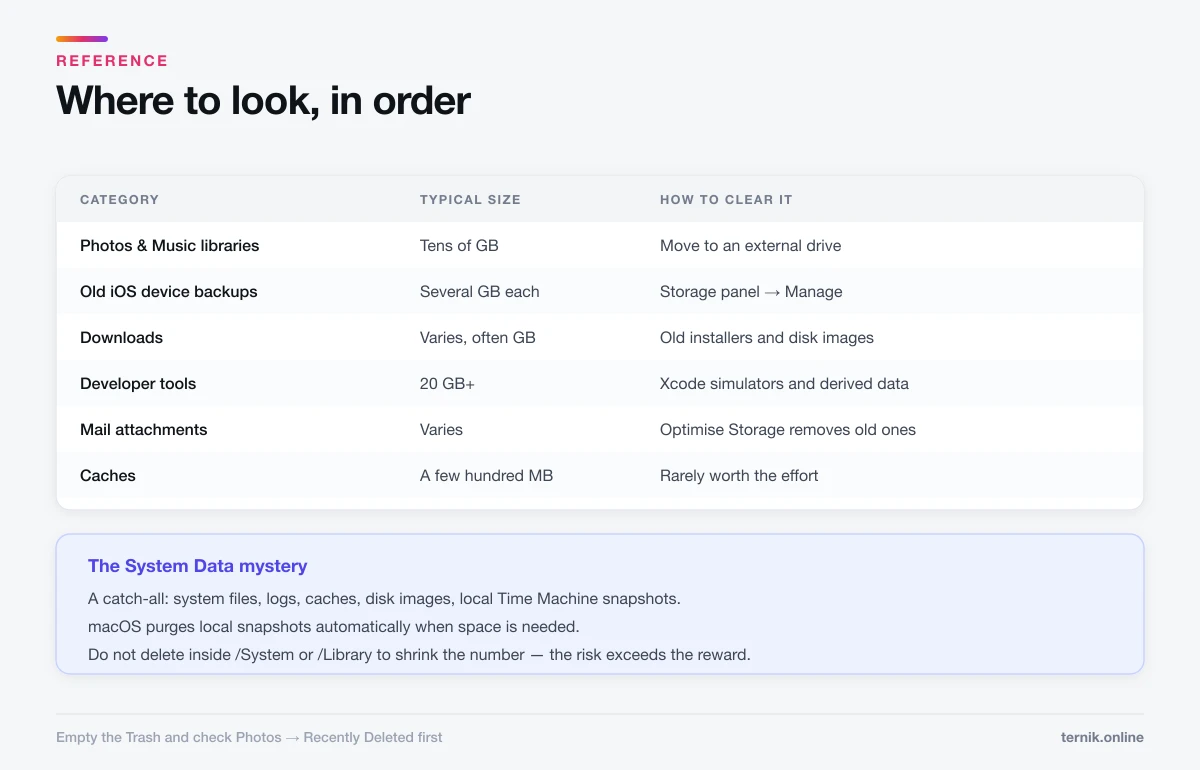
- Photos and Music libraries — routinely tens of gigabytes, and easy to forget.
- Old iOS device backups — several gigabytes each, often for phones you no longer own. Manage them from the Storage panel.
- Downloads — installers, disk images, and zip archives nobody cleared.
- Developer tools — Xcode simulators and derived data commonly exceed 20 GB.
- Virtual machines and container images — tens of gigabytes if you use them.
- Mail attachments — years of accumulated files if you use the Mail app.
- Trash — deleting does not free space until the Trash is emptied.
Two easy wins before anything else: empty the Trash, and check Photos → Recently Deleted, which holds items for 30 days and counts against your storage the whole time.
The "System Data" mystery
The large, opaque System Data category causes a great deal of anxiety. It is a catch-all containing system files, logs, caches, disk images, Time Machine local snapshots, and anything macOS cannot classify.
It is usually not something to attack directly. Two things genuinely inflate it:
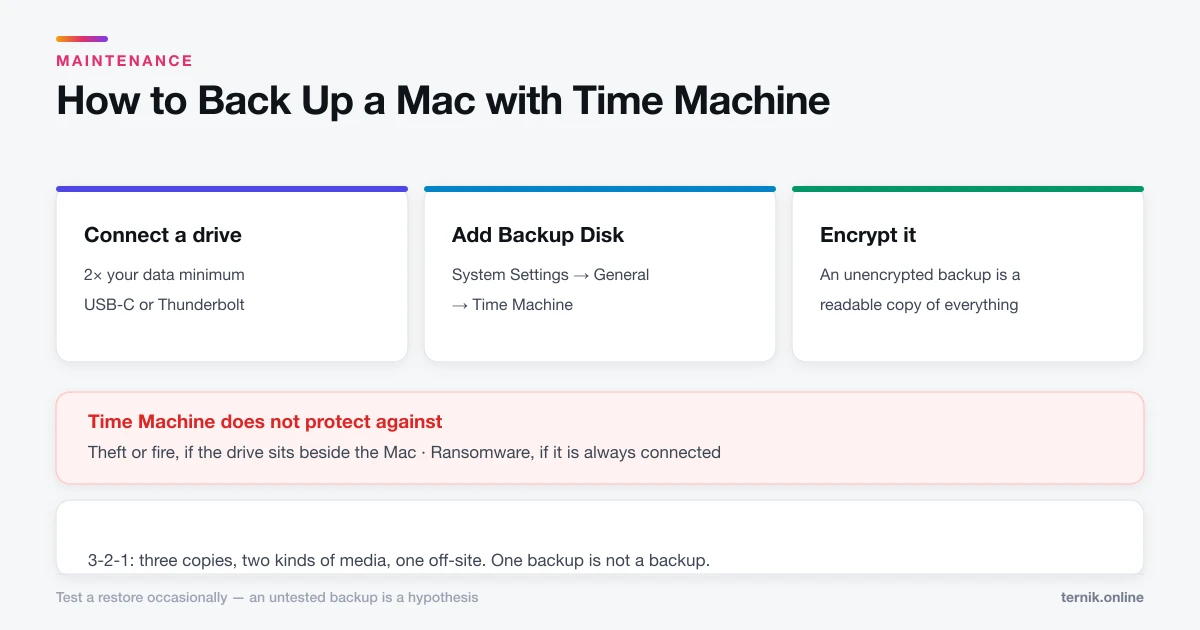
- Local Time Machine snapshots, kept on the internal disk when the backup drive is absent. macOS purges these automatically when space is needed — see Time Machine.
- Application caches and logs, which rebuild if removed. How to clear cache on a Mac covers doing that safely and explains why it is rarely worth it.
Do not go deleting inside /System or /Library to shrink this number. The risk substantially exceeds the reward.
The built-in recommendations
The Storage panel offers four options, and they are not equally good:
- Store in iCloud — moves files to iCloud, keeping recent ones local. Genuinely effective, but it needs iCloud space and an internet connection to retrieve anything. Understand it is not a backup.
- Optimise Storage — removes watched Apple TV purchases and old Mail attachments. Safe, modest gains.
- Empty Trash Automatically — deletes Trash items after 30 days. Sensible.
- Reduce Clutter — opens a browser for large and unused files. This is the useful one; it surfaces things you have genuinely forgotten.
Applications and their leftovers
Removing apps helps less than expected, but their support files sometimes matter. A video editor's render cache or a game's asset folder can be gigabytes long after you stop using it.
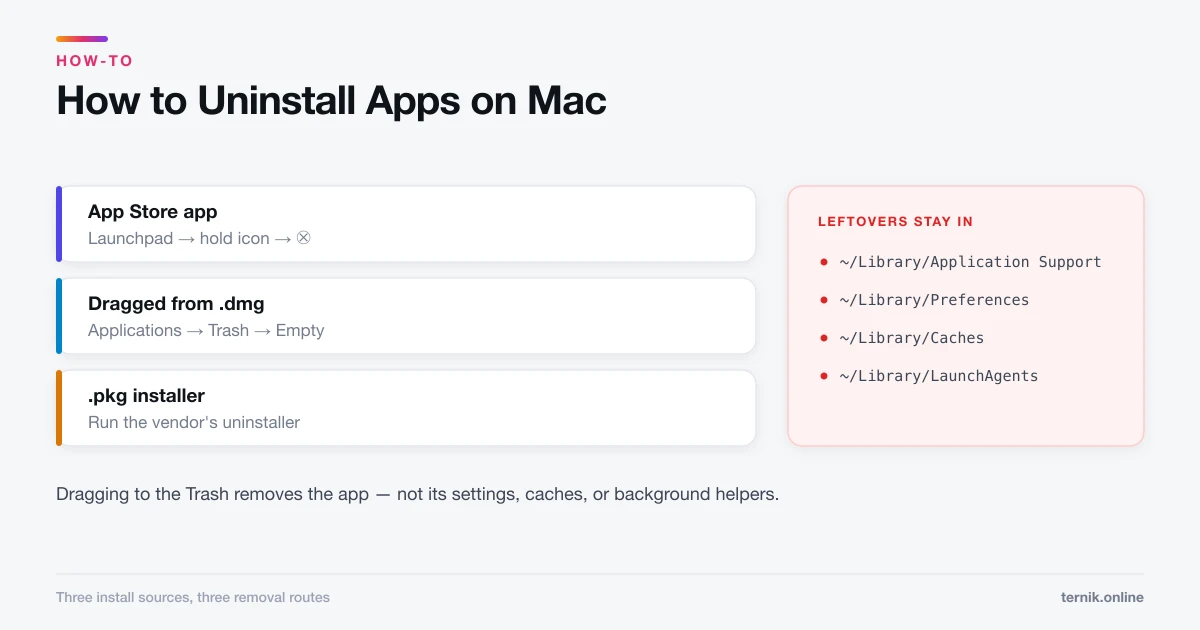
Remove apps properly rather than dragging and forgetting — how to uninstall apps on a Mac covers the leftovers in ~/Library and why installer-based software needs its own uninstaller.
Be sceptical of "cleaner" utilities marketed for this job. The reputable ones do find leftovers; the rest inflate problem counts to sell subscriptions, and some are adware. If one arrived via a pop-up, it is the problem — see how to check for malware.
How much free space do you need?
At least 10–15% of the startup disk. Below that, macOS runs out of room for swap and temporary files, and you get beachballs, failed updates, and apps quitting unexpectedly.
Macs with small internal SSDs — 128 GB and 256 GB — need active management. An external drive for media libraries is a better long-term answer than repeated cleanup rounds.
If freeing space did not fix the slowness
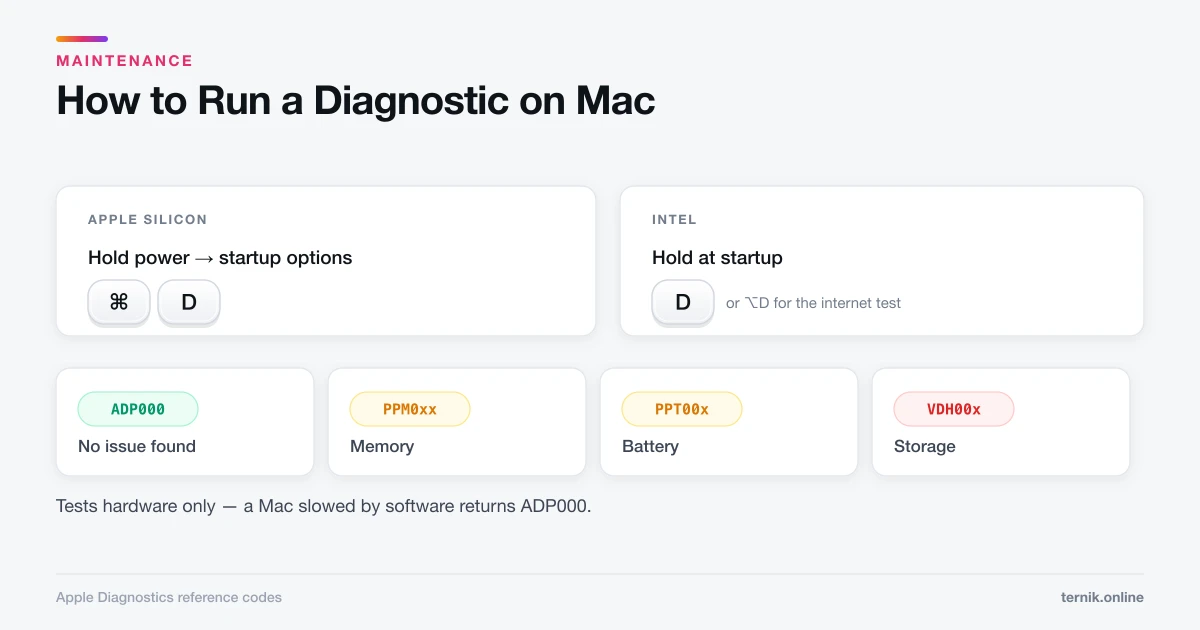
A full disk causes slowness, but so do other things, and it is worth confirming rather than assuming. Check Activity Monitor for a runaway process, and if the machine is slow with plenty of space free, run Apple Diagnostics to rule out failing hardware before spending another afternoon deleting files.
Large downloads also arrive compressed and expand to several times their size — a failed extraction is often a space problem rather than a corrupt archive, as noted in how to unzip files on a Mac.
Frequently asked questions
System Settings → General → Storage. Each category has an ⓘ button listing individual items by size, and you can delete from that list directly.
Sources
Keep reading
More guides to grow your account.