How to Check Battery Health on Mac (And What It Means)
Battery condition sits under System Settings, Battery. Here is where to find cycle count, what Service Recommended actually means, and what genuinely extends battery life.
Short answer
Open System Settings, Battery, then click the info button beside Battery Health to see condition and maximum capacity. Cycle count is in System Information under Power. Service Recommended means the battery still works but holds noticeably less charge than when new.
Key takeaways
- System Settings → Battery → ⓘ beside Battery Health shows condition and capacity.
- Cycle count lives in System Information → Hardware → Power.
- Normal means healthy; Service Recommended means reduced capacity, not failure.
- Modern Mac batteries are rated for around 1000 cycles.
- Optimised Battery Charging is worth leaving on — it slows chemical ageing.
Where to find battery health
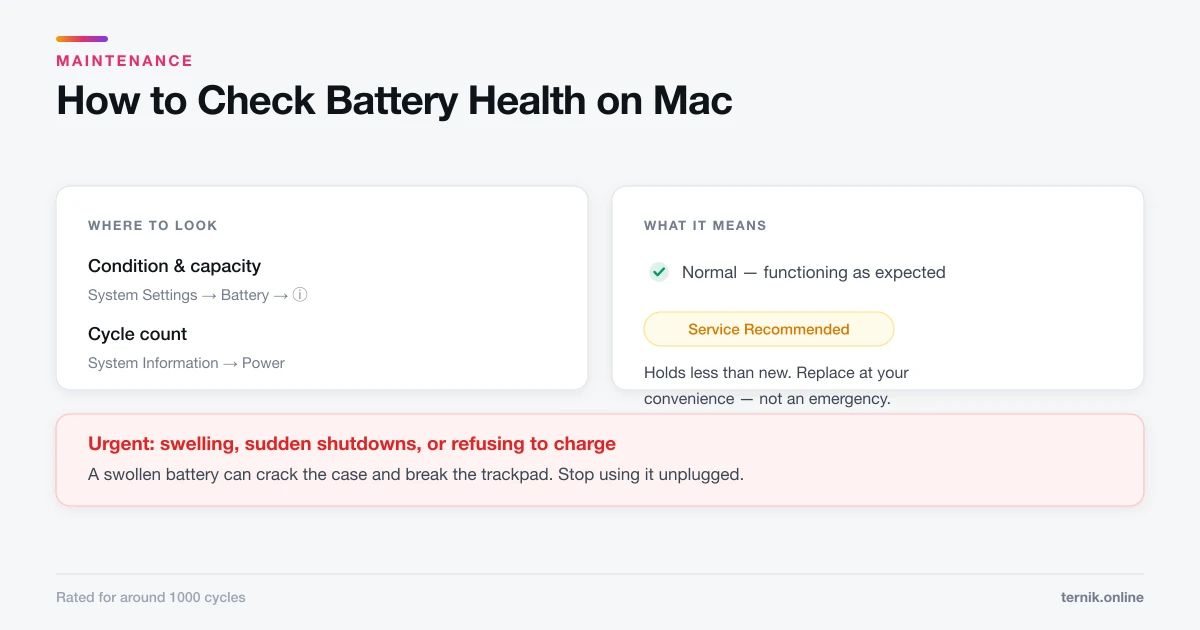
Condition and capacity: Apple menu → System Settings → Battery, then click the ⓘ beside Battery Health. You get the condition (Normal or Service Recommended) and maximum capacity as a percentage of the original.
Cycle count: Apple menu → About This Mac → More Info → System Report, then select Power under Hardware. Look for Cycle Count and Condition.
A faster route: hold Option and click the Apple menu, which turns "About This Mac" into "System Information" directly.
What the numbers mean
Cycle count is one full discharge of the battery's capacity, not one unplugging. Using 50% today and 50% tomorrow is a single cycle. Most current Mac notebooks are rated for 1000 cycles before capacity is expected to fall to 80%.
Maximum capacity is how much charge the battery holds now compared with when new. Around 100% at purchase; gradual decline is normal and expected. Below roughly 80% you will notice shorter runtime.
Condition is Apple's summary judgement:
| Condition | Meaning | Action |
|---|---|---|
| Normal | Functioning as expected | None |
| Service Recommended | Holds noticeably less than new | Replace when inconvenient |
Service Recommended is not an emergency. The battery still works. It is telling you capacity has degraded enough to be worth replacing — on your schedule, not urgently.
When it is actually urgent
Stop using the Mac on battery and book service if you see:
- Physical swelling — a trackpad that no longer clicks properly, a case that will not sit flat, a bulging bottom panel.
- Sudden shutdowns at 30–40% charge.
- The battery refusing to charge at all, or charging erratically.
- Noticeable heat around the battery area under light load.
Swelling is the one to take seriously. A swollen lithium battery is a genuine safety issue and can crack the case or damage the trackpad. Do not press on it, and do not keep using the machine unplugged.
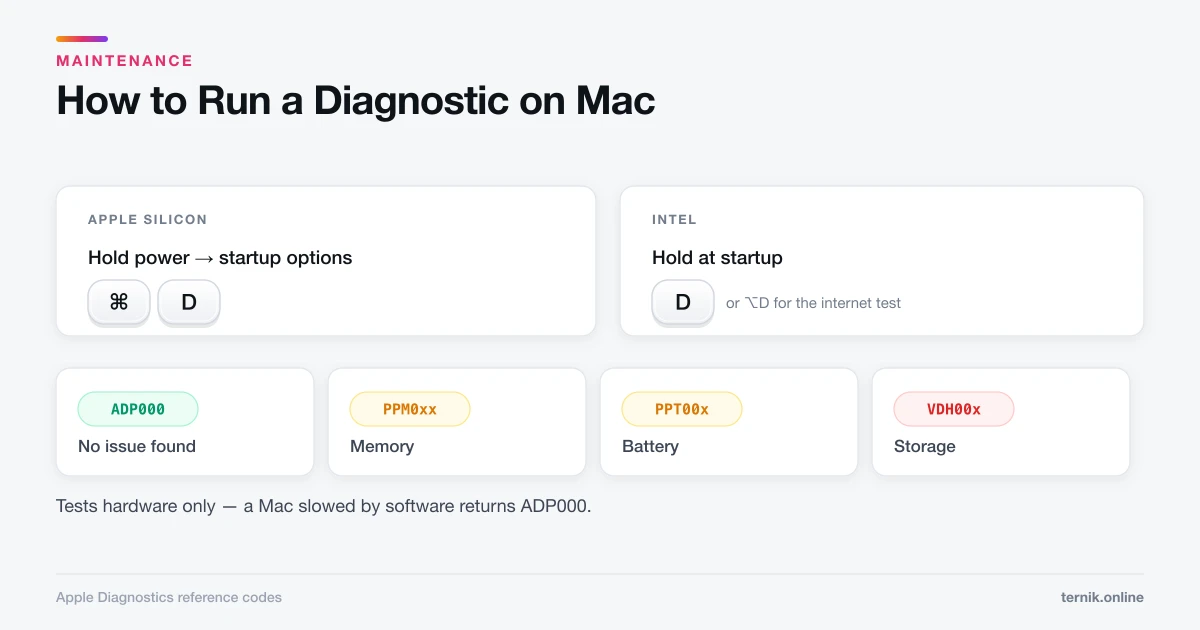
If you are unsure whether a symptom is battery-related, Apple Diagnostics tests battery and charging circuitry directly and returns PPT-series codes for battery faults.
Optimised Battery Charging
Under System Settings → Battery, this learns your routine and delays charging past 80% until shortly before you typically unplug. Lithium batteries age faster when held at full charge, so this measurably slows degradation.
Leave it on. Override it occasionally — right-click the battery menu item — when you know you need a full charge for travel.
Some Macs also offer an 80% limit option, useful if the machine effectively lives on mains power.
What actually extends battery life
Most battery advice online is folklore. What holds up:
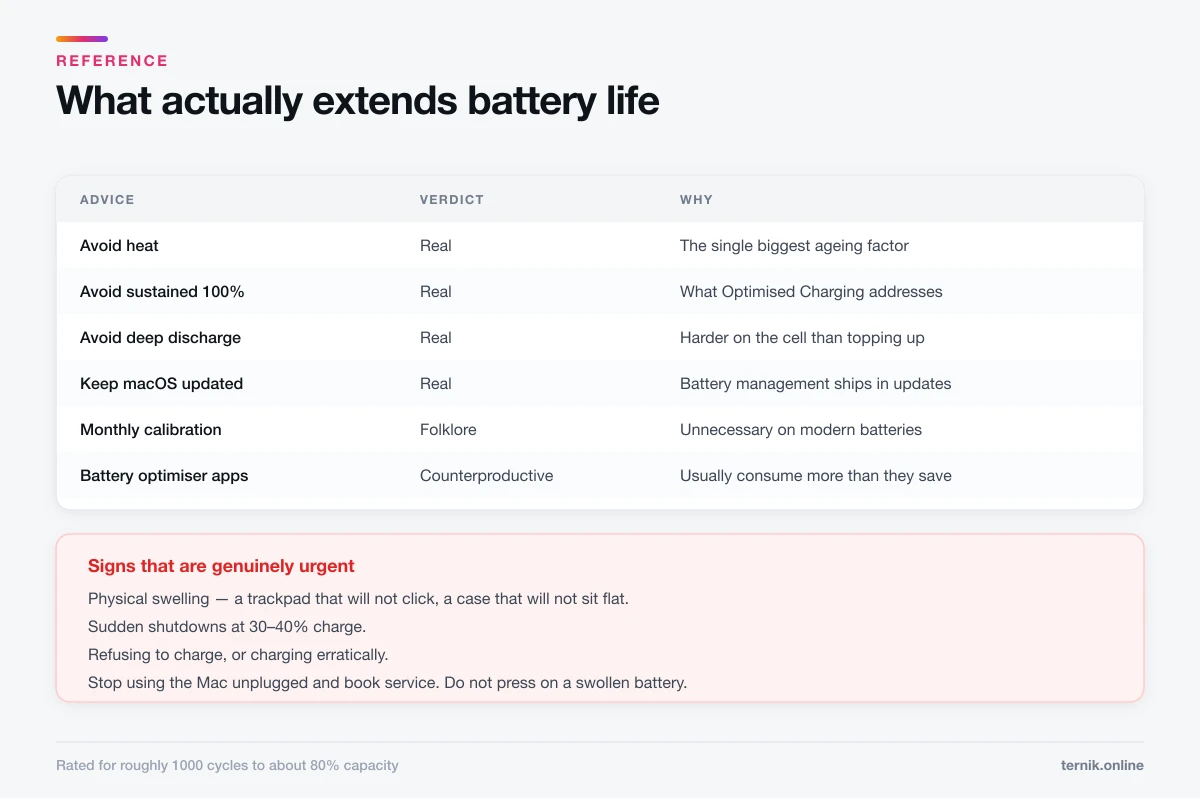
- Avoid sustained 100% on mains. This is what Optimised Charging addresses.
- Avoid deep discharge. Repeatedly running to 0% is harder on the battery than topping up.
- Avoid heat. The biggest single factor. Do not leave a laptop in a hot car or work with the vents blocked on a duvet.
- Keep macOS updated. Battery management improvements ship in updates — see how to update macOS.
What does not help: calibration rituals, draining to 0% monthly, and third-party "battery optimiser" apps, which typically consume more power than they save. Anything advertising dramatic battery gains through a background app deserves the scrutiny in how to check for malware.
Finding what is draining the battery
Condition tells you the hardware's state; it does not explain a day of unusually fast drain. For that, open Activity Monitor and use the Energy tab, sorting by Energy Impact — the full method is in how to open Task Manager on a Mac.
Common culprits: a browser tab running video, a sync client re-indexing, a stuck background process, and an external display driving the GPU harder. Screen brightness and a long display timeout matter too, which is why Lock Screen settings are a genuine battery lever rather than a cosmetic one.
Replacement
Battery replacement is a service procedure on every current Mac notebook — batteries are adhered to the case, and on many models the trackpad must come out first. This is not a reasonable DIY job.
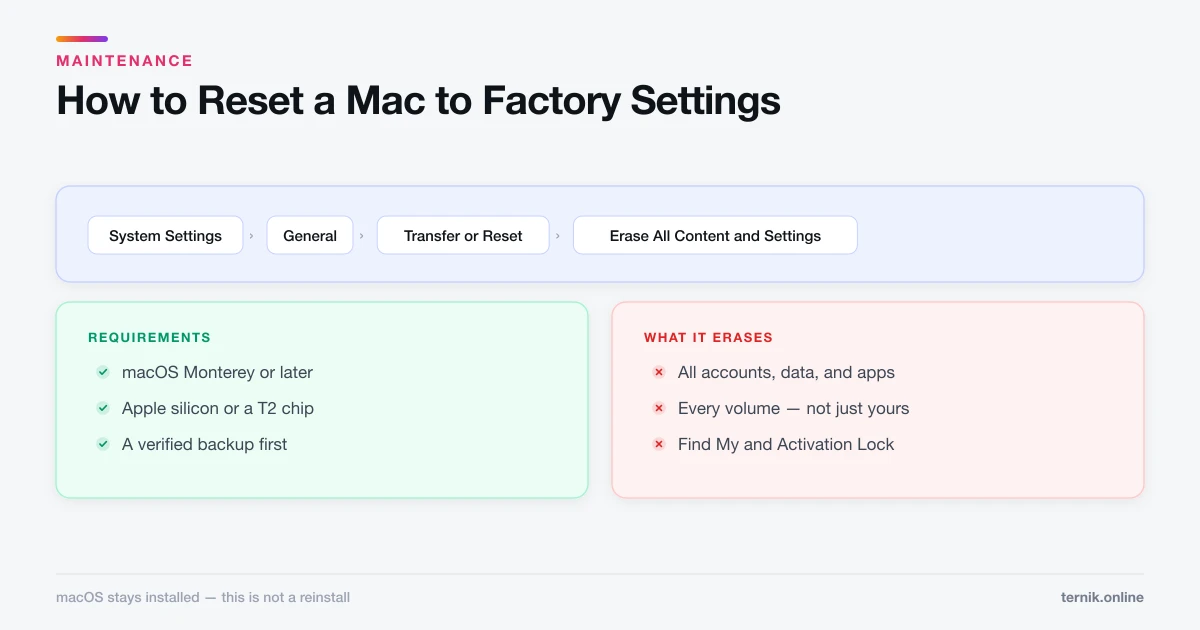
Before handing the machine over, back it up and consider whether the data should travel with it — the pre-service checklist in how to reset a Mac covers what to do first.
Frequently asked questions
System Settings → Battery → the ⓘ beside Battery Health shows condition and maximum capacity. Cycle count is in System Information under Hardware → Power.
Sources
Keep reading
More guides to grow your account.