How to Reset a Mac to Factory Settings (Safely)
Erase All Content and Settings wipes a Mac in minutes while keeping macOS installed. Here is the full sequence, what to do first, and the Intel exception.
Short answer
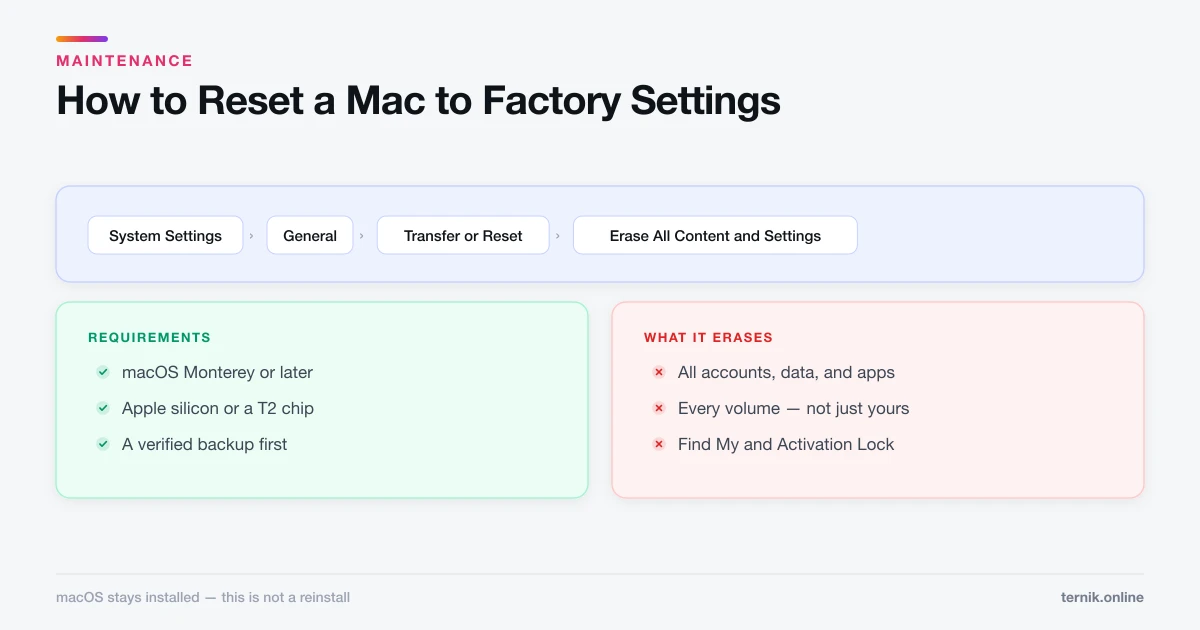
On Apple silicon or a T2 Mac running macOS Monterey or later, go to System Settings > General > Transfer or Reset > Erase All Content and Settings. Back up first, because everything is deleted. Older Intel Macs without a T2 chip must be erased with Disk Utility in Recovery and then have macOS reinstalled.
Key takeaways
- System Settings → General → Transfer or Reset → Erase All Content and Settings.
- Requires macOS Monterey or later on Apple silicon or a T2 Mac.
- It signs you out of iCloud, disables Find My and Activation Lock, and erases all volumes.
- Back up first. Nothing survives — there is no undo and no partial reset.
- Older Intel Macs without T2 need the longer Recovery + Disk Utility + reinstall route.
How do I factory reset a Mac?
On a modern Mac the whole thing takes a few minutes:
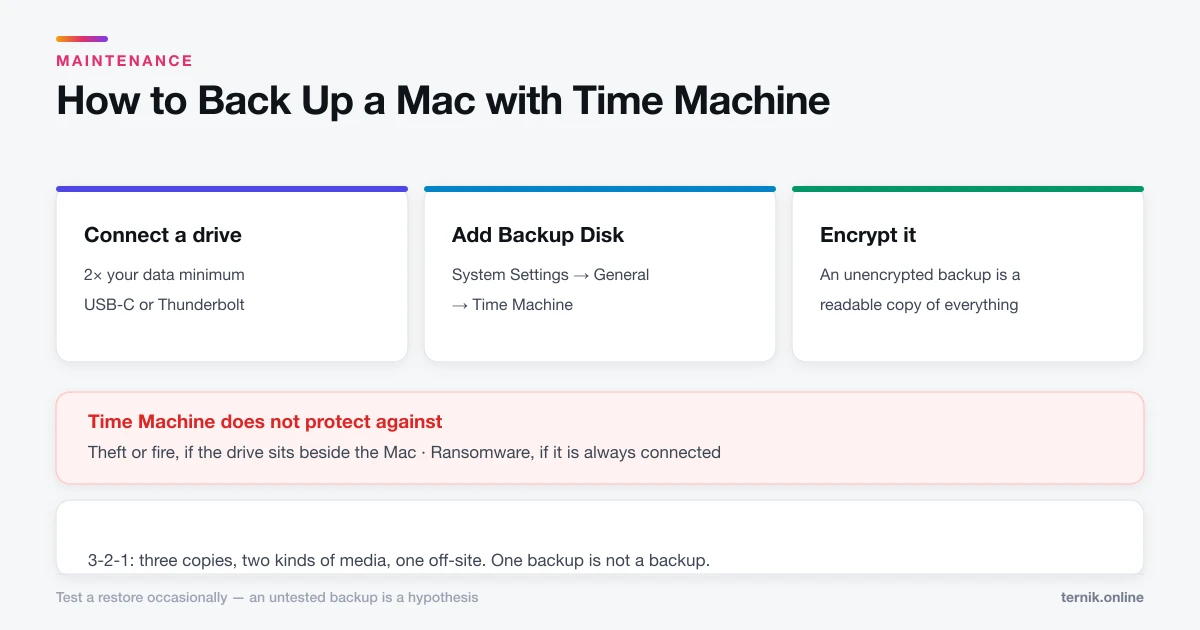
- Back up with Time Machine or your preferred method.
- Open Apple menu → System Settings.
- Click General in the sidebar.
- Scroll down and click Transfer or Reset.
- Click Erase All Content and Settings.
- Authenticate, follow Erase Assistant, and confirm.
The Mac restarts to the setup assistant, exactly as it did out of the box. macOS itself stays installed — this is not a reinstall.
If you do not see "Erase All Content and Settings", your Mac is an Intel model without a T2 chip, or is running macOS Big Sur or earlier. Skip to the Intel section below.
Do these five things first
Every one of these has caught someone out.
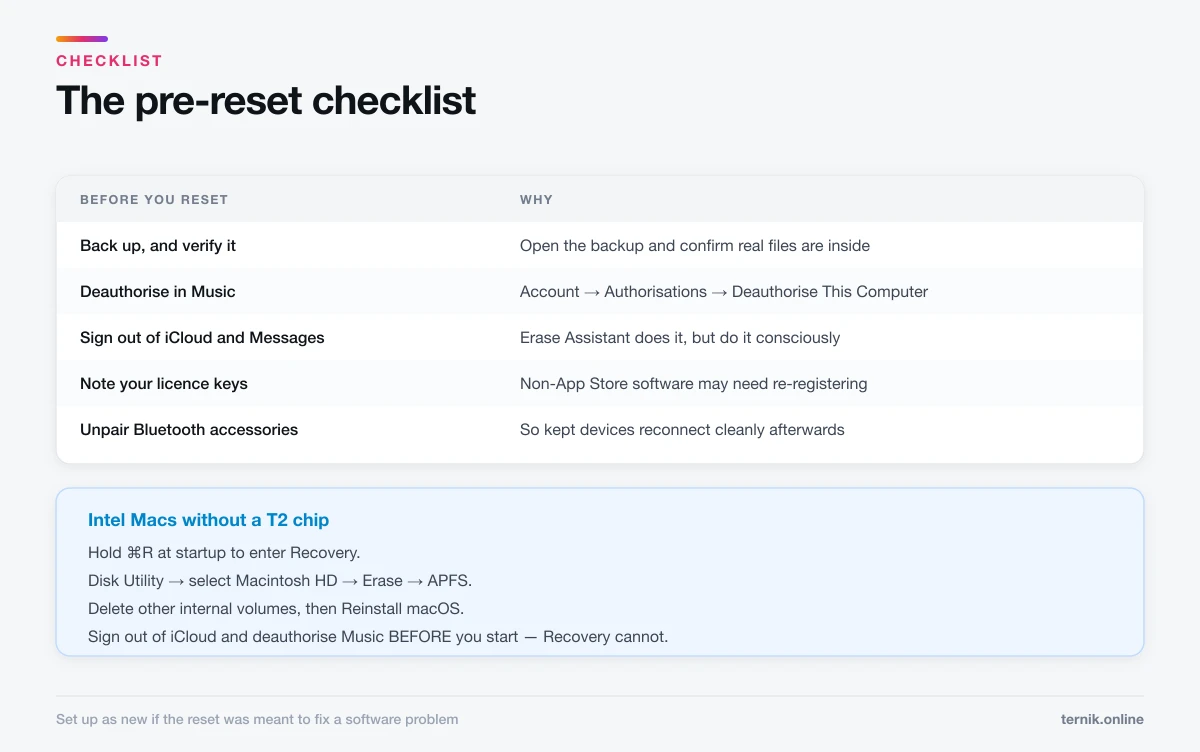
- Back up, and verify the backup. Open the backup and confirm a few real files are inside it. A Time Machine drive you have not checked in a year is not a backup.
- Deauthorise in the Music app — Account → Authorisations → Deauthorise This Computer. You get a limited number of authorisations, and reclaiming one from a machine you no longer own is tedious.
- Sign out of iCloud, Messages, and any DRM-bound apps. Erase Assistant handles iCloud, but doing it consciously avoids surprises.
- Note your licence keys. Software you installed outside the App Store may need re-registering.
- Unpair Bluetooth accessories you are keeping, so reconnecting AirPods afterwards is clean.
What Erase All Content and Settings actually does
It is more thorough than dragging files to the Trash, and worth understanding:
- Signs you out of iCloud and every Apple service.
- Turns off Find My and removes Activation Lock.
- Deletes all user accounts, data, settings, and installed apps.
- Erases all volumes, not only the one you booted from.
- Removes Touch ID fingerprints and any Apple Pay cards.
- Leaves the currently installed macOS version in place.
Because the data was encrypted at rest, the erase works by discarding the encryption keys, which is why it is fast and why the old data is genuinely unrecoverable.
Resetting an older Intel Mac
Without a T2 chip there is no Erase Assistant, so you erase manually:
- Shut down, then power on and immediately hold Command-R until the Apple logo appears.
- In Recovery, choose Disk Utility → Continue.
- Select Macintosh HD in the sidebar, click Erase.
- Name it Macintosh HD, choose APFS (or Mac OS Extended (Journaled) on much older machines), and erase.
- Delete any other internal volumes with the minus button.
- Quit Disk Utility, choose Reinstall macOS, and follow the prompts.
Sign out of iCloud and deauthorise Music before you start — Recovery cannot do it for you, and afterwards the machine will still be linked to your Apple Account.
The reinstall needs a network connection and takes considerably longer than the modern route.
Selling, or just starting fresh?
These are different jobs and people conflate them.
Selling or giving away. A full erase is correct and non-negotiable. Leave the Mac at the setup assistant rather than creating an account — the new owner should complete setup themselves.
Fixing a misbehaving Mac. A factory reset is the last resort, not the first move, and it frequently fixes nothing that cheaper steps would not have. Work through this order instead:
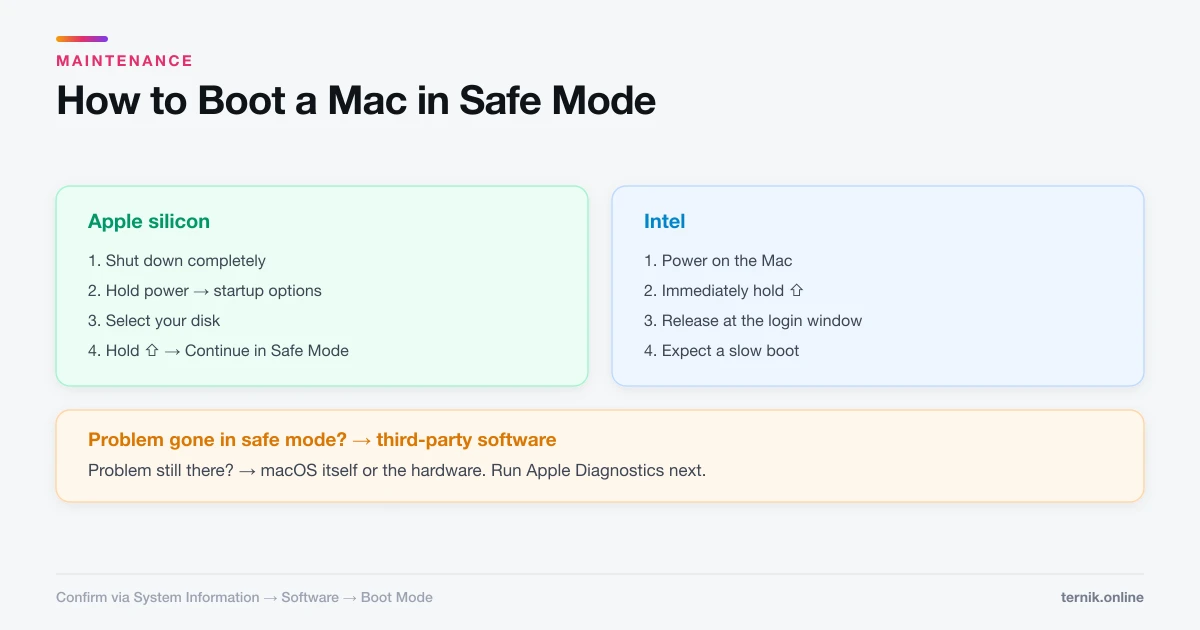
- Boot into safe mode to separate software from hardware.
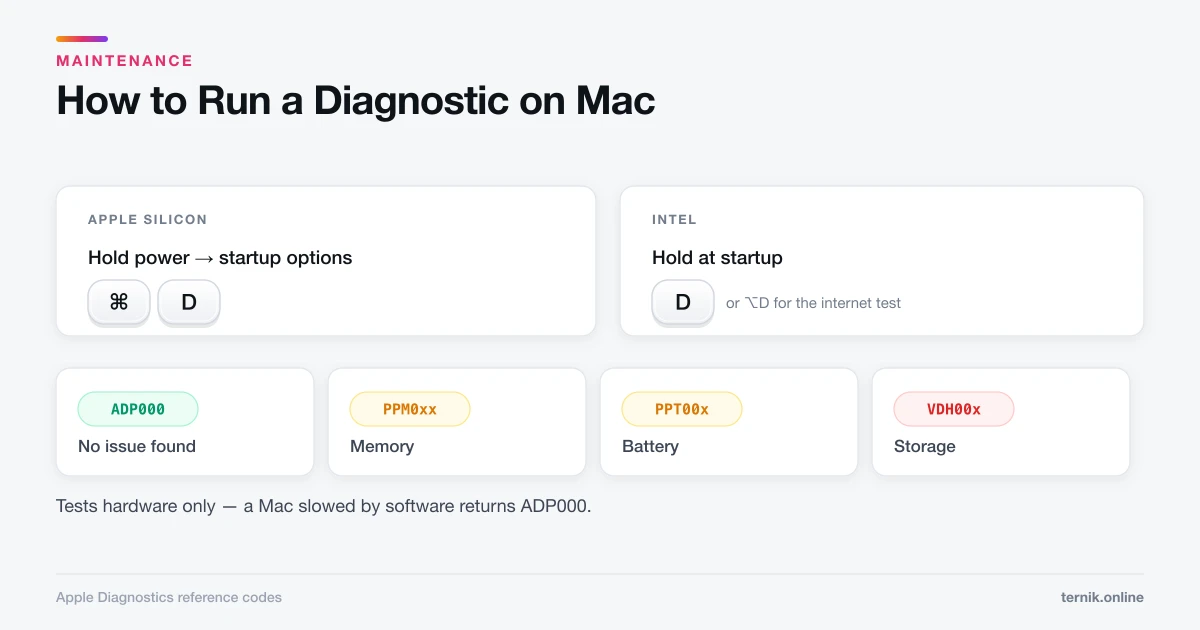
- Run Apple Diagnostics to rule out a hardware fault.
- Check for a runaway process with Activity Monitor.
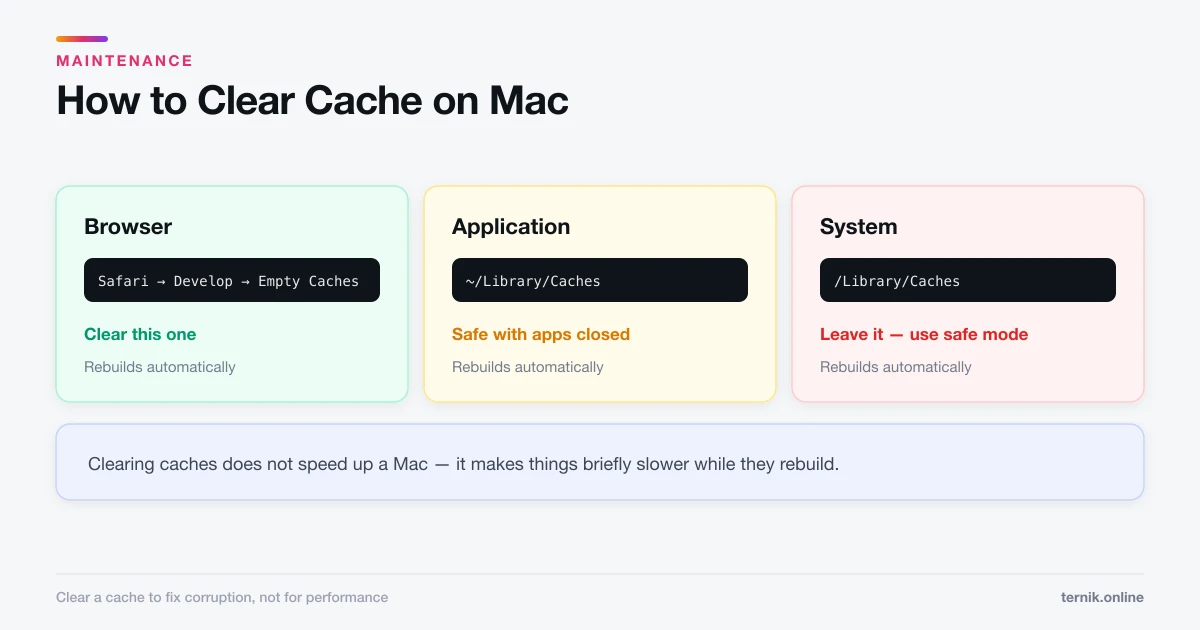
- Clear the relevant cache if a specific app is corrupt.
- Remove unwanted software and adware.
- Then, if the problem survives all of that, reset.
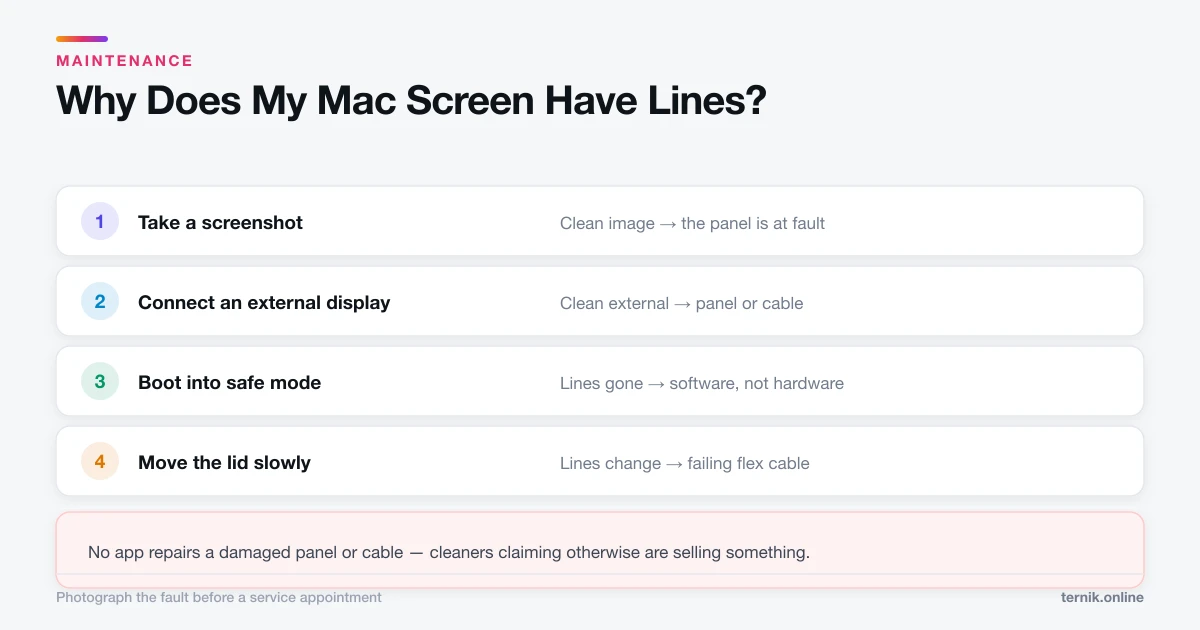
A reset that follows a hardware fault will not fix the hardware — it will only cost you an afternoon and your data. Visual faults such as lines on the screen are the clearest example.
After the reset
At the setup assistant you have two paths. Migration Assistant restores your apps, files, and settings from a backup — convenient, but it also restores whatever login items or adware you were trying to escape. Setting up as new gives you a genuinely clean machine and lets you copy documents across by hand.
If the reset was meant to cure a software problem, set up as new. Restoring the backup usually restores the problem with it.
If the reset fails
- Erase Assistant will not start. Confirm you are on Monterey or later with Apple silicon or T2.
- Activation Lock is requested afterwards. Sign in with the Apple Account that originally owned the Mac. Without those credentials the machine is unusable — which is exactly the point, and why buying a locked second-hand Mac is a bad idea.
- Recovery will not load on Intel. Try Option-Command-R for internet recovery, which needs Wi-Fi.
- It stalls mid-erase. Leave it for an hour before intervening; interrupting an erase can leave the disk in a state needing Disk Utility repair.
Frequently asked questions
System Settings → General → Transfer or Reset → Erase All Content and Settings, on macOS Monterey or later with Apple silicon or a T2 chip. Back up first — nothing survives.
Sources
Keep reading
More guides to grow your account.