How to Update macOS (And When to Wait)
Software Update lives under System Settings, General. Here is how to update safely, the difference between a security patch and a major upgrade, and when to hold off.
Short answer
Go to System Settings, General, Software Update and click Update Now. Back up first. Security updates for your current version are low risk and worth installing promptly; major version upgrades change more and are worth delaying briefly if you depend on specific software.
Key takeaways
- System Settings → General → Software Update.
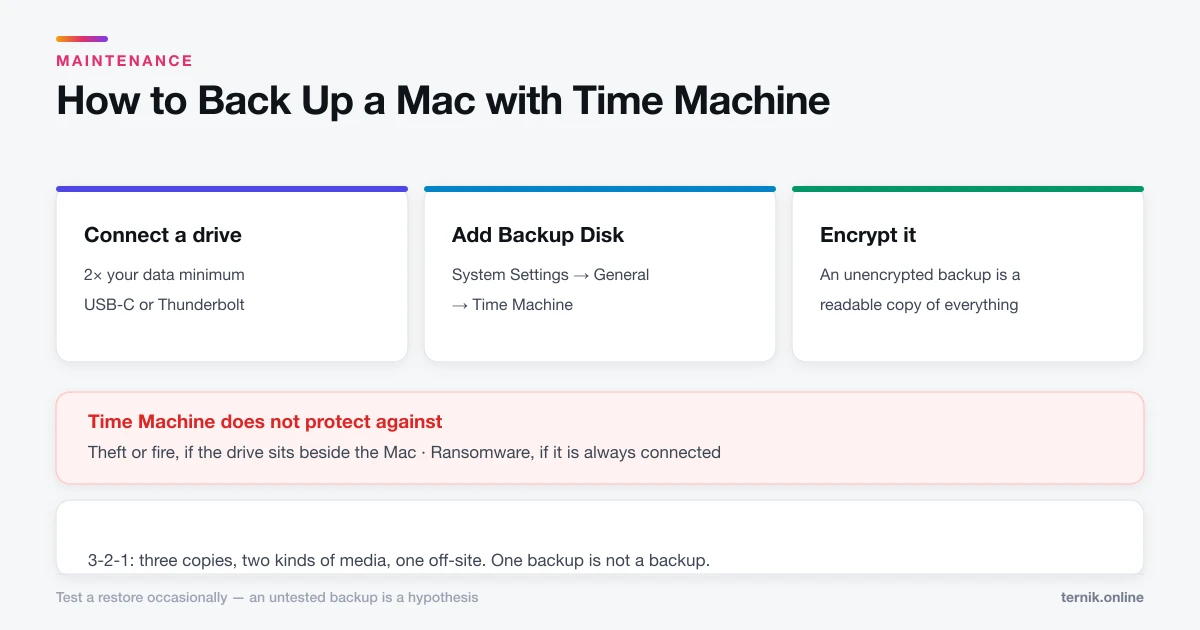
- Back up first. Every time, without exception — see Time Machine.
- Security updates for your current version: install promptly, low risk.
- Major version upgrades: check your critical apps first, and consider waiting for the .1 release.
- Rapid Security Responses install quickly and are safe to accept immediately.
How do I update macOS?
- Apple menu → System Settings.
- Click General in the sidebar, then Software Update.
- Wait for the check to finish.
- Click Update Now (same version) or Upgrade Now (new major version).
The Mac restarts one or more times. A point release usually takes 15–30 minutes; a major upgrade can take an hour or more. Do not close a laptop lid or disconnect power mid-update.
Two different things called "update"
The distinction matters more than the interface suggests.
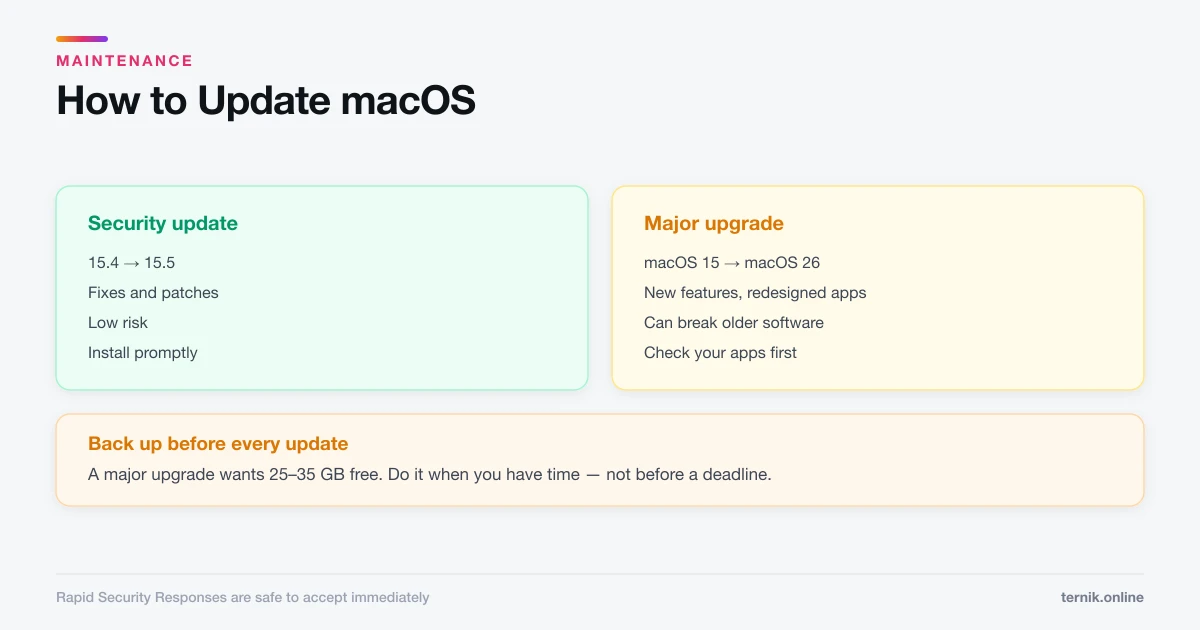
| Security update | Major upgrade | |
|---|---|---|
| Example | 15.4 → 15.5 | macOS 15 → macOS 26 |
| Button | Update Now | Upgrade Now |
| Changes | Fixes, patches | New features, redesigned apps |
| Risk | Low | Moderate |
| Compatibility | Rarely affected | Can break older software |
| Advice | Install promptly | Check first, consider waiting |
Rapid Security Responses are a third category — small, targeted patches that install in minutes and often need only a quick restart. Accept these as soon as they appear.
Before a major upgrade
Five minutes of checking prevents most upgrade regret.
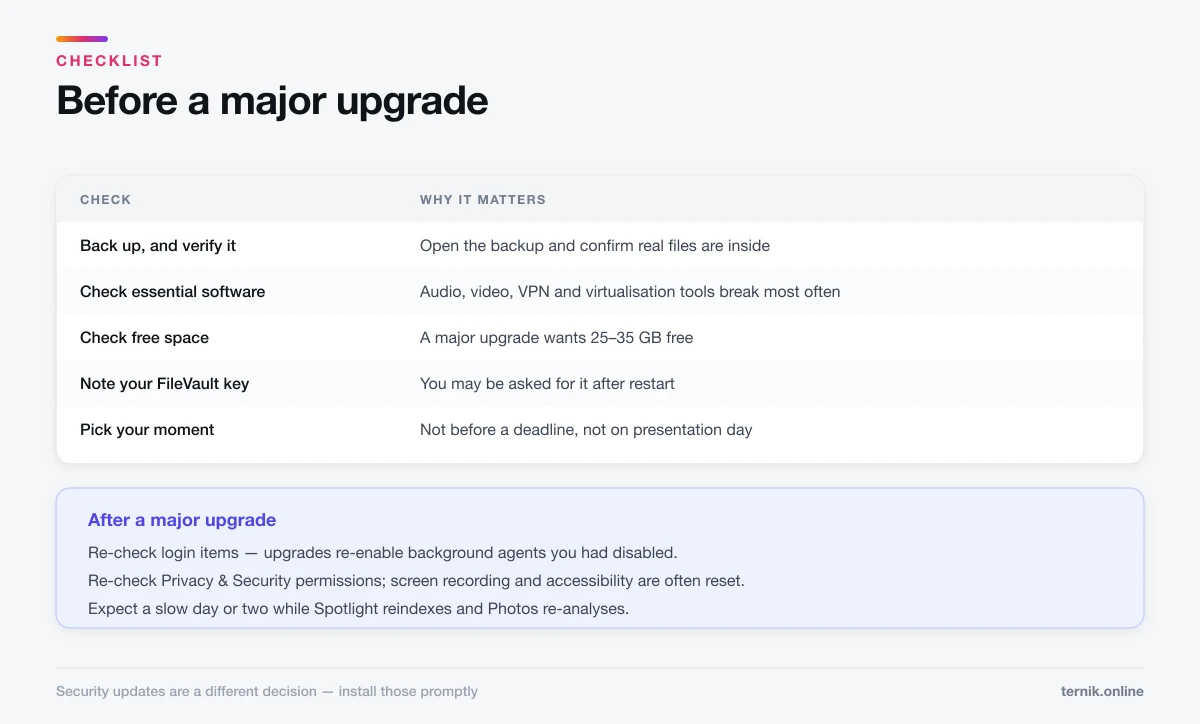
- Back up, and verify the backup. Open it and confirm real files are inside.
- Check your essential software. Audio, video, virtualisation, and VPN tools are the usual casualties, because they rely on system extensions.
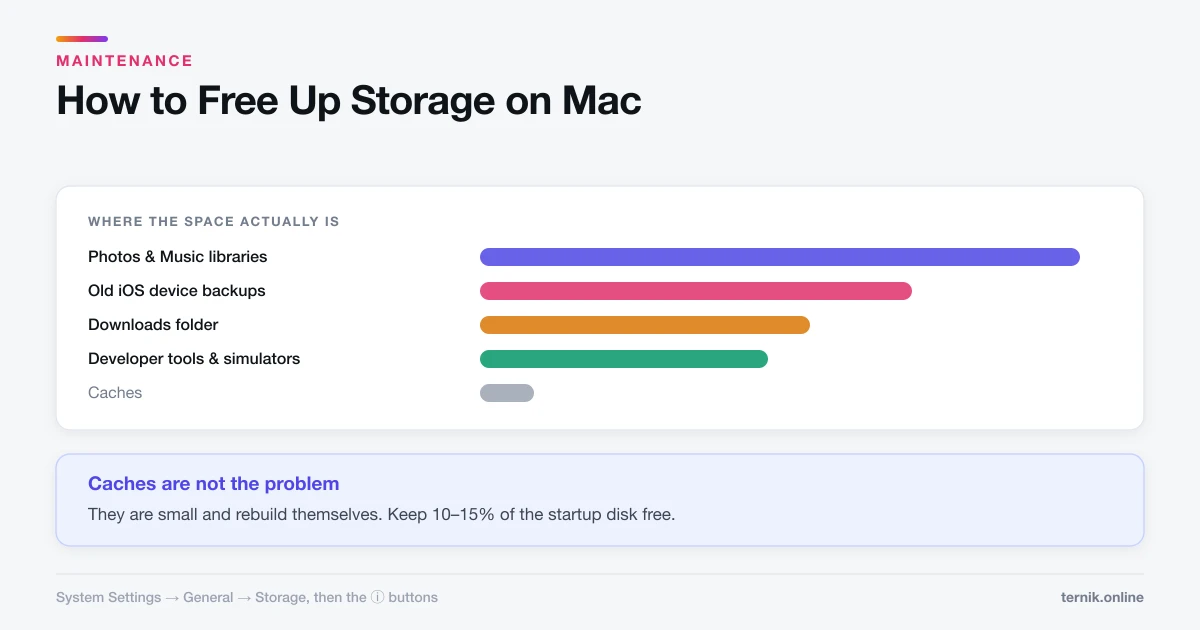
- Check free space. A major upgrade wants 25–35 GB free. If you are short, see how to free up storage rather than deleting things at random.
- Note your FileVault recovery key if enabled.
- Do it when you have time. Not before a deadline, and not on the day you present.
Should you wait?
For security updates, no. They fix actively exploited vulnerabilities, and the risk of running unpatched exceeds the risk of the patch.
For major upgrades, a short wait is defensible. The first release of a new macOS typically has rough edges resolved in the .1 or .2 release a few weeks later. If your work depends on specific professional software, wait for its vendor to confirm compatibility.
Do not wait indefinitely, though. Apple provides security updates for roughly the current and two previous major versions; older machines stop receiving them entirely. An unsupported Mac accumulates unpatched vulnerabilities, which no amount of caution offsets — the protections described in checking for malware depend on XProtect updates that arrive this way.
Automatic updates
Under Software Update → ⓘ beside Automatic Updates:
- Check for updates — leave on.
- Download when available — leave on.
- Install macOS updates — reasonable for most people; turn off if you need to control timing.
- Install application updates from the App Store — on.
- Install Security Responses and system files — leave on. This is XProtect.
That last one is the important switch. It delivers malware definitions independently of full macOS releases.
When an update fails
Stuck on the progress bar. Give it an hour before intervening — some phases show no visible progress. If genuinely frozen, hold the power button, restart, and try again.
"Not enough disk space." The installer needs room beyond the download. Free space and retry.
"An error occurred while installing." Usually an incomplete download. Restart and re-download rather than retrying the same files.
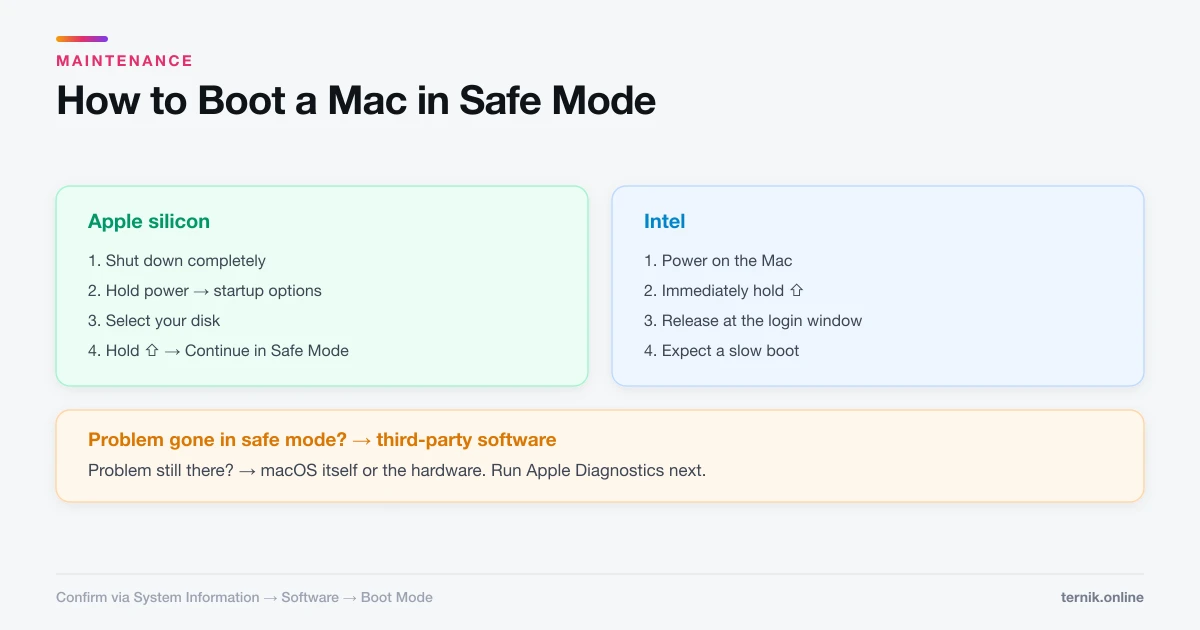
The Mac will not boot afterwards. Boot into safe mode — it clears caches and often completes a half-finished update. If safe mode fails too, Recovery can reinstall macOS without erasing your data.
Everything is slow after updating. Normal for a day or two: Spotlight reindexes and Photos re-analyses. Check Activity Monitor and look for mds_stores or photoanalysisd — both finish on their own.
After a major upgrade
Two things worth doing:
- Re-check your login items. Upgrades sometimes re-enable background agents you had disabled.
- Re-check privacy permissions under System Settings → Privacy & Security. Screen recording and accessibility permissions in particular are frequently reset, which is why a screen recorder or window manager may silently stop working — the cause behind many "screen recording produces nothing" reports after an upgrade.
Frequently asked questions
System Settings → General → Software Update. On macOS Monterey and earlier it is in System Preferences → Software Update.
Sources
Keep reading
More guides to grow your account.