Why Does My Mac Screen Have Lines? (Software vs Hardware)
Vertical or horizontal lines on a Mac display are usually a failing cable, panel, or GPU — but not always. Here is how to tell hardware from software in ten minutes.
Short answer
Lines on a Mac screen are usually hardware: a failing display cable, a damaged panel, or a graphics chip fault. Test by taking a screenshot and connecting an external display. If the screenshot is clean and the external display is clean, the panel or its cable is at fault and the Mac needs service.
Key takeaways
- Take a screenshot first. If the lines are absent from the image, the fault is the display, not the software.
- Connect an external monitor. Clean external output points at the panel or its cable; lines on both point at the GPU.
- Lines that change with the lid angle are almost always a failing display cable.
- Boot into safe mode to rule out a driver or software cause before assuming the worst.
- Most causes here are physical and need service — no setting will fix a damaged panel.
Why does my Mac screen have lines?
In the large majority of cases, hardware. The four usual causes, in rough order of frequency on laptops:
- A failing display flex cable. The ribbon connecting the panel to the logic board fatigues from repeated opening and closing.
- A damaged panel. Pressure or impact damage, often from something left on the keyboard when the lid closed.
- A graphics chip fault. Lines accompanied by colour distortion, freezes, or crashes.
- A loose or damaged external cable, if the lines are on an external display.
Software causes exist but are uncommon, and they are what you should eliminate first — because they are free to test and take minutes.
The ten-minute diagnosis
Run these in order. Each one splits the problem in half.
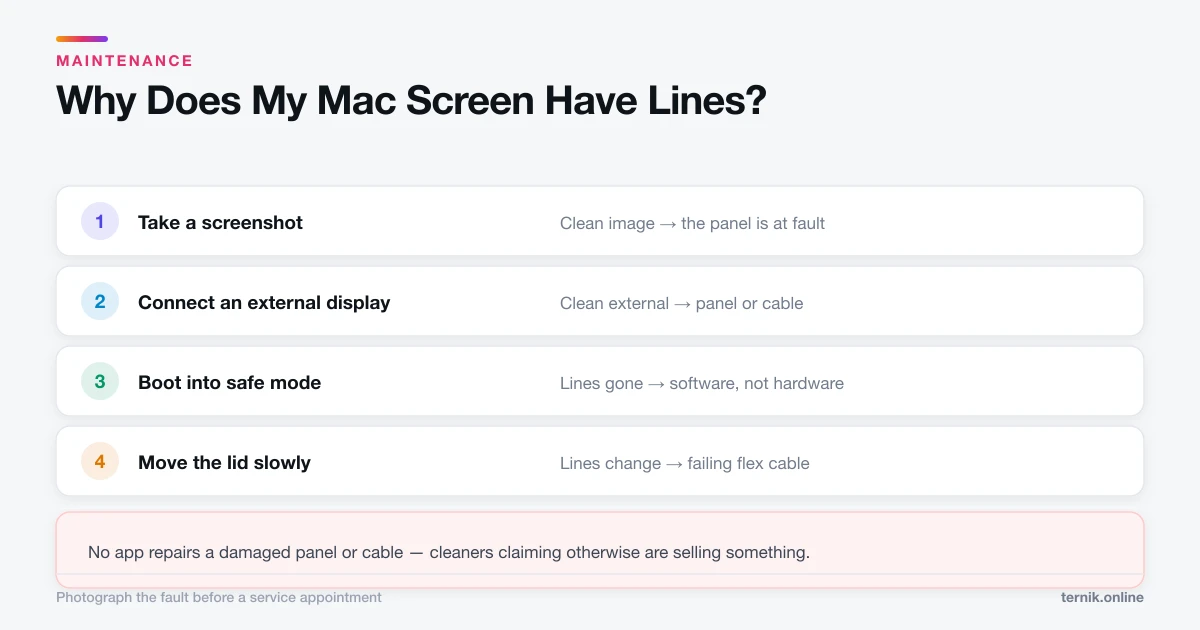
1. Take a screenshot. Press Shift-Command-3 and open the resulting file — see how to take a screenshot if you need the full set of shortcuts.
- Lines are not in the screenshot → the Mac is rendering a correct image and the display is corrupting it. Hardware, downstream of the GPU.
- Lines are in the screenshot → the image is wrong before it reaches the panel. GPU or software.
This single test is the most informative thing you can do, and most people skip it.
2. Connect an external display.
- External is clean, built-in has lines → panel or display cable.
- Both have lines → graphics hardware or software.
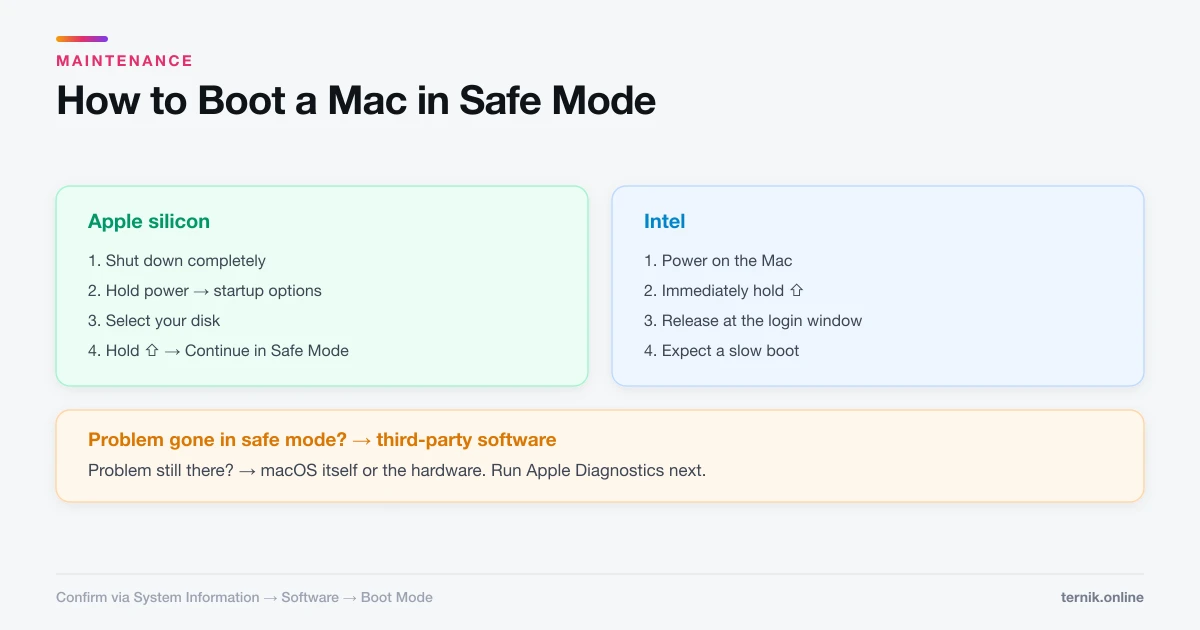
3. Boot into safe mode. Follow how to boot a Mac in safe mode. Safe mode uses minimal graphics drivers.
- Lines disappear → a software or driver problem. Genuinely good news.
- Lines persist → hardware, with high confidence.
4. Move the lid slowly on a laptop. Lines that flicker, appear, or vanish as the hinge angle changes are a failing flex cable. This is close to diagnostic on its own.
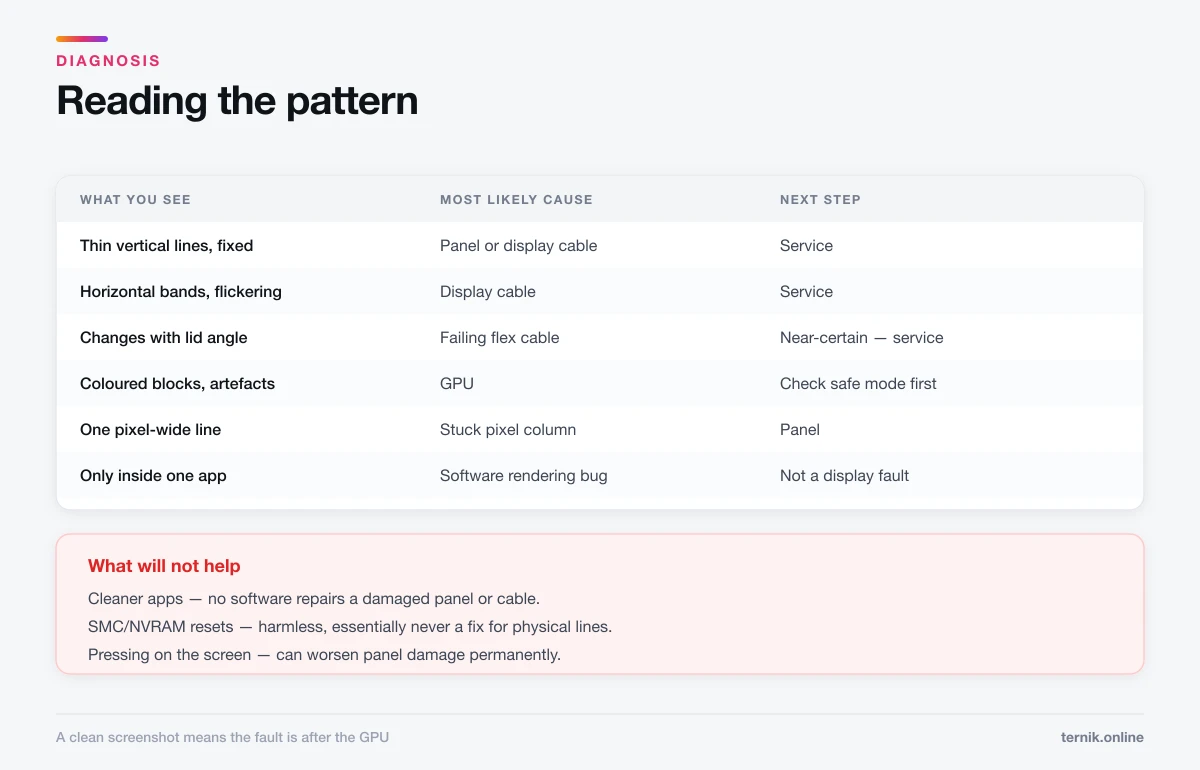
Reading the pattern
| What you see | Most likely cause |
|---|---|
| Thin vertical lines, fixed position | Panel or cable |
| Horizontal bands, flickering | Display cable |
| Lines that change with lid angle | Flex cable, near certain |
| Coloured blocks and artefacts | GPU |
| One pixel-wide coloured line | Stuck pixel column in panel |
| Lines only in one app | Software — not a display fault |
That last row is worth checking before anything else. Artefacts confined to a single application are a rendering bug in that app, not a hardware fault.
What to try on the software side
If safe mode came back clean, work through these:
- Install pending macOS updates. GPU driver fixes ship with the OS.
- Reset the display resolution. System Settings → Displays; switch to the default scaled resolution and back.
- Disconnect external displays and docks. Third-party docks and adapters cause genuine artefacting, particularly under load.
- Check for overheating. Artefacts that only appear under sustained heavy load can indicate thermal problems. Verify the fans are running and vents are clear.
- Run Apple Diagnostics. Apple Diagnostics tests display and graphics hardware directly and returns codes in the VFD range for display faults.
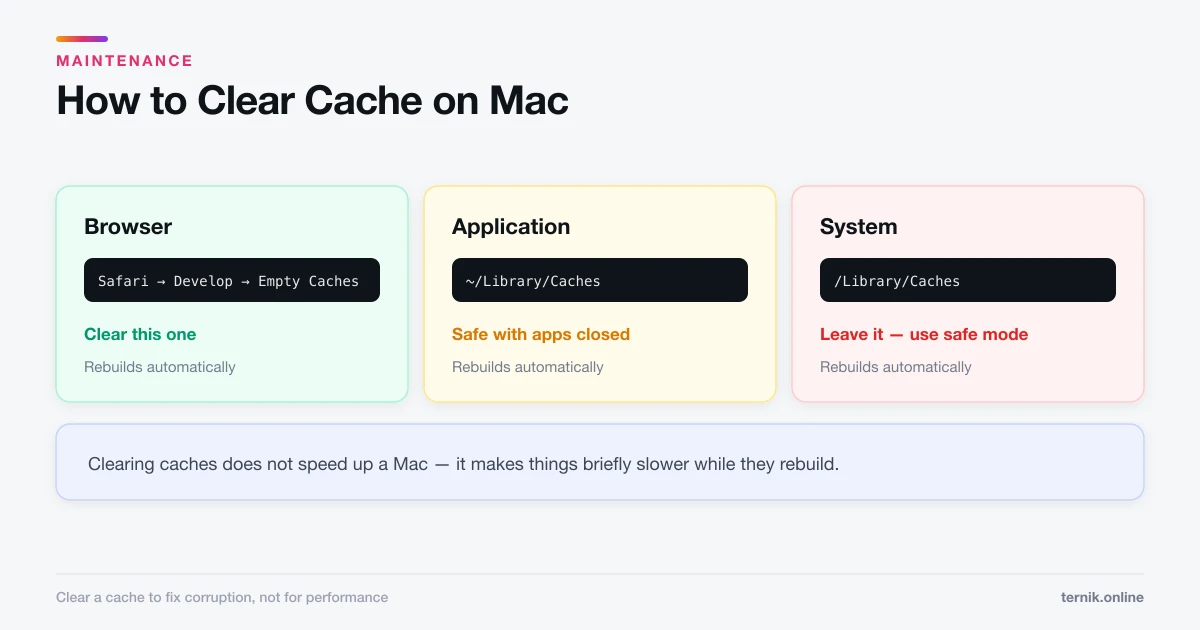
Clearing caches is unlikely to help here, though it is harmless to try — how to clear cache on a Mac covers doing it without deleting anything you need.
What will not help
Be sceptical of advice that promises a fix for this class of symptom:
- "Cleaner" apps. No software repairs a damaged panel or cable. Any app claiming to is selling something — the same pattern described in checking for malware.
- Resetting the SMC or NVRAM. Harmless, occasionally useful for display sleep quirks, essentially never a fix for physical lines. Apple silicon Macs have no user-resettable SMC anyway.
- Pressing on the screen. This can worsen panel damage permanently.
- Reinstalling macOS. Reasonable only after safe mode suggested software. Otherwise you spend hours and change nothing.
When to get it serviced
Book service when the screenshot is clean and the external display is clean, when lines change with lid angle, when artefacts come with freezes or kernel panics, or when Apple Diagnostics returns a VFD code.
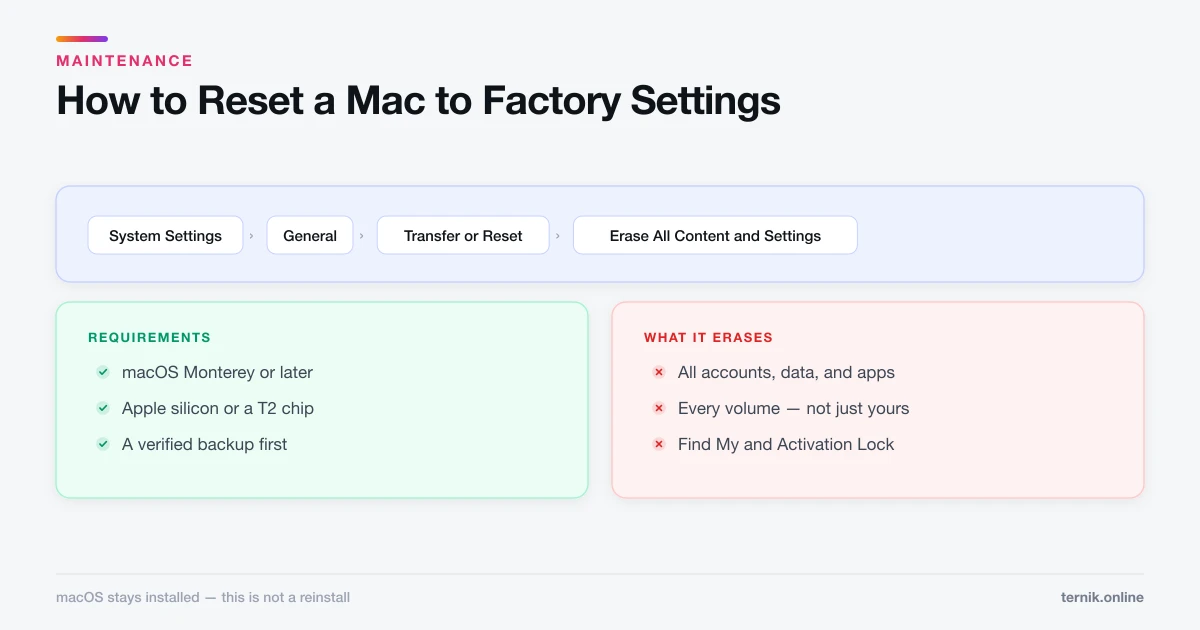
Before you hand the machine over, back it up — a display fault can precede a wider failure. If you are sending it away or replacing it, follow the pre-service steps in how to reset a Mac so your data does not travel with it.
Take a photograph of the fault. Intermittent display problems have an unfortunate habit of behaving perfectly at the service counter, and a clear photo of the pattern saves a great deal of argument.
Frequently asked questions
Most often a failing display flex cable or a damaged panel. Take a screenshot — if the lines are absent from the image, the fault is in the display rather than the software.
Sources
Keep reading
More guides to grow your account.