How to Boot a Mac in Safe Mode (Apple Silicon and Intel)
Safe mode loads a minimal macOS and clears system caches, which makes it the fastest way to tell a software fault from a hardware one. Here is how to enter and exit it.
Short answer
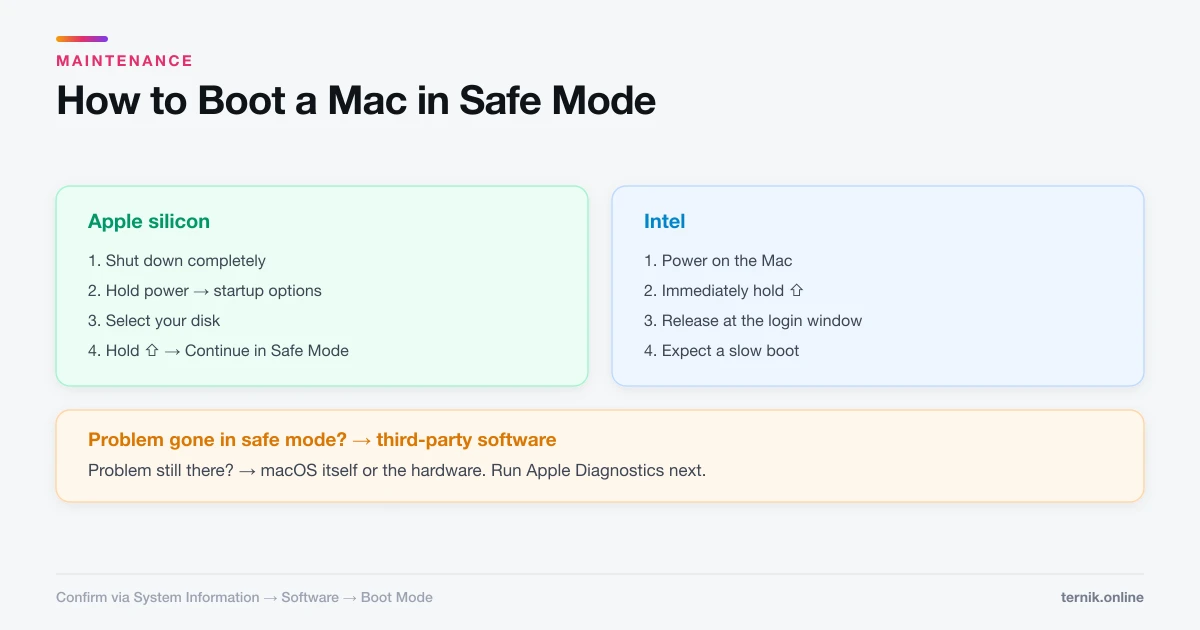
On Apple silicon, shut down, hold the power button until startup options appear, select your disk, then hold Shift and click Continue in Safe Mode. On Intel, hold Shift during startup. Safe mode loads only essential software and clears system caches, so if a problem disappears there, third-party software is causing it.
Key takeaways
- Apple silicon: shut down → hold power → select disk → hold Shift → Continue in Safe Mode.
- Intel: hold Shift immediately after the startup chime until the login window appears.
- Safe mode loads only essential kernel extensions and clears system caches on boot.
- If the fault vanishes in safe mode, the cause is third-party software, not the Mac.
- Exit by simply restarting normally — there is nothing to switch back off.
How do I start a Mac in safe mode?
The method depends on your processor, and the Apple silicon route is the one people get wrong because it is not a key held at power-on.
Apple silicon (M1 and later):
- Choose Apple menu → Shut Down and wait for the Mac to power off fully.
- Press and hold the power button until "Loading startup options" appears.
- Select your startup disk (usually Macintosh HD).
- Hold Shift, then click Continue in Safe Mode, and release Shift.
Intel:
- Restart or power on the Mac.
- Immediately press and hold Shift.
- Release when the login window appears — not at the Apple logo.
Either way, expect a slow boot. Safe mode performs a directory check and rebuilds caches, so several minutes is normal. Confirm you are in it via Apple menu → System Information → Software, where Boot Mode reads Safe rather than Normal. On many Macs "Safe Boot" also appears in red in the menu bar.
What safe mode actually does
Four things, all of them diagnostic:
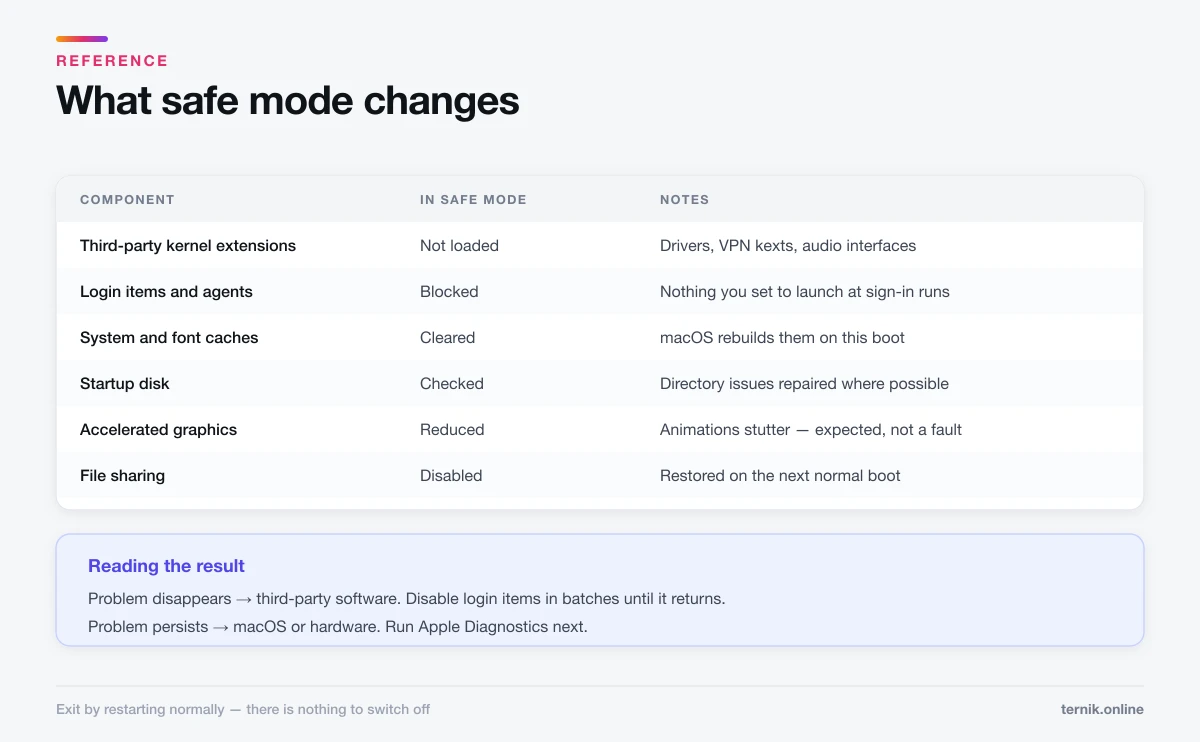
- Loads only required kernel extensions. Third-party drivers, audio interfaces, VPN kexts, and virtualisation extensions stay unloaded.
- Blocks login items and startup agents. Nothing you have configured to launch at sign-in runs.
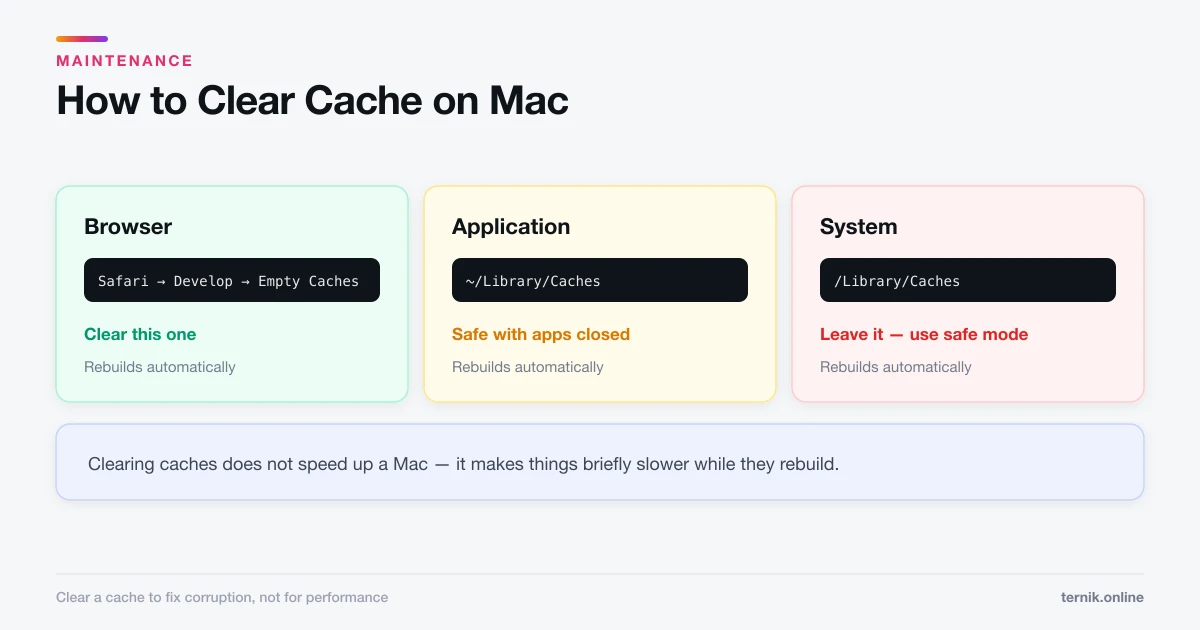
- Clears system caches, including font caches and parts of the dynamic loader cache, forcing macOS to rebuild them.
- Runs a check of your startup disk, repairing directory issues where it can.
That combination is why safe mode occasionally fixes a problem outright: the fault was a corrupt cache, and clearing it was the cure.
What does not work in safe mode
Expect a degraded machine — this is normal and not a sign of damage:
| Feature | Status in safe mode |
|---|---|
| Wi-Fi | Works on most modern Macs |
| File sharing | Disabled |
| Accelerated graphics | Reduced — animations stutter |
| Video capture and DVD playback | Unavailable |
| Audio input/output devices | Often limited to built-in |
| External displays | May run at reduced resolution |
Do not judge performance in safe mode. It is deliberately unoptimised.
Reading the result
This is the part that matters, and it is a genuine binary.
The problem disappears in safe mode. The cause is third-party software — a login item, a background agent, a kernel extension, or a corrupt cache. Restart normally, then work through System Settings → General → Login Items, disabling entries in batches until the fault returns. The last batch you re-enabled contains the culprit.
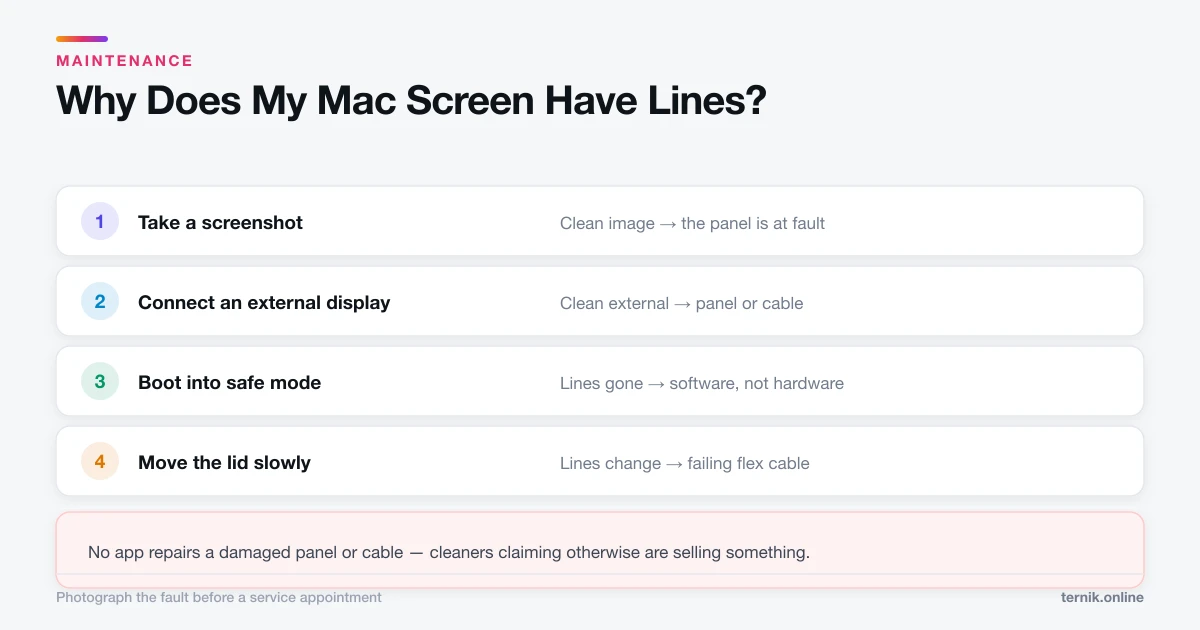
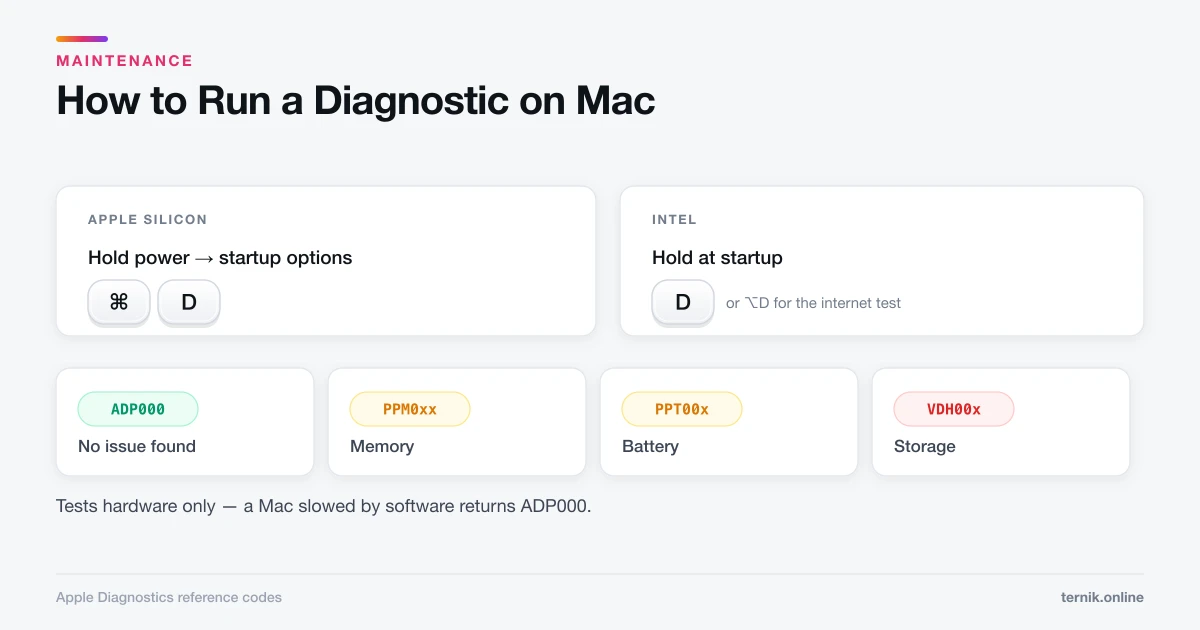
The problem persists in safe mode. Third-party software is largely ruled out, which points at macOS itself or the hardware. That is the moment to run Apple Diagnostics, which tests memory, power, sensors, and the logic board directly. Visual faults specifically — lines or artefacts on the display — are worth testing in safe mode first, because a reduced-graphics environment that still shows them is a strong hardware signal.
When safe mode is the right first move
Reach for it when the symptom is behavioural rather than physical:
- The Mac hangs partway through a normal boot.
- A kernel panic repeats after login.
- Something crashes on every launch after a driver or update installation.
- Fonts render incorrectly or the Mac beachballs constantly.
- A peripheral behaves erratically after installing its software.
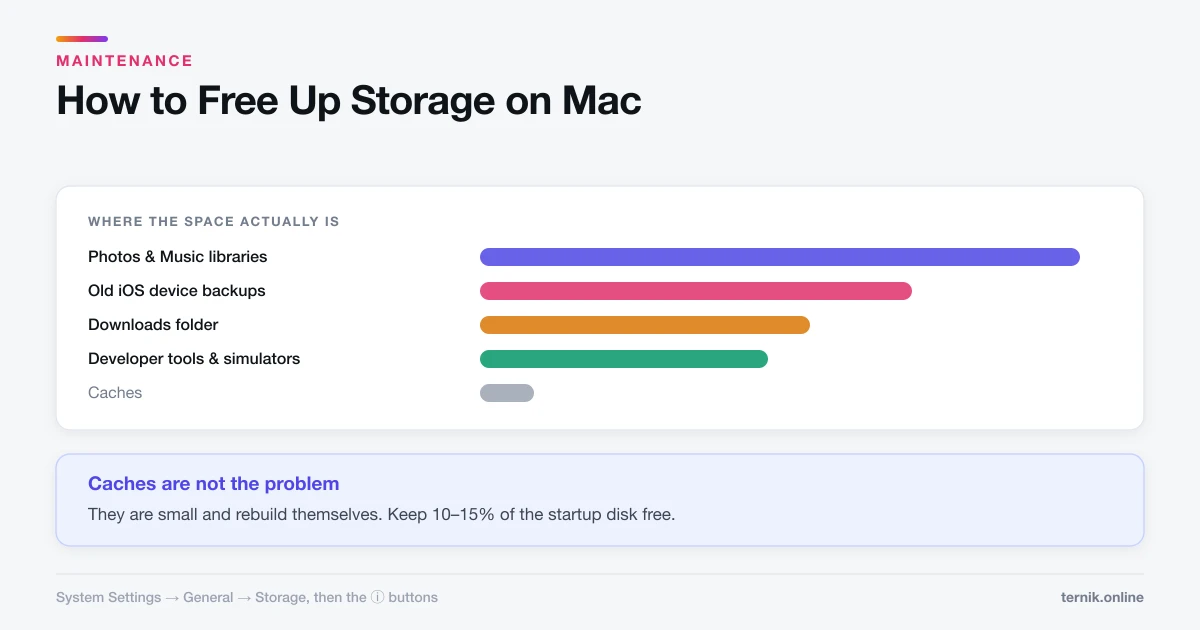
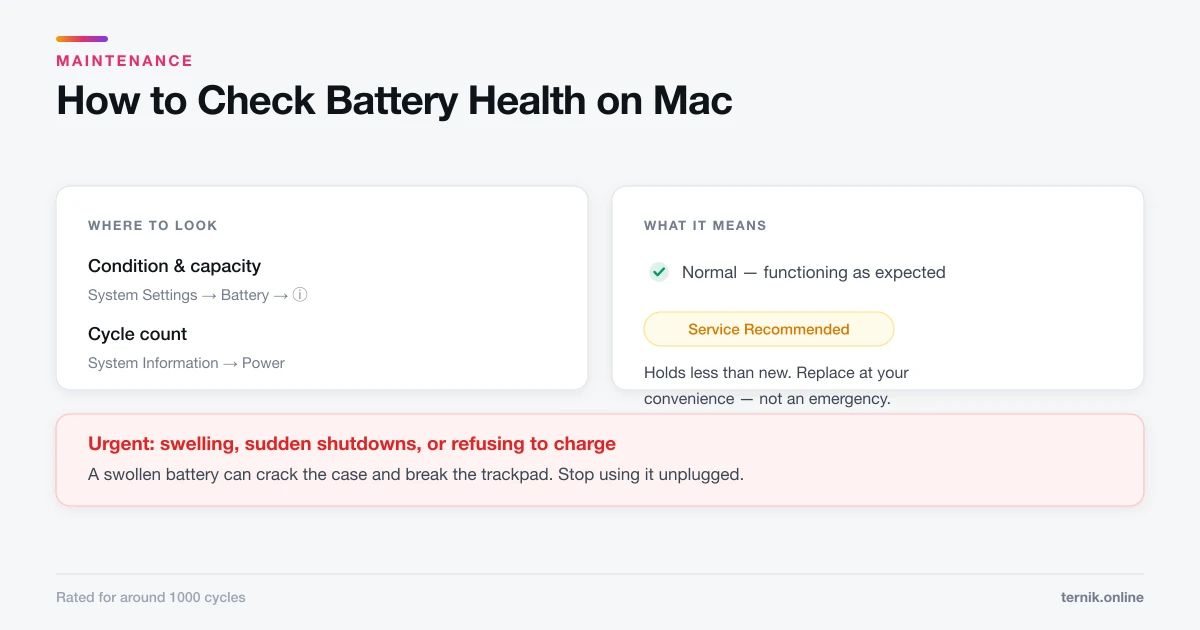
It is not the tool for a full disk, a slow web browser, or a failing battery.
If safe mode will not start
- Shift does nothing on Intel. Try a wired Apple keyboard; Bluetooth keyboards frequently miss startup key combinations, and some third-party keyboards never register them.
- A firmware password is set. Enter it when prompted — safe mode is blocked until you do.
- FileVault is enabled. You will sign in twice: once to unlock the disk, once to log in. This is expected.
- Startup options never appear on Apple silicon. Hold the power button longer. Releasing at the Apple logo is too early.
Exiting safe mode
Restart normally. That is the whole procedure — safe mode is a per-boot state, not a setting, so there is nothing to undo.
If the Mac keeps landing in safe mode, a stuck Shift key is the usual explanation. Check for a physically jammed key or a peripheral holding it down.
What to try afterwards
Safe mode narrows the field; it rarely finishes the job. Once you know software is responsible, the productive next steps are auditing login items, clearing caches deliberately rather than hoping safe mode did it, and removing apps you no longer use along with their background helpers. If pop-ups or browser hijacking are part of the picture, check for adware before assuming a system fault.
Frequently asked questions
Shut down fully, hold the power button until 'Loading startup options' appears, select your startup disk, then hold Shift and click 'Continue in Safe Mode'. Holding Shift at power-on does not work on Apple silicon.
Sources
Keep reading
More guides to grow your account.