How to Connect AirPods to Mac (And Fix Them Not Connecting)
AirPods already paired with your iPhone appear in the Mac's Sound menu automatically. Pairing fresh takes the setup button. Here is both, plus the usual failures.
Short answer
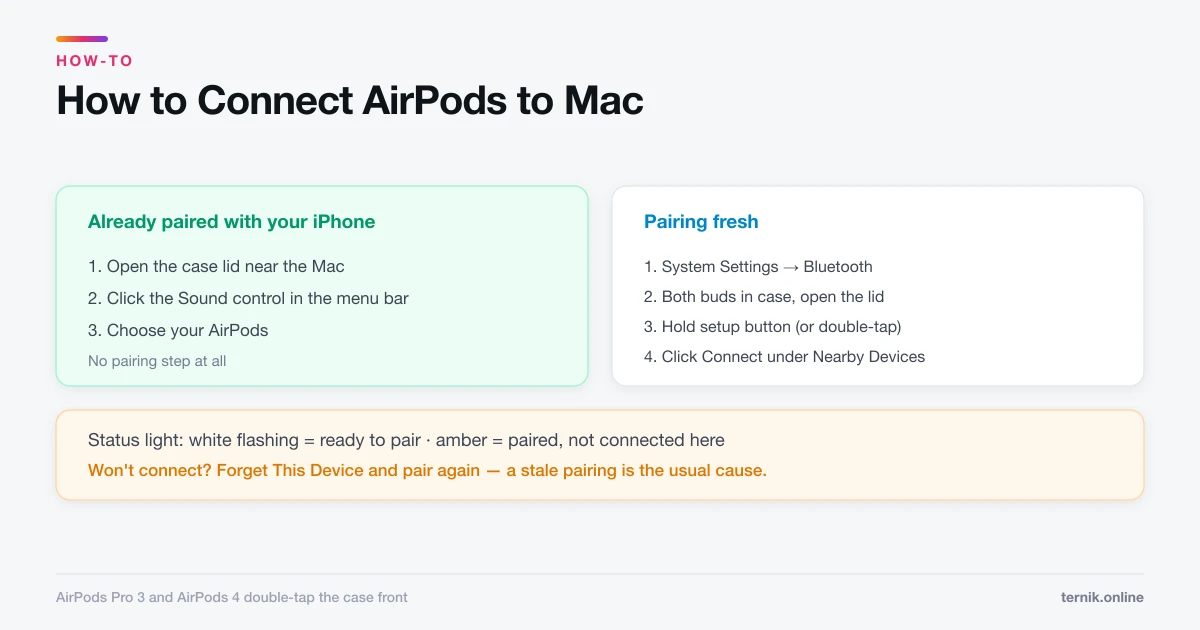
If your AirPods are already paired with an iPhone on the same Apple Account, open the case near your Mac and choose them from the Sound control in the menu bar. To pair fresh, open System Settings > Bluetooth, put both AirPods in the case, open the lid, hold the setup button until the light flashes white, then click Connect.
Key takeaways
- Already paired with your iPhone? Just pick them from the Sound menu — no pairing needed.
- To pair fresh: System Settings → Bluetooth, hold the setup button until the light flashes white.
- AirPods Pro 3 and AirPods 4 use a double-tap on the case front instead of a button.
- Add the Sound control to the menu bar via Control Centre settings if it is missing.
- Most "won't connect" cases are a stale pairing — forget the device and pair again.
Connecting AirPods already paired with your iPhone
If your Mac and iPhone use the same Apple Account and Handoff is on, there is nothing to set up:
- Open the AirPods case lid near the Mac (or put them in your ears).
- Click the Sound control in the menu bar.
- Choose your AirPods from the list.
No Sound control in the menu bar? Open System Settings → Control Centre, find Sound, and set it to Always Show in Menu Bar. It is the single most useful menu bar item for anyone switching audio devices regularly.
Pairing AirPods for the first time
For AirPods that have never met this Apple Account:
- On the Mac, open System Settings → Bluetooth and confirm Bluetooth is on.
- Put both AirPods in the charging case and open the lid.
- Prepare them for pairing:
- AirPods Pro 3 and AirPods 4 — double-tap the front of the case until the status light flashes white.
- All other models — press and hold the setup button on the back of the case until the light flashes white.
- Find your AirPods under Nearby Devices and click Connect.
A white flashing light means ready to pair. Amber means paired but not currently connected to this device.
Older models have minimum requirements — AirPods 2 need macOS Mojave 10.14.4 or later, AirPods Pro 1 need Catalina 10.15.1 or later. A Mac too old for the model simply will not offer to connect.
When AirPods will not connect
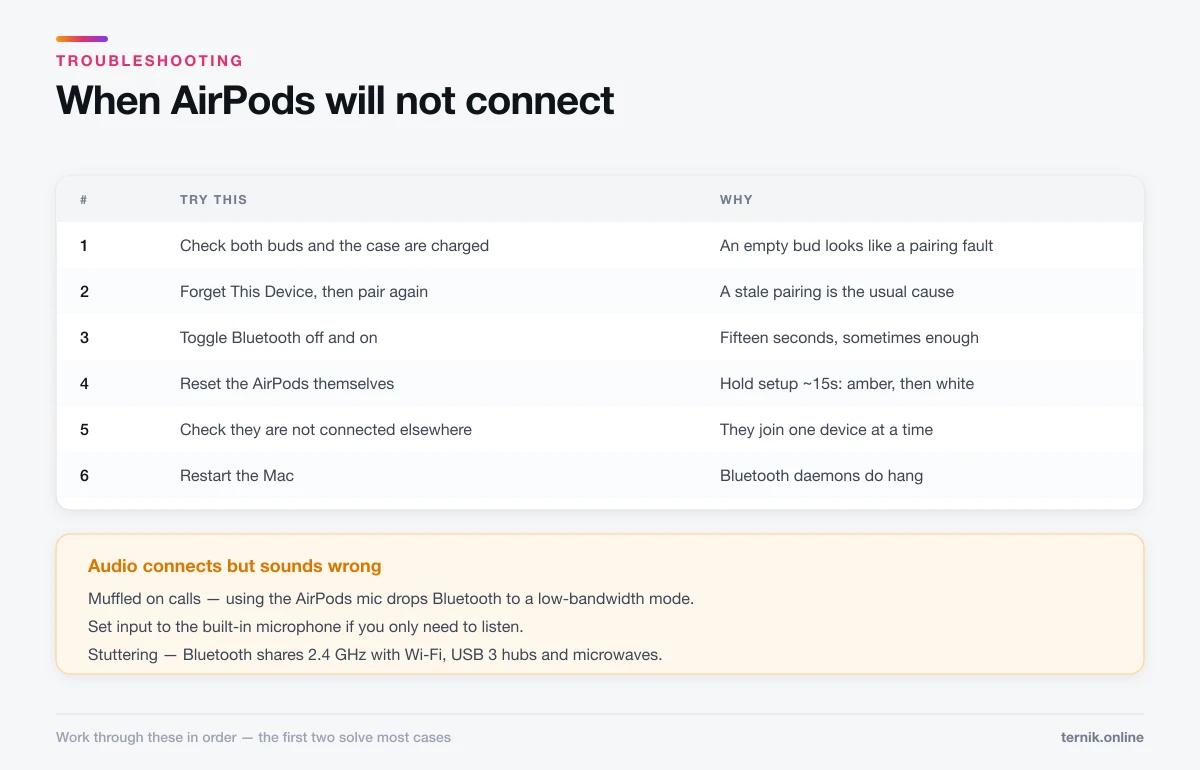
Work through these in order; the first two solve most cases.
1. Check they are actually charged. Both buds and the case. An empty right bud produces "one side isn't working", which is a charging problem masquerading as a pairing problem.
2. Forget the device and pair again. This clears a stale pairing record, which is the single most common cause. System Settings → Bluetooth, click the ⓘ beside your AirPods, choose Forget This Device, confirm, then pair from scratch using the steps above.
3. Toggle Bluetooth off and on. Fifteen seconds, occasionally enough.
4. Reset the AirPods themselves. Put both in the case, close the lid, wait 30 seconds, open it, then hold the setup button for about 15 seconds until the light flashes amber then white. This clears every pairing, so you will re-pair your phone too.
5. Check they are not connected elsewhere. AirPods connect to one device at a time. If audio is going to your iPhone or iPad, they will not appear available on the Mac. Disconnect there first.
6. Restart the Mac. Bluetooth daemons do occasionally hang.
Audio connects but sounds wrong
A distinct problem with a distinct cause.
Muffled or low quality on calls. When a microphone is active, macOS switches AirPods to a lower-bandwidth mode that degrades playback. It is a limitation of the Bluetooth profile, not a fault. If you only need to listen, set input to the Mac's built-in microphone under System Settings → Sound → Input and playback quality recovers.
Stuttering or dropouts. Bluetooth shares the 2.4 GHz band with Wi-Fi. Move away from the router, USB 3 hubs, and microwaves. A crowded office is genuinely a difficult radio environment.
Wrong output device. macOS remembers per-app choices. Check System Settings → Sound → Output, and hold Option while clicking the Sound menu bar item for a fuller device list.
Switching between devices
Automatic switching moves AirPods between your Apple devices when it thinks you have changed focus. It is convenient when it works and irritating when it guesses wrong.
Turn it off for the Mac under System Settings → Bluetooth → ⓘ beside your AirPods → Connect to This Mac → When Last Connected to This Mac. Manual selection from the Sound menu is more predictable if you move between machines constantly.
Before selling or giving away a Mac
Unpair Bluetooth accessories you are keeping, so they do not linger in the machine's records. This belongs in the same pre-service checklist as backing up and signing out of iCloud — the full sequence is in how to reset a Mac.
Conversely, if AirPods stopped working after a macOS update rather than a hardware change, booting into safe mode will tell you quickly whether third-party audio software is interfering, and Apple Diagnostics confirms the Mac's own wireless hardware is present and healthy.
Frequently asked questions
Most often a stale pairing. Go to System Settings → Bluetooth, click the ⓘ beside them, choose Forget This Device, then pair again with the setup button.
Sources
Keep reading
More guides to grow your account.