How to Type Emoji on Mac (And Find Any Symbol)
Control-Command-Space opens the emoji picker anywhere you can type. The same panel holds arrows, maths symbols, and accented characters most people never find.
Short answer
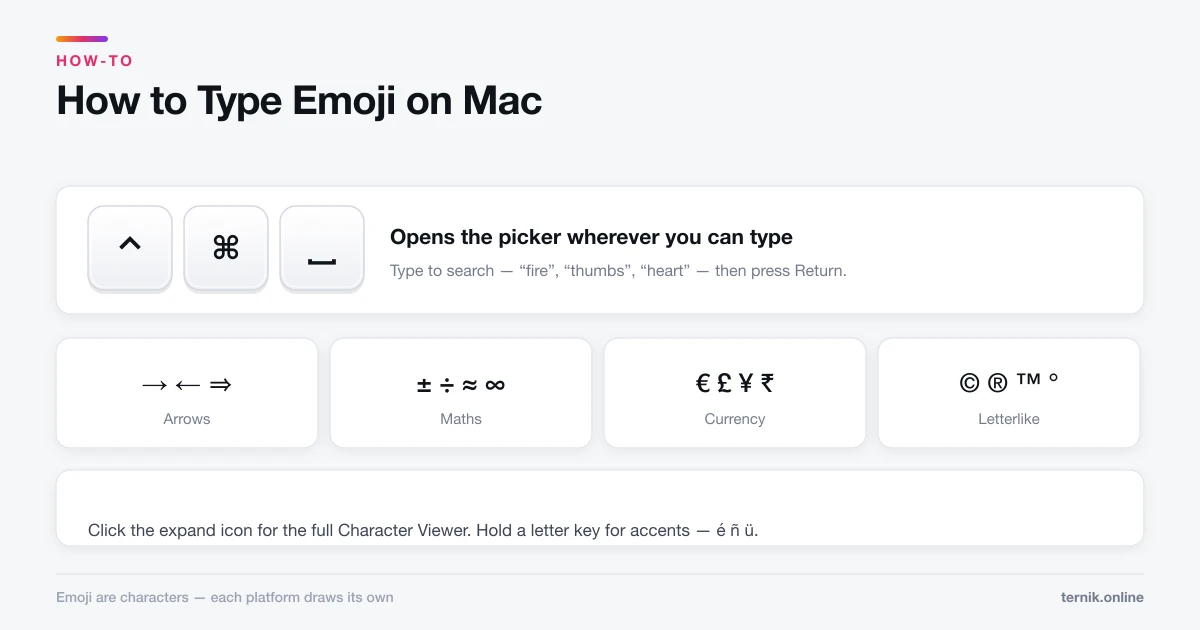
Press Control-Command-Space to open the emoji and symbol picker in any text field. Type to search, then press Return to insert. The same panel expands into Character Viewer, which holds arrows, mathematical symbols, currency signs, and full Unicode.
Key takeaways
- ⌃⌘Space opens the emoji picker wherever you can type.
- Type to search — "fire", "thumbs", "heart" — then press Return.
- Click the expand icon for the full Character Viewer: arrows, maths, currency, Unicode.
- Hold a letter key for accented variants — é, ñ, ü — without any panel.
- Emoji render differently on other platforms; some newer ones may not appear at all.
How do I type emoji on a Mac?
Put the cursor in any text field and press Control-Command-Space. The picker appears at the cursor. Type a few letters to filter — fire, party, thumbs — then press Return or click to insert.
It works everywhere text input does: Messages, Mail, Notes, browsers, Slack, code editors. If nothing happens, the field is not a real text field, which is common in some web apps and games.
You can also reach it from the menu bar in most apps via Edit → Emoji & Symbols.
The picker is bigger than it looks
Top right of the panel is a small icon that expands it into the full Character Viewer, and this is the part most people never open. It contains:
- Arrows — → ← ↔ ⇒
- Mathematical symbols — ± ÷ ≈ ∞ ≤ ≥
- Currency — € £ ¥ ₹ ₽
- Punctuation — — – " " … ‰
- Letterlike symbols — © ® ™ °
- Latin — full accented character sets
- Unicode blocks, if you enable them from the list options
Anything you insert lands in Frequently Used, so symbols you rely on stay one keystroke away. The em dash (—) and the degree sign (°) are the two most people hunt for repeatedly.
Accented characters without the panel
For European accents there is a faster route: hold the letter key. Holding e shows è é ê ë ē — press the number shown or click the one you want.
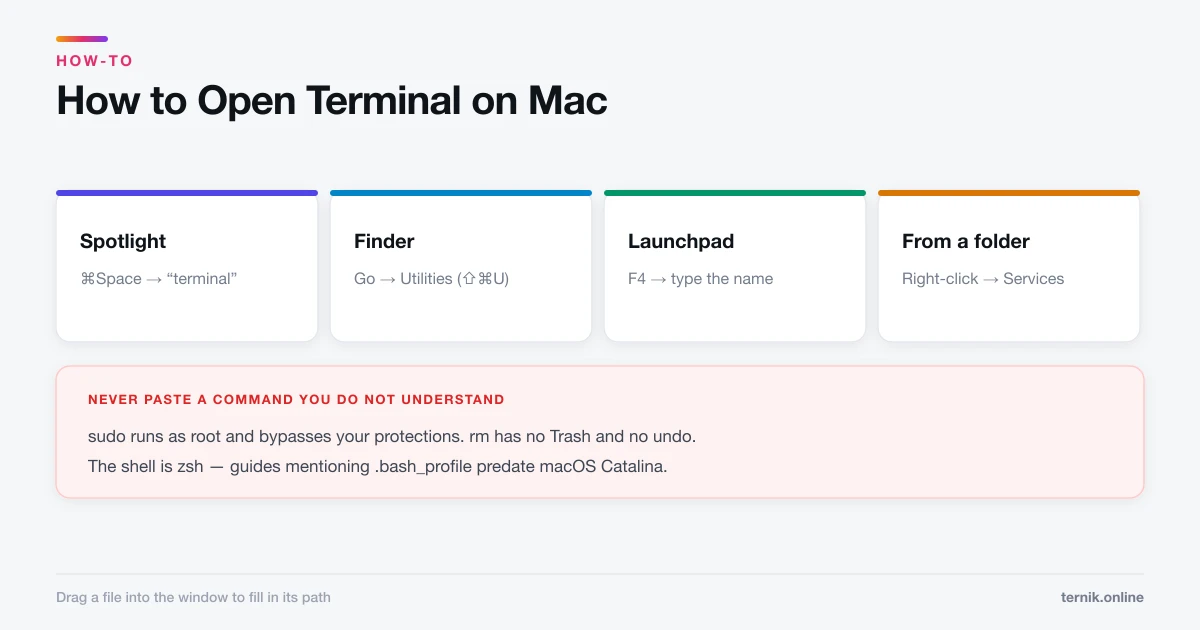
Two things to know. It only works for keys with defined variants, so holding q does nothing. And it replaces key repeat: if you actually want eeeeee, either tap repeatedly or disable the accent menu with a Terminal command — see how to open Terminal on a Mac:
defaults write -g ApplePressAndHoldEnabled -bool false
Log out and back in for it to take effect. Set it to true to restore.
Option-key shortcuts worth memorising
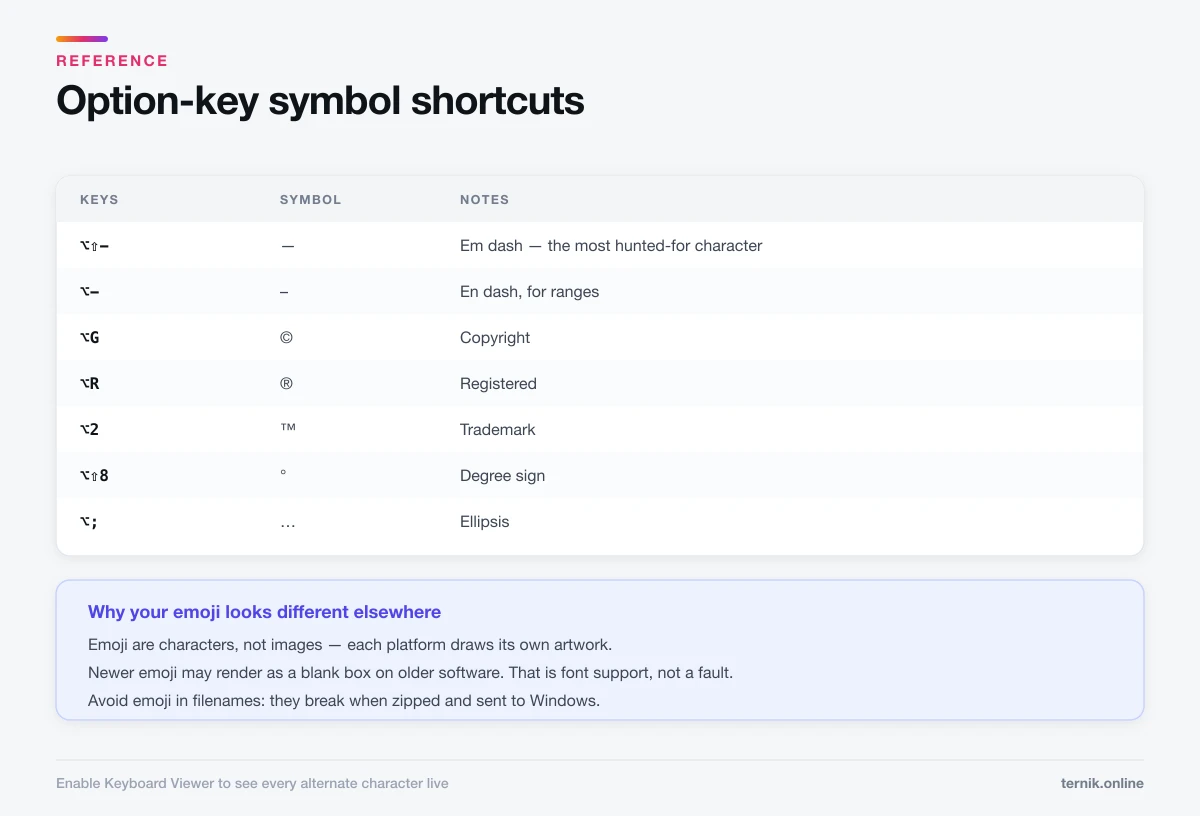
Several common symbols have direct combinations, faster than any picker:
| Keys | Symbol |
|---|---|
| ⌥⇧- | — (em dash) |
| ⌥- | – (en dash) |
| ⌥G | © |
| ⌥R | ® |
| ⌥2 | ™ |
| ⌥⇧8 | ° |
| ⌥3 | # or £, by layout |
| ⌥; | … |
To explore the rest, enable the Keyboard Viewer from System Settings → Keyboard → Edit Input Sources → Show Input menu in menu bar. Holding Option with it open shows every alternate character live.
Why your emoji looks different elsewhere
Emoji are characters, not images. Each platform draws its own, so what you send is a code point and the recipient's device supplies the artwork. The same emoji can look meaningfully different on Android, Windows, or an older iPhone.
Two practical consequences:
- Newer emoji may not render on devices with older software, appearing as a blank box or a placeholder. This is a font support issue, not a fault.
- Tone can shift between platforms, since designs vary in how friendly or sarcastic a face reads.
For anything where precision matters, words are safer.
If the picker will not open
- Another app claimed the shortcut. Control-Command-Space is popular with launcher and clipboard utilities. Check under System Settings → Keyboard → Keyboard Shortcuts.
- The field is not a text field. Web canvases and games often reject system input panels.
- The app is in an odd state. Restart it; if it recurs across every app, the input service may be stuck — safe mode will show whether third-party software is responsible.
If a specific app misbehaves while everything else is fine, clearing that app's cache is the targeted fix rather than anything system-wide.
Emoji in filenames and code
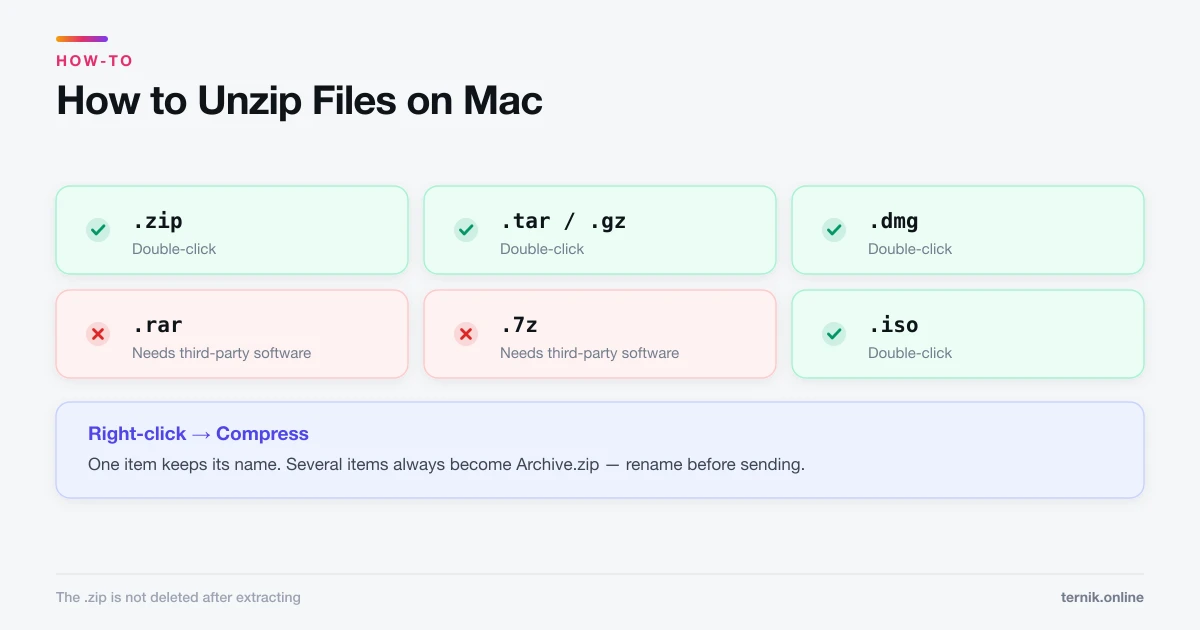
macOS permits emoji in filenames. It is best avoided: other systems handle them inconsistently, and a name that works locally can break when the file is zipped and sent to a Windows machine, as noted in how to unzip files on a Mac.
In source code, emoji are valid in strings and comments in most modern languages but can cause encoding trouble in older toolchains. In terminal output they frequently break column alignment, because many are double-width.
Frequently asked questions
Control-Command-Space. It opens the emoji and symbol picker in any text field. You can also use Edit → Emoji & Symbols in most apps.
Sources
Keep reading
More guides to grow your account.