How to Right-Click on Mac (Every Method)
Macs have right-click — it is just off by default on some trackpads. Here are all four methods and how to turn on two-finger clicking.
Short answer
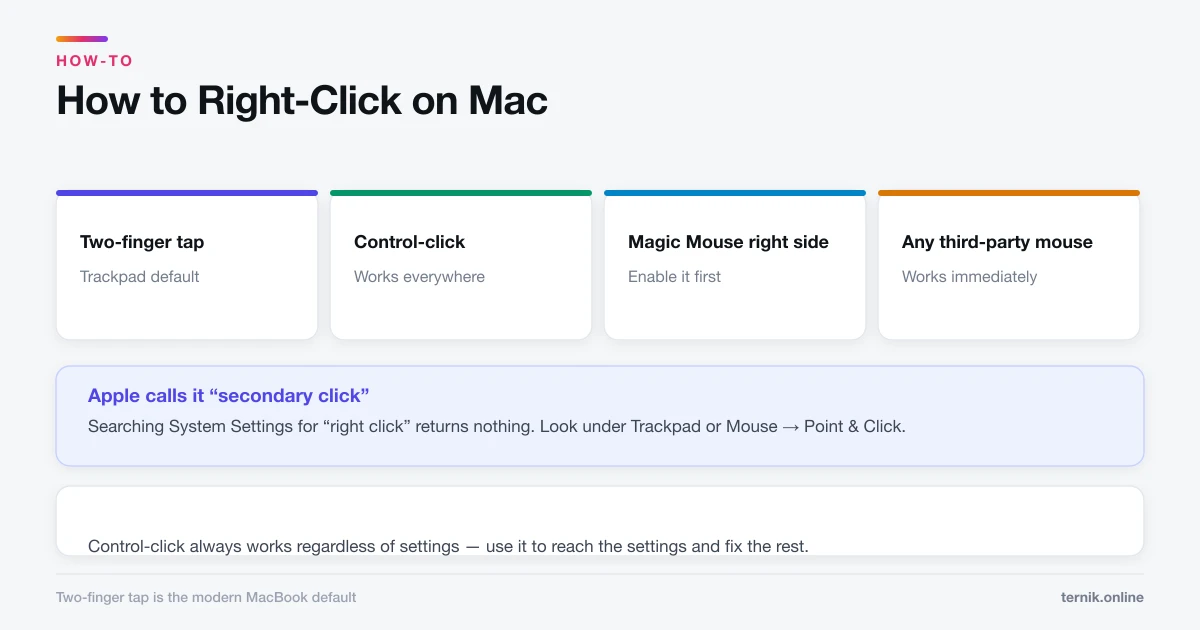
Tap the trackpad with two fingers, hold Control and click, or click the right side of a Magic Mouse. Apple calls it secondary click, and you can change how it is triggered under System Settings, Trackpad, Point and Click.
Key takeaways
- Two-finger tap on the trackpad is the default on modern MacBooks.
- Control-click works on any Mac with any pointing device — the universal fallback.
- Apple calls it secondary click, which is why searching for "right click" in settings fails.
- Configure it under System Settings → Trackpad → Point & Click → Secondary click.
- A Magic Mouse needs secondary click enabled explicitly; it is one surface, not two buttons.
How do I right-click on a Mac?
Four methods, all producing the same context menu:
- Two-finger tap or click on the trackpad.
- Control-click — hold Control and click once.
- Click the right side of a Magic Mouse, once enabled.
- Right button on any ordinary third-party mouse, which works immediately.
If none seem to work, the feature is switched off rather than missing. Control-click always works regardless of settings, so use it to reach the settings and fix the rest.
Changing how secondary click is triggered
Trackpad: System Settings → Trackpad → Point & Click tab → Secondary click. Options are:
- Click or Tap with Two Fingers — the default and the most reliable.
- Click in Bottom Right Corner — mimics a PC touchpad.
- Click in Bottom Left Corner — the same for left-handers.
- Off — disables everything except Control-click.
Mouse: System Settings → Mouse → Point & Click → Secondary click, then choose Click Right Side or Click Left Side.
The Magic Mouse is the usual source of confusion. Its surface is touch-sensitive, not split into physical buttons, so it registers which side your finger is on. Rest a second finger on the left while clicking right and it may read as a primary click.
Why "right-click" finds nothing in settings
Apple's term is secondary click, and the interface uses that phrase exclusively. Searching System Settings for "right click" returns nothing useful, which sends people to the internet convinced the feature is absent.
The naming is deliberate: the action is not tied to a physical right button. On a trackpad it is two fingers; on a Magic Mouse it is a region; for a left-handed user with swapped buttons it is literally the left button.
What the context menu gives you
Secondary click is not a convenience — a large amount of macOS is only reachable through it:
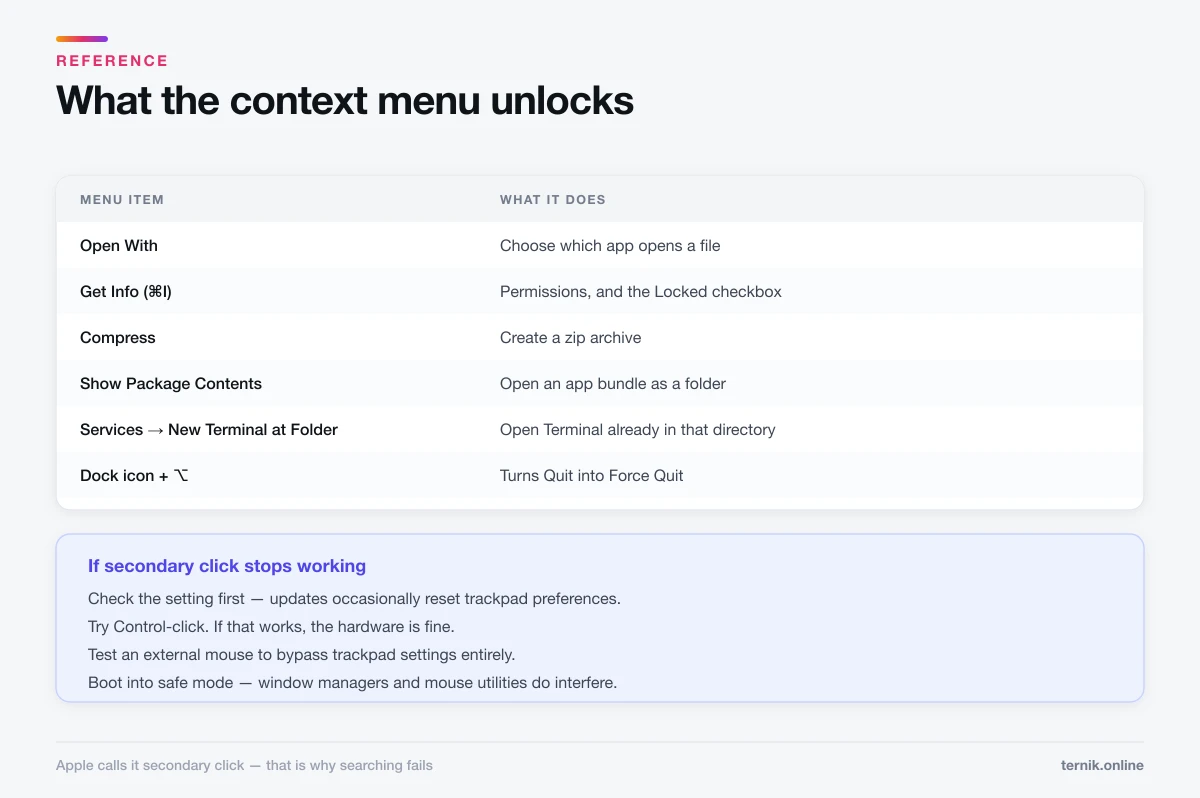
- Open With — choose which app opens a file.
- Get Info (⌘I) — permissions, and the Locked checkbox that blocks editing.
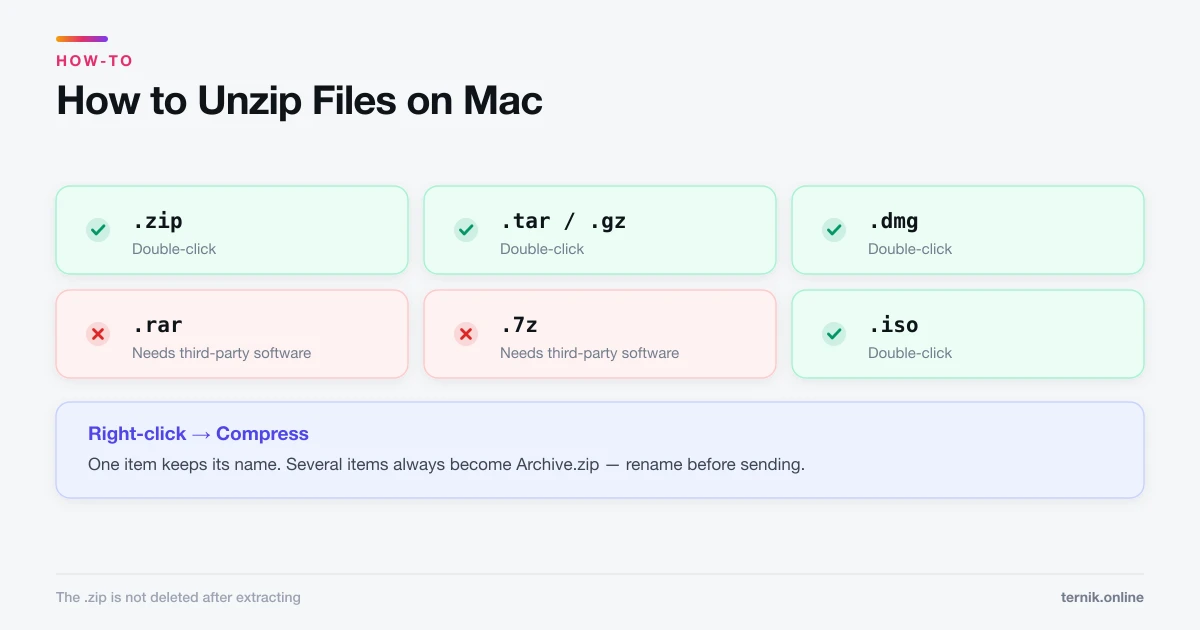
- Compress — create a zip, as covered in how to unzip files on a Mac.
- Quick Look actions, including rotate and Markup.
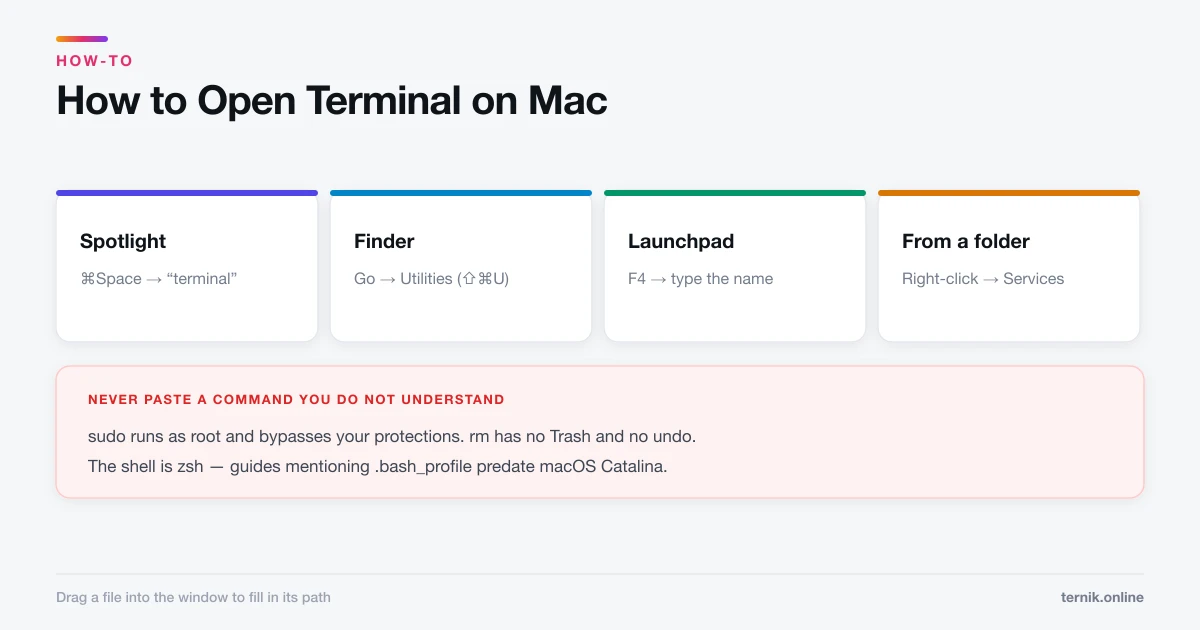
- Services → New Terminal at Folder — see how to open Terminal.
- Show Package Contents — open an app bundle as a folder.
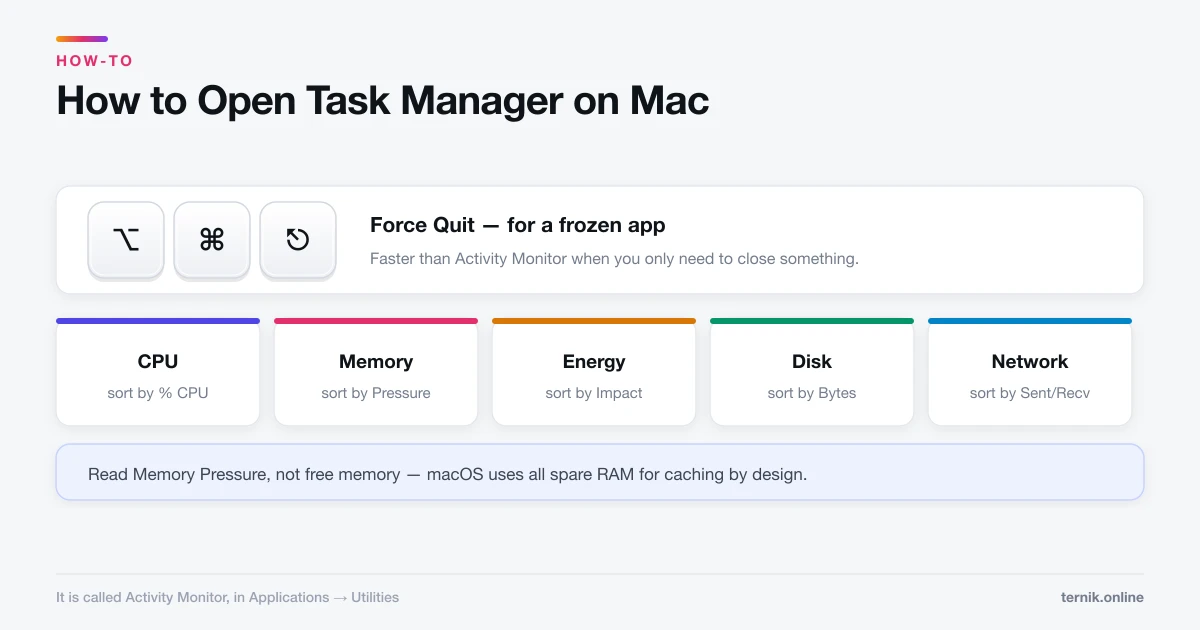
- Dock icon menus — including Force Quit when you hold Option, an alternative to the Activity Monitor route.
Related trackpad settings worth knowing
While you are in Trackpad settings, two others cause frequent confusion:
- Tap to click — off by default. With it off, a light tap does nothing and you must press until the trackpad clicks. Turning it on makes two-finger tapping work as secondary click too.
- Look up & data detectors — a three-finger tap or force click, which surprises people who trigger it accidentally.
Silent Clicking, on Macs with Force Touch trackpads, changes the feedback but not the behaviour.
If secondary click stops working
- Check the setting first. Software updates occasionally reset trackpad preferences.
- Try Control-click. If that works, the hardware is fine and it is a settings problem.
- Test an external mouse. A third-party mouse with a real right button bypasses trackpad settings entirely.
- Check for a stuck modifier. A jammed Control or Caps Lock key can distort click behaviour.
- Boot into safe mode. If secondary click works there, third-party software — window managers and mouse utilities especially — is interfering. How to boot a Mac in safe mode covers it.
Hardware failure of a trackpad is rare and usually comes with other symptoms: the cursor jumping, clicks registering twice, or the surface feeling physically different. A swollen battery beneath the trackpad is a genuine cause on older laptops, and one worth taking seriously — run Apple Diagnostics if you suspect it.
Coming from Windows
The mapping is straightforward once you know Control replaces nothing here — Command is the key that replaces Ctrl for shortcuts, as covered in how to copy and paste on a Mac, while Control is reserved for things like this. Right-click behaviour is otherwise identical, and every context menu you expect is present.
Frequently asked questions
Tap or click with two fingers. If that does nothing, enable it under System Settings → Trackpad → Point & Click → Secondary click.
Sources
Keep reading
More guides to grow your account.