How to Unzip Files on Mac (And Extract Other Archive Types)
Double-clicking a .zip file extracts it — macOS needs no software for that. RAR and 7z are a different story. Here is what works natively and what does not.
Short answer
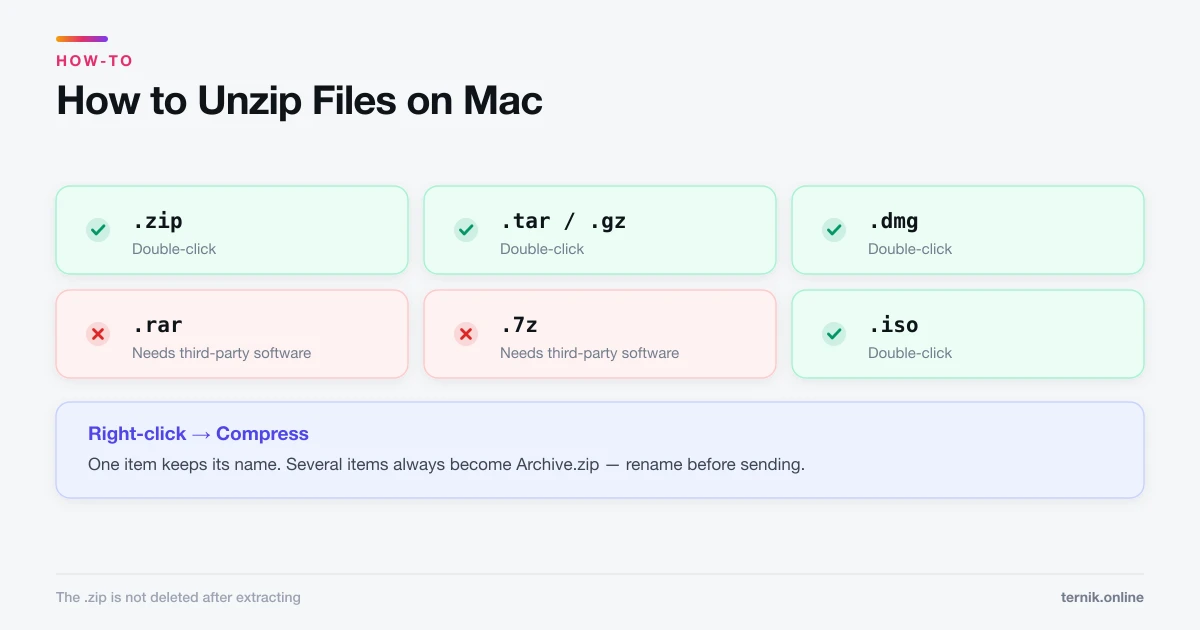
Double-click a .zip file and macOS extracts it into the same folder using Archive Utility. To create one, right-click a file or folder and choose Compress. RAR and 7z archives are not supported natively and need third-party software or the Terminal.
Key takeaways
- Double-click a
.zip— macOS extracts it beside the original. No app required. - Right-click → Compress creates a zip; multiple items become
Archive.zip. - RAR and 7z are not supported natively and need a third-party tool.
- The extracted copy sits next to the archive; the
.zipis not deleted. - Use
unzipin Terminal when you need to control the destination.
How do I unzip a file on a Mac?
Double-click it. Archive Utility — a background app macOS provides — extracts the contents into the same folder as the archive.
A single-file zip produces that file. A zip containing a folder produces the folder. If a folder of the same name already exists, macOS creates name 2 rather than overwriting, which is a sensible default but leaves duplicates behind if you extract repeatedly.
The .zip file itself is not deleted. Delete it yourself once you have confirmed the contents.
How to create a zip
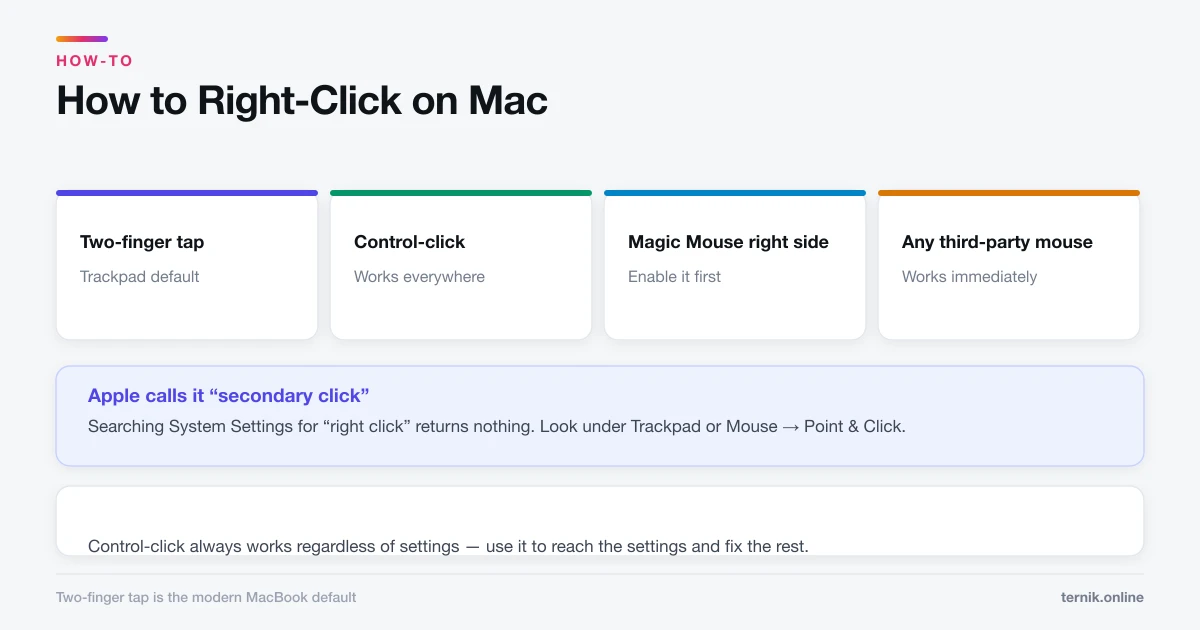
One item. Right-click (or two-finger tap) the file or folder in Finder and choose Compress "name". You get name.zip alongside it.
Several items. Select them all, right-click, and choose Compress N Items. The result is always called Archive.zip, so rename it before sending — an inbox full of files called Archive.zip helps nobody.
Compression is lossless, and gains vary enormously by content. Text, spreadsheets, and code shrink dramatically. Photos, video, and PDFs are already compressed and barely move — if your goal is a smaller PDF specifically, zipping is the wrong tool and compressing the PDF itself is the right one.
What macOS can and cannot open
| Format | Native support |
|---|---|
.zip |
Yes — double-click |
.tar, .gz, .tar.gz |
Yes — double-click |
.dmg |
Yes — disk image, double-click to mount |
.rar |
No — needs third-party software |
.7z |
No — needs third-party software |
.iso |
Usually mounts, depending on contents |
RAR is the one that catches people out. It is a proprietary format and macOS has never included support. You need either a dedicated extraction app or the command line.
If you go the app route, install from the Mac App Store or the developer's own site rather than a search advertisement. Archive utilities are a well-worn adware delivery channel, and a "free RAR opener" from a pop-up is a textbook case of the pattern described in how to check for malware on a Mac.
Unzipping in Terminal
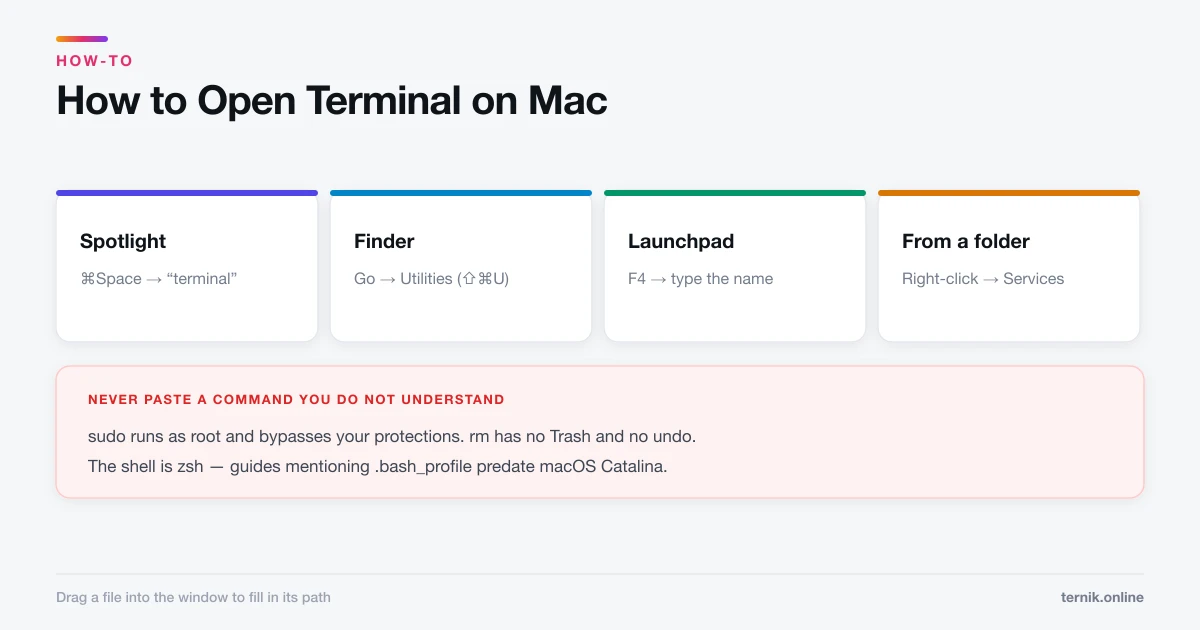
Useful when you want the files somewhere specific, or you are working over SSH. Open Terminal — see how to open Terminal on a Mac — then:
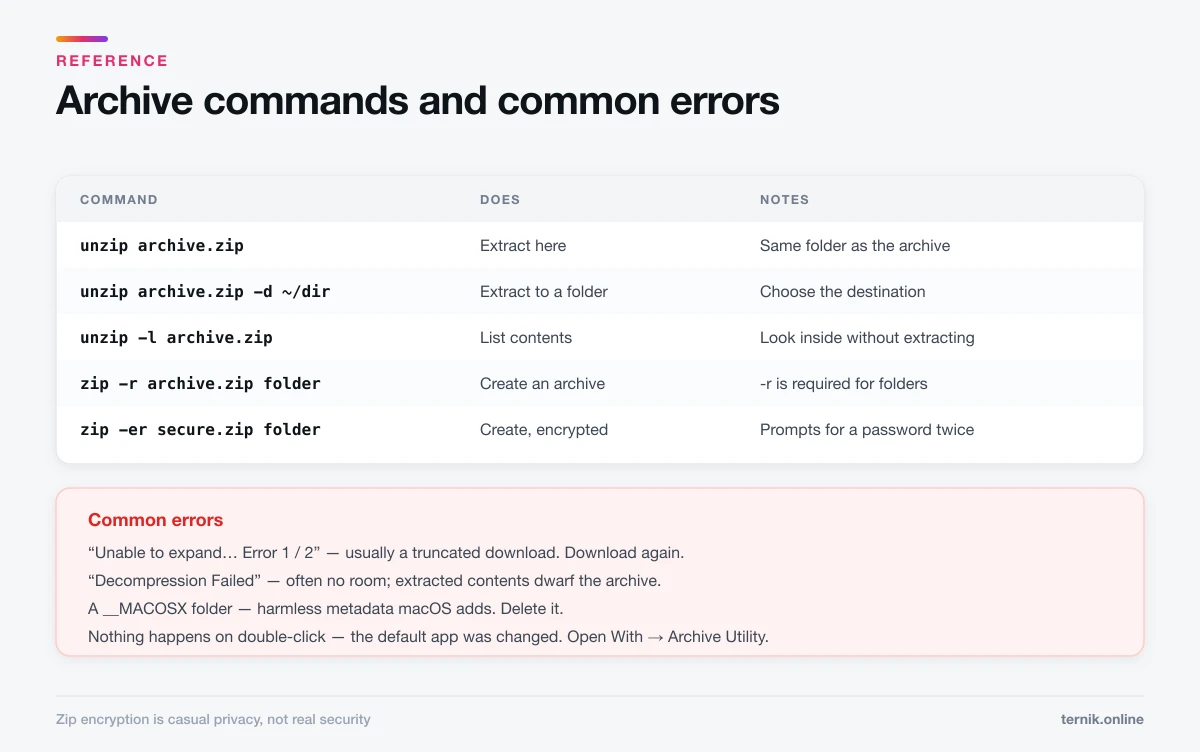
unzip archive.zip
To choose a destination:
unzip archive.zip -d ~/Documents/target
To look inside without extracting:
unzip -l archive.zip
And to create one:
zip -r archive.zip foldername
The -r is required for folders — without it you get an empty archive. Dragging a file from Finder into the Terminal window fills in its full path, which saves typing.
Password-protected archives
Finder can open a password-protected zip — it prompts you — but cannot create one. For that, use Terminal:
zip -er secure.zip foldername
The -e requests encryption and prompts for a password twice.
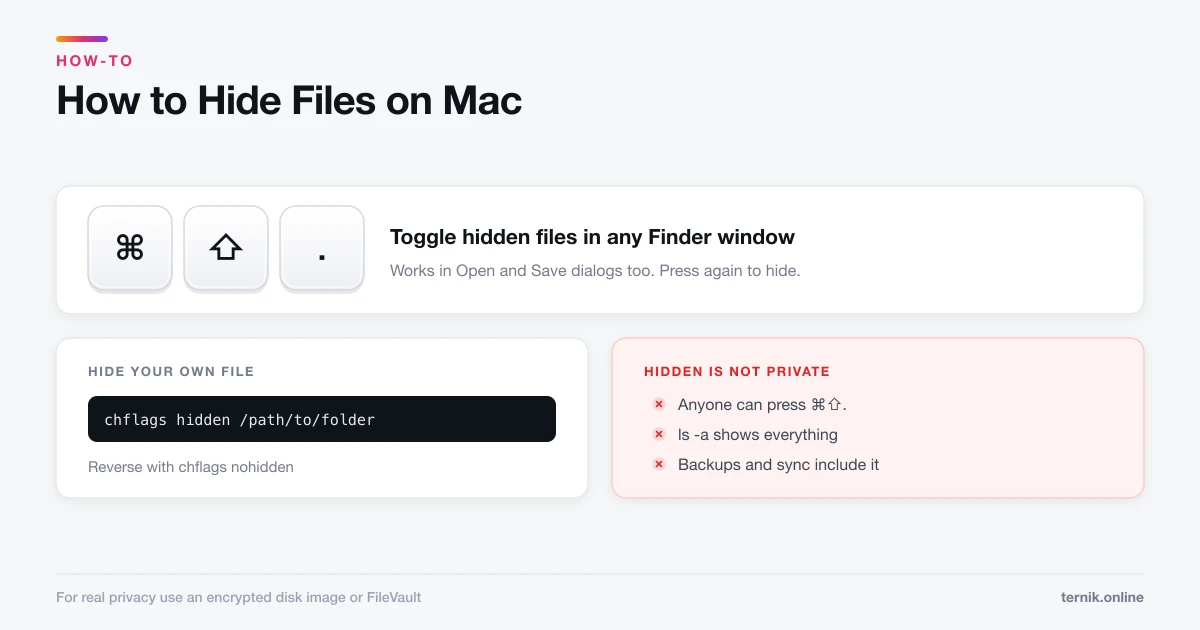
Be clear-eyed about the protection this offers. Zip encryption is adequate for casual privacy, not for genuinely sensitive material — the format has known weaknesses and the password is only as good as its length. For anything that matters, an encrypted disk image is the better tool, as covered in how to hide files on a Mac.
Common problems
"Unable to expand… Error 1 / Error 2." Usually a truncated download. Download the file again before assuming it is corrupt. Error 2 in particular often means the archive is incomplete.
"Decompression Failed." Sometimes a disk space problem — the extracted contents can be several times the archive size. Check free space under System Settings → General → Storage.
The zip opens as a folder of unfamiliar files. You may be looking at a .pages, .numbers, or app bundle that Finder normally treats as a single item. Do not reorganise the contents.
Extraction produces a __MACOSX folder. Harmless metadata that macOS adds when creating archives. Delete it; recipients on Windows see it too and it means nothing to them.
Nothing happens on double-click. The default app for .zip has been changed. Right-click → Open With → Archive Utility, and use "Change All…" in Get Info to restore the default.
Sending archives to Windows users
Zip is the safe choice — Windows opens it without extra software. Two courtesies: rename Archive.zip to something meaningful, and avoid characters like : ? * in filenames, which are legal on macOS and illegal on Windows. A file that will not extract on the other end is usually a filename problem, not a corruption problem.
Frequently asked questions
Double-click it. Archive Utility extracts the contents into the same folder. The original .zip stays in place until you delete it.
Sources
Keep reading
More guides to grow your account.