How to Open Terminal on Mac (Four Ways)
Spotlight is the fastest route to Terminal, but Finder, Launchpad, and a Finder right-click each have their uses. Here is every method plus the safety rules.
Short answer
Press Command-Space, type Terminal, and press Return. You can also open Applications > Utilities > Terminal in Finder, find it in Launchpad, or right-click a folder and choose Services > New Terminal at Folder to open it already pointed at that directory.
Key takeaways
- ⌘Space → type "terminal" → Return is the fastest route.
- Terminal lives in Applications → Utilities, not the top level of Applications.
- Right-click a folder → Services → New Terminal at Folder opens it in that directory.
- Keep it in the Dock if you use it weekly; right-click the icon → Options → Keep in Dock.
- Never paste a command you do not understand, especially one involving
sudoorrm.
How do I open Terminal on a Mac?
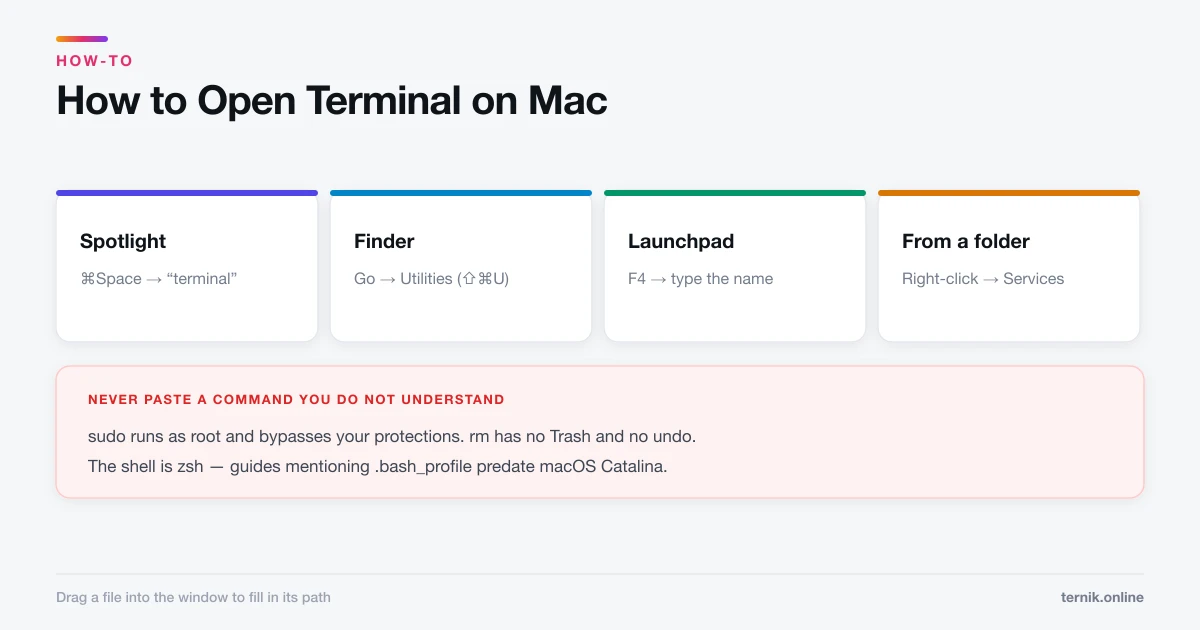
Spotlight — the fast way. Press Command-Space, type terminal, press Return. Two seconds, no navigation.
Finder. Open Finder, choose Go → Utilities (or press Shift-Command-U), then double-click Terminal. The Utilities folder sits inside Applications, which is why people scrolling the Applications list alone never find it.
Launchpad. Press F4 or pinch with thumb and three fingers, then type terminal. Utilities appears as a folder there too.
From a specific folder. In Finder, right-click a folder and choose Services → New Terminal at Folder. Terminal opens already pointed at that directory, which saves typing a long cd path. If you do not see it, enable it under System Settings → Keyboard → Keyboard Shortcuts → Services → Files and Folders.
Which method to use
| Situation | Best route |
|---|---|
| Just need a shell | Spotlight |
| Working inside a known folder | Right-click → New Terminal at Folder |
| Do not know where it lives | Finder → Go → Utilities |
| Use it constantly | Keep it in the Dock |
Keeping it to hand
If you open Terminal more than occasionally, pin it: launch it once, then right-click its Dock icon and choose Options → Keep in Dock.
Inside Terminal itself, two shortcuts do most of the work — Command-N for a new window, Command-T for a new tab in the same window. Tabs are the better habit when you need one shell running a process and another free for commands.
Terminal, zsh, and what you are actually looking at
Terminal is the window. The thing interpreting what you type is the shell, and on current macOS that is zsh. Older guides referring to bash and .bash_profile predate the 2019 switch; the equivalent config file is now ~/.zshrc.
The prompt tells you three things before you type anything:
rowan@MacBook-Pro ~ %
That is your username, the machine name, the current directory (~ is your home folder), and the prompt character. A % is zsh; a $ usually means bash; a # means you are running as root, which you should almost never see.
The commands worth knowing first
Four commands cover most casual use:
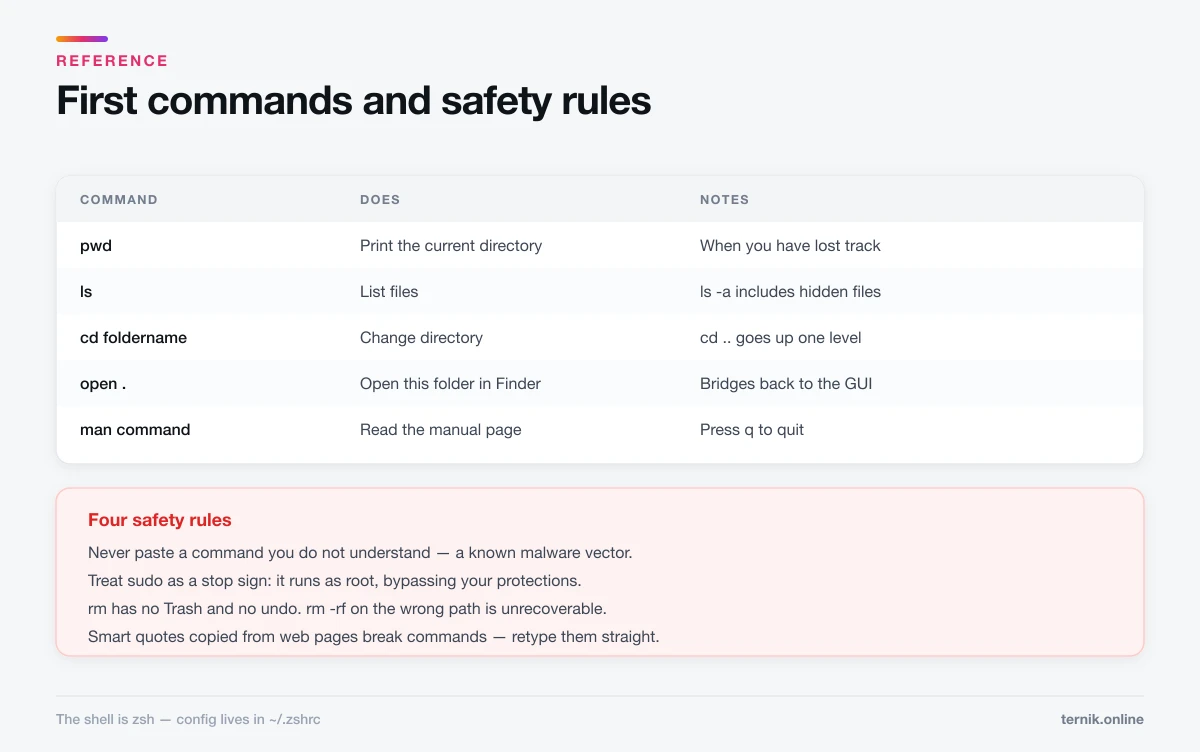
pwd— print the current directory, when you have lost track.ls— list files.ls -aincludes hidden ones, which is how you inspect the dotfiles behind hiding files on a Mac.cd foldername— change directory.cd ..goes up one level.open .— open the current directory in Finder.
Drag any file or folder from Finder into a Terminal window and macOS types its full path for you. It is the single most useful habit for avoiding typos in long paths.
Safety rules that actually matter
Terminal will do exactly what you tell it, including destroying your system, without a confirmation dialog. Four rules:
- Never paste a command you do not understand. "Fix your slow Mac with this one command" posts are a well-established malware vector.
- Treat
sudoas a stop sign. It runs the command as root, bypassing the protections that normally save you. - Be extremely careful with
rm. There is no Trash and no undo.rm -rfon the wrong path is unrecoverable. - Watch out for smart quotes. Text copied from a web page may carry curly quotes, which the shell rejects. Retype them straight.
If a command's purpose is not clear, man <command> opens its manual page. Press q to quit.
When Terminal is and is not the right tool
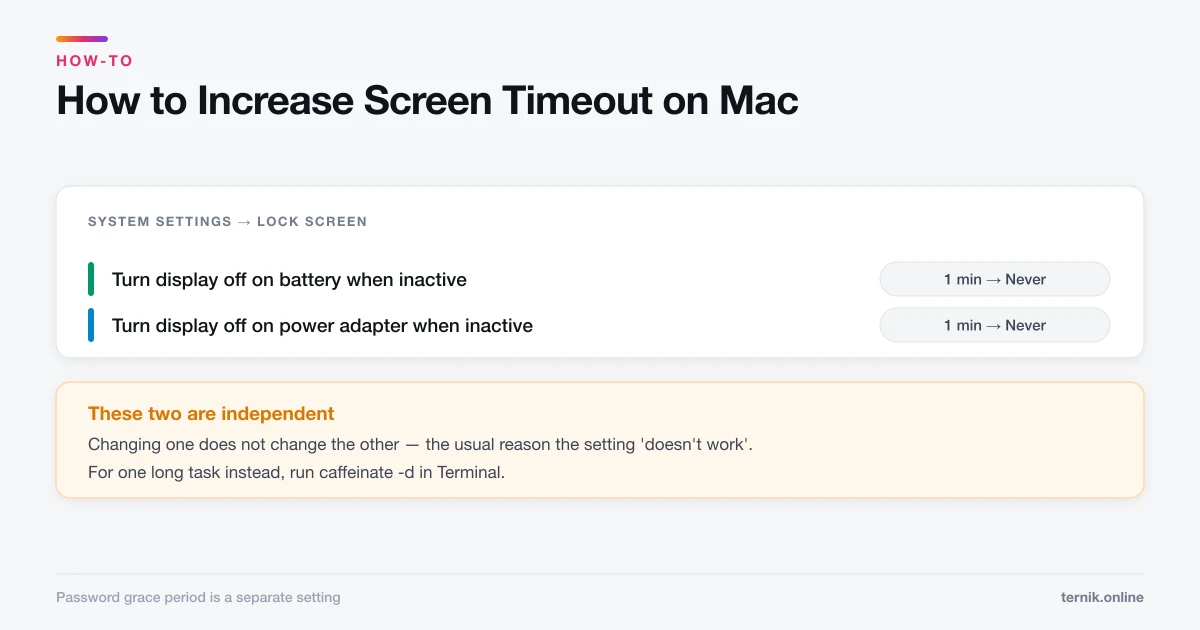
Terminal is genuinely the best option for things the interface does not expose — setting the screenshot file format, hiding files with chflags, or keeping a Mac awake with caffeinate while raising the display timeout.
It is the wrong tool when a supported interface exists. Removing an app, clearing caches, or checking hardware all have safer routes that do not risk a typo taking out a system directory.
If Terminal will not open at all, or quits on launch, that is usually a corrupt preference file — and a good candidate for booting into safe mode to confirm it is software rather than hardware.
Frequently asked questions
There is no single dedicated shortcut. The fastest route is Command-Space for Spotlight, then type 'terminal' and press Return.
Sources
Keep reading
More guides to grow your account.