How to Increase Screen Timeout on Mac (Stop the Display Sleeping)
macOS splits display sleep across two settings that behave differently on battery and power. Here is where each one lives and how to stop your screen dimming mid-task.
Short answer
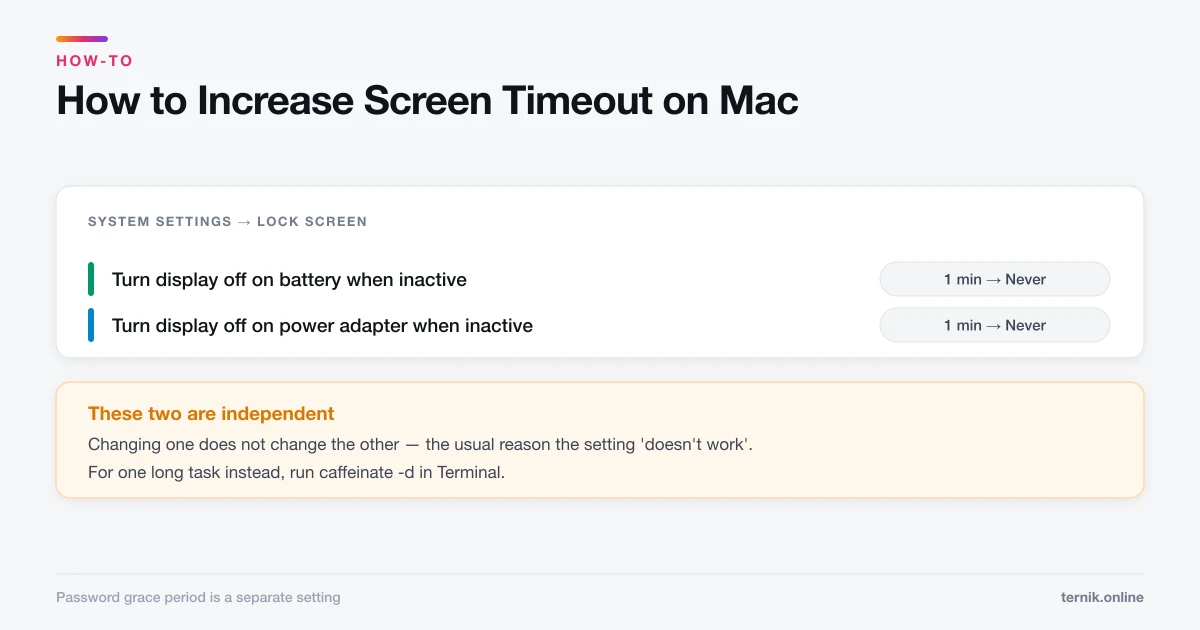
Go to System Settings > Lock Screen and raise 'Turn display off on battery when inactive' and 'Turn display off on power adapter when inactive'. These are separate settings, so changing one does not affect the other. A separate option below controls how soon a password is required after the display sleeps.
Key takeaways
- The setting lives in System Settings → Lock Screen, not Displays or Battery.
- Battery and power adapter are separate values — change both or you will hit the short one.
- "Require password after screen saver begins" is a different setting to display sleep.
- Never on battery will flatten a laptop that gets closed without sleeping properly.
- For a one-off long task,
caffeinatein Terminal beats permanently changing the setting.
Where is the screen timeout setting on a Mac?
Apple menu → System Settings → Lock Screen. The two you want are at the top:
- Turn display off on battery when inactive
- Turn display off on power adapter when inactive
Each offers 1, 2, 3, 5, 10, 20 minutes, 1 hour, 2 hours, 3 hours, or Never. A desktop Mac shows only the power adapter option.
The most common mistake is raising one and assuming it applied to both. Unplug a laptop after changing only the power adapter value and the display still sleeps after two minutes, which reads as the setting not working.
The other settings people confuse with it
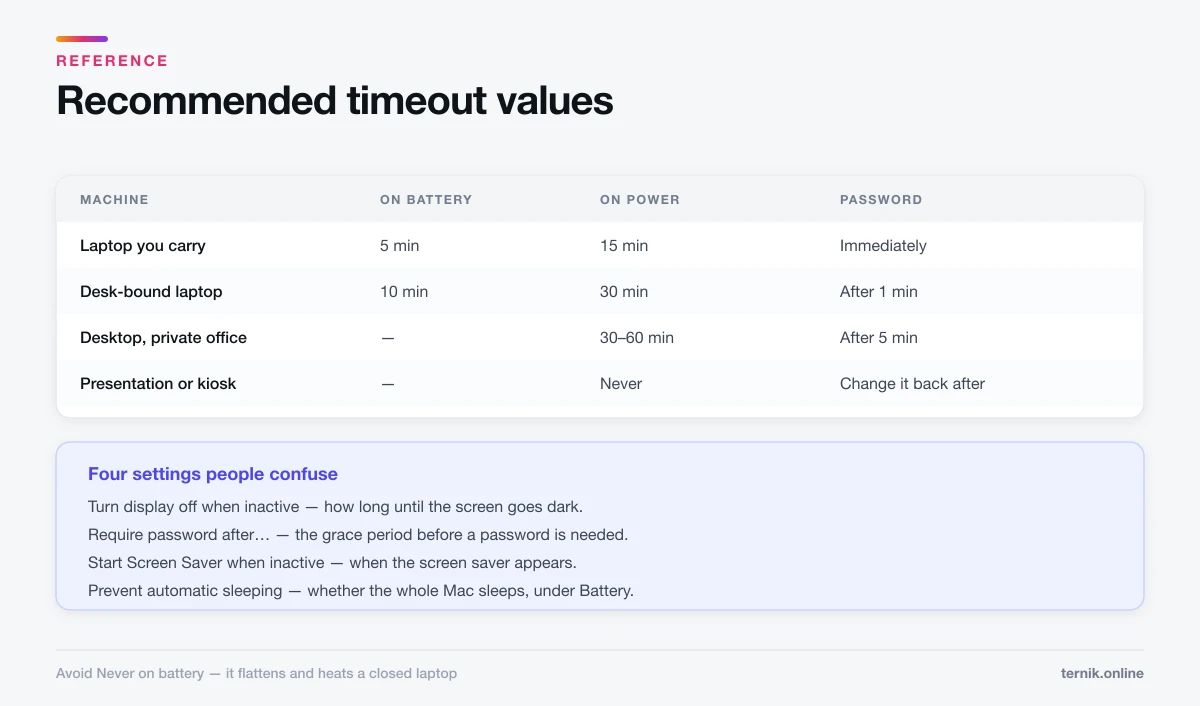
Three separate things govern what happens when you step away, and they are easy to conflate.
| Setting | Where | What it controls |
|---|---|---|
| Turn display off when inactive | Lock Screen | How long until the screen goes dark |
| Require password after… | Lock Screen | Grace period before a password is needed |
| Start Screen Saver when inactive | Lock Screen | When the screen saver appears |
| Prevent automatic sleeping | Battery / Energy Saver | Whether the whole Mac sleeps |
A frequent frustration — "my screen stays on but the Mac still locks" — is the password grace period, not display sleep. Set Require password after screen saver begins or display is turned off to a longer interval, or Never on a machine you physically control.
Recommended values
There is a real security trade-off here, so match it to the machine:
- Laptop you carry — 5 minutes on battery, 15 on power, password required immediately. A short timeout is your main defence if you walk away in a café.
- Desk-bound laptop — 10 on battery, 30 on power, password after 1 minute.
- Desktop in a private office — 30 minutes to 1 hour, password after 5 minutes.
- Presentation or kiosk — Never while plugged in, and change it back afterwards.
Avoid Never on battery. A laptop whose display never sleeps and whose lid gets closed against a bag can run its battery flat and get hot doing it — and heat is the single biggest factor in battery health.
Stopping sleep for one task only
Permanently disabling sleep to protect a two-hour render is overkill. macOS ships a command for exactly this. Open Terminal — see how to open Terminal on a Mac if that is unfamiliar — and run:
caffeinate -d
The display stays awake until you press Control-C. To bound it to two hours:
caffeinate -d -t 7200
Or tie it to a specific job so the Mac sleeps normally the moment that job finishes:
caffeinate -d -w 12345
where 12345 is the process ID. Nothing is left changed afterwards, which is the advantage over toggling settings you then forget to restore.
When the screen sleeps anyway
- You changed only one of the two values. The commonest cause by far. Check both.
- Low Power Mode is on. Under Battery, it shortens timeouts regardless of your setting.
- A configuration profile is enforcing it. Work and school Macs frequently lock this down under System Settings → General → Device Management. On a personal Mac, an unexpected profile there is a red flag worth checking for adware.
- Hot corners. A corner set to "Put Display to Sleep" will blank the screen the moment the pointer strays there. Check Desktop & Dock → Hot Corners.
Screen timeout versus system sleep
Display sleep turns off the screen while the Mac keeps running — downloads continue, and waking is instant. System sleep suspends the whole machine, pausing everything until you wake it.
Raising display timeout does not stop system sleep. If a long download is being interrupted, the setting you need is under Battery → Options (laptops) or Energy Saver (desktops), where "Prevent automatic sleeping on power adapter when the display is off" keeps the Mac working with the screen dark.
That combination — dark screen, machine awake — is usually what people actually want, and it saves considerably more power than leaving the display lit. If the Mac is behaving oddly around sleep and wake generally, rather than just timing out early, a hardware diagnostic will rule out a sensor or power fault.
Frequently asked questions
System Settings → Lock Screen. Adjust 'Turn display off on battery when inactive' and 'Turn display off on power adapter when inactive' separately.
Sources
Keep reading
More guides to grow your account.