How to Uninstall Apps on Mac (and Remove Leftover Files)
Dragging an app to the Trash removes the app but leaves preference and support files behind. Here is how to uninstall properly for App Store, downloaded, and installer-based apps.
Short answer
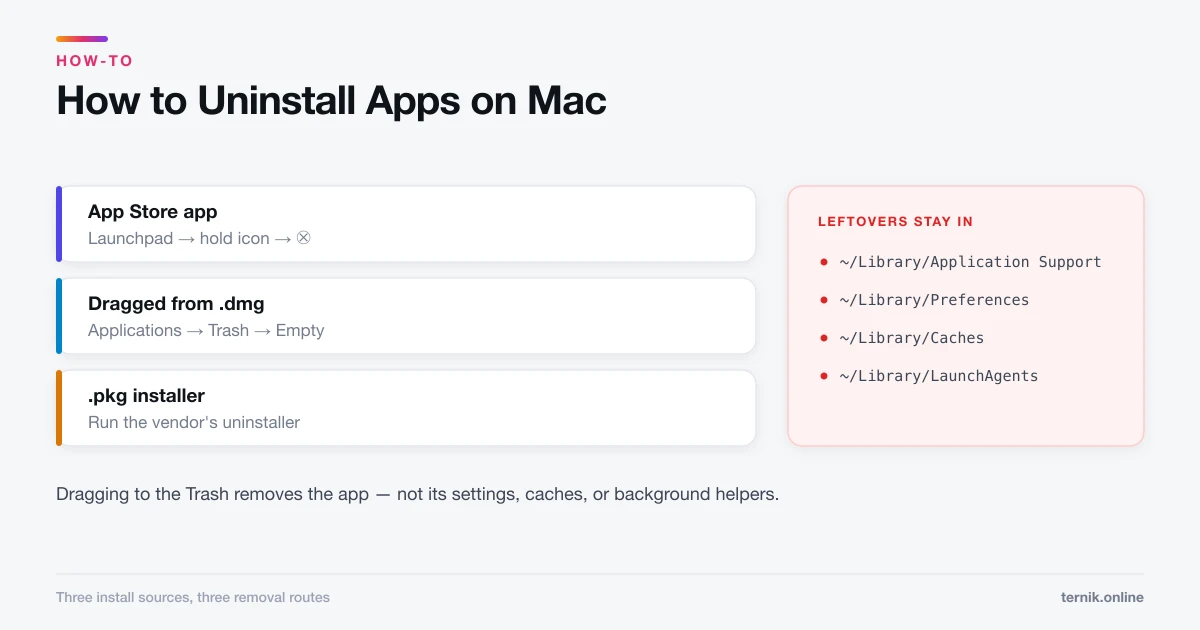
Drag the app from the Applications folder to the Trash and empty it, or hold the icon in Launchpad and click the delete button for App Store apps. Leftover preference and support files stay in your Library folder and must be removed separately if you want the space back.
Key takeaways
- Most Mac apps uninstall by dragging them from Applications to the Trash, then emptying it.
- App Store apps can be removed from Launchpad by holding the icon until it jiggles.
- Apps installed by a
.pkginstaller often ship a dedicated uninstaller — use it. - Deleting the app leaves preference and support files in
~/Library, usually a few megabytes. - Never delete anything from
/System— macOS protects it, and forcing the issue breaks the OS.
What is the correct way to uninstall a Mac app?
Open Finder → Applications, drag the app to the Trash, and empty the Trash. That is the supported method for the great majority of Mac software, and unlike Windows there is no central "Add or Remove Programs" panel to visit first.
The catch is that this removes the application bundle and nothing else. Settings, caches, and support files remain in your Library folder. For most apps that is a trivial amount of space and harmless. For a handful — video editors, virtualisation tools, anything with a large media cache — it can be gigabytes.
The three kinds of Mac app, and how each uninstalls
Which method you need depends on how the app arrived.
| How it was installed | How to uninstall |
|---|---|
| Mac App Store | Launchpad → hold icon → click the ⊗ button |
Dragged from a .dmg |
Drag from Applications to the Trash |
Run from a .pkg installer |
Look for a bundled uninstaller first |
App Store apps
- Open Launchpad (F4, or pinch with thumb and three fingers on the trackpad).
- Click and hold any icon until they all jiggle.
- Click the ⊗ on the app you want gone.
- Confirm.
Apps that did not come from the App Store show no ⊗ — that is expected, not a fault. Use Finder for those.
Apps you dragged in from a disk image
Open Applications, drag the app to the Trash, empty the Trash. You may be asked for your administrator password. If macOS says the app is still open, quit it first — Option-Command-Esc force-quits anything stuck.
Apps with a `.pkg` installer
Installer-based software — printer drivers, VPN clients, audio interfaces, antivirus suites — spreads files across the system and cannot be fully removed by dragging. Check for an uninstaller in this order:
- Inside the app's own folder in Applications.
- On the original
.dmgor installer you downloaded. - On the developer's support page.
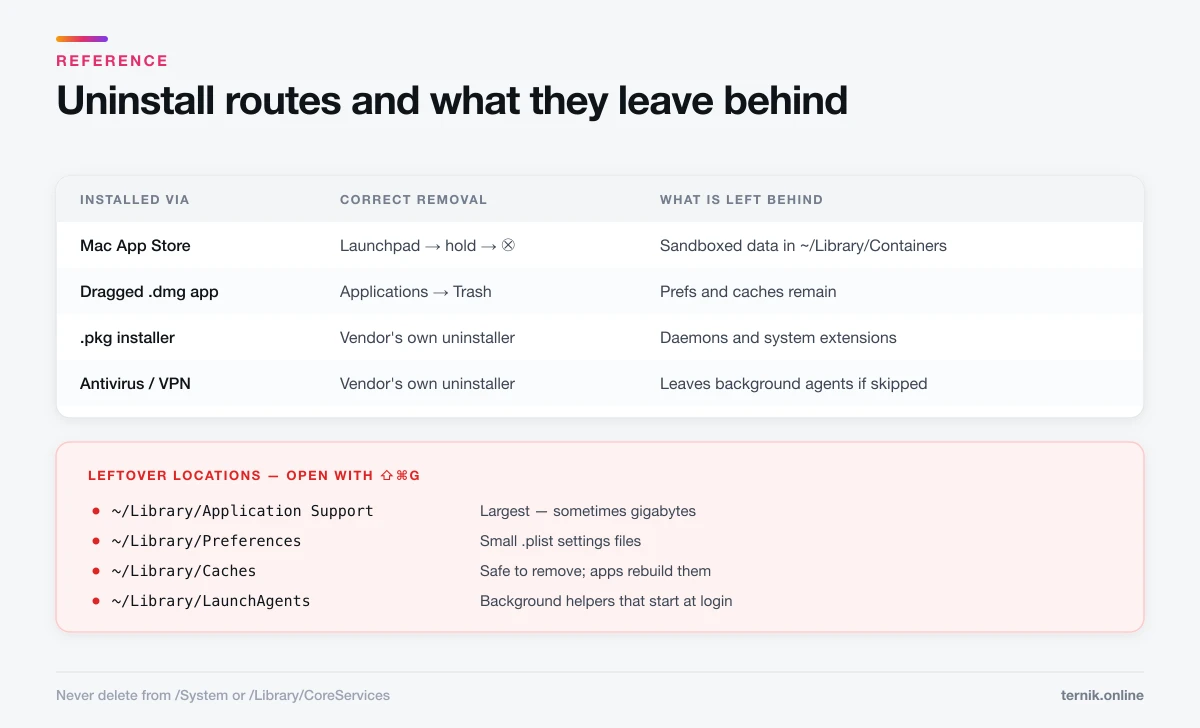
Antivirus and VPN software especially install background daemons and system extensions. Removing the app bundle alone leaves those running. Use the vendor's uninstaller.
How to remove leftover files
Application leftovers live in your user Library, which Finder hides by default. To open it, press Shift-Command-G in Finder and enter ~/Library.
Check these folders for items named after the app or its developer:
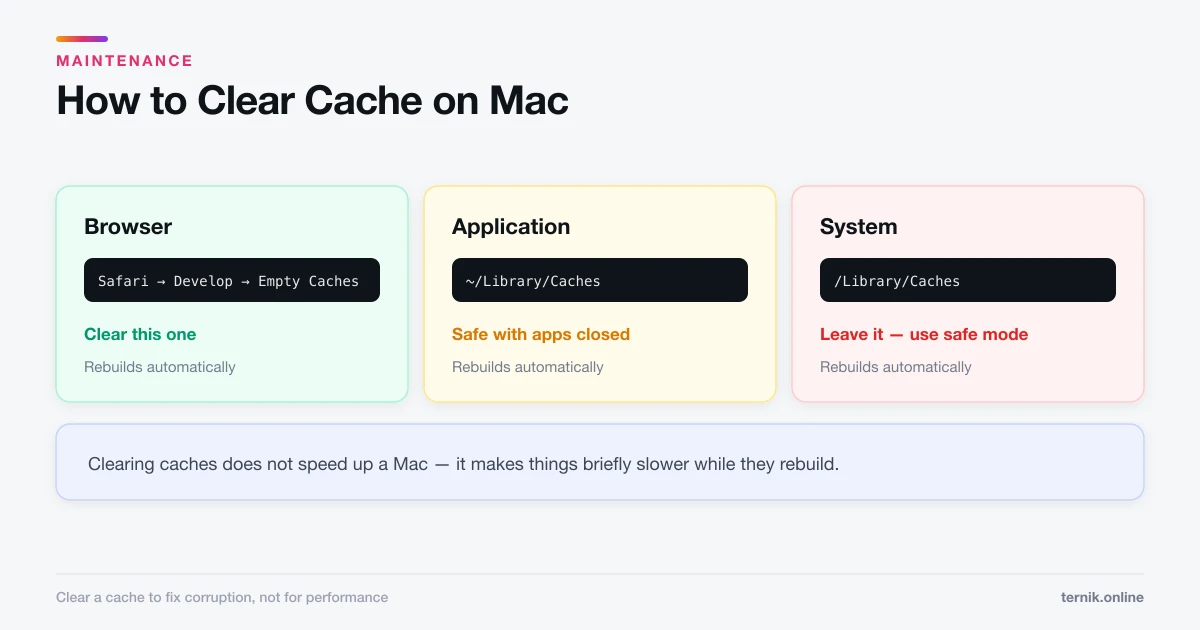
~/Library/Application Support/— the largest offenders, sometimes gigabytes~/Library/Preferences/— small.plistsettings files~/Library/Caches/— safe to remove; apps rebuild them~/Library/Containers/— sandboxed App Store app data~/Library/LaunchAgents/— background helpers that start at login~/Library/Saved Application State/— restores windows on relaunch
Two rules keep this safe. Match the name precisely — deleting com.apple.finder.plist because it looks unfamiliar will cost you your Finder settings. And move to the Trash rather than deleting outright, so you can restore if an app you still use starts behaving oddly.
Skip the leftovers entirely if you might reinstall. Keeping preferences means your licence key and settings survive the round trip.
Should you use a third-party uninstaller?
Dedicated uninstallers find associated files more thoroughly than manual searching, and for messy apps that is genuinely useful.
Be selective about which one. This category is full of "cleaner" utilities that overstate problems to sell subscriptions, and some are adware themselves. Stick to well-known paid tools, download from the developer's own site, and treat any app that reports hundreds of urgent "issues" as a marketing device rather than a diagnostic. If a cleaner arrived via a pop-up warning you about a virus, you are looking at the problem, not the solution — see how to check for malware on a Mac.
Uninstalling to free up disk space
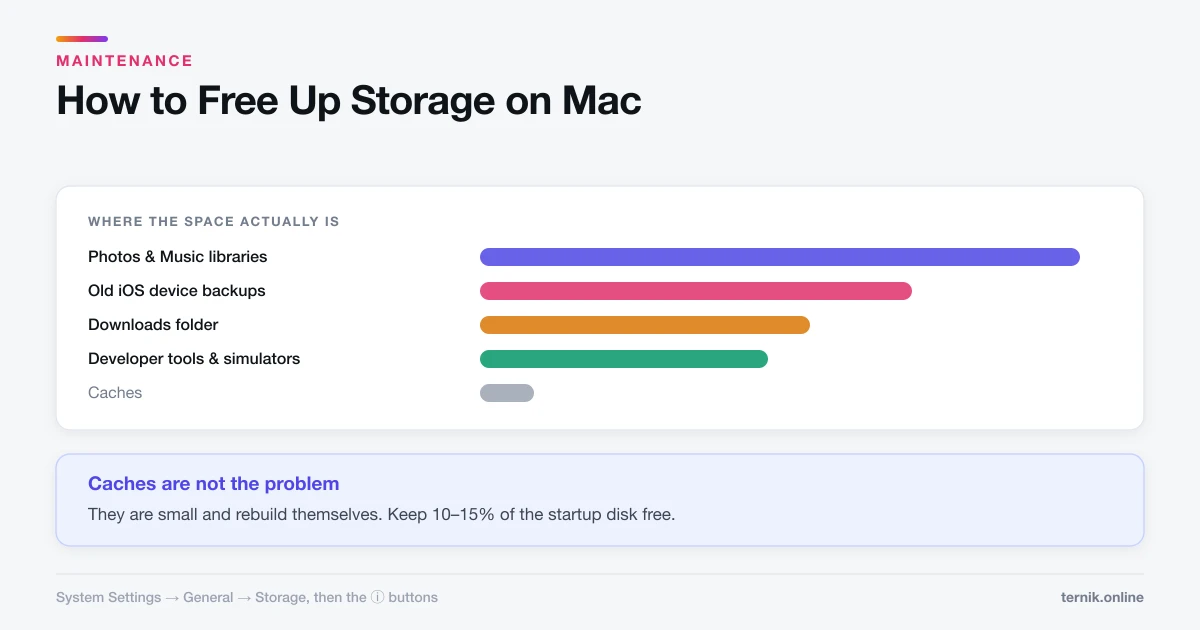
If space is the goal, target the right things first. Go to Apple menu → System Settings → General → Storage for a breakdown by category, and use the "i" buttons to list the largest applications.
In practice the space is rarely in your apps:
- Media libraries — Photos and Music dwarf most applications.
- iOS device backups — several gigabytes each, easily forgotten.
- Downloads — old installers you never cleared.
- Xcode simulators, if you develop — routinely 20 GB or more.
Uninstalling a 200 MB app you never use is tidy but will not fix a full startup disk. If a process rather than a file is the problem, Activity Monitor will show you which one, and clearing a specific app's cache is a lighter fix than removing the app entirely. If the machine feels slow rather than full, storage may not be the issue at all — run Apple Diagnostics to check the hardware before deleting anything.
What you must not delete
Do not remove anything from /System or /Library/CoreServices. macOS protects these with System Integrity Protection, and disabling SIP to force a deletion is a reliable way to end up reinstalling the OS.
Apple's own bundled apps — Safari, Mail, Photos — cannot be removed on current macOS and should not be. Hide them from the Dock and Launchpad instead if they bother you.
Frequently asked questions
The ⊗ button only appears on apps installed from the Mac App Store. Anything else must be dragged from the Applications folder to the Trash.
Sources
Keep reading
More guides to grow your account.