How to Copy and Paste on Mac (Including Between Devices)
Command-C copies and Command-V pastes — but Mac has no Ctrl, pastes formatting you rarely want, and can move text between your iPhone and Mac automatically.
Short answer
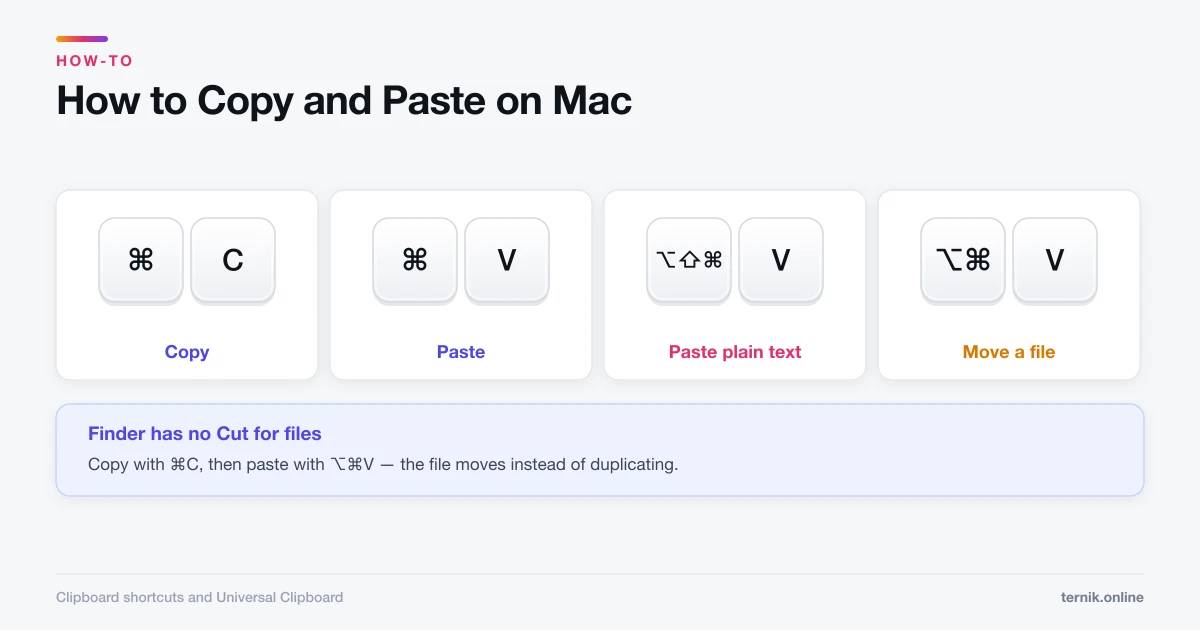
Press Command-C to copy and Command-V to paste. Use Option-Shift-Command-V to paste without formatting, and Option-Command-V after copying to move a file rather than duplicate it. Universal Clipboard copies between a Mac and an iPhone or iPad automatically when both are signed into the same Apple Account.
Key takeaways
- Command-C copies, Command-V pastes, Command-X cuts. Mac uses Command where Windows uses Ctrl.
- Option-Shift-Command-V pastes as plain text, stripping fonts, colours, and links.
- To move a file: copy with Command-C, then paste with Option-Command-V.
- Universal Clipboard copies on an iPhone and pastes on a Mac with no setup beyond the same Apple Account.
- The Mac clipboard holds one item; the Finder clipboard is separate and viewable under Edit → Show Clipboard.
How do you copy and paste on a Mac?
Select what you want, press Command-C, click where it should go, and press Command-V.
The Command key (⌘) sits either side of the space bar. If you are coming from Windows, this is the single adjustment that matters: nearly every Ctrl shortcut becomes a Command shortcut. Ctrl-C becomes Command-C, Ctrl-S becomes Command-S, Ctrl-Z becomes Command-Z.
You can also right-click (or two-finger tap on the trackpad) for Copy and Paste in the menu, or use Edit → Copy in the menu bar. Same clipboard, three routes to it.
The shortcuts worth memorising
| Shortcut | Action |
|---|---|
| Command-C | Copy |
| Command-V | Paste |
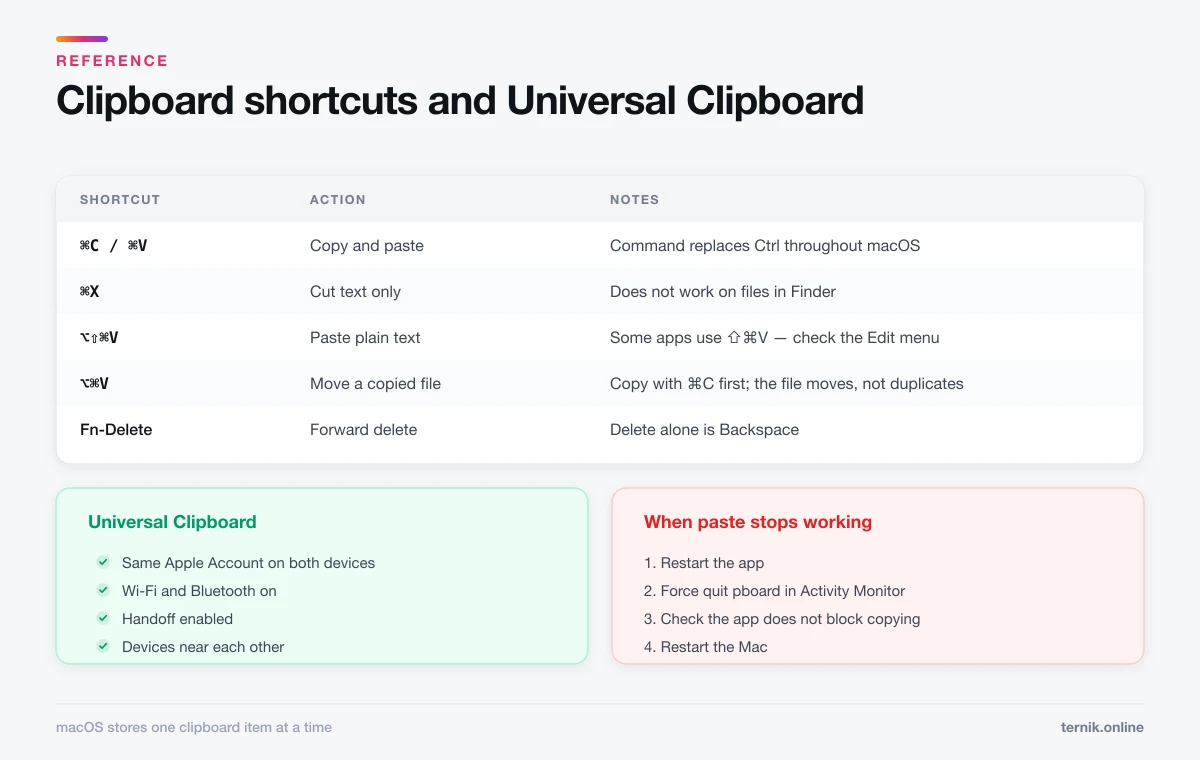
| Command-X | Cut (text only — not files) |
| Option-Shift-Command-V | Paste and match style (plain text) |
| Option-Command-V | Move a copied file instead of duplicating it |
| Command-Z | Undo |
| Command-A | Select all |
How to paste without formatting
Symbols are a related problem — typing emoji and special characters avoids pasting them in from elsewhere entirely. Copying from a web page and pasting into a document normally drags along the source's font, size, colour, and links. Option-Shift-Command-V pastes the text alone, adopting the formatting of wherever it lands.
It is an awkward four-key combination and worth remapping if you use it constantly. In some apps the same command appears as Edit → Paste and Match Style. A few — Slack and certain browsers — use Shift-Command-V instead, so check the Edit menu if the long version does nothing.
Failing that, a plain-text staging post always works: paste into TextEdit in plain-text mode (Shift-Command-T), then copy again.
Cutting and moving files
Command-X does not work on files in Finder. This surprises people, and the Mac approach is genuinely different:
- Select the file and press Command-C.
- Navigate to the destination.
- Press Option-Command-V.
The file moves rather than copies. The distinction is deliberate — the file is never in a limbo state where a crash could lose it, because it is not removed from the source until the paste completes. Plain Command-V duplicates instead.
Dragging with Command held does the same thing between two Finder windows.
Copy and paste between Mac, iPhone, and iPad
Universal Clipboard copies on one device and pastes on another with no explicit sync step. Copy a phone number on your iPhone, switch to your Mac, press Command-V.
It requires:
- Both devices signed into the same Apple Account.
- Wi-Fi and Bluetooth on for both.
- Handoff enabled — on Mac under System Settings → General → AirDrop & Handoff; on iPhone under Settings → General → AirPlay & Continuity.
- The devices near each other, roughly within Bluetooth range.
The clipboard contents expire after a short window, so it is designed for immediate transfers rather than storage. It handles text, images, and files, though large files take a moment to arrive.
When it fails, the cause is almost always Handoff switched off on one device, or one device signed into a different Apple Account. Toggling Bluetooth off and on resolves most of the rest.
The clipboard holds one thing at a time
Copying replaces whatever was there. macOS has no built-in clipboard history, which is the most-missed feature for anyone doing repetitive work.
Two partial answers ship with the system. Finder → Edit → Show Clipboard displays the current contents, useful for confirming what you actually copied. And in Terminal, pbcopy and pbpaste let you pipe the clipboard around from the command line — pbpaste > notes.txt writes it straight to a file.
For real history, a third-party clipboard manager is the answer. Install from the App Store or the developer's own site rather than a search-result ad — a clipboard manager sees everything you copy, including passwords, so it is a poor place to take chances. If you are unsure what is already running on your Mac, check for adware and unwanted background items.
When copy and paste stops working
It happens, and it is usually the clipboard server rather than the app:
- Restart the app. Fastest fix, works surprisingly often.
- Restart
pboard. Open Activity Monitor, searchpboard, select it, and force quit. macOS relaunches it immediately and the clipboard usually recovers. - Check the app's own rules. Some banking and DRM-protected apps block copying deliberately.
- Restart the Mac if the above fails.
Persistent clipboard failures across every app, together with other odd behaviour, are worth a hardware diagnostic — though software is the far likelier cause.
Coming from Windows
Beyond Command replacing Ctrl, three differences catch people out:
- No Cut for files. Use Command-C then Option-Command-V.
- Home and End scroll the document rather than moving the cursor. Use Command-Left and Command-Right for line ends.
- Delete is Backspace. Forward delete is Fn-Delete.
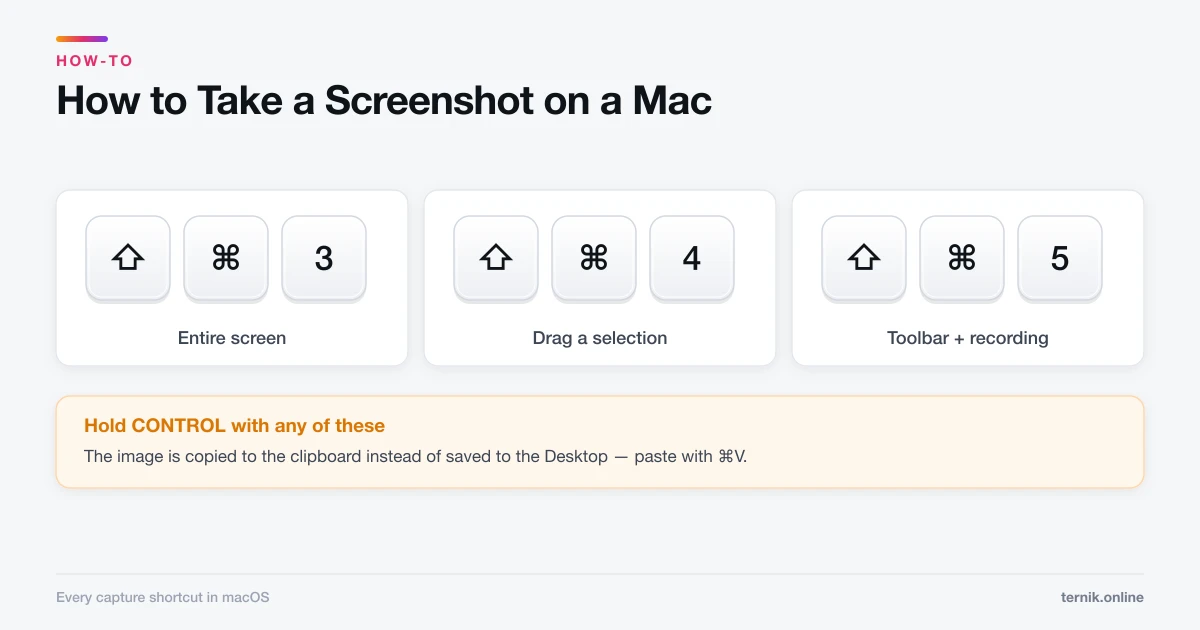
Everything else transfers directly — including screenshot shortcuts, which follow the same Command-based pattern.
Frequently asked questions
Command-C to copy and Command-V to paste. The Mac uses Command where Windows uses Ctrl.
Sources
Keep reading
More guides to grow your account.